Azure Virtual Desktop Client Kiosk - Solution Overview
February 7, 2026 · View on GitHub
Navigation: Overview | Solution Overview | Implementation Guide | Intune Deployment
Introduction
This repository contains a script and supporting artifacts to configure a Windows client operating system to act as a custom Azure Virtual Desktop (AVD) client kiosk using the Remote Desktop Client for Windows.
The solution consists of two main parts: User interface customizations and Remote Desktop client configurations.
The user interface customizations are configured using:
- A Shell Launcher or Multi-App configuration applied via the Assigned Access CSP WMI Bridge.
- A multi-user local group policy object for non-administrative users.
- When the Remote Desktop Client is used the shell (i.e.,
ClientShellswitch is present), an applocker policy that disables Notepad, Internet Explorer, WordPad, and Edge for all Non-Administrators. - When the
ClientShellswitch is not present, one or more provisioning packages that remove pinned items from the start menu and enable Shared PC mode when that switch is used.
The Remote Desktop client configurations are designed to enforce security of the client and access to the Azure Virtual Desktop service. The options can be summarized by the choice of triggers such as 'DeviceRemoval', 'IdleTimeout', or 'SessionDisconnect' (or supported combinations) and trigger actions such as 'Lock the workstation', 'Sign the user out of the workstation' or 'Reset the Remote Desktop client to remove cached credentials'.
This custom kiosk could be used for numerous scenarios including the three shown in Figure 1 below. These scenarios are discussed more in the sections below.
Figure 1: Azure Virtual Desktop Client Kiosk Usage Scenarios

Prerequisites
-
A currently supported version of a Windows client operating system with the choice of editions based on the use of the ClientShell parameter as follows:
- The
ClientShelloption requires one of the following Windows client editions1:- Education
- Enterprise
- Enterprise LTSC
- IoT Enterprise
- IoT Enterprise LTSC
- If you don't pick the
ClientShelloption, then supported Windows client editions include2:- Education
- Enterprise
- Enterprise LTSC
- IoT Enterprise
- IoT Enterprise LTSC
- Pro
- Pro Education
- The
-
The ability to run the installation script as SYSTEM. The instructions are provided in the Implementation Guide.
-
For Scenario 1, you'll need to join the client device to Entra ID or Entra ID Hybrid Join the device.
User Interface
Summary
The user interface experience is determined by several factors and parameters. The parameters are all documented in the Implementation Guide, but the following table outlines the resulting user interface based on the parameter values and operating system.
Table 1: Azure Virtual Desktop User Interface Summary
| ClientShell | AutoLogon | User Interface |
|---|---|---|
| True | True | The default explorer shell will be replaced with the Remote Desktop client for Windows via the Shell Launcher Assigned Access CSP. The Windows 10 (or later) client will automatically logon to the shell with 'KioskUser0' account. The user will be presented with a dialog to logon to Remote Desktop client. This is one option for the user interface in the Scenario 2 configuration. |
| True | False | The default explorer shell will be replaced with the Remote Desktop client for Windows via the Shell Launcher Assigned Access CSP. The user will sign-in to the device using Entra ID credentials and will be automatically signed in to the Remote Desktop client (if 'AutoSubscribe' is selected). |
| False | True | A Multi-App Kiosk configuration is applied via the Assigned Access CSP which automatically locks down the explorer interface to only show the Remote Desktop client. This configuration allows for easier user interaction with remote sessions and the Remote Desktop client along with Display Settings if the option is chosen. The Windows 11 22H2+ client will automatically logon to the shell with 'KioskUser0' account. The user will be presented with a dialog to logon to Remote Desktop client. This is the other Windows 11 (and later) option for the user interface in the Scenario 2 configuration. |
| False | False | This is the default configuration if no parameters are specified when running the script on Windows 11 22H2+. A Multi-App Kiosk configuration is applied via the Assigned Access CSP which automatically locks down the explorer interface to only show the Remote Desktop client. This configuration allows for easier user interaction with remote sessions, the Remote Desktop client interface, and the display settings if the option is chosen. The user will sign-in to the device using Entra ID credentials and will be automatically signed in to the Remote Desktop client (if 'AutoSubscribe' is selected). |
Examples
Multi-App Kiosk
When the operating system of the client device is Windows 11 22H2 or greater, and the ClientShell switch parameter is not specified, the device is configured using the Multi-App Kiosk Assigned Access CSP.
The user interface experience with the ShowSettings switch parameter selected is shown in the video and figures below. You can also see that the remote desktop connection automatically launched because it was the only resource assigned to the user. Click on the first screenshot below to open the video on Youtube.

The figure below illustrates the Multi-App interface and the ease at which a user can have multiple sessions open.
Figure 2: Multi-App Showing a client connection

The figure below illustrates the Settings applet restricted to allow the user to adjust display or sound settings. This would primarily be used in a multi-monitor scenario.
Figure 3: Multi-App Showing Restricted Settings

Shell Launcher
When the ClientShell parameter is selected on any operating system, the default user shell (explorer.exe) is replaced with the Remote Desktop client using the Shell Launcher CSP.
The user interface experience is shown in the video and figure below. Click on the first screenshot below to open the video on Youtube.
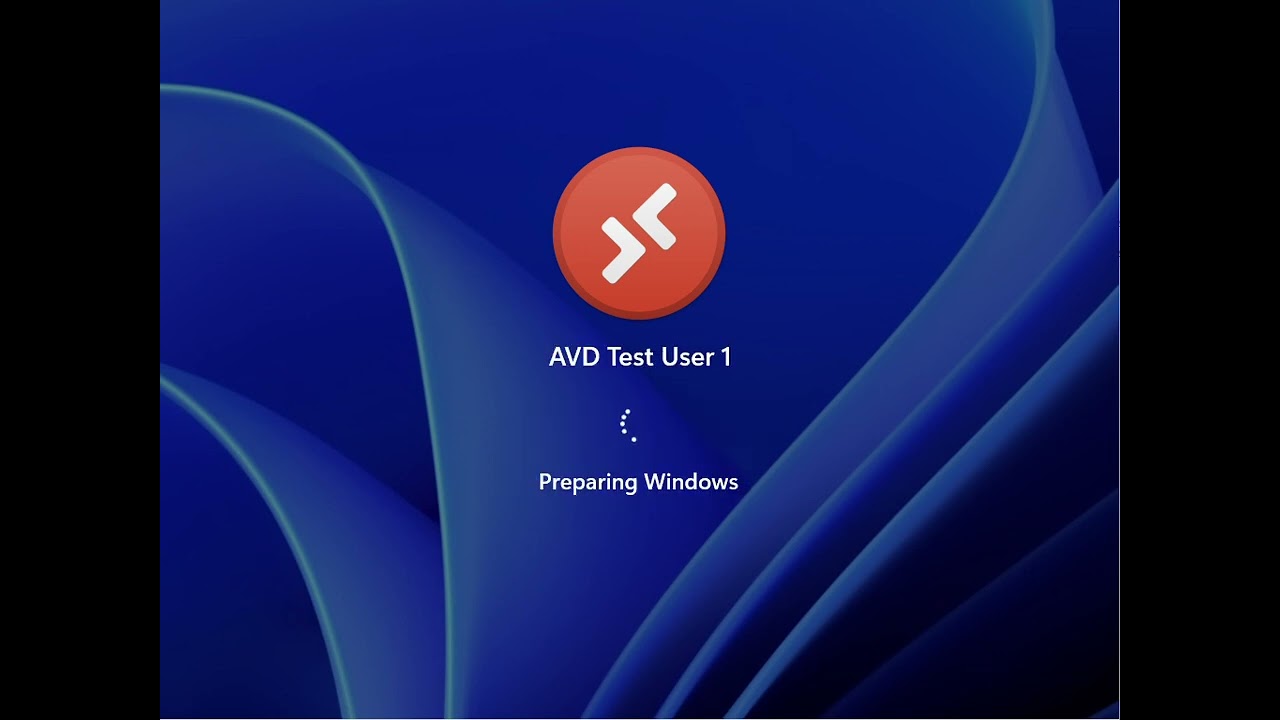
In the figure below, you can see that the interface no longer has a taskbar or Start Menu. This configuration makes it harder to interact with multiple open sessions after going full screen, but not impossible especially with keyboard shortcuts such as WINDOWSKEY-LEFT or RIGHT ARROW.
Figure 4: Shell Launcher full screen

Triggers and Actions
The tables below outline the actions taken based on the Autologon and Trigger Action parameters.
The first trigger action parameter is DeviceRemovalAction. This trigger is activated when a security device, defined as either a smart card or a FIDO2 token with a Vendor ID specified in the DeviceVendorId parameter is removed from the local system.
Table 2: Device Removal Action Summary
| Autologon | DeviceRemovalAction | DeviceType | Behavior |
|---|---|---|---|
| True | ResetClient | Either | The client launch script creates a WMI Event Filter that fires when a user removes their authentication device - either a SmartCard (SmartCard) or a FIDO2 passkey device (DeviceVendorId) or closes the Remote Desktop client, then the launch script resets the client removing the cached credentials and restarts the launch script. |
| Lock | SmartCard | The built-in Smart Card Policy removal service is configured using the SmartCard removal behavior policy to lock the system when the smart card is removed. | |
| Lock | FIDO2 | The client launch script creates a WMI Event Filter that fires when a user removes their FIDO2 passkey device as specified using the DeviceVendorID parameter. When the event is detected, the script locks the computer. | |
| Logoff | SmartCard | The built-in Smart Card Policy removal service is configured using the SmartCard removal behavior policy to Force Logoff the user when the smart card is removed. | |
| Logoff | FIDO2 | The client launch script creates a WMI Event Filter that fires when a user removes their FIDO2 passkey device. When the event is detected, the script forcefully logs the user off the computer. |
The next trigger action parameter is IdleTimeoutAction. This trigger is activated when the local device has seen no user activity. It is measured via the inbuilt machine inactivity timer or via the custom launch script as defined in the table below.
Table 3: Idle Timeout Action Summary
| Autologon | IdleTimeoutAction | Behavior |
|---|---|---|
| True | ResetClient | The client launch script starts a timer at 0. Every 30 seconds, it checks to see if there are cached credentials and no open Remote Connections to resources. If this condition is true, then it increments the counter by 30 seconds. If it is not True, then the counter is reset to 0. If the counter reaches the value specified by the IdleTimeout parameter, then the launch script resets the client removing the cached credentials and restarts the launch script. |
| Lock | The system will lock the computer after the amount of time specified in the IdleTimeout parameter using the Interactive Logon Machine Inactivity Limit built-in policy Windows. | |
| Logoff | The client launch script starts a timer at 0. Every 30 seconds, it checks to see if there are open Remote Connections to resources. If this condition there are no open connections, then it increments the counter by 30 seconds. If there are open connections, then the counter is reset to 0. If the counter reaches the value specified by the IdleTimeout parameter, then the launch script will logoff the user. |
The next trigger action parameter is SystemDisconnectAction. This trigger is activated when a remote desktop connection is disconnected by the system due to inactivity on the remote session host with Entra ID SSO configured to lock the computer or a user connects to the same remote session with another client.
Table 4: System Disconnect Action Summary
| Autologon | SystemDisconnectAction | Behavior |
|---|---|---|
| True | ResetClient | The client launch script creates a WMI Event Filter that fires when a Remote Desktop connection is closed based on an event ID 1026 in the 'Microsoft-Windows-TerminalServices-RDPClient/Operational' log. When this event is detected the event log is queried for reason code = 3 that indicates the connection was closed due to a remote connection (from another client system) or a locked or disconnected session. When these events are detected and there are no other open remote desktop connections, the launch script resets the client removing the cached credentials and restarts the launch script. |
| Lock | The client launch script creates a WMI Event Filter that fires when a Remote Desktop connection is closed based on an event ID 1026 in the 'Microsoft-Windows-TerminalServices-RDPClient/Operational' log. When this event is detected the event log is queried for reason code = 3 that indicates the connection was closed due to a remote connection (from another client system) or a locked or disconnected session. When these events are detected and there are no other open remote desktop connections, the launch script locks the local computer. | |
| Logoff | The client launch script creates a WMI Event Filter that fires when a Remote Desktop connection is closed based on an event ID 1026 in the 'Microsoft-Windows-TerminalServices-RDPClient/Operational' log. When this event is detected the event log is queried for reason code = 3 that indicates the connection was closed due to a remote connection (from another client system) or a locked or disconnected session. When these events are detected and there are no other open remote desktop connections, the launch script signs the user out of the local computer. |
The next trigger action parameter is UserDisconnectSignOffAction. This trigger is activated when a user initiates a sign out in the remote session or disconnects the remote session. It is also triggered when the user closes the AVD Client on the local workstation.
Table 5: User Disconnect or SignOut Action Summary
| Autologon | UserDisconnectSignOutAction | Behavior |
|---|---|---|
| True | ResetClient | The client launch script creates a WMI Event Filter that fires when a Remote Desktop connection is closed based on an event ID 1026 in the 'Microsoft-Windows-TerminalServices-RDPClient/Operational' log. When this event is detected the event log is queried for reason code = 1 or 2 that indicates the connection was closed by the user. When these events are detected and there are no other open remote desktop connections, the launch script resets the client removing the cached credentials and restarts the launch script. |
| Lock | The client launch script creates a WMI Event Filter that fires when a Remote Desktop connection is closed based on an event ID 1026 in the 'Microsoft-Windows-TerminalServices-RDPClient/Operational' log. When this event is detected the event log is queried for reason code = 1 or 2 that indicates the connection was closed by the user. When these events are detected and there are no other open remote desktop connections, the launch script locks the local computer. | |
| Logoff | The client launch script creates a WMI Event Filter that fires when a Remote Desktop connection is closed based on an event ID 1026 in the 'Microsoft-Windows-TerminalServices-RDPClient/Operational' log. When this event is detected the event log is queried for reason code = 1 or 2 that indicates the connection was closed by the user. When these events are detected and there are no other open remote desktop connections, the launch script signs the user out of the local computer. |
Additional Resources
- Azure Virtual Desktop Documentation
- Remote Desktop Client for Windows
- Assigned Access Configuration
- Shell Launcher
- Shared PC Configuration
Footnotes
-
For more information see Shell Launcher Windows Edition Requirements. ↩
-
For more information see Assigned Access Windows Edition Requirements ↩