OpenEdge ABL Formatter [](https://github.com/BalticAmadeus/AblFormatter/actions/workflows/main.yml)
March 19, 2026 · View on GitHub
VSCode extension for Progress OpenEdge ABL code formatting.
This extension uses tree-sitter-abl implementation.
Current status
The OpenEdge ABL Formatter is now available in the VS Code Extension Marketplace.
Note:
- We currently recommend not using the formatter with the on save trigger.
- Use formatting cautiously, especially when working with existing code that is difficult to test.
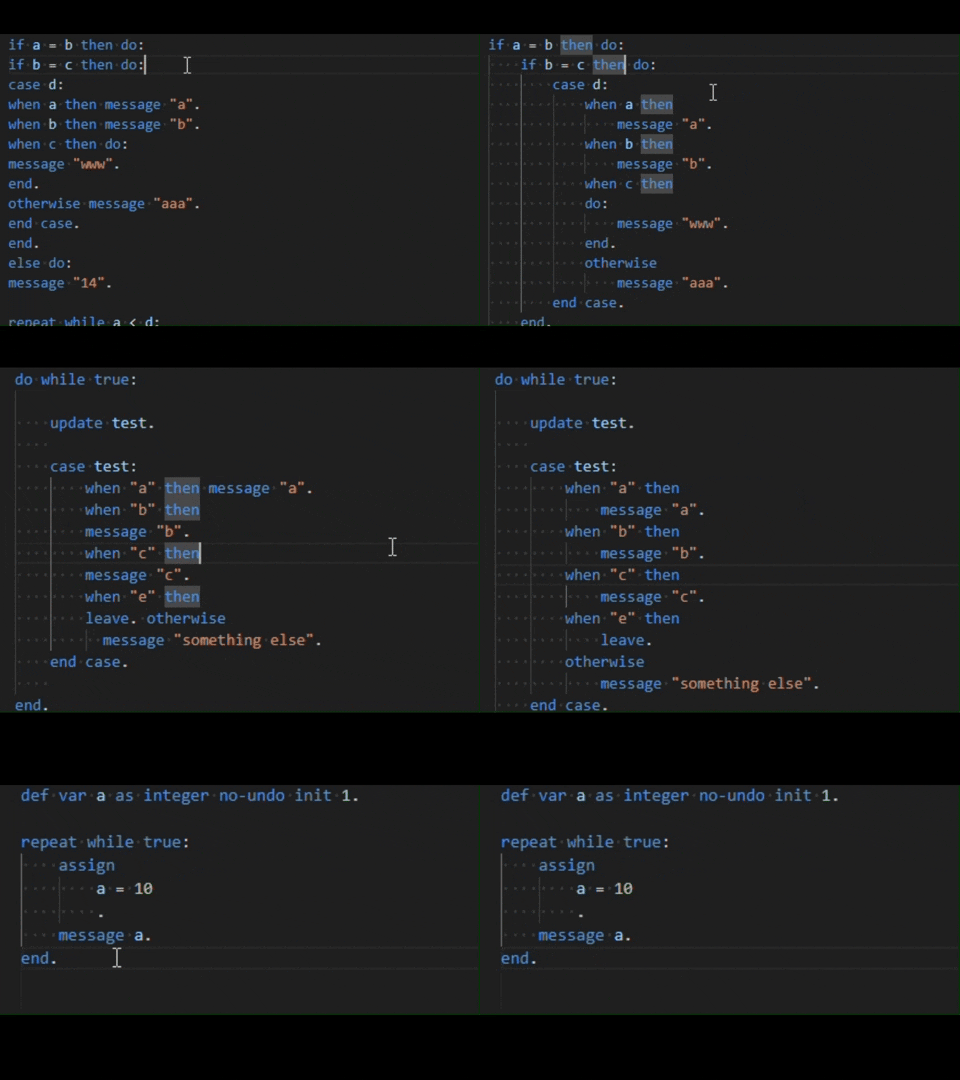
Features
At the moment we implemented formatting logic for these language features:
- Assign
- block
- body
- case
- enum
- find
- for
- functionParameter
- if
- ifFunction
- procedureParameter
- property
- tempTable
- using
- variableDefinition
Installation
Download the extension from VSCode Marketplace and install on your machine. There are no additional dependencies needed to launch this extension.
Configuration and Setup
We implemented extensive settings configuration to allow users to easily tailor the experience to their needs. This might not be the case in the future. You can access the settings via VS Code settings or clicking ABL Formatter icon at the far right of an ABL files editor title bar. You can also access settings UI via the Command Palette (Ctrl+Shift+P) by typing "Formatter Settings Preview"
Settings
| Property Name | Type | Default | Values list | Description |
|---|---|---|---|---|
| assign formatting | boolean | true | true, false | Enable/disable ASSIGN statement formatting. |
| assign formatting assign location | string | New | New, Same | Should first assignment be located on a new line or the same line as the ASSIGN keyword |
| assign formatting align right expression | string | Yes | Yes, No | Should right expression be aligned by longest one |
| assign formatting end dot location | string | New aligned | New, New aligned, Same | Should end dot be located on a new line or the same line as the ASSIGN keyword |
| find formatting | boolean | true | true,false | Enable FIND formatting |
| for formatting | boolean | true | true,false | Enable FOR formatting |
| case formatting | boolean | true | true,false | Enable CASE formatting |
| case formatting then location | string | Same | New, Same | Should THEN clause be on a new line or the same line as the CASE keyword? |
| case formatting do location | string | Same | New, Same | Should DO block be on a new line or the same line as the THEN keyword |
| case formatting statement location | string | New | New, Same | Should the first statement in a WHEN block be on a new line or the same line |
| block formatting | boolean | true | true,false | Enable block formatting |
| if formatting | boolean | true | true,false | Enable IF formatting |
| if formatting then location | string | Same | New, Same | Should THEN clause be on a new line or the same line as the IF keyword |
| if formatting do location | string | Same | New, Same | Should DO block be on a new line or the same line as the THEN keyword |
| if formatting statement location | string | Same | New, Same | Should the first statement in an IF block be on a new line or the same line |
| temptable formatting | boolean | true | true,false | Enable TEMP-TABLE formatting |
| temptable formatting end dot location | string | Same | New, Same | Should end dot be located on a new line or the same line as the last TEMP-TABLE line |
| using formatting | boolean | true | true,false | Enable USING formatting |
| using formatting from propath | string | DoNothing | DoNothing, add, remove | Should 'from propath' be added or removed in USING statements automatically |
| body formatting | boolean | true | true,false | Enable BODY formatting |
| property formatting | boolean | true | true,false | Enable property formatting |
| if function formatting | boolean | true | true,false | Enable IF FUNCTION formatting |
| if function formatting add parentheses | string | No | Yes, No | Add parentheses around the expression |
| if function formatting else location | string | Same | New, Same | Should ELSE clause be on a new line or the same line as the IF FUNCTION keyword |
| enum formatting | boolean | true | true,false | Enable ENUM formatting |
| enum formatting end dot location | string | Same | New, Same | Should end dot be located on a new line or the same line |
| variable definition formatting | boolean | true | true,false | Enable DEFINE VARIABLE formatting |
| procedure parameter formatting | boolean | true | true,false | Enable PROCEDURE PARAMETER formatting |
| function parameter formatting | boolean | true | true,false | Enable FUNCTION PARAMETER formatting |
| function parameter formatting align parameter types | string | Yes | Yes, No | Align parameter types |
| array access formatting | boolean | true | true,false | Enable ARRAY ACCESS formatting |
| array access formatting add space after comma | string | Yes | Yes, No | Add space after comma |
| expression formatting | boolean | true | true,false | Enable EXPRESSION formatting |
| expression formatting logical location | string | New | New, Same | Should logical operators be on a new line or the same line as the expression |
| statement formatting | boolean | true | true,false | Enable STATEMENT formatting |
| show tree info on hover | boolean | true | true,false | Enable table view with tree info on hover |
Usage
Use default VSCode formatting commands:
- Format Document: Formats the entire ABL document.
SHIFT+ALT+F - Format Selection: Formats only the selected lines of code.
CTRL+K CTRL+F
Also, you can enable or disable formatting on save:
"editor.formatOnSave": true
Allowed file extensions:
- .p
- .cls
- .i
- .w
Overriding Settings:
For development reasons, we implemented a mechanism to override formatting settings for a specific file. You can also use this feature by adding a leading comment in your code file:
Example:
/* formatterSettingsOverride */
/* {
"AblFormatter.blockFormatting": true,
"AblFormatter.assignFormatting": true
} */
def var a as integer no-undo init 1.

repeat while true:
    assign
    a = 10.
    message a.
end.
For more examples you can check out our test directory
Debugging
We implemented debug mode for looking into tree-sitter issues. You can also enable it:
- First you have to format the document.
- Then you can enable debug mode by pressing Abl Formater button in the Status Bar.
- Hover on highlighted parts of code to get more information and see the tree view.

How to View Diff Between Preformatted and Formatted ABL Code Files in VSCode
Precondition: Disable VS Code auto save.
- Open the file you want to format.
- Open the Command Palette (Ctrl+Shift+P).
- Run "Compare Active File with Saved".
- In the right view format document or format selection.
- Check the diffs.
- If everything is OK, save the file (Ctrl+S). Otherwise return/undo (Ctrl+Z).
Contributing
If you wish to contribute, see our guidelines here.
License
This project is licensed under the APACHE 2.0 License - see the LICENSE file for details.
Sponsored by Baltic Amadeus