The Vale extension for Visual Studio Code
August 7, 2026 · View on GitHub

The Visual Studio Code extension for Vale.
The Vale extension for Visual Studio Code and editors based on Visual Studio Code such as Cursor provides customizable spelling, style, and grammar checking for a variety of markup formats (Markdown, AsciiDoc, reStructuredText, HTML, and DITA).
Important notes on switch to Vale Language Server as of v0.30.0
Note
This new release uses the Vale Language Server. This allows for tighter integration with Vale features, but does involve more platform specific work and some features of the old extension are harder to implement. I based re-development of these features on this survey. If you find features you use no longer working, open an issue.
Note
Custom Vale binary paths are supported as of Vale Language Server v0.5.0 — see vale.valeCLI.path.
That release also tracks every folder in a multi-root workspace and resolves each file against the folder it belongs to, which should address the workspace problems reported here.
Installation
- Install Vale;
- install
vale-vscode(this extension) via the Marketplace; - Restart VS Code (recommended).
On first launch the extension downloads the Vale Language Server binary, verifies it against a known SHA-256 checksum, and stores it in VS Code's per-extension global storage directory (rather than inside the extension's own install folder). If you're upgrading from an older version of this extension, expect a one-time re-download the first time you activate it after upgrading.
Features
At the moment, the extension uses any configuration, vocabularies, and packages defined in your Vale configuration. If you experience any issues with the extension, check if Vale runs as expected on the command line first.
In the future, the extension may provide a UI or other configuration options for configuring Vale.
Detailed problems view
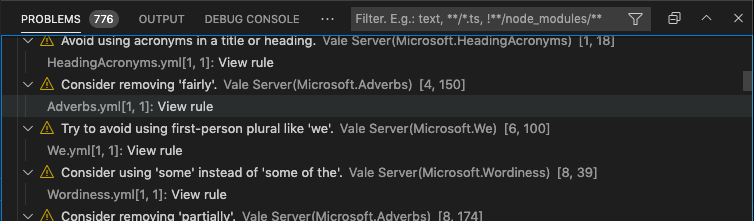
Browse detailed information for each alert, including the file location, style, and rule ID.
Go-to rule
This feature is temporarily disabled due to changes in the Vale CLI. It will be re-enabled in the future.
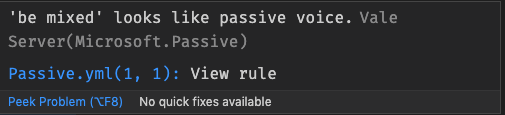
Navigate from an in-editor alert to a rule's implementation on your StylesPath by clicking "View Rule".
Quick fixes
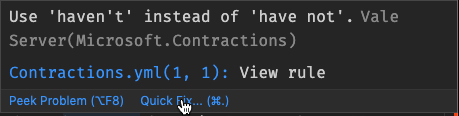
Fix word usage, capitalization, and more using Quick Fixes (macOS: cmd + ., Windows/Linux: Ctrl + .). The quick fixes feature depends on the underlying rule implementing an action that VS Code can then trigger.
Spell checking
You need a spelling style in your Vale configuration to enable spell-checking.
With no additional Vale configuration, the spell checker uses a Hunspell-compatible US English dictionary. If you want to use other custom dictionaries, then configure your spelling style with custom dictionaries.
The extension doesn't support adding words to dictionaries. For now, the best option is to add them to ignore files or filters as described in the Vale documentation.
Vale commands
The following commands are available from the Vale panel in the Explorer sidebar and from the command palette (Cmd/Ctrl + Shift + P):
- Vale: Sync downloads and updates the packages defined in your
.vale.inifile. You can also enable automatic syncing on startup using thevale.valeCLI.syncOnStartupsetting (see Settings below). - Vale: Install or Update Vale installs or updates the Vale binary the language server manages.
- Vale: Show Configuration runs
vale ls-configand displays the active Vale configuration in the Vale output panel. - Vale: Show Readability Metrics reports the active file's readability metrics.
Add to Vale vocabulary
You can add words to Vale vocabulary lists direct from the editor. Make sure to set the vale.vocabPath setting to name the vocabulary to write to. Find the menus by selecting the word and right-clicking, or set keybindings for the commands.
Spelling alerts also offer an "Add to vocabulary" quick fix, one per vocabulary defined in your configuration, which needs no vale.vocabPath. Rejecting a word is only available as a command.
Multi-root workspaces
The extension starts a separate Vale Language Server instance per workspace folder, each scoped to that folder's files. This means:
- Settings such as
vale.valeCLI.configandvale.vocabPathcan be set per folder (e.g. in each folder's.vscode/settings.json) and are resolved relative to that folder, including${workspaceFolder}invale.valeCLI.config. - Commands run from the Vale panel or command palette (Vale: Sync, Vale: Show Configuration, Vale: Show Readability Metrics, and the vocabulary commands) act on the workspace folder containing the currently active file, not always the first folder in the workspace.
- Adding or removing a folder from the workspace starts or stops its Vale Language Server instance automatically, without needing to reload the window.
Settings
The extension offers a number of settings and configuration options (Preferences > Extensions > Vale).
vale.valeCLI.config(default:null): Absolute or relative path to a Vale configuration file.vale.valeCLI.minAlertLevel(default:inherited): Defines from which level of errors and above to display in the problems view.vale.doNotShowWarningForFileToBeSavedBeforeLinting(default:false): Toggle display of warning dialog that you must save a file before Vale lints it.vale.readabilityProblemLocation(default:status): If you have anyReadabilityormetricstyles, the extension can display the readability score in the status bar, the problems view, or both.vale.enableSpellcheck(default:false): Enable in-built spell checking for anySpellingstyles.vale.valeCLI.syncOnStartup(default:false): If you have packages in a .vale.ini file, then sync them on startup.vale.valeCLI.filter(default:null): Add additional Vale filters.vale.valeCLI.path(default:null): Absolute path to the Vale binary to run, instead of the one the language server manages.vale.valeCLI.lintOnChange(default:false): Lint as you type, rather than only when a file is saved.vale.valeCLI.debounceMs(default:300): How long typing has to settle before linting, in milliseconds. Only applies whenvale.valeCLI.lintOnChangeis enabled.vale.valeCLI.showMetrics(default:false): Show a code lens with the document's metrics (word count, reading time, and so on).