README.md
August 28, 2026 · View on GitHub
Cratis CLI
Terminal workflows for inspecting and diagnosing Chronicle, the Cratis event-sourcing database — events, observers, projections, read models, and failed partitions.




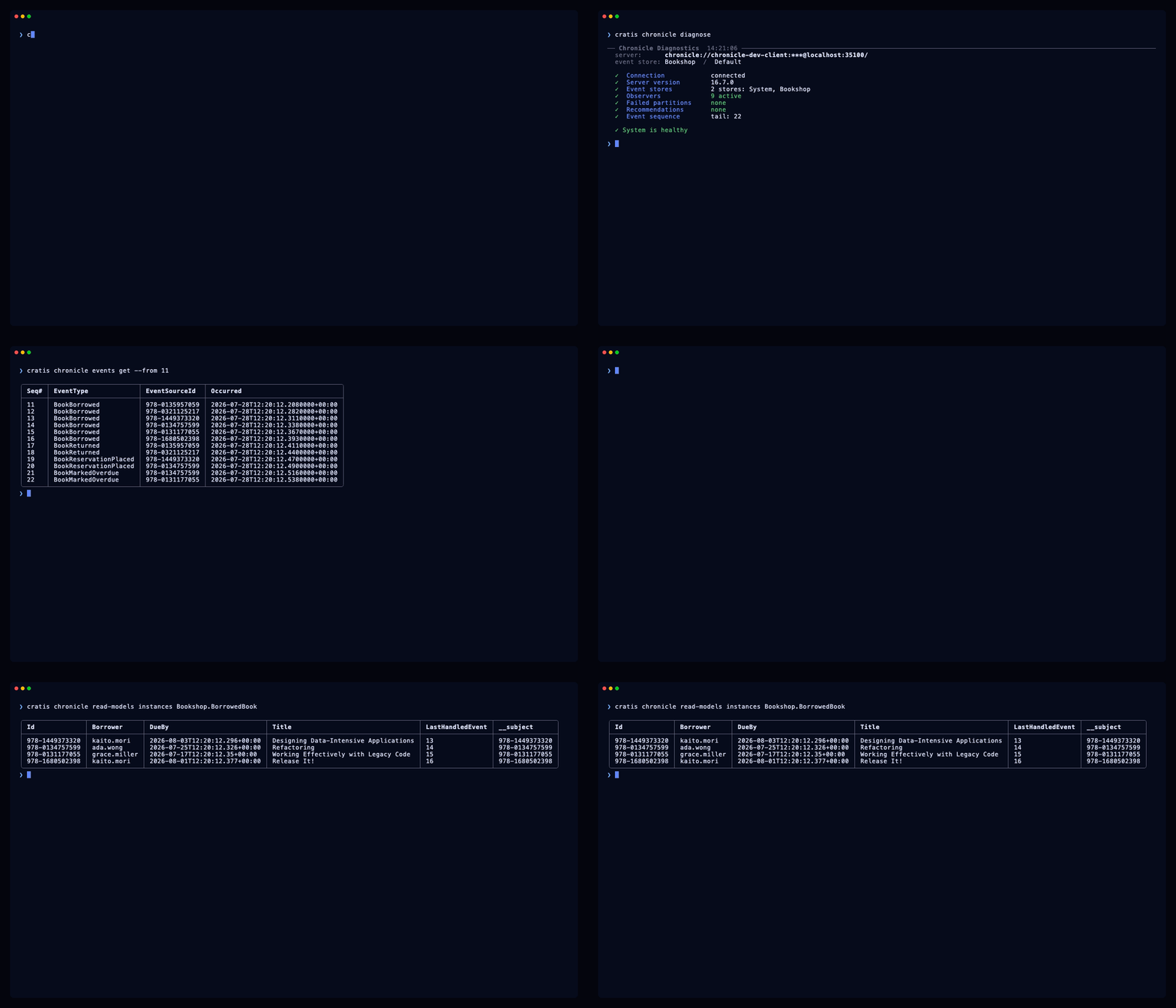
Inspect the event history, observer state, and the read models those observers produce.
Start here
- Install and connect the CLI
- Read the CLI documentation
- Inspect Chronicle from the terminal
- Browse releases and native binaries
Place in the Cratis ecosystem
The CLI is the terminal surface for inspection and diagnosis of Chronicle (docs), the Cratis event-sourcing database and runtime. Chronicle Workbench provides a bundled local browser surface for authorized inspection of Chronicle runtime state and preview of supported projection behavior; the CLI serves terminal workflows around the same product family. On macOS and Linux the CLI installs from the homebrew-cratis tap.
The CLI shares the conviction the rest of Cratis is built on: event sourcing is worth it for almost any system dealing with information and business flows, and working with one should feel familiar — here, like the terminal workflows you already know. It is designed for low friction, part of one deliberately simple ecosystem built with productivity, quality, and reliability in mind — AI-friendly by design, with free AI skills for building with the stack.
The repository also contains separately documented command groups for inspecting a running Arc (docs) application's registered commands and queries. Arc remains an independent CQRS application framework; using the Arc command group does not require Chronicle.
Blog: blog.cratis.io
This README describes human-operated commands and current output behavior. It does not establish an unversioned stable machine contract. Check the current output-format documentation before automation, and re-create generated command context after upgrading the CLI.
When the read model is wrong
An event-sourced system splits two things that used to live together: what the state is, and why it is that way. Events append to a log. Observers — projections, reducers, reactors — consume that log and derive the read models your application queries.
That split is the point. It is also what makes debugging strange, because when a read model looks wrong the answer is in neither place on its own. The database holds the derived state but not the reason. The log holds the reason but not the derived state. And in between sits an observer that may be working, may be behind, or may have stopped four events ago — and an observer that has stopped consuming looks exactly like an observer with nothing to do.
Chronicle ships a browser Workbench that answers this. But it is served by the server, behind the server's auth, and you are on a box you reached over SSH.
cratis is that view from a terminal:
❯ cratis chronicle diagnose

── Chronicle Diagnostics  14:18:21 ─────────────────────────────────────────────
  server:      chronicle://chronicle-dev-client:***@localhost:35100/
  event store: Bookshop  /  Default

  ✓  Connection            connected
  ✓  Server version        16.7.0
  ✓  Event stores          2 stores: System, Bookshop
  ✓  Observers             9 active
  ✗  Failed partitions     1 need attention  → cratis chronicle failed-partitions list
  ✓  Recommendations       none
  ✓  Event sequence        tail: 22

  ✗ Issues detected — review items above
The failed-partition row names the command that investigates that condition. diagnose exits
non-zero when the server is unreachable or failed partitions exist. Observer counts, server
version, recommendations, event stores, and event-sequence tail remain diagnostic context rather
than independent exit-code conditions.
Chronicle's default port is 35000; the throwaway server these recordings run against sits on 35100 so it cannot collide with a real one.
Install
| Homebrew macOS · Linux |
|
| Binary no toolchain |
Release assets are named |
| .NET tool .NET 10+ runtime required |
|
| Completions after installing |
|
Note
Native release assets are self-contained and do not require a local .NET runtime. The
dotnet tool package requires the runtime declared by the current package. Verify the exact
release asset, runtime, and platform before installation.
Then point it at a server and check:
cratis context create dev --server chronicle://localhost:35000
cratis context set dev
cratis chronicle diagnose
Against a local Chronicle there is nothing to configure. The first run writes a default
context pointing at chronicle://localhost:35000, and the first chronicle command asks
which event store to make the default and remembers the answer.
Use
cratis chronicle diagnose                     # connection and Chronicle diagnostic summary
cratis chronicle diagnose --watch             # the same report, refreshing
cratis chronicle workbench                    # full-screen live dashboard

cratis chronicle event-stores list            # what stores exist on this server
cratis chronicle namespaces list              # namespaces inside the active store
cratis chronicle events get --from 100        # raw events off an event sequence
cratis chronicle events tail                  # the highest sequence number in use
cratis chronicle event-types list             # registered types, with generations
cratis chronicle event-types show <id>        # the JSON Schema for one

cratis chronicle observers list               # every observer, its state and its position
cratis chronicle observers show <id>          # one observer in detail
cratis chronicle observers replay <id>        # reprocess from sequence zero
cratis chronicle failed-partitions list       # partitions that have stopped
cratis chronicle failed-partitions show <observer> <partition>   # the exception, per attempt
cratis chronicle observers retry-partition <observer> <partition>

cratis chronicle projections list             # projection declarations
cratis chronicle read-models list             # read model definitions
cratis chronicle read-models instances <name> # the projected state itself
cratis chronicle jobs list                    # replays, migrations, retries

cratis context list                           # configured servers
cratis init                                   # write CLI context files for configured tools
--help works on every group and every command. cratis llm-context prints the current
command catalog as JSON.
Output formats
-o takes table, plain, json or json-compact. Plain output is tab-separated;
the JSON formats retain named structure. -q prints identifiers only for bounded read-only
selection or inspection:
cratis chronicle observers list -q | head -n 5
Select an explicit format for automation and bind parsing to the exact CLI version. These current formats are not declared as an unversioned stable machine contract.
Reading an observer row
This is the table you will spend the most time in, and two of its columns are easy to misread:
Id                       Type        State   Quarantined  Next#  LastHandled#  Subscribed
Bookshop.Members         Reducer     Active  False        23     2             False
Bookshop.Books           Reducer     Active  False        23     10            False
Bookshop.BorrowedBooks   Projection  Active  False        23     18            False
Bookshop.OverdueBooks    Projection  Active  False        23     22            False
Bookshop.OverdueNotices  Reactor     Active  False        23     22            False
| Column | What it means |
|---|---|
Next# | the next sequence number this observer will look at |
LastHandled# | the last event it actually processed |
State | Active, Replaying, Suspended, Disconnected, Quarantined or Unknown |
Subscribed | whether a client is currently attached to it |
Note
LastHandled# lagging the tail is normal, and is not the same thing as being behind.
Every observer above has Next# 23 against a tail of 22 — all of them are caught up. But
Members last handled sequence 2, because no member has registered since; nothing between 3
and 22 was addressed to it. The two columns answer different questions: Next# is how far it
has read, LastHandled# is the last thing it cared about.
This is why diagnose reports failed partitions rather than sequence lag. Lag is ambiguous.
A failed partition is not.
Disconnected means no client is attached — usually the application is not running. It is the
normal state for a store whose application is stopped, and it is not an error.
Following a failure to the event that caused it
A partition is one event source's slice of an observer. The CLI lists recorded failed
partitions and failed-partitions show prints the attempts available for the selected
observer and partition:
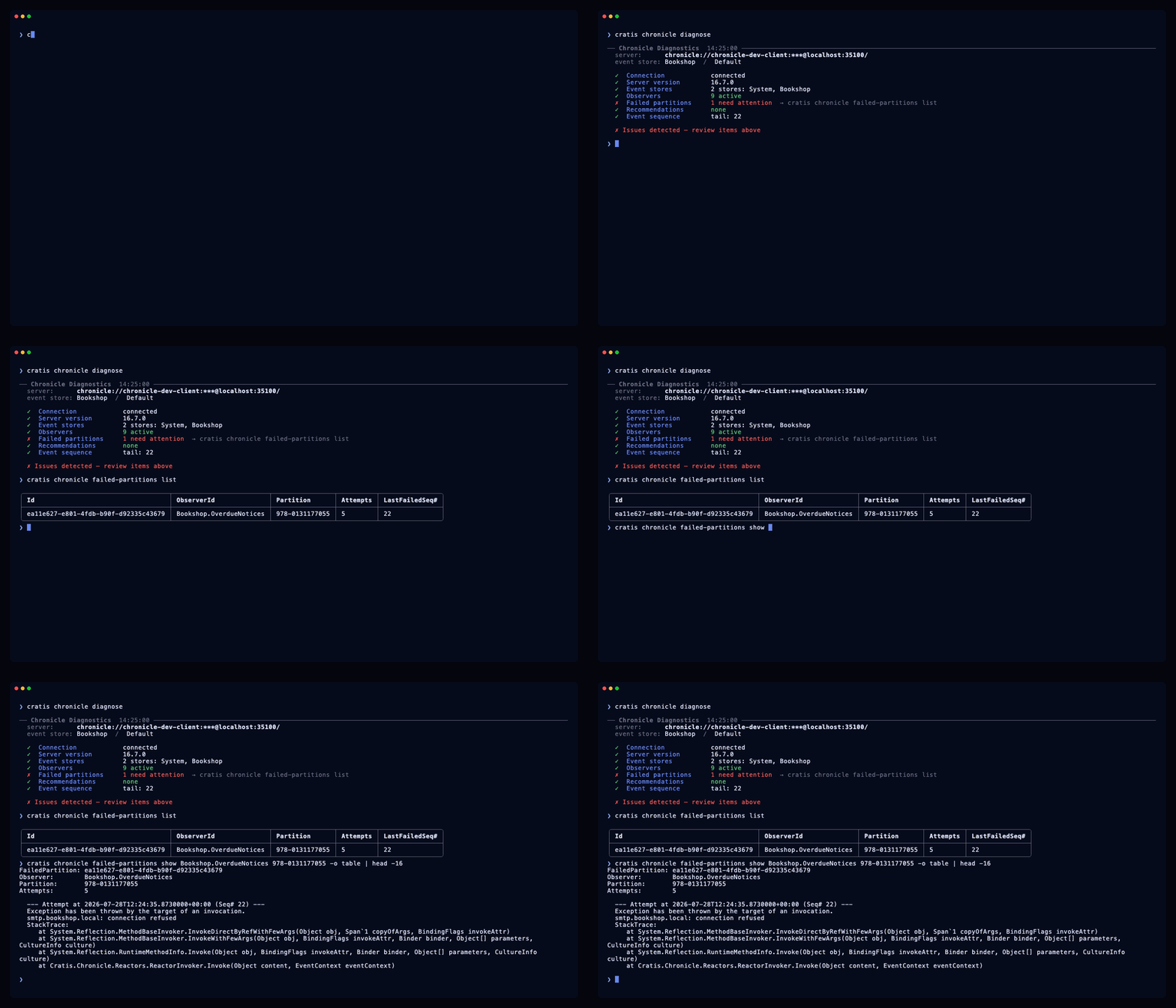
The diagnostic summary names the next command. The list names the observer and partition,
and the example partition turns out to be a book —
978-0131177055 — whose overdue notice could not be sent.
The partition is the ISBN because that is the event source id this application uses. Whatever your entities are keyed by is what you will see here, which is what makes the failure addressable rather than merely reported:
FailedPartition: caadc869-1251-41d0-9063-6947eaf74043
Observer:        Bookshop.OverdueNotices
Partition:       978-0131177055
Attempts:        5

  --- Attempt at 2026-07-28T12:17:56.6680000+00:00 (Seq# 22) ---
  Exception has been thrown by the target of an invocation.
  smtp.bookshop.local: connection refused
The example records several processing attempts. After fixing the underlying cause, use
retry-partition to request another attempt for the exact observer and partition.
cratis chronicle observers retry-partition Bookshop.OverdueNotices 978-0131177055 -y
Warning
observers replay <id> is the bigger hammer: it reprocesses that observer from sequence
zero and rebuilds its read model. On a large store it is neither instant nor free. Confirm
the exact event store, namespace, observer, and operational procedure before running it.
Reach for retry-partition first when one failed partition is the intended scope.
The terminal workbench
cratis chronicle workbench opens the CLI's full-screen terminal dashboard over the same connection: fifteen
views, refreshing on an interval, with the actions available in place — R replays the
selected observer, T retries a failed partition, S and U stop and resume jobs.
F filters whatever view you are on, and it reopens on the view you left it on.
Ctrl+P is the part worth knowing about. It searches five current artifact kinds at once:
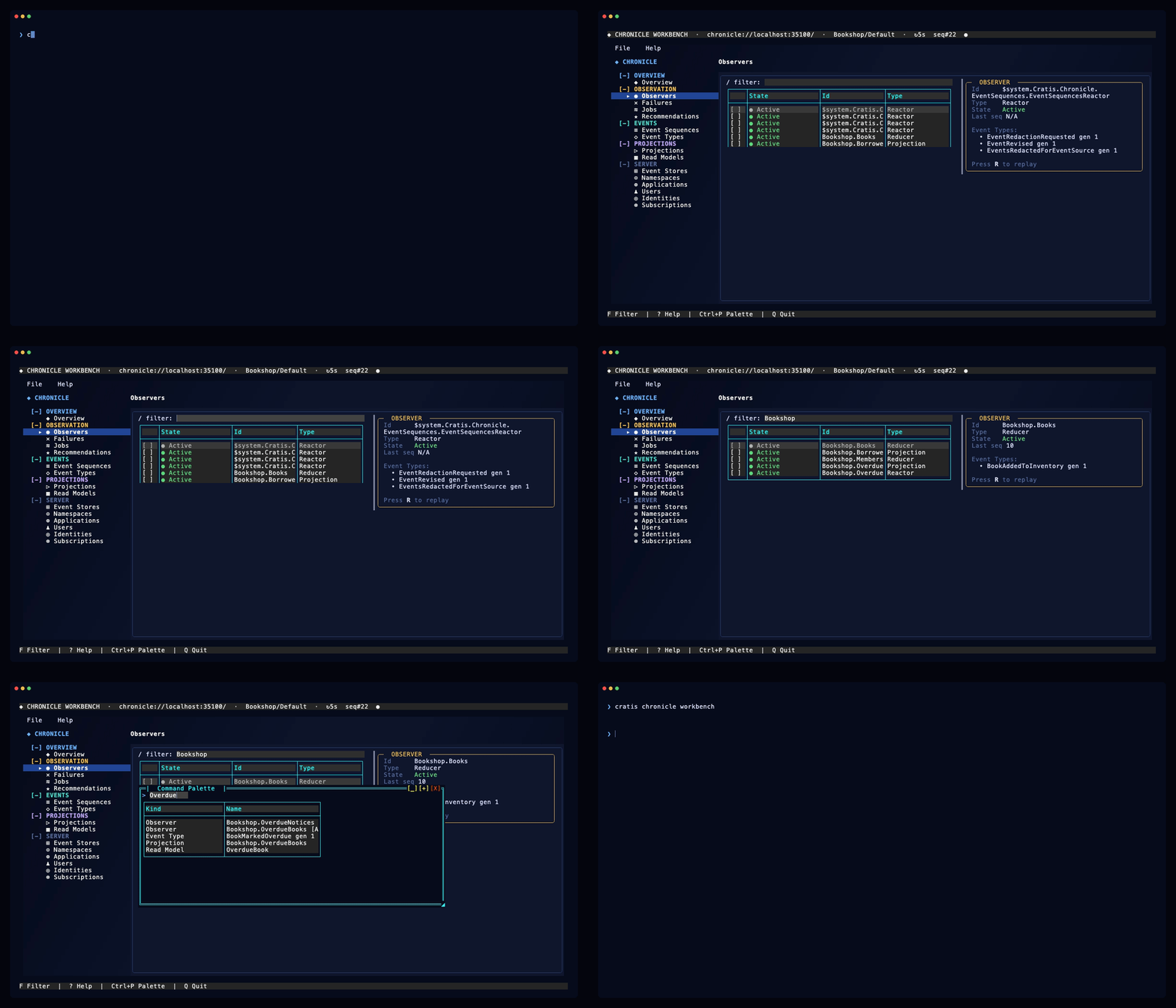
F narrows the view to one application. Ctrl+P then matches a single word across five
kinds at once — the reactor, the projection's observer, the event type they both read, the
projection declaration and the read model it writes. Picking one jumps to its view with the
filter already applied.
That breadth is the reason it is a palette and not a search box. "Overdue" is not a name you look up in one list; it is a thread running through five of them, and following it is what you were actually doing.
| Key | |
|---|---|
F | filter the current view |
Ctrl+P | search observers, event types, projections, read models, and failed partitions |
↑ ↓ | move within the sidebar or the table |
← → | put focus on the sidebar / on the content |
Home / Shift+G | first row / last row |
[ ] | previous / next page |
R | replay the selected observer |
T / P | retry / replay the selected failed partition |
S / U | stop / resume the selected job |
A / I | apply / ignore the selected recommendation |
D / V | event type definition / the observers that read it |
Enter | open the read model detail (Read Models view) |
Ctrl+B | collapse the sidebar |
Ctrl+\ | toggle the detail pane |
Ctrl+E / Ctrl+N | switch event store / namespace |
Ctrl+C | copy the open detail |
F9 F10 F11 | themes |
? | help |
Q | quit |
Mutation commands use a confirmation dialog rather than a status-bar prompt. Recheck the selected event store, namespace, target, and current state before confirming any action.
Output selection and generated context
The CLI selects a default output format from process context. This is a heuristic convenience, not proof of who or what reads the output:
| Process context | Default format |
|---|---|
| interactive terminal | table |
| redirected output | json |
NO_COLOR set | plain |
| recognized tool-environment marker | json-compact |
Use -o to select an explicit current format. Before building automation, review the
current output-format section and the exact CLI
version you deploy; ordinary output formats are not declared as an unversioned stable contract.
The CLI can also write a snapshot of its current command surface for configured tools:
cratis init            # write context files for detected/configured tools
cratis init --refresh  # replace the snapshot after upgrading the CLI
cratis llm-context     # print the current command catalog as JSON
The generated context is a snapshot. Refresh it after upgrading the CLI. If an instruction file
is generated from another source, use --no-context and update that source rather than editing
the generated instruction file directly.
Tab completion asks the server
cratis completions install writes a completion script for bash, zsh, fish or PowerShell.
It is not a static word list:
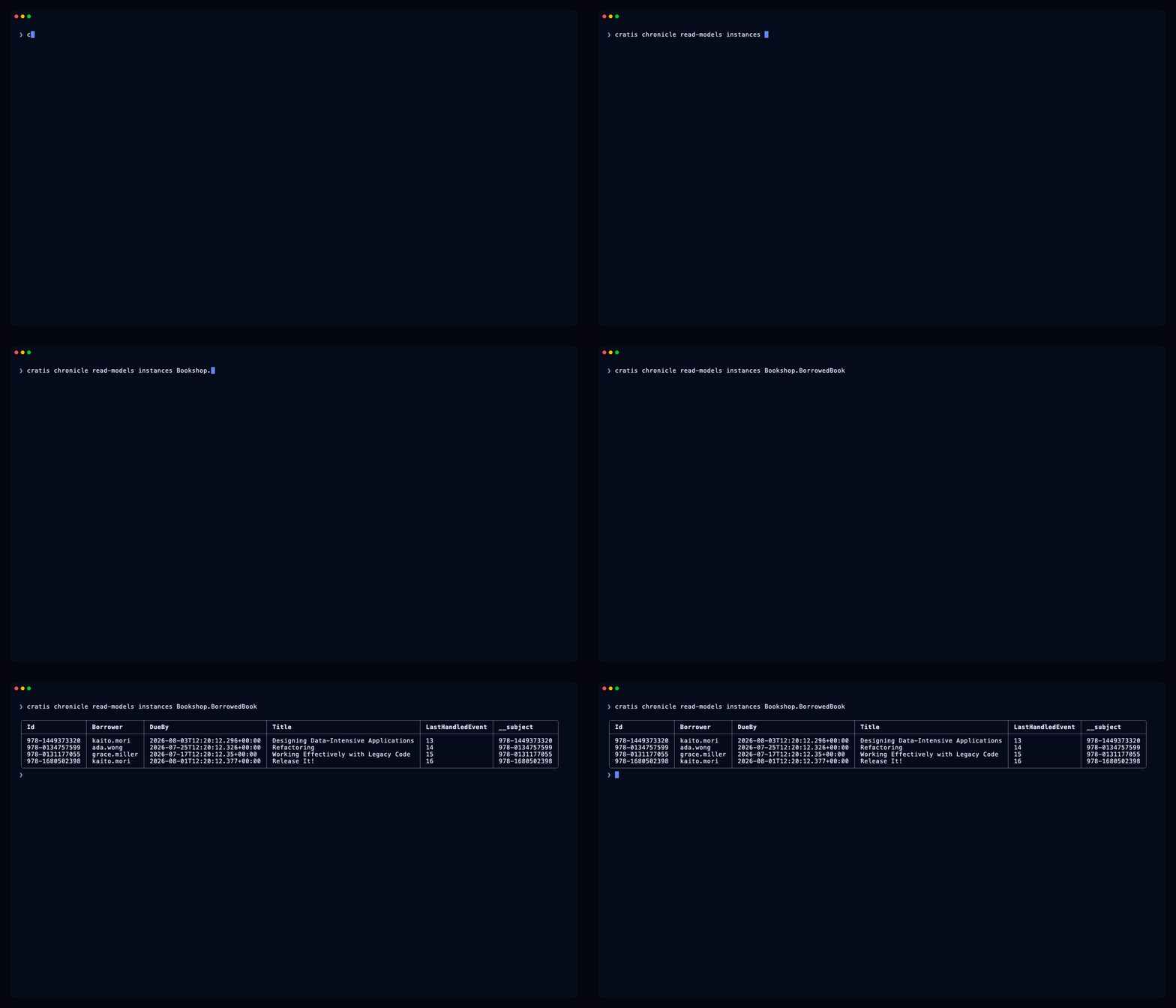
Completing a read model name shells back into the CLI, which connects and returns what that server has registered right now — then the completed command runs against it.
Observers, event stores, event types, projections, read models, jobs, recommendations, subscriptions, applications and users all complete this way — and context names, which come from your config rather than the server. Completion failures are swallowed and return nothing, so a server that is down costs you a tab press rather than a broken shell.
Contexts
A context is a named server profile. cratis context create staging --server … then
cratis context set staging, and every subsequent command follows it.
The connection string is resolved in a fixed order, first match winning:
| 1 | --server on the command |
| 2 | CHRONICLE_CONNECTION_STRING |
| 3 | the active context in ~/.cratis/config.json |
| 4 | chronicle://localhost:35000 |
Credentials and connection strings
Connection strings and context files can contain credentials. Treat them as secrets, avoid placing them in command history, public issues, or shared logs, and inspect every command output before sharing it.
Event store and namespace
-e/--event-store and -n/--namespace follow the same shape, defaulting to the context and
then to default / Default. The first chronicle command against a server whose event
store is unknown asks which one to use and remembers the answer; cratis context set-value event-store <name> changes it later.
Other command groups
The CLI repository carries additional command groups whose exact behavior and status belong to their owning product documentation. Their presence in the command tree does not establish product maturity, support, compatibility, or availability.
cratis arcinspects registered commands and queries in a running Arc application.cratis screenplayandcratis renderwork with Cratis Screenplay (.play) documents — generation, validation, and rendering from files, with nothing running. See the Screenplay command reference.- The canonical CLI page carries the currently admitted command-group documentation.
Platforms
| macOS | Linux | Windows | |
|---|---|---|---|
| Homebrew | Available | Available | Not available |
| Native binary | osx-arm64, osx-x64 | linux-arm64, linux-x64 | Not available |
| .NET global tool | Package available | Package available | Package available |
| Completion script | bash, zsh, fish | bash, zsh, fish | PowerShell |
Note
There is no native Windows binary. Current native release assets cover macOS and Linux on arm64 and x64. On Windows, install the .NET global tool. The repository's current CI exercises Ubuntu and macOS; verify Windows behavior for the exact version and workflow you adopt.
Development
dotnet build -c Release
dotnet test -c Release
./install.sh                   # pack and install the local build as a global tool
Integration specs run the CLI against a real Chronicle server in a container, so Docker has to be running for those.
Specs follow the convention used across the Cratis codebases — for_<subject> names what is
under specification, when_<scenario> names the situation, and each should_<expectation>
observes one thing, so a failure reads as a sentence.
The GIFs
They are scripted, not screen-captured, and re-render from a clean checkout:
assets/record.sh               # every clip: sets up the store, waits for it, renders
assets/record.sh workbench     # or just one
Recording notes covers how they were made, what the fixture contains and why each clip earns its place.
Releasing
Repository release behavior is path- and label-sensitive. A documentation-only pull request uses
the no-release label and does not publish packages or native assets. Source/package changes use
the release-impact label required by the repository policy; review the pull request's declared
effects before merge.
Community and repository
| 💬 | Discord |
| 🐛 | Issues |
| 🔒 | Private security reporting |
| 📚 | CLI documentation |
License
MIT. See the repository license.
Release notes and announcements: the Cratis blog.