Homematic IP Local (HCU) Integration for Home Assistant
May 29, 2026 · View on GitHub

Local control for your Homematic IP devices via the Home Control Unit (HCU). No cloud required!
This integration connects directly to your HCU's local API, providing real-time control and status updates for all your Homematic IP devices through Home Assistant.
This is a passion project built entirely in personal spare time. Its continued development depends on the community — every bug report, diagnostics file, and piece of user feedback directly shapes what gets supported and improved next. If this integration adds value to your setup, please consider giving back by sharing diagnostics, testing new features, or opening an issue on GitHub.
📋 Table of Contents
- Features
- Requirements
- Installation
- Configuration
- Group Types
- Working with Buttons & Remote Controls
- Available Actions
- User Message to HCU
- Use Internal On Time
- Ramp Time
- Diagnostics & Troubleshooting
- FAQ
- Support
🌟 Features
- 🏠 Local Control: Direct communication with your HCU - no cloud dependency
- ⚡ Real-time Updates: Instant device state changes via WebSocket
- 🔌 Full Device Support: Switches, lights, sensors, climate, covers, locks, and more
- 🎛️ Advanced Climate Control: Heating profiles, party mode, vacation mode
- 🔘 Event-Based Buttons: Stateless button devices trigger automation events
- 🛡️ Security Integration: Alarm control panel for your security system
- 🔧 Extensive Services: Play sounds, control rules, manage heating schedules
- 📊 Diagnostics: Built-in diagnostics for troubleshooting and device support
- 🏗️ Group Support: Automatic discovery of heating, switching, cover, and advanced system groups
🏗️ Group Types
The integration automatically discovers and exposes Homematic IP "groups" — virtual devices that the HCU uses to orchestrate physical hardware.
Standard Groups (always visible)
| Group Type | Platform | Description |
|---|---|---|
HEATING | climate | Room thermostat control with profiles, eco/party mode |
SWITCHING | switch | User-created Direct Connection switch groups |
LIGHT | light | User-created Direct Connection light groups |
SHUTTER / EXTENDED_LINKED_SHUTTER | cover | Roller shutter and blind groups |
EXTENDED_LINKED_SWITCHING | switch | Extended linked switching groups |
Advanced Groups (conditionally visible)
These groups only appear when the HCU has assigned physical devices to them. If they show up, it means they are active in your system.
| Group Type | Platform | What it does |
|---|---|---|
HEATING_COOLING_DEMAND_BOILER | binary_sensor | Aggregates all thermostat valve positions to indicate if the boiler needs to fire |
HEATING_COOLING_DEMAND_PUMP | binary_sensor | Indicates if the heating circulation pump should be running |
HOT_WATER | switch | Controls hot water profiles (requires a physical hot water actuator) |
💡 Tip: Even without a Homematic IP boiler actuator (HmIP-WHS2), you can use the Heat Demand binary sensor to control a third-party relay (Shelly, Zigbee plug) connected to your boiler via Home Assistant automations.
📦 Requirements
- Home Assistant 2024.1.0 or newer
- Homematic IP Home Control Unit (HCU) with firmware 1.x or later
- Local network access to your HCU
🚀 Installation
Step 1: Install via HACS

Or, add it manually:
- Open HACS in your Home Assistant sidebar
- Click on Integrations
- Click the three dots (⋮) in the top right corner
- Select Custom repositories
- Add the following details:
- Repository:
https://github.com/Ediminator/hacs-homematicip-hcu/ - Category:
Integration
- Repository:
- Click ADD
- Close the custom repositories window
- Search for "Homematic IP Local (HCU)" in HACS
- Click DOWNLOAD and confirm
- Restart Home Assistant when prompted
Step 2: Enable the HCU Local API
Before adding the integration, you must enable the local API on your HCU.
-
Open your HCU's web interface (HCUweb) in a browser:
- Try
https://hcu1-XXXX.local(replaceXXXXwith the last 4 digits of your HCU's SGTIN) - Or use your HCU's IP address:
https://YOUR_HCU_IP - Note: You may see a security warning about the certificate - this is normal, click "Advanced" and proceed
- Try
-
Log in to your HCU
-
Navigate to Developer Mode in the menu
-
Toggle the switch to activate Developer Mode
-
Toggle the switch to Expose the Connect API WebSocket
- ⚠️ Important: Sometimes the toggle is already activated even on first setup. Please deactivate and activate the toggle to ensure it's properly enabled.
-
Leave this page open - you'll need it in the next step!
Step 3: Add the Integration in Home Assistant
💡 Tip before Adding Integration: If your Home Assistant Area names match your Homematic IP Room names (e.g., Living room = Living room), newly discovered devices will be created directly in the correct Home Assistant Area automatically.
-
In Home Assistant, go to Settings → Devices & Services
-
Click the + ADD INTEGRATION button (bottom right)
-
Search for
Homematic IP Local (HCU)and select it -
First Dialog - Connection Details:
- Enter your HCU's IP address (e.g.,
192.168.1.100) - Leave the ports at their default values unless you changed them:
- Authentication Port:
6969 - WebSocket Port:
9001
- Authentication Port:
- Click SUBMIT
- Enter your HCU's IP address (e.g.,
-
Second Dialog - Authorization:
- Switch back to your HCU's web interface (from Step 2)
- Click the "Generate activation key" button
- A temporary key will appear (valid for a few minutes)
- Copy the entire key and paste it into Home Assistant
- Click SUBMIT
-
The integration will now connect and discover all your devices! This may take a few moments.
-
You should see a success message and your devices will start appearing in Home Assistant
Step 4: Configure Door Lock PIN (Optional)
If you have a Homematic IP door lock (e.g., HmIP-DLD), you need to provide its PIN for the integration to control it.
💡 Why? The HCU requires a PIN for all lock operations for security reasons.
- Go to Settings → Devices & Services
- Find the Homematic IP Local (HCU) card
- Click CONFIGURE
- Enter your door lock's Authorization PIN
- Click SUBMIT
Your door lock will now be available for control in Home Assistant!
🔧 Configuration Options
After installation, you can adjust some settings:
- Go to Settings → Devices & Services
- Find the Homematic IP Local (HCU) card
- Click CONFIGURE
Available Options:
- Comfort Temperature: Default temperature (in °C) used when switching from OFF to HEAT mode
- Third-Party Device Filters: Show/hide devices from manufacturers other than eQ-3
- Group Filters Show/hide groups
🔘 Working with Buttons & Remote Controls
⭐ This is the most common question, so read this section carefully!
Understanding Button Devices
Stateless button devices (wall switches, remote controls, etc.) work differently from regular switches in Home Assistant:
❌ You will NOT see:
- Button entities in your entity list
- Buttons in the device card
- Toggle switches for each button
✅ You WILL get:
- Events fired on the Home Assistant event bus
- Full control via automations
- Support for multi-button scenarios
Why? Stateless buttons don't maintain an on/off state - they only send momentary press signals. Home Assistant's standard approach for these devices is to use events, which provides much more flexibility for automations.
Supported Button Devices
This integration supports button events for:
Wall Switches:
- HmIP-WGS (Wall-mounted Glass Switch)
- HmIP-WRC2 (2-button Wall Remote)
- HmIP-WRC6 (6-button Wall Remote)
- HmIP-WRCC2 (Wall Remote with Display)
- HmIP-BRC2 (2-button Remote Control)
- And more...
Remote Controls:
- HmIP-KRC4 (4-button Key Ring Remote)
- HmIP-RC8 (8-button Remote)
- HmIP-KRCK (Key Ring Remote with Display)
- And more...
Contact Interfaces (when configured as buttons):
- HmIP-FCI1 (Flush-mount Contact Interface 1)
- HmIP-FCI6 (Flush-mount Contact Interface 6)
- HmIP-SCI (Shutter Contact Interface)
Step-by-Step: Testing Your Buttons
Before creating automations, verify your buttons are working:
1. Create a pseudo automation in the HCU with an empty action to enable button press events.
- Important: You must create both key types if you want to use both short and long presses.
2. Open the Events Monitor
- Go to Developer Tools → Events (in the sidebar)
- In the "Listen to events" section, type:
hcu_integration_event - Click START LISTENING
3. Press Your Buttons
- Press any button on your Homematic IP device
- You should immediately see an event appear in the event monitor
4. Understand the Event Data
When a button is pressed, you'll see something like this:
event_type: hcu_integration_event
data:
  device_id: 3014F711A00048240995D6BC
  subtype: "1"
  type: KEY_PRESS_SHORT
origin: LOCAL
time_fired: 2025-10-26T10:30:45.123456+00:00
What each field means:
device_id: The unique ID of your button device (SGTIN)subtype: Which button was pressed (1, 2, 3, etc.)- ⚠️ Note (since v2.0.0): Use subtype instead of channel to identify which button was pressed.
type: The type of the button event (ring,press,press_short,press_long,press_long_startorpress_long_stop)- ⚠️ Note (since v2.0.0): type are now lowercase and no longer prefixed with a "key_")
ring: fires once when the doorbell is pressedpress_short: fires once on a short presspress_long_start: fires once at the beginning of a long presspress_long: fires repeatedly (~every 250 ms) while the button is heldpress_long_stop: fires once when the button is released after a long press
4. Note Down Your Device ID and Channels
Important: You'll need these values for your automations!
- Write down your
device_id - Note which
subtypecorresponds to each physical button
💡 Tip: You can find your device_id more easily in the diagnostics file - see the Diagnostics section below.
Creating Button Automations
Now that you've confirmed your buttons work, let's create automations!
Method 0: Device Triggers (Easiest — since v2.0.0)
Starting with v2.0.0, this integration supports Home Assistant Device Triggers. This is the simplest way to create button automations — no YAML required.
- Go to Settings → Automations & Scenes
- Click + CREATE AUTOMATION → Create new automation
- Add Trigger:
- Click ADD TRIGGER
- Select Device
- Choose your Homematic IP button device
- Select the trigger type, e.g.
Button 1 - Short press
- Add Action and Save
Supported trigger types for buttons: press, press_short, press_long, press_long_start, press_long_stop
Supported trigger types for doorbell: ring
💡 Tip: Device Triggers use the same underlying events as the YAML method — they are just a convenient UI wrapper.
Method 1: Visual Editor (Recommended for Beginners)
Example: Turn on a light when button 1 is pressed
- Go to Settings → Automations & Scenes
- Click + CREATE AUTOMATION → Create new automation
- Add Trigger:
- Click ADD TRIGGER
- Select Event
- Event type:
hcu_integration_event
- Add Condition:
- Click ADD CONDITION
- Select Template
- Template:
{{ trigger.event.data.device_id == '3014F711A00048240995D6BC' and trigger.event.data.subtype == '1' and trigger.event.data.type == 'press_short' }} - Replace the
device_idandsubtypewith your values!
- Add Action:
- Click ADD ACTION
- Select Call service
- Service:
light.turn_on - Target: Choose your light
- Save your automation with a descriptive name
Method 2: YAML (For Advanced Users)
Example 1: Simple Toggle
alias: Living Room - Button 1 Toggle Light
description: Toggle living room light with wall switch button 1
mode: single
triggers:
  - event_type: hcu_integration_event
    event_data:
      device_id: 3014F711A00048240995D6BC
      subtype: "1"
      type: press_short
    trigger: event
actions:
  - target:
      entity_id: light.living_room
    action: light.toggle
Example 2: Multi-Button Control (Choose Action by Button)
alias: Kitchen Remote - 4 Buttons
description: Control multiple lights with a 4-button remote
mode: single
triggers:
  - event_type: hcu_integration_event
    event_data:
      device_id: 3014F711A00048240995D6BC
    trigger: event
actions:
  - choose:
      - conditions:
          - condition: template
            value_template: "{{ trigger.event.data.subtype == '1' and trigger.event.data.type  == 'press_short' }}"
        sequence:
          - target:
              entity_id: light.kitchen_main
            action: light.turn_on
      - conditions:
          - condition: template
            value_template: "{{ trigger.event.data.subtype == '2' and trigger.event.data.type  == 'press_short' }}"
        sequence:
          - target:
              entity_id: light.kitchen_main
            action: light.turn_off
      - conditions:
          - condition: template
            value_template: "{{ trigger.event.data.subtype == '3' and trigger.event.data.type  == 'press_short' }}"
        sequence:
          - target:
              entity_id: light.kitchen_cabinet
            action: light.turn_on
      - conditions:
          - condition: template
            value_template: "{{ trigger.event.data.subtype == '4' and trigger.event.data.type  == 'press_short' }}"
        sequence:
          - target:
              entity_id: light.kitchen_cabinet
            action: light.turn_off
Example 3: Same Button for On/Off (Double Press Detection)
alias: Bedroom - Button 1 with Double Press
description: Single press = dim light, double press = full brightness
mode: restart
triggers:
  - event_type: hcu_integration_event
    event_data:
      device_id: 3014F711A00048240995D6BC
      subtype: "1"
      type: press_short
    trigger: event
actions:
  - if:
      - condition: state
        entity_id: timer.button_press_timer
        state: active
    then:
      # Second press detected within 1 second
      - target:
          entity_id: light.bedroom
        data:
          brightness: 255
        action: light.turn_on
      - target:
          entity_id: timer.button_press_timer
        action: timer.cancel
    else:
      # First press - start timer
      - target:
          entity_id: timer.button_press_timer
        data:
          duration: "00:00:01"
        action: timer.start
      - wait_for_trigger:
          - entity_id: timer.button_press_timer
            to: idle
            trigger: state
        timeout: "00:00:01"
      # Timer expired - this was a single press
      - if:
          - condition: state
            entity_id: timer.button_press_timer
            state: idle
        then:
          - target:
              entity_id: light.bedroom
            data:
              brightness: 128
            action: light.turn_on
Note: For double-press detection, create a timer helper first:
- Go to Settings → Devices & Services → Helpers
- Click + CREATE HELPER → Timer
- Name: "Button Press Timer"
- Duration: "00:00:01"
Example 4: Switch or Dim (Using Short and Long Press Events)
alias: Offic - Switch or Dim the light
triggers:
  - event_type: hcu_integration_event
    event_data:
      device_id: 3014F711A00048240995D6BC
      subtype: "1"
    trigger: event
actions:
  - choose:
      - conditions:
          - condition: template
            value_template: "{{ trigger.event.data.type == 'press_short' }}"
        sequence:
          - target:
              entity_id: light.light_office
            action: light.toggle
      - conditions:
          - condition: template
            value_template: "{{ trigger.event.data.type == 'press_long' }}"
        sequence:
          - repeat:
              while:
                - condition: template
                  value_template: |
                    {{ trigger.event.data.type == 'press_long' }}
              sequence:
                - data:
                    entity_id: light.light_office
                    brightness_step: 10
                  action: light.turn_on
                - delay: "0.2"
mode: restart
Finding Your Device ID and Channels
Easiest Method: Use Diagnostics
- Go to Settings → Devices & Services
- Find the Homematic IP Local (HCU) card and click it
- Find your button device in the list and click it
- Click the three dots (⋮) in the top right
- Select Download diagnostics (or just look at the device info on the page)
- The device ID (SGTIN) is shown clearly
Manual Method: Diagnostics File
-
Download the full integration diagnostics:
- Settings → Devices & Services
- Click on the Homematic IP Local (HCU) card
- Three dots (⋮) → Download diagnostics
-
Open the JSON file and search for your device name
-
Look for the structure:
"3014F711A00048240995D6BC": { "label": "Living Room Wall Switch", "functionalChannels": { "0": { "functionalChannelType": "DEVICE_BASE" }, "1": { "functionalChannelType": "SINGLE_KEY_CHANNEL" }, "2": { "functionalChannelType": "SINGLE_KEY_CHANNEL" }, "3": { "functionalChannelType": "SINGLE_KEY_CHANNEL" }, "4": { "functionalChannelType": "SINGLE_KEY_CHANNEL" } } } -
Note:
- The long string is your
device_id - Channels 1, 2, 3, 4 are your buttons (ignore channel 0 - it's always the maintenance channel)
- The long string is your
User Message to HCU
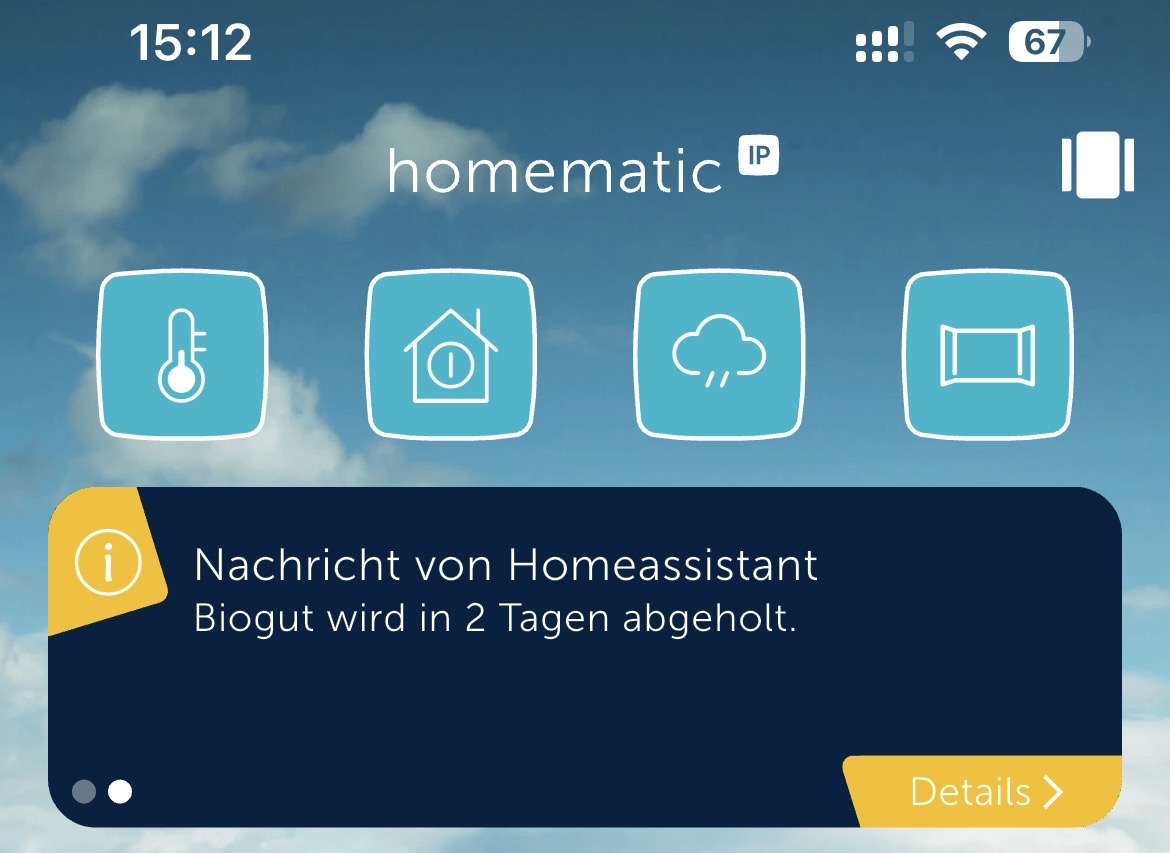
With the actions hcu_integration.create_user_message_request and hcu_integration.delete_user_message_request, you can create and delete user messages in the Homematic IP app. More Information under Available Actions
Listening for User Message Acknowledgements
When a user acknowledges a message in the Homematic IP app, the HCU sends a USER_MESSAGE_ACK_EVENT back to the integration. The integration fires this as a Home Assistant bus event:
Event name: hcu_integration_user_message_ack
Payload:
| Field | Description |
|---|---|
user_message_id | The ID of the acknowledged message |
ack_type | The user's response: OK, YES, or NO |
Example automation trigger:
trigger:
  - platform: event
    event_type: hcu_integration_user_message_ack
    event_data:
      user_message_id: MY_MESSAGE_ID
      ack_type: "YES"
You can access the payload values in actions via:
{{ trigger.event.data.user_message_id }}
{{ trigger.event.data.ack_type }}
Note:
ack_typeis only meaningful for messages created withbehavior_type: ACKNOWLEDGEABLE_BY_YES_NO. ForACKNOWLEDGEABLE_BY_OKmessages it will always beOK.
📊 Diagnostics & Troubleshooting
Downloading Diagnostics
Diagnostics files are extremely valuable for troubleshooting and adding support for new devices.
When to download diagnostics:
- Before reporting an issue on GitHub
- When buttons aren't working (v1.8.1 or later fixes most button issues)
- When a device isn't working correctly
- To help add support for a new device type
How to Download:
- Go to Settings → Devices & Services
- Find the Homematic IP Local (HCU) integration card
- Click on the card to open the integration details
- In the top right, click the three dots (⋮)
- Select Download diagnostics
- Your browser downloads:
hcu_integration-XXXX.json
What's in the file?
- Complete device inventory and current states
- Heating groups and configurations
- Entity mappings
- Device capabilities
Privacy: Sensitive data like PINs and tokens are automatically redacted (**REDACTED**).
Debug Logging
For detailed troubleshooting, especially for button events:
Method 1: Quick Debug (Recommended)
- Go to Settings → Devices & Services
- Find Homematic IP Local (HCU) card
- Click the three dots (⋮)
- Click Enable debug logging
- Reproduce the issue (e.g., press your buttons)
- Click the three dots (⋮) again
- Click Disable debug logging
- Your browser immediately downloads the log file
Look for these log entries for button debugging:
Button press detected via timestamp change- Timestamp-based detection (old devices)Button press detected for stateless channel- Event-based detection (HmIP-WGS, HmIP-WRC6, etc.)
Method 2: Permanent Logging
For persistent debug logging:
-
Edit your
configuration.yaml:logger: default: info logs: custom_components.hcu_integration: debug -
Restart Home Assistant
-
View logs in Settings → System → Logs
🎮 Available Actions
hcu_integration.play_sound
Play a sound on compatible notification devices (e.g., HmIP-MP3P).
Example:
action: hcu_integration.play_sound
target:
  entity_id: switch.doorbell
data:
  sound_file: "ALARM_01"
  volume: 0.8
  duration: 10
hcu_integration.set_rule_state
Enable or disable automation rules within the HCU.
Example:
action: hcu_integration.set_rule_state
data:
  rule_id: "00000000-0000-0000-0000-000000000000"
  enabled: true
hcu_integration.activate_party_mode
Temporarily override heating schedule for a specific room.
Example:
action: hcu_integration.activate_party_mode
target:
  entity_id: climate.living_room
data:
  temperature: 22
  duration: 14400  # 4 hours in seconds
hcu_integration.activate_vacation_mode
System-wide vacation mode for all heating groups.
Example:
action: hcu_integration.activate_vacation_mode
data:
  temperature: 15
  end_time: "2025-12-24 18:00"
hcu_integration.activate_eco_mode
Activate permanent absence (Eco) mode.
Example:
action: hcu_integration.activate_eco_mode
hcu_integration.deactivate_absence_mode
Deactivate any active absence mode.
Example:
action: hcu_integration.deactivate_absence_mode
hcu_integration.set_cooling_mode
Activates or deactivates cooling mode for all heating groups.
action: hcu_integration.set_cooling_mode
data:
  cooling: true
hcu_integration.send_api_command
Send raw api command to hcu.
Example:
action: hcu_integration.send_api_command
data:
  path: /hmip/device/control/setOpticalSignal
  body:
    opticalSignalBehaviour: FLASH_MIDDLE
    simpleRGBColorState: PURPLE
    dimLevel: 0.42
    channelIndex: 8
    deviceId: 3014F711A00478E0C9A5E3456
hcu_integration.create_user_message_request
Create a User Message that is displayed in the Homematic IP app. See the EQ3 API documentation for details.
Example:
action: hcu_integration.create_user_message_request
data:
  body:
     message_category: INFO
     user_message_id: USER_MESSAGE
     title: Message from Home Assistant
     message: "Test Message with Entity States {{ states('sensor.State') }}."
     behavior_type: NOT_DISMISSIBLE
or
action: hcu_integration.create_user_message_request
data:
  body:
     message_category: INFO
     user_message_id: USER_MESSAGE
     title:
       en: Message from Home Assistant
       de: Nachricht von Home Assistant
     message:
       en: "Test Message with Entity States {{ states('sensor.State') }}."
       de: "Test Nachricht mit Entität Status {{ states('sensor.Status') }}."
     behavior_type: NOT_DISMISSIBLE
hcu_integration.delete_user_message_request
Delete a previously created User Message from the Homematic IP app.
Example:
action: hcu_integration.delete_user_message_request
data:
  user_message_id: USER_MESSAGE
🔄 Updating the Integration
When a new version is released:
- Open HACS
- Go to Integrations
- Find Homematic IP Local (HCU)
- If an update is available, click UPDATE
- Restart Home Assistant
Important: Always check the CHANGELOG before updating for any breaking changes or new requirements.
❓ FAQ
Can I use both the cloud integration and this local integration?
Not recommended. Running both simultaneously may cause conflicts. Choose one approach.
My device isn't appearing in Home Assistant
- Verify the device appears in the HCU web interface
- Check if it's a third-party device (may be filtered)
- Download diagnostics and check if the device is listed
- Create an issue on GitHub with your diagnostics file
The integration says "Failed to connect"
- Verify the HCU's IP address is correct
- Ensure Developer Mode is enabled on the HCU
- Check "Expose the Connect API WebSocket" is enabled
- Verify ports 6969 and 9001 are accessible
- Try accessing the HCU web interface from the same machine running Home Assistant
Can I control the HCU itself (reboot, updates, etc.)?
No, this integration only controls devices connected to the HCU. HCU management must be done through the HCU web interface.
⏱️ Use Internal On Time
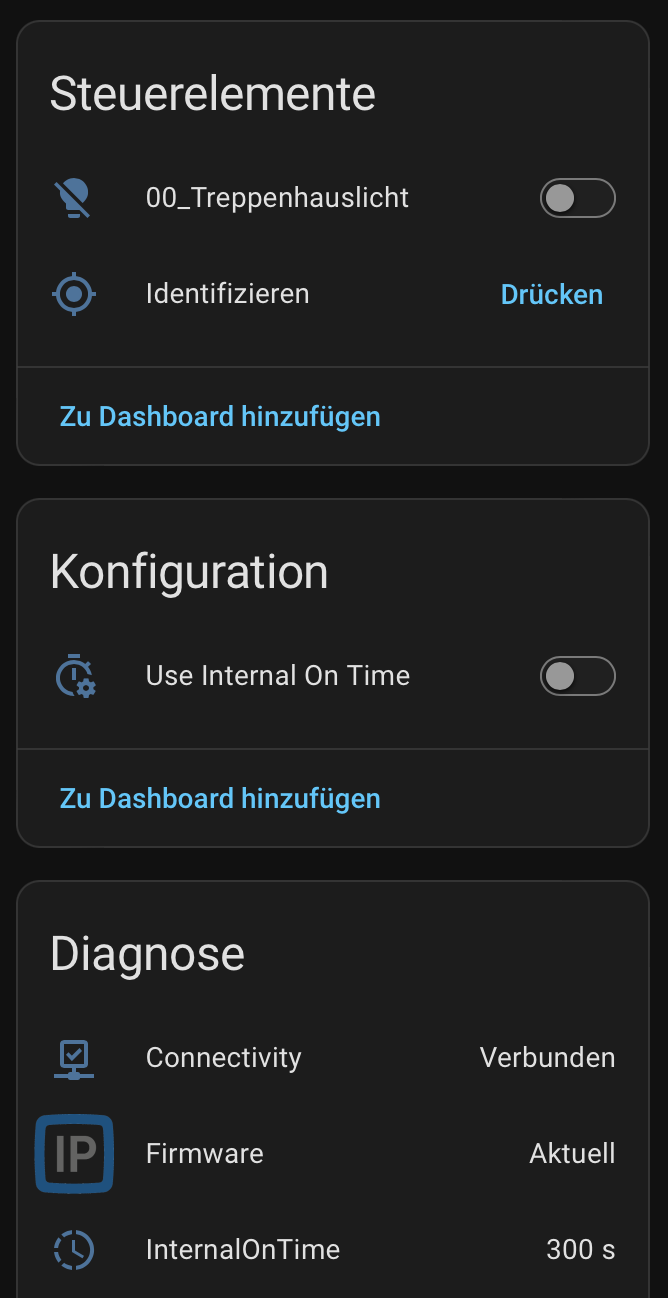
Some switch and light channels in the Homematic IP app allow you to configure an on-time for the internal button — the duration after which the device turns itself off automatically.
This integration exposes a "Use Internal On Time" config switch entity per channel. When enabled, any turn_on command sent through Home Assistant will pass the configured onTime to the device, causing it to switch off automatically after the set duration — without needing a separate timer or automation.
Typical use cases:
- Staircase lighting (e.g. HmIP-DRSI1)
- Water valves (e.g. HmIP-MOD-OC8)
- Any channel where a fixed on-duration is configured in the Homematic IP app
Notes:
- The entity is disabled by default and only appears on channels that have an
onTimevalue configured in the Homematic IP app. - Configure the on-time in the Homematic IP app first, then enable the entity in Home Assistant.
- The enabled state is persisted across Home Assistant restarts.
💡 Ramp Time
Some dimming actor channels support a ramp time — the duration in seconds over which the device transitions from its current brightness level to the target level when turning on or off.
This integration exposes a "Ramp Time" config number entity per dimming channel. When set to a value greater than 0, any turn_on or turn_off command sent through Home Assistant will automatically pass the configured duration as rampTime to the device — without needing an explicit transition value in every service call.
Typical use cases:
- Soft fade-in/fade-out for ceiling or ambient lights
- Consistent transition behaviour across automations and dashboards without per-call configuration
Notes:
- The entity is disabled by default. Enable it in Home Assistant for the channels where you want a fixed ramp time.
- Valid range:
0.1–16383seconds. A value of0disables the feature (no ramp time is passed to the device). - If a service call already includes an explicit
transitionvalue, that value always takes precedence over the configured ramp time. - The configured value is persisted across Home Assistant restarts.
💬 Support
- Issues & Bug Reports: GitHub Issues
- Discussions: GitHub Discussions
When asking for help:
- Always include your Home Assistant version
- Include your integration version
- Attach diagnostics file when possible
- Enable debug logging and include relevant log excerpts
- Clearly describe what you expected vs. what happened
📜 License
This project is provided as-is for personal use. Please check the repository for license details.
🙏 Credits
Created and maintained by @Ediminator
Special thanks to all contributors and users who provide diagnostics files and feedback to improve the integration!
Remember: When in doubt, download diagnostics - it makes troubleshooting much faster! 🚀