wtree
May 11, 2026 · View on GitHub
English | 简体中文
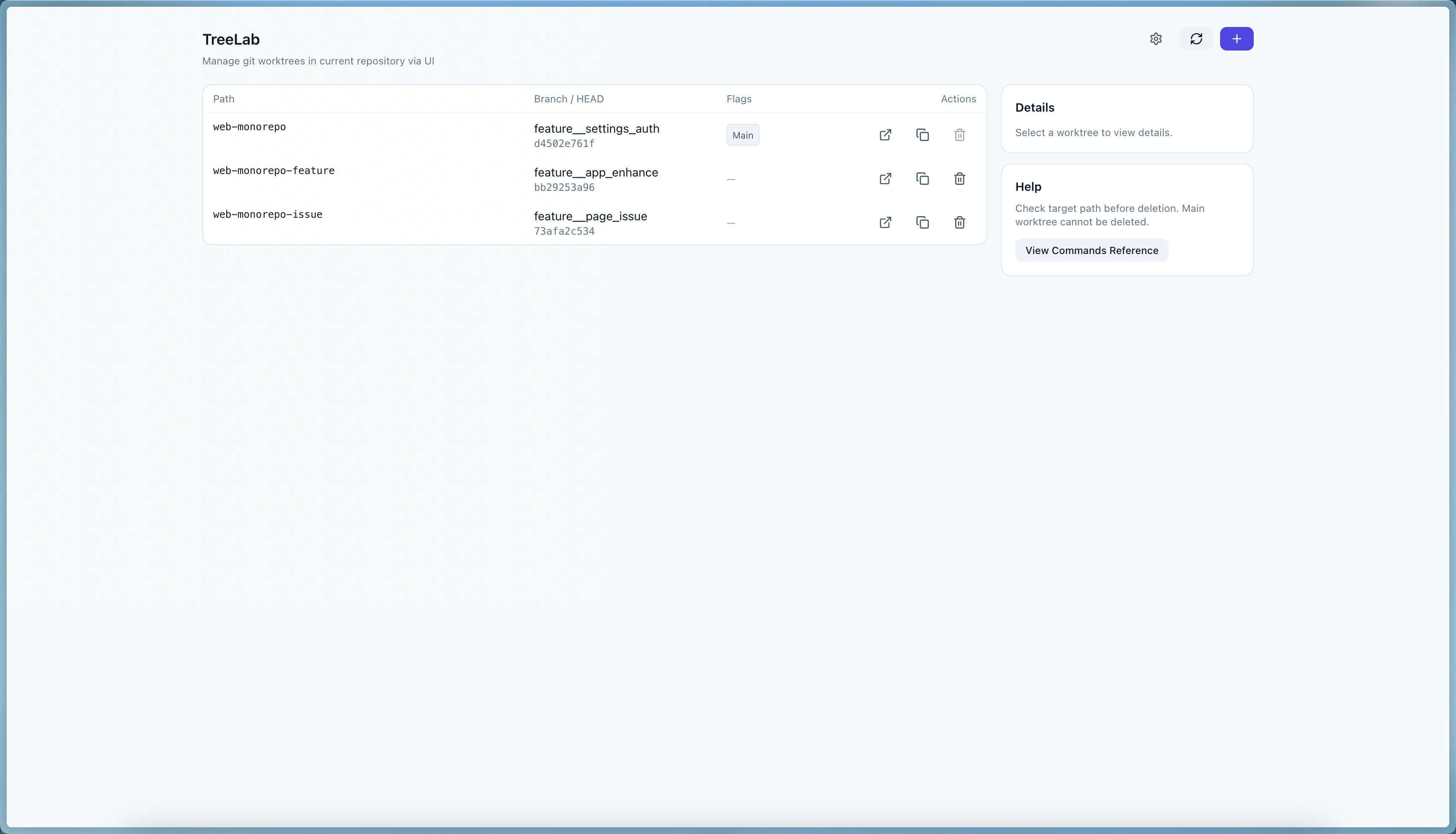
wtree is a local tool for managing git worktrees. It runs in an interactive command-line mode by default, and also supports a one-click local UI (TreeLab) for visual management.
Features
- Interactive creation and deletion of worktrees (supports force deletion of uncommitted changes)
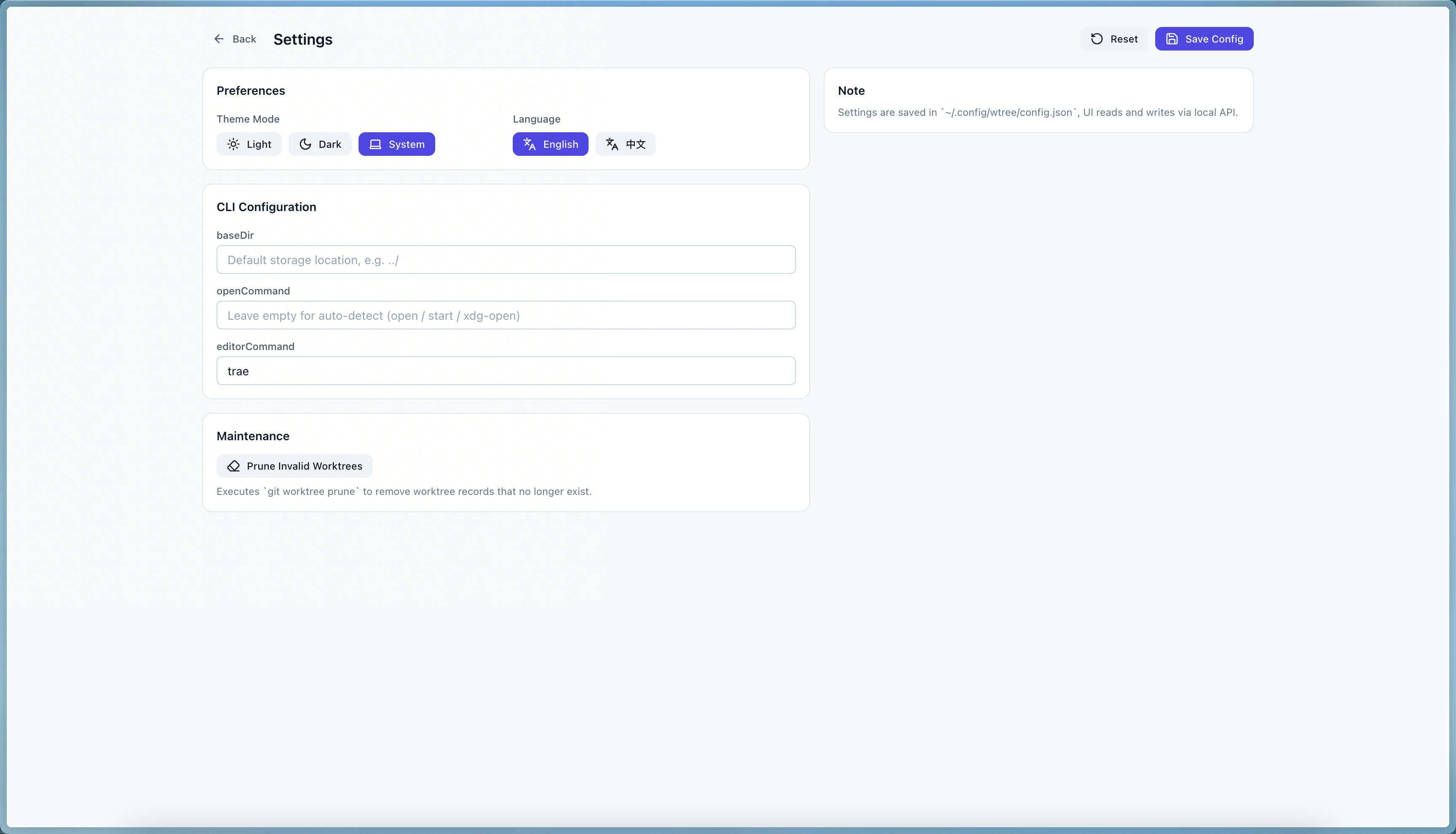
- Local UI mode with a browser-based visual management interface, supporting Light/Dark mode and i18n (English/Chinese)
- IDE-style Diff Preview: split-pane layout with a file tree (@pierre/trees) on the left and single-file diff (@pierre/diffs) on the right, showing staged and unstaged changes separately
- Integrated Git commit graph (git log --graph) at the bottom of the sidebar, collapsible
- Draggable divider to freely resize left/right panels
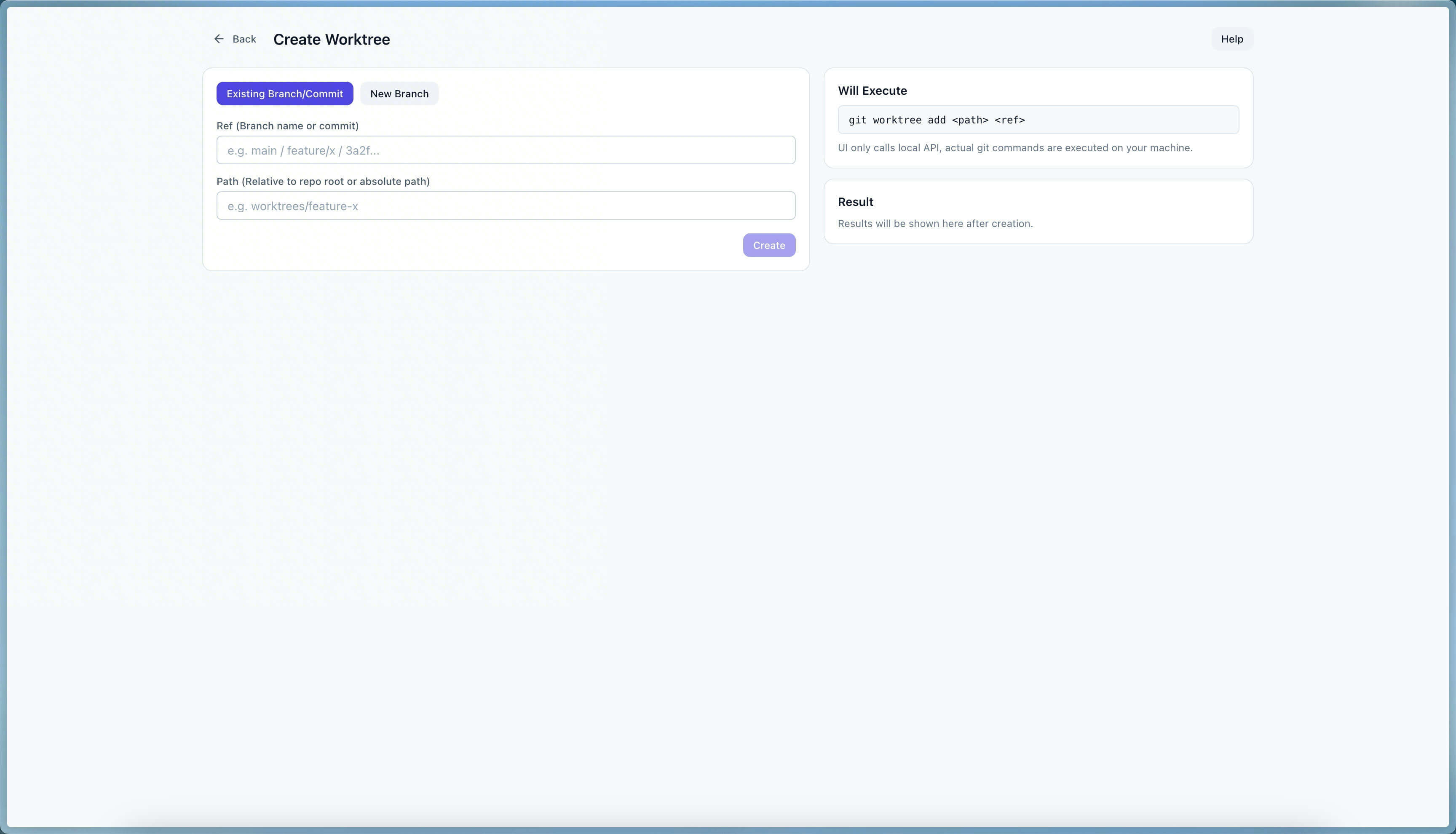
- Support for creating worktrees from new branches or existing branches/commits
- Open worktrees instantly in your system file manager or preferred IDEs (Trae, Cursor, VS Code)
- Support for Locking, Unlocking, and Pruning invalid worktrees
- Non-interactive mode: fully automated operations via CLI flags, ideal for scripts and AI Agents
- Provides Agent Skill for AI coding tools like Trae, Cursor, and Claude Code
- Local API executes git commands securely on your machine, data never leaves your computer
Screenshots
Installation
Install globally via npm (specify the public registry if you are using a private one):
npm install -g @fatdoge/wtree --registry=https://registry.npmjs.org/
Or run directly using npx:
npx --registry=https://registry.npmjs.org/ @fatdoge/wtree
Usage
Interactive CLI
Run inside your git repository:
wtree
Specify a branch directly to skip selection:
wtree feature/my-branch
List all worktrees:
wtree list
UI Mode (TreeLab)
wtree --ui
Optional arguments:
wtree --ui --repo /path/to/repo
wtree --ui --no-open
wtree --ui --port 0
CLI Commands
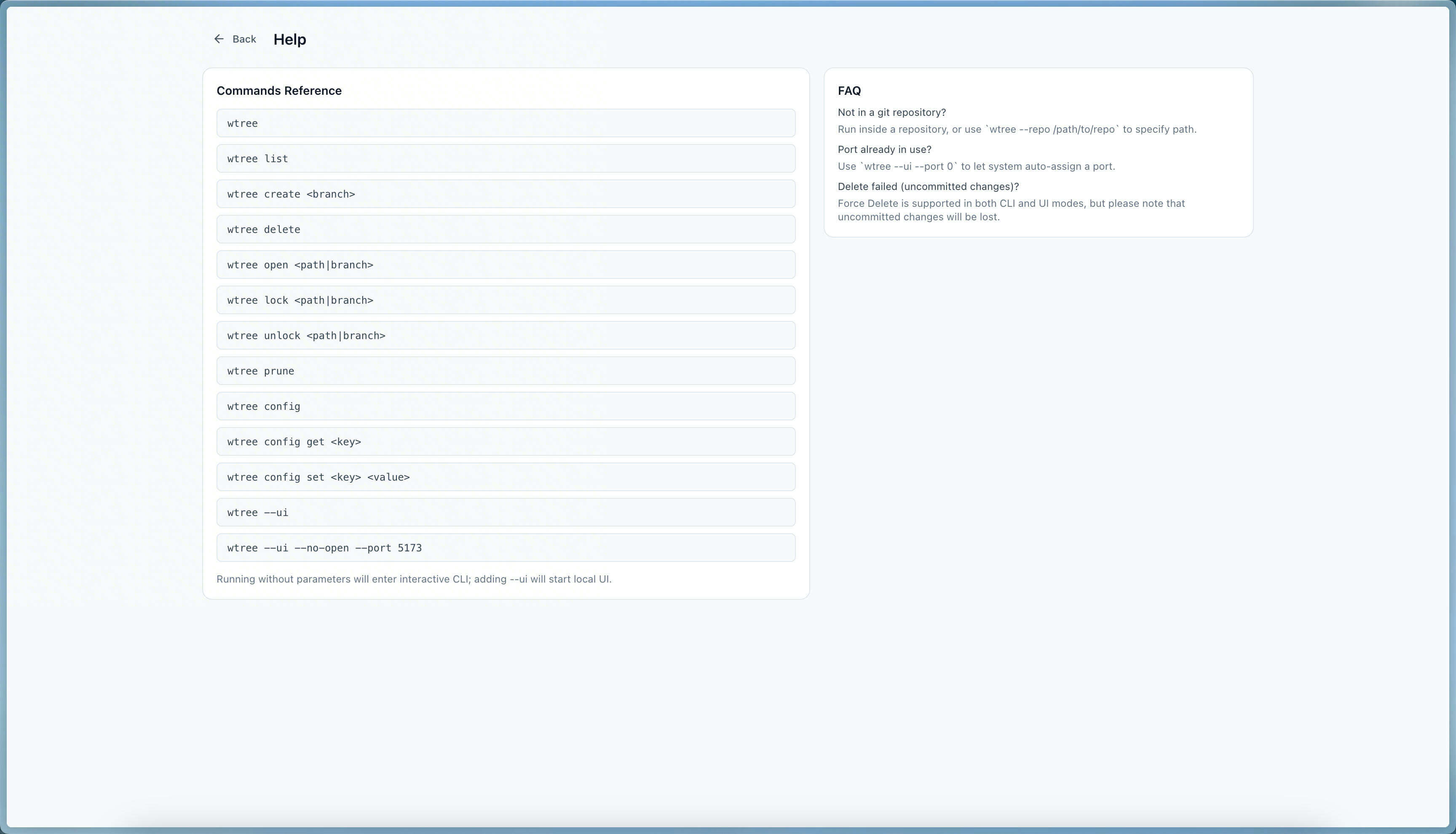
wtree: Interactive main menu (Create/Delete/List/Open/Lock/Unlock/Prune)wtree list: Print worktree listwtree create [branch]: Create a worktree (interactive selection supported)wtree delete [branch|path ...]: Delete worktrees (interactive selection or specify targets directly, force deletion supported)wtree open [path|branch]: Open a worktreewtree lock [path|branch]: Lock a specific worktree to prevent it from being moved or deletedwtree unlock [path|branch]: Unlock a specific worktreewtree prune: Prune worktree records that no longer exist locally but are tracked by Gitwtree config: View local configurationwtree config get <key>: Read a configuration itemwtree config set <key> <value>: Set a configuration itemwtree help: View help information
CLI Flags
--ui: Launch the local UI--repo <path>: Specify the repository path (defaults to the current directory)--no-open: Do not automatically open the browser--port <number>: Specify the UI port (0for auto-assign)--json: Output in JSON format (ideal for scripts and AI Agents)--yes, -y: Auto-confirm all prompts--force, -f: Force the operation (e.g., force-delete worktrees with uncommitted changes)--dir <path>: Specify worktree directory path (relative to the git root)--base <ref>: Base reference for new branch creation (e.g.,main,origin/main)--editor <name>: Open in a specific editor after creation (trae,cursor,code,none)--no-editor: Do not open any editor after creation--no-install: Skip automatic dependency installation after creation
Non-Interactive Mode
All commands support fully non-interactive execution via CLI flags, suitable for scripts and AI Agents:
# List worktrees (JSON output)
wtree list --json

# Create a worktree for an existing branch
wtree create feature/my-branch --yes --no-editor --no-install --json

# Create a worktree with a new branch based on main
wtree create feature/new-thing --base main --yes --dir worktrees/new-thing --no-editor --no-install --json

# Delete a specific worktree
wtree delete feature/old-branch --yes --json

# Force delete (even with uncommitted changes)
wtree delete feature/dirty --yes --force --json
Agent Skill
wtree provides an Agent Skill that enables AI coding tools (Trae, Cursor, Claude Code, etc.) to manage git worktrees directly.
Install Skill
# Install to current project
npx skills add FatDoge/wtree --skill wtree

# Install globally (available in all projects)
npx skills add FatDoge/wtree --skill wtree -g
Once installed, the AI Agent will automatically recognize the wtree skill and invoke it when you need to manage worktrees.
Configuration
The UI settings page saves configuration to a local file:
- macOS/Linux:
~/.config/wtree/config.json - Windows:
%USERPROFILE%\.config\wtree\config.json
Supported configuration keys:
baseDir: Used by the UI to remember the default directory (currently not automatically appended to the creation path)openCommand: The command used when clicking "Folder" in the UI to open the system file manager (defaults to system commands based on OS, e.g.,openon macOS)editorCommand: The command used when clicking "IDE" in the UI. If not set, the system will automatically detect installed editors like Trae, Cursor, or VS Code.
Note: The UI theme mode (Light/Dark/System) and language preferences are stored independently in the browser's localStorage.
Development
Install dependencies:
pnpm install
Common scripts:
pnpm run wtree
pnpm run dev
pnpm run client:dev
pnpm run server:dev
pnpm run build
pnpm run lint
pnpm run test
pnpm run check