dorso-linux
June 5, 2026 · View on GitHub





Posture monitoring tool for Linux, inspired by dorso for macOS.
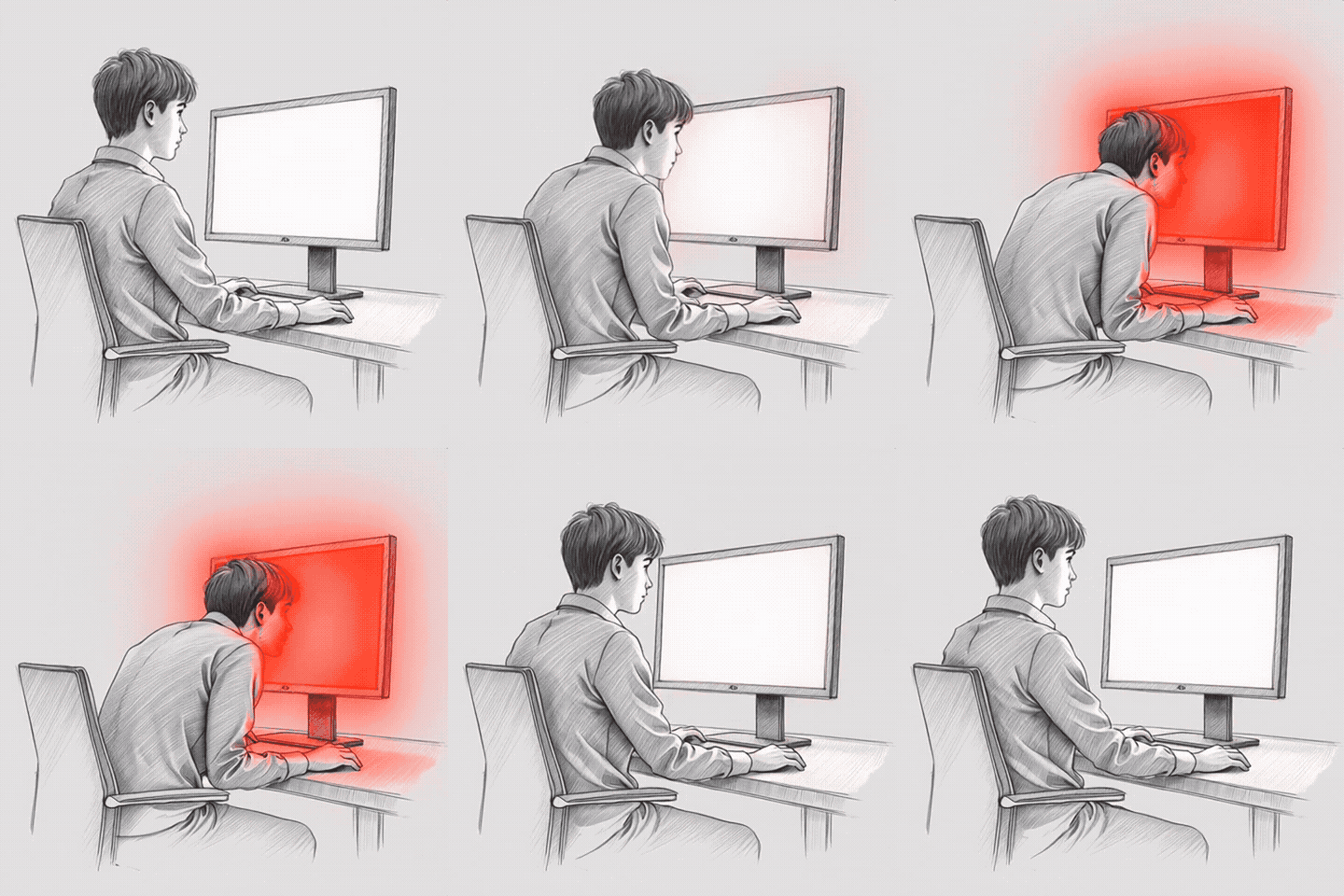
Uses your webcam to detect slouching in real-time and overlays a progressive red glow on your screen as a gentle reminder to sit straight.
How it looks
Screenshots
Features
- Real-time posture detection via webcam (MediaPipe PoseLandmarker)
- Progressive screen overlay — red glow that intensifies with slouch severity
- Click-through overlay — keyboard and mouse work normally
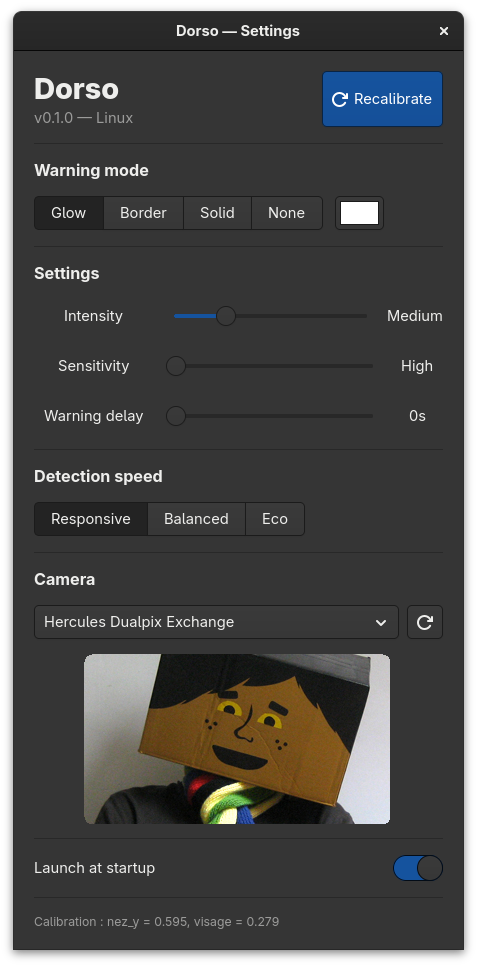
- Settings UI — warning mode, intensity, sensitivity, detection speed
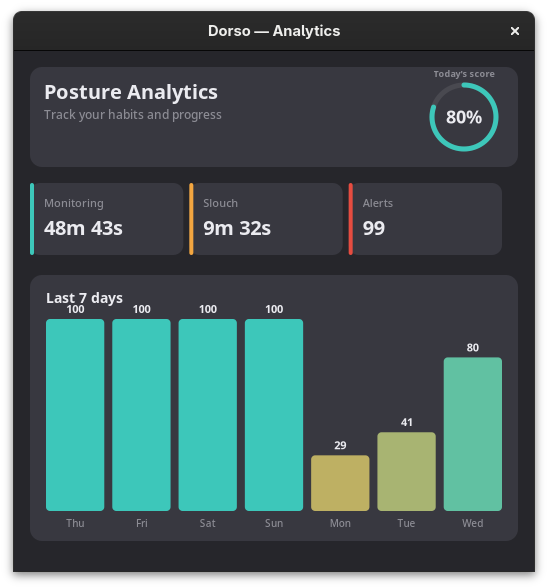
- Analytics dashboard — daily score, 7-day chart, monitoring time, slouch stats
- System tray with posture status and quick access menu
- Dark/light theme support (follows GNOME color scheme)
- Auto-pause on screen lock
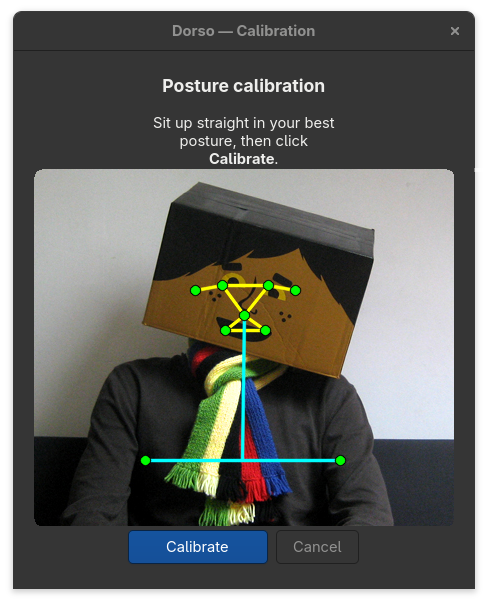
- Calibration on first launch
- TOML config in
~/.config/dorso/ - GNOME Shell extension — true always-on-top overlay on all monitors (GNOME Wayland)
- Works on GNOME Wayland, X11, and Layer Shell compositors (Sway, Hyprland)
Requirements
- Python 3.11+
- Webcam
- GTK4 + PyGObject
Fedora / RHEL
sudo dnf install gtk4-devel python3-gobject gtk4-layer-shell-devel
Ubuntu / Debian
sudo apt install libgtk-4-dev python3-gi gir1.2-gtk-4.0
Installation
pip install dorso-linux
For the best experience on GNOME Wayland, also install the GNOME Shell extension (multi-monitor, always-on-top overlay) from the GNOME Extensions store:
Dorso Overlay on extensions.gnome.org
Or install it from this repo:
./scripts/install-extension.sh
# Log out / log in, then:
gnome-extensions enable dorso-overlay@dorso-linux
From source
pip install -e .
Usage
python -m dorso
On first launch, a calibration window appears. Sit in your best posture and click Calibrate. Monitoring starts automatically after calibration.
When you slouch, a red glow appears on the edges of your screen. Sit straight and it fades away.
System tray menu
The tray icon shows your current posture status (green/red/grey). Click the icon to access:
- Status — current posture state
- Toggle — toggle monitoring
- Recalibrate — redo posture calibration
- Analytics — open the analytics dashboard
- Settings — open settings
- Quit — exit
Autostart
Toggle "Launch at startup" in settings, or manually:
./scripts/install-autostart.sh
Keyboard shortcut
Dorso exposes a D-Bus Toggle method. To bind a global shortcut on GNOME:
Settings → Keyboard → Custom Shortcuts → +
- Name:
Dorso Toggle - Command:
gdbus call --session --dest org.dorso.App --object-path /org/dorso/App --method org.dorso.App.Toggle - Shortcut: your choice (e.g.
Super+Shift+D)
Configuration
Settings are stored in ~/.config/dorso/config.toml:
warning_mode = "glow"         # glow, border, solid, none
detection_mode = "responsive" # responsive (~10fps), balanced (~4fps), performance (~2fps)
intensity = 1.0               # 0.5 = gentle, 2.0 = harsh
slouch_sensitivity = 0.03     # lower = more sensitive
warning_onset_delay = 0.0     # seconds before warning appears
camera_id = 0                 # camera device index
How it works
- Camera capture — OpenCV grabs frames at adaptive rates (faster when slouching)
- Pose detection — MediaPipe PoseLandmarker extracts nose position and face width
- Slouch detection — compares nose Y to calibrated baseline with 5-frame smoothing
- Posture engine — pure logic state machine with hysteresis (8 bad frames to trigger, 5 good to clear)
- Overlay — GNOME Shell extension (best), Layer Shell, or transparent GTK4 window with Cairo-drawn glow
- Analytics — tracks slouch events, duration, and daily scores over 90 days
Architecture
CameraHub (OpenCV) → Detector (MediaPipe) → PostureEngine → Overlay (GTK4)
                   → Settings preview                      → Tray (D-Bus SNI)
                   → Calibration preview                   → Analytics (JSON)
The CameraHub shares a single camera capture across all consumers (detector, settings preview, calibration preview). The posture engine is a pure function with no side effects — takes state + reading, returns new state + effects. Fully testable.
GNOME Shell extension (recommended for GNOME)
For the best experience on GNOME Wayland, install it from the GNOME Extensions store, or from this repo:
./scripts/install-extension.sh
# Log out / log in
gnome-extensions enable dorso-overlay@dorso-linux
This gives you true always-on-top overlay on all monitors, click-through, no focus stealing, and the GNOME top bar stays visible. Without the extension, dorso falls back to a maximized GTK4 window (single monitor, windows can cover it).
Known limitations & help wanted
AirPods motion sensors
The macOS version supports AirPods motion sensors for posture detection. On Linux, AirPods connect as standard Bluetooth audio devices (A2DP/HFP) via BlueZ, but the motion sensor data uses Apple's proprietary AAP protocol over BLE GATT and is not accessible.
If you've done reverse-engineering work on the AAP protocol or know how to access AirPods motion data on Linux, contributions are very welcome!
Roadmap
- Overlay color picker
- Custom tray icons (sitting silhouette, green/red/grey/orange/blue)
- GNOME Shell extension — multi-monitor, always-on-top, click-through overlay
- Global keyboard shortcut to toggle (via D-Bus)
- Onboarding flow on first launch
- Internationalization — 8 languages, auto-detect locale
- Publish on PyPI (
pip install dorso-linux) - Publish GNOME Shell extension on extensions.gnome.org
- AirPods motion sensor support (blocked — Apple AAP protocol encrypted, see LibrePods for current state)
- Flatpak packaging (Flathub) — build works, sandbox issues with tray icon & screen lock
Tests
pip install -e ".[dev]"
pytest
License
MIT