VFC
March 9, 2026 · View on GitHub
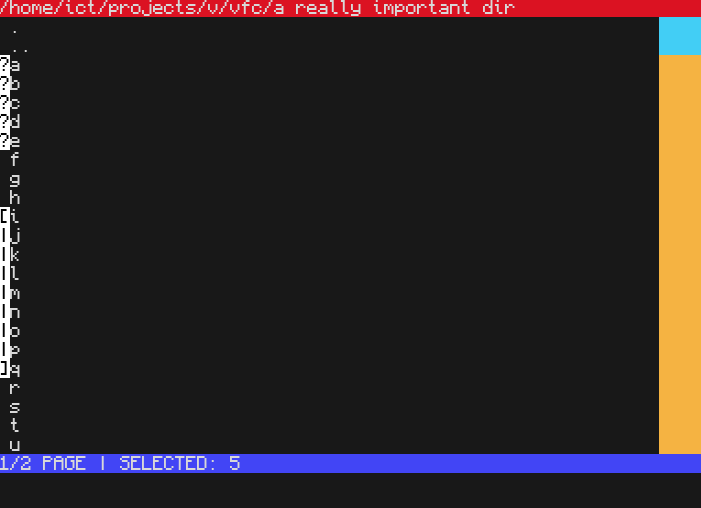
V FS Control - a simple TUI file manager written in V. A rewrite of original FSC
Usage
Controls
| Key | Action |
|---|---|
| W/S | Move cursor up/down |
| A | Move to parent directory |
| D/Enter | Move to selected directory |
| L/K | Move to next/previous page |
| X | Jump to first pattern match in current directory |
| E | Enter the directory path to go there |
| B | Add a bookmark |
| I | Add/Remove selected entry to Action list |
| U | Clear action list |
| [ / ] | Mass add entries to action list. First, press [ to set the first entry, then move the cursor and press ] to add all the entries in-between in the list (before doing so all the entries will be marked with [ | ] characters ) |
| R | Remove all the specified entries (with confirmation) |
| C | Copy all the specified entries to selected directory |
| M | Move all the specified entries to selected directory |
| N | Rename all the specified entries. If there is more than one entry, all of them will be renamed including their number: a1.txt, a2.txt, a3.txt and so on |
| F | Only show entries that match specified pattern |
| Y | Select all the entries that match specified pattern |
| V | View settings. H/h to hide/show all the hidden (starting with .) files; D/d to hide/show all the directories; F/f to hide/show all the files |
| ; | Run a command |
| Q/Escape | Exit the app |
| F3 | Show scripts |
Patterns
Patterns are pretty easy to understand. You can use * to match any sequence of characters, and , to match any single character. For example, *.txt will match all files with the .txt extension, while file,.txt will match files like file1.txt, fileA.txt, but not file10.txt.
Action list
Action list is a list where all the entries you want to perform some action on are stored. You can add/remove entries to/from the list by pressing I while the entry is selected. All entries that are in action list will be marked with ? character. You can then perform actions on the entries in the list, such as copying or moving them to another directory and so on.
Bookmarks
Bookmarks are a convenient way to quickly navigate to frequently accessed directories. To add a bookmark, simply press B while in the desired directory. You can then access your bookmarks by pressing F2 and selecting the bookmark from the list.
Note that bookmarks are not saved between sessions (Yet, unless YOU suggest)
Bookmarks controls
| Key | Action |
|---|---|
| W/S | Move cursor up/down |
| D/Enter | Go to bookmark |
| F2 | Show bookmarks list |
| F1 | Hide bookmarks list |
| R | Remove selected bookmark |
Scripts
Using scripts you can automate some actions. For example, you can create a script that will automatically make all the selected directories:
cd {}
make
As you may've noticed, here {} is used. It's a placeholder that will be replaced with the path of the entry when the script is executed. You can use it multiple times in the script, and it will be replaced with the same path.
So basically if you have a, b and c directories in your action list, they'll be passed to the script one by one, and the script will be executed for each of them. So in this case the script will be executed three times: once for a, once for b and once for c.
Also, there's another placeholder, @{}. It will be replaced with all the entries in the action list at once, separated by space. So if you have a, b and c directories in your action list, and you use @{} in your script, it will be replaced with "a b c".
Scripts controls
| Key | Action |
|---|---|
| W/S | Move cursor up/down |
| D/Enter | Run selected script |
| F3 | Show scripts list |
| F1 | Hide scripts list |
Colors
You may notice that on the right side of the screen there are some colors. They represent the type of the entry:
| Color | Type |
|---|---|
| Yellow | File |
| Light blue | Directory |
| Blue | Symlink |
| Green | Executable |
Installation
Supported platforms
- Linux
- MacOS
- Windows (not tested yet)
- You need to get V compiler.
- Clone the repository and navigate to the project directory:
$ git clone https://github.com/Ict00/vfc.git
$ cd vfc
- Build the project using the V compiler:
$ v .
- Done! Now you have vfc executable in the directory.