CONNECT.md
February 4, 2025 · View on GitHub
Below is the comprehensive guide for connecting your MediaSFU Community Edition server to various client SDKs, including Angular, ReactJS, Flutter, React Native (Expo and CLI). This section provides clear instructions on exposing your MediaSFU server domain, configuring client applications, setting up safe origins, and enhancing security through authentication methods.
Connecting Your Application to MediaSFU Server
To integrate your client applications with the MediaSFU Community Edition server, follow the instructions specific to your development framework. This ensures seamless communication between your application and the MediaSFU server, whether you're running in a production environment or developing locally.
Overview
-
Expose Your MediaSFU Server Domain:
- Production: Use your domain (e.g.,
https://example.com). - Local Development: Use
http://localhostwith the appropriate port (e.g.,http://localhost:3000).
- Production: Use your domain (e.g.,
-
Refer to Quickstart Applications:
- Access quickstart guides for different frameworks at MediaSFU Quickstart Apps.
-
Configure
safeOriginsin MediaSFU:- Specify the domains and ports your client applications will use to connect.
- Example ports:
- React:
3000 - Angular:
4200 - Flutter:
5000 - React Native (Expo): Varies, often
19006 - React Native (CLI): Varies, typically
8081
- React:
-
Enhance Security:
- Use MediaSFU Keys or other authentication methods to prevent unauthorized cross-origin requests.
🎥 Video Guides for Connecting SDKs
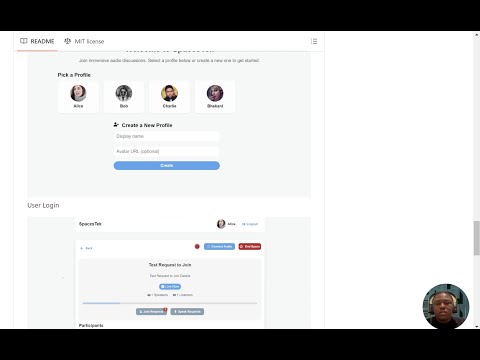
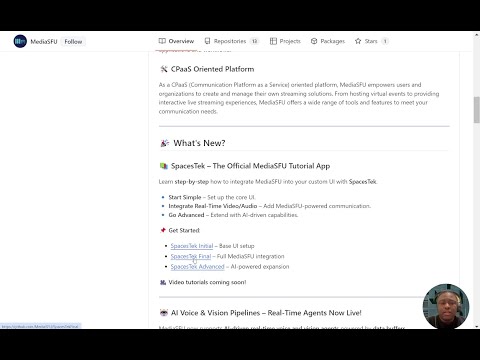
For an interactive walkthrough, refer to the video guides for the frameworks currently supported:
-
ReactJS SDK Setup: Watch the React SDK Setup Guide
-
Flutter SDK Setup: Watch the Flutter SDK Setup Guide

-
React Native SDK Setup (Expo & CLI): Watch the React Native SDK Setup Guide
🚧 Coming Soon:
- Angular SDK Setup
1. Angular
Steps to Connect Angular Application
-
Set Up Your Angular Application:
- Use the Angular CLI to create a new project or navigate to your existing Angular project.
- Default Port:
4200
-
Expose Your Application:
- Production: Deploy your Angular app to a server and access it via your domain, e.g.,
https://example.com. - Local Development: Run your Angular app on
http://localhost:4200.
ng serve --port 4200 - Production: Deploy your Angular app to a server and access it via your domain, e.g.,
-
Refer to Quickstart Guide:
- Explore the Angular Quickstart App for sample integration.
-
Configure
safeOriginsin MediaSFU Server:- Edit your
index.jsor server configuration file to includehttp://localhost:4200or your production domain.
const safeOrigins = ['https://example.com', 'http://localhost:4200']; - Edit your
-
Enhance Security with MediaSFU Keys:
- Implement MediaSFU Keys to authenticate requests and prevent unauthorized access.
- This is only required if you ever use MediaSFU Cloud.
2. ReactJS
Steps to Connect ReactJS Application
-
Set Up Your React Application:
- Use Create React App or your preferred setup to initialize your React project.
- Default Port:
3000
-
Expose Your Application:
- Production: Deploy your React app to a server and access it via your domain, e.g.,
https://example.com. - Local Development: Run your React app on
http://localhost:3000.
npm start - Production: Deploy your React app to a server and access it via your domain, e.g.,
-
Refer to Quickstart Guide:
- Explore the ReactJS Quickstart App for sample integration.
-
Configure
safeOriginsin MediaSFU Server:- Edit your
index.jsor server configuration file to includehttp://localhost:3000or your production domain.
const safeOrigins = ['https://example.com', 'http://localhost:3000']; - Edit your
-
Enhance Security with MediaSFU Keys:
- Implement MediaSFU Keys to authenticate requests and prevent unauthorized access.
- This is only required if you ever use MediaSFU Cloud.
3. Flutter
Steps to Connect Flutter Application
-
Set Up Your Flutter Application:
- Create a new Flutter project or navigate to your existing project.
- Default Web Port:
5000(for web applications)
-
Expose Your Application:
- Production: Deploy your Flutter app to a web server and access it via your domain, e.g.,
https://example.com. - Local Development: Run your Flutter web app on
http://localhost:5000.
flutter run -d chrome --web-port 5000 - Production: Deploy your Flutter app to a web server and access it via your domain, e.g.,
-
Refer to Quickstart Guide:
- Explore the Flutter Quickstart App for sample integration.
-
Configure
safeOriginsin MediaSFU Server:- Edit your
index.jsor server configuration file to includehttp://localhost:5000or your production domain.
const safeOrigins = ['https://example.com', 'http://localhost:5000']; - Edit your
-
Enhance Security with MediaSFU Keys:
- Implement MediaSFU Keys to authenticate requests and prevent unauthorized access.
- This is only required if you ever use MediaSFU Cloud.
4. React Native (Expo)
Steps to Connect React Native (Expo) Application
-
Set Up Your Expo Application:
- Initialize a new Expo project or navigate to your existing project.
- Default Port: Expo typically uses dynamic ports, but you can specify one if needed.
-
Expose Your Application:
- Production: Build your Expo app and deploy it to your desired platform (iOS, Android).
- Local Development: Run your Expo app on your local machine.
expo start -
Refer to Quickstart Guide:
- Explore the Expo Quickstart App for sample integration.
-
Configure
safeOriginsin MediaSFU Server:- Determine the local development URL (e.g.,
http://localhost:19006) or your production domain. - Edit your
index.jsor server configuration file to include the necessary origins.
const safeOrigins = ['https://example.com', 'http://localhost:19006']; - Determine the local development URL (e.g.,
-
Enhance Security with MediaSFU Keys:
- Implement MediaSFU Keys to authenticate requests and prevent unauthorized access.
- This is only required if you ever use MediaSFU Cloud.
5. React Native (CLI)
Steps to Connect React Native (CLI) Application
-
Set Up Your React Native CLI Application:
- Initialize a new React Native project or navigate to your existing project.
- Default Port:
8081
-
Expose Your Application:
- Production: Build your React Native app and deploy it to your desired platform (iOS, Android).
- Local Development: Run your React Native app on your local machine.
npx react-native start --port 8081 -
Refer to Quickstart Guide:
- Explore the React Native CLI Quickstart App for sample integration.
-
Configure
safeOriginsin MediaSFU Server:- Determine the local development URL (e.g.,
http://localhost:8081) or your production domain. - Edit your
index.jsor server configuration file to include the necessary origins.
const safeOrigins = ['https://example.com', 'http://localhost:8081']; - Determine the local development URL (e.g.,
-
Enhance Security with MediaSFU Keys:
- Implement MediaSFU Keys to authenticate requests and prevent unauthorized access.
- This is only required if you ever use MediaSFU Cloud.
Additional Considerations
1. Specifying safeOrigins Dynamically
When developing locally, your application's port may vary. To accommodate this, you can dynamically set safeOrigins based on environment variables or configuration files.
Example: Using Environment Variables
const safeOrigins = [
  'https://example.com',
  `http://localhost:${process.env.PORT || 3000}`,
];
2. Using MediaSFU Keys for Enhanced Security
MediaSFU Keys provide a secure way to authenticate your client applications with the MediaSFU server. This prevents unauthorized cross-origin requests and ensures that only authenticated clients can access your MediaSFU server.
Steps to Implement MediaSFU Keys:
-
Generate MediaSFU Keys:
- Follow the MediaSFU Keys Generation Guide to create secure keys.
-
Configure MediaSFU Server to Validate Keys:
- Update your server configuration to require and validate MediaSFU Keys for incoming connections.
const MEDIA_SFU_KEY = process.env.MEDIA_SFU_KEY; // Example middleware to validate keys app.use((req, res, next) => { const clientKey = req.headers['x-mediasfu-key']; if (clientKey !== MEDIA_SFU_KEY) { return res.status(403).send('Forbidden'); } next(); }); -
Configure Client Applications to Send MediaSFU Keys:
- Update your client applications to include the MediaSFU Key in their requests.
// Example for ReactJS
fetch('https://example.com/api/endpoint', {
  method: 'GET',
  headers: {
    'x-mediasfu-key': process.env.REACT_APP_MEDIA_SFU_KEY,
  },
});
3. Handling Cross-Origin Resource Sharing (CORS)
Ensure your MediaSFU server is correctly configured to handle CORS, allowing only the specified safeOrigins to interact with it.
Example CORS Configuration:
const cors = require('cors');

const corsOptions = {
  origin: function (origin, callback) {
    if (safeOrigins.indexOf(origin) !== -1 || !origin) {
      callback(null, true);
    } else {
      callback(new Error('Not allowed by CORS'));
    }
  },
};

app.use(cors(corsOptions));
4. Port Management
Ensure that the ports used by your client applications do not conflict with MediaSFU server ports. Commonly used ports include:
- React:
3000 - Angular:
4200 - Flutter Web:
5000 - React Native (Expo):
19006 - React Native (CLI):
8081
If you need to change the default port for any application, update the safeOrigins accordingly in your MediaSFU server configuration.
Summary Table
| Framework | Default Port | Quickstart Guide URL | safeOrigins Example |
|---|---|---|---|
| Angular | 4200 | Angular Quickstart App | ['https://example.com', 'http://localhost:4200'] |
| ReactJS | 3000 | ReactJS Quickstart App | ['https://example.com', 'http://localhost:3000'] |
| Flutter | 5000 | Flutter Quickstart App | ['https://example.com', 'http://localhost:5000'] |
| React Native (Expo) | 19006 | Expo Quickstart App | ['https://example.com', 'http://localhost:19006'] |
| React Native (CLI) | 8081 | React Native CLI Quickstart App | ['https://example.com', 'http://localhost:8081'] |
By following these guidelines, you can effectively connect your client applications built with various frameworks to your MediaSFU Community Edition server, ensuring secure and efficient media streaming capabilities.
For further assistance and detailed examples, refer to the MediaSFU Documentation and explore the MediaSFU Quickstart Apps Repository.