Undo Tree
April 2, 2026 · View on GitHub
The undo tree shows the full history of changes to a file as a branching tree, rather than a linear undo/redo stack. This lets you explore and restore any past state, even across different edit branches.
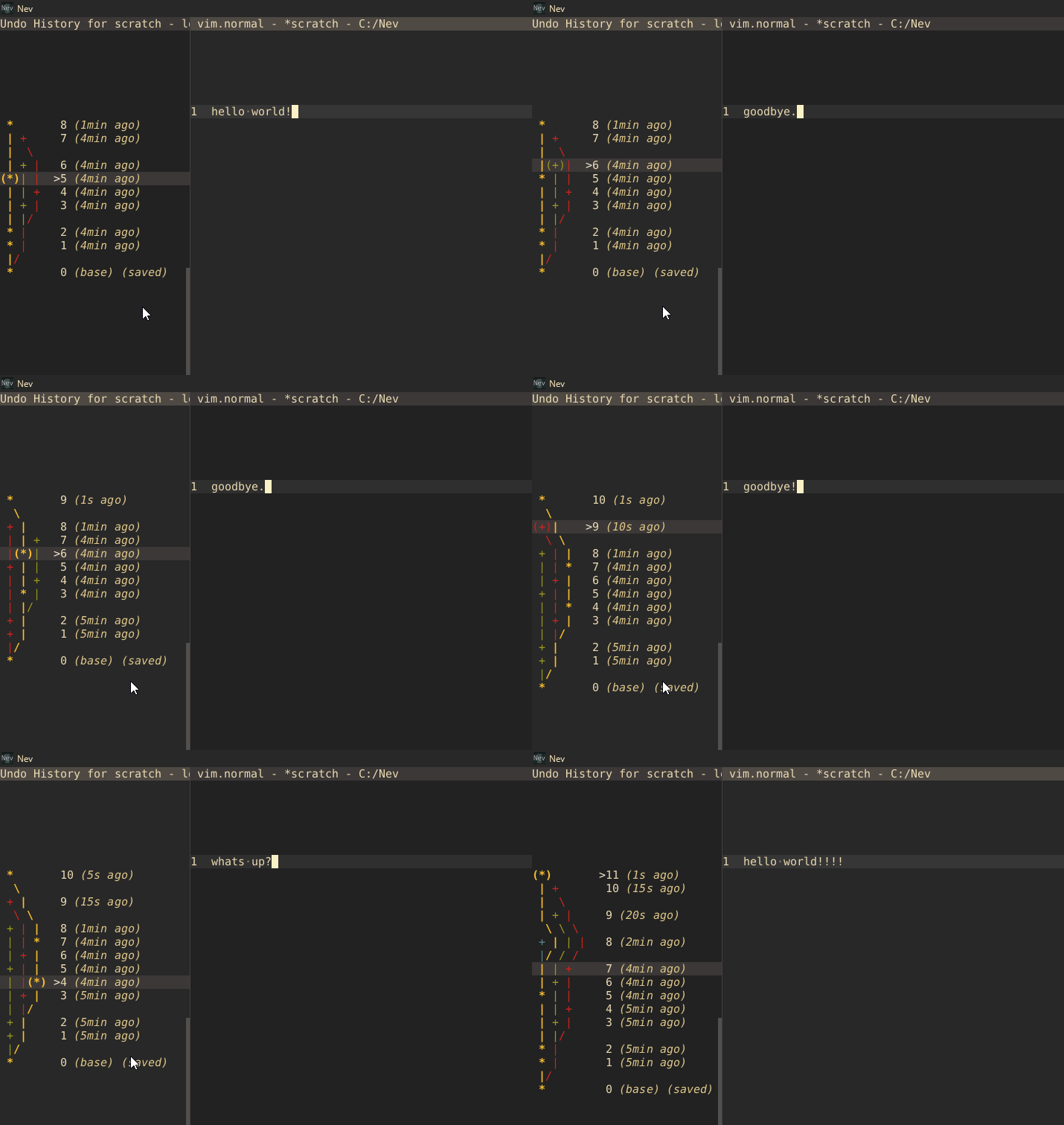
Opening
Press gK in normal mode to open the undo tree panel for the current file. It appears in the left sidebar.
The tree is drawn as an ASCII graph:
(*)- the current position in the history+- inactive branch
Each node shows a sequence number, relative timestamp, and a > marker if it matches the saved file state.
Editor Keybindings (normal mode)
| Key | Command | Description |
|---|---|---|
gK | undotree.toggle | Toggle undo tree panel |
u | vim.undo | Undo |
U | vim.redo | Redo |
<C-z> | undo | Undo (VSCode keybindings) |
Undo Tree Panel Keybindings
Navigation
| Key | Command | Description |
|---|---|---|
<UP> | next-change | Move to newer change |
<DOWN> | prev-change | Move to older change |
<LEFT> | left-change | Jump to left branch (when on branch line) |
<RIGHT> | right-change | Jump to right branch (when on branch line) |
<S-UP> | active-child | Go to active child |
<S-DOWN> | parent-change | Go to parent node |
<HOME> | last-change | Jump to newest change |
<END> | first-change | Jump to oldest change |
c | select-current | Select current (active) change |
Applying Changes
| Key | Command | Description |
|---|---|---|
<ENTER> | apply-selected | Make selected change the current one |
a | toggle-auto-apply | Toggle auto-apply (live preview while navigating) |
Time-Based Jumps
Jump forward or backward by a time interval. Use count prefixes (e.g. 3sg to jump 3 seconds forward).
| Key | Command | Argument | Description |
|---|---|---|---|
g | next-change-time | 1s | Forward 1 second |
r | prev-change-time | 1s | Back 1 second |
G | next-change-time | 10m | Forward 10 minutes |
R | prev-change-time | 10m | Back 10 minutes |
<PAGE_UP> | next-change-time | 5s | Forward 5 seconds |
<PAGE_DOWN> | prev-change-time | 5s | Back 5 seconds |
<?>-count>sg | next-change-time | <#count>s | Forward N seconds |
<?>-count>sr | prev-change-time | <#count>s | Back N seconds |
<?>-count>mg | next-change-time | <#count>m | Forward N minutes |
<?>-count>mr | prev-change-time | <#count>m | Back N minutes |
<?>-count>hg | next-change-time | <#count>h | Forward N hours |
<?>-count>hr | prev-change-time | <#count>h | Back N hours |
<?>-count>dg | next-change-time | <#count>d | Forward N days |
<?>-count>dr | prev-change-time | <#count>d | Back N days |
Auto-Apply Mode
When auto-apply is off (default), navigating the tree only moves the selection highlight. Press <ENTER> to apply the selected state.
When auto-apply is on (toggle with a), the editor instantly switches to whichever node is selected. This is useful for quickly browsing through edit history.