Stand up a local SSDC RM App Environment
February 5, 2026 · View on GitHub
The goal of this repository is to enable team members to stand up a dockerized local RM and RH application using either podman compose and podman network or docker compose and docker network.
The use of Podman and Docker are both supported.
Note
Alot of the commands in this readme use podman, if you want to use docker instead just replace podman with docker.
By default, the Makefile will use docker unless you are on an arm64 architecture (e.g. M1/M2 Mac) in which case it will use podman.
You can override this by setting the DOCKER environment variable to either docker or podman.
For example, to force using docker on an M1/M2 Mac:
DOCKER=docker make <command>
Table of contents
- Pre-requisites
- Quickstart
- Configuring local python environments
- Upgrading Python
- Setup
- Slow start
- Development
- Troubleshooting
- Pubsub Tools
- Create multiple branches from a PR
Pre-requisites
- Ask to become a team member of sdcplatform
- Run
gcloud auth login --update-adcto login to your gcloud account - Run
gcloud auth configure-docker europe-west2-docker.pkg.devto associate your docker with the GCR registry - Run
podman network create ssdcrmdockerdev_defaultto create the docker network - Connect to the gcr registry and perform a
make pulldo bring down docker-compose images
Important is to configure your python environment - that's covered next.
Podman Resources
The services are very resource intensive, it's recommended you allocate at least 14gb of RAM to podman machine:
podman machine set --memory 14000
Docker Resources
The services need at least 5 CPUs and 7GB RAM between them for their resource allocations.
There are two ways to adjust this;
docker desktop
- Open the Docker settings and increase its resource allowances to at least these amounts.
via colima
colima start --cpu 6 --memory 8
If you will be running anything else alongside the ATs (e.g. Another services integration tests) you may want to allow another CPU and GB of RAM for headroom.
Quickstart
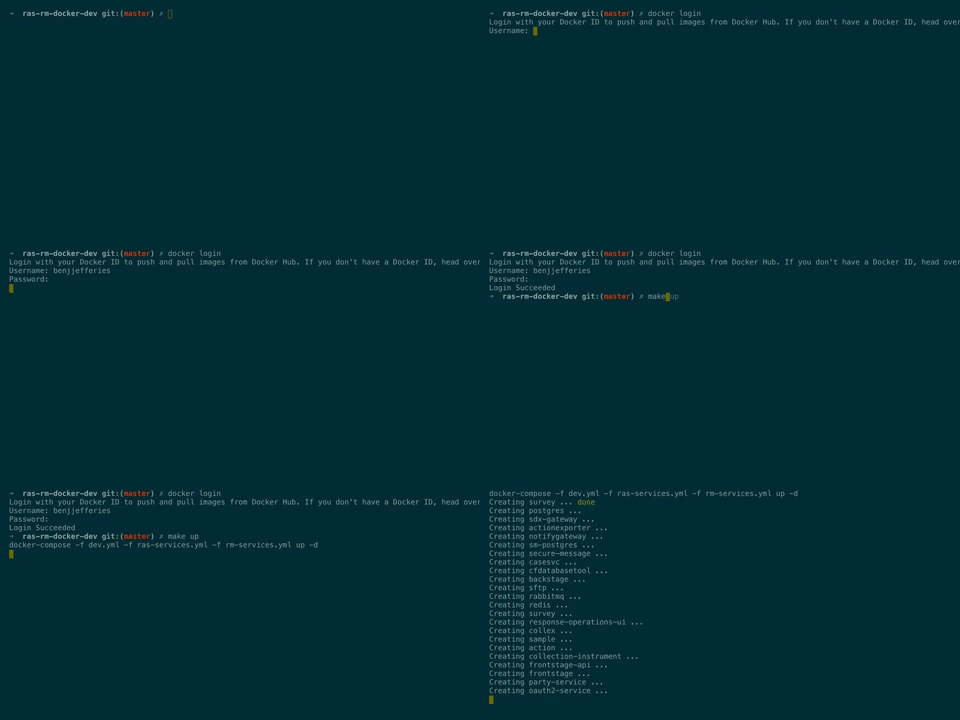
make up
Will spin up all the dependencies and services.
Updating Images
To force pull the latest images use
make pull
Configure Local Python Environments to Run Acceptance Tests
Currently Supported Python Version is 3.11.x
The goal is to setup our python environments ready to run Python 3.X.X (whaterver is currently supported). It is good practise to keep your machine version in line with the latest.
Validate your python versions with python -V and printenv.
Initializing pyenv is one of those boring things that must always be done. You can circumnavigate this by adding the below command to the .zshrc (if using a z shell) or .inputrc or .profile or .bash_profile (if using a bash on a Mac).
eval "$(pyenv init -)"
pyenv --version# check whether pyenv is installedbrew install pyenv# install pyenv with brewpyenv install 3.X.Y# the app needs python 3.9pyenv local 3.x.y# whenever you come to this directory this python will be used
pyenv local will create a .python-version file so that whenever you return to the directory your python env is set.
Note that this has been put into .gitignore
PipEnv | Upgrading Python | Projects with a Pip File
As this project maintains a pip file you can ascertain validity by running pipenv check - whenever Python is
upgraded the Pipfile change is all that is required. To ensure you are in sync use
pipenv check# check whether the environments matchpipenv --rm# if the check fails remove the current environment
Setup Based on python 3.X.Y
Use Pyenv to manage installed Python versions
Pipenv is required locally for running setup scripts
pip install -U pipenv
Slowstart
There are two docker-compose files:
- rm-dependencies.yml - spins up the backing service containers such as postgres and pubsub emulator
- rm-services.yml - spins up the RM and RH services such as case-processor and rh-ui
These can be run together as per the Quickstart section or individually.
podman compose -f rm-dependencies.yml -f rm-services.yml up -d
This will spin up the development containers and the rm-services.
Additionally, individual services can be specified at the end of the command. For example:
podman compose -f rm-services.yml up -d caseprocessor
This will spin up just the Case Processor container, however be aware that individual services may not function correctly or even start up at all without their dependencies and integrations.
If you're spinning things up manually, you will also need to manually run the setup_pubsub.sh script to create the
required topics and subscriptions in the PubSub Emulator.
Development
Running in docker with local changes
Development using this repo can be done by doing the following:
- Move to the repository directory and make the code changes in the service repository locally
- Rebuild the image to overwrite your local
latestimage with your changes, for example usingmake build-no-test, but check the README in the repository for specific build commands. - Finally, return to the docker-dev repository and restart the service with
make up. You should see the image you have rebuilt get recreated.
Running natively with local changes
- Ensure you have all your services running with
make up - Stop the service you're changing with
podman stop <service>, e.g.podman stop caseprocessor - Make changes to whichever repository.
- Depending on the repository, run it from either the command line using the appropriate command (e.g. for a python
flask app:
flask run) or by pressing run in your IDE.
pgAdmin 4
-
Start all the services
make up -
Navigate to
localhost:1081in your browser -
Login with
ons@ons.gov/secret -
Object -> Register -> Server...
-
Give it a suitable name in the
Generaltab -
Then in the
Connectiontab set:Host name/ address: postgresPort: 5432Maintenance database: postgresUsername: appuserPassword: postgres -
Click save to close the dialog and connect to the postgres docker container
Troubleshooting
These troubleshooting steps were created from common issues from docker, you may encounter simular issues with podman.
Not logged in
error getting credentials - err: exit status 1, out: ``
Error: executing /usr/local/bin/docker-compose -f rm-dependencies.yml -f rm-services.yml pull: exit status 1
make: *** [pull] Error 1
or:
Pulling iac (sdcplatform/iacsvc:latest)...
ERROR: pull access denied for sdcplatform/iacsvc, repository does not exist or may require 'docker login'
make: *** [pull] Error 1
- Log in to gcloud
gcloud auth login --update-adc - Run
gcloud auth configure-docker europe-west2-docker.pkg.devto associate your docker with the GCR registry.
Docker network
ERROR: Network ssdcrmdockerdev_default declared as external, but could not be found. Please create the network manually using `docker network create ssdcrmdockerdev_default` and try again.
make: *** [up] Error 1
- Run
podman network create ssdcrmdockerdev_defaultto create the docker network.
NB: Docker compose may warn you that the network is unused. This is a lie, it is in use.
Service not up?
Some services aren't resilient to the database not being up before the service has started. Rerun make up
Services running sluggishly or crashing on start up?
When rm is all running it takes a lot of memory.
Podman
You can edit this in podman desktop by clicking on Settings (the gear icon) in the bottom left, then go to 'Resources', click the edit button in the Podman Machine section and increase the memory and cpu allocation. What seems to work for most people is setting the memory to 14gb.
This can also be done via the command line by stopping the podman machine and restarting it with more resources:
podman machine stop
podman machine set --memory 14000
podman machine start
Docker
You can edit this in docker desktop by click on the docker icon in the top bar of your Mac, then click on ' preferences', then go to the 'advanced' tab. The default memory allocated to Docker is 2gb. Bumping that up to 8gb and the number of cores to 5 should make the service run much smoother. Note: These aren't hard and fast numbers, this is just what worked for people.
Or if you use colima you can simply run the command colima start --cpu 6 --memory 8.
Containers not updating or failing to write to disk?
Or Podman using too much disk space in general?
Over time, images and volumes can accumulate and consume too much disk storage space. If this reaches Docker's storage
limit then it will cause failures when running our services, as containers will be denied disk writes, as well as
failing image pulls.
Most of this space is normally consumed by "dangling" or unused images and volumes, these can be automatically cleaned
up with the prune tool.
To automatically clean up containers, images, and volumes try running
podman system prune --volumes
Database already running
postgrescontainer not working? Check there isn't a local postgres running on your system as it uses port 5432 and won't start if another service is running on this port.
Port already bound to
ERROR: for collection-instrument  Cannot start service collection-instrument-service: driver failed programming external connectivity on endpoint collection-instrument (7c6ad787c9d57028a44848719d8d705b14e1f82ea2f393ada80e5f7e476c50b1): Error starting userland pStarting secure-message ... done

ERROR: for collection-instrument-service  Cannot start service collection-instrument-service: driver failed programming external connectivity on endpoint collection-instrument (7c6ad787c9d57028a44848719d8d705b14e1f82ea2f393ada80e5f7e476c50b1): Error starting userland proxy: Bind for 0.0.0.0:8002 failed: port is already allocated
ERROR: Encountered errors while bringing up the project.
make: *** [up] Error 1
- Kill the process hogging that port by running
lsof -n -i:8002|awk 'FNR == 2 { print \$2 }'|xargs killwhere 8002 is the port you are trying to bind to
Java Healthcheck
Since docker compose health checks are run inside the container, we need a method of checking service health that can run in our minimal alpine Java JRE images. To accomplish this, we have a small Java health check class which simply calls a http endpoint and succeeds if it gets a success status. This is compiled into a JAR, which is then mounted into the containers, so it can be executed by the JRE at container runtime.
Making Changes
If you make changes to the HealthCheck.java, you must then
run make rebuild-java-healthcheck to compile and package the updated class into the jar.
Unexpected behavior
- Stop docker containers
make down - Remove containers
podman rm $(docker ps -aq) - Delete images
podman rmi $(docker images europe-west2-docker.pkg.dev/ssdc-rm-ci/docker/* -qa) - Pull and run containers
make up
Pubsub Tools
Some tooling scripts are provided for easy interaction with the pubsub emulator
Prerequisites
Install and/or update dependencies with
make install
Publishing to Pub/Sub Topics in Emulator
Run ./publish_message.sh <TOPIC> <PROJECT> and then paste in a JSON message. Press CTRL-D when you're done.
Pulling from Pub/Sub Subscriptions in Emulator
Run ./get_message.sh <SUBSCRIPTION> <PROJECT>.
Purging Messages on a Pub/Sub Subscriptions in Emulator
Run ./clear_messages.sh <SUBSCRIPTION> <PROJECT>.
Checking out, building multiple branches from a PR
If you wish to checkout multiple repos from a PR, say if someone makes changes to multiple repos, rather than cd ing into every one and checking out and building them, there is a script provided that will do it all for you:
Run SKIP_TESTS=<true/false> BRANCH_NAME=<branch name> ./checkout_and_build_pr.sh
This script does not checkout docker-dev (what happens if the PR includes an update to the script!) Instead if the PR contains a docker-dev PR, checkout that docker dev. Run ./checkout_and_build_pr.sh and it'll look at the branch you're on and checkout and install in ./PR_DIR/ under docker dev. It should bring up the new images and unless SKIP_TESTS=true it will run the ATs too.
If the PR doesn't have a docker dev, then run the script from main and specify the BRANCH_NAME.
| command | default | info |
|---|---|---|
| BRANCH_NAME | DEFAULTS TO DOCKER DEV BRANCH | BRANCH TO CHECKOUT |
| SKIP_TESTS | FALSE | SKIP BUILD AND ACCEPTANCE TESTS |
| KILL_DOCKER | TRUE | KILLS AND REMOVES RUNNING CONTAINERS |