Telar CLI - Setup Telar Social on OpenFaaS
February 19, 2021 · View on GitHub
Step 5 (MongoDB)
1. Add a New User for Database Access
- From
Database Accessmenu, click onAdd New Database User.
- Enter username and click on
Autogenerate secure passwordthen click onAdd User.
- Back in the Telar CLI copy password in Telar CLI
Passwordfield.
2. Enter connection string
- From Cluster menu click on
CONNECT.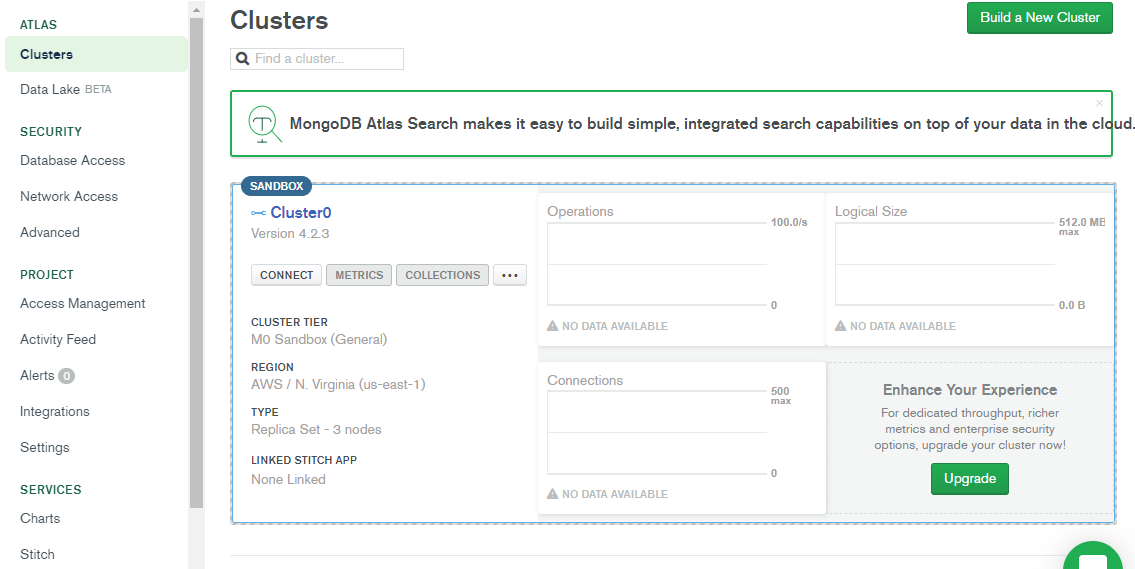
- From Connect window click on
Connect your application. Then copy connection string usingCopybutton then back in the Telar CLI paste it inHostfield.
Note: The connection string should follow the pattern mongodb+srv://amir:
<password>@cluster0-luefk.mongodb.net/test?retryWrites=true&w=majority. If you created more that one database user the connection string will change to mongodb+srv://<username>:<password>@cluster0-luefk.mongodb.net/test?retryWrites=true&w=majority. In this case you need to replace one of database username with<username>.

3. Enable Network Access
- From
Network Accessmenu, click onAdd IP Address.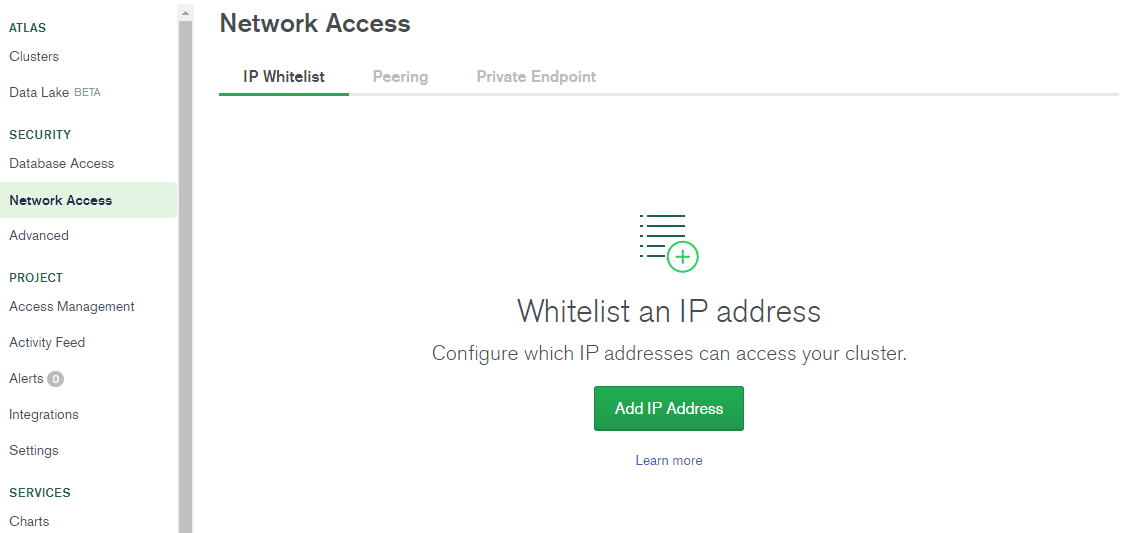
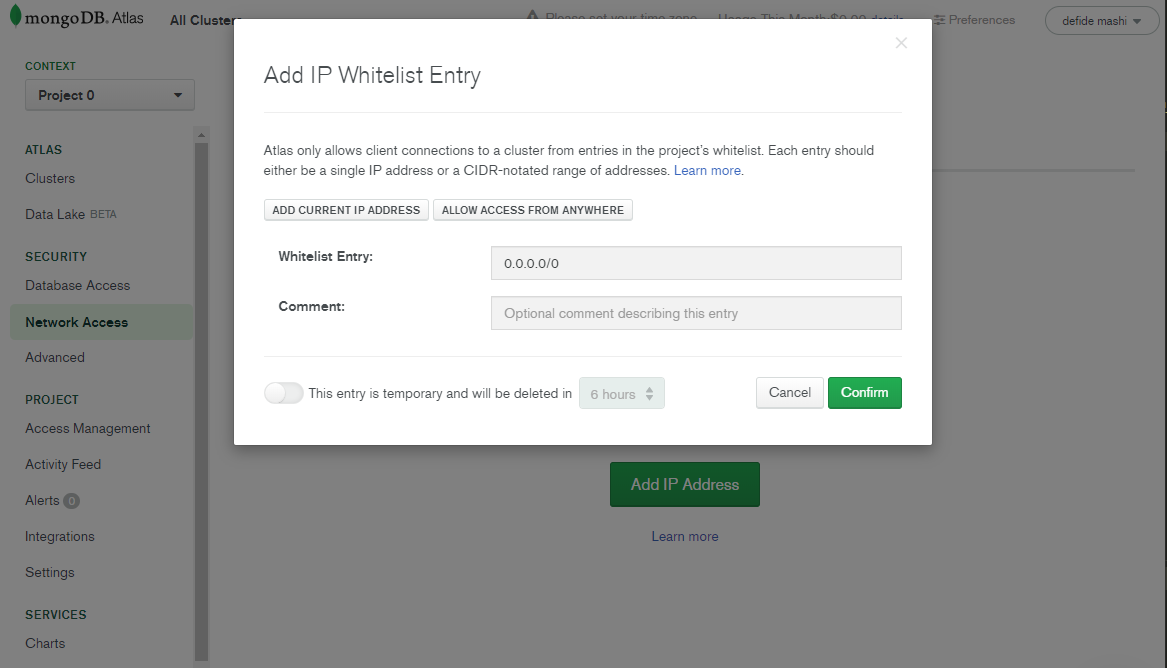
- From the open window click on
Allow Access from AnywherethenConfirm.