Telar CLI - Setup Telar Social on OpenFaaS
February 19, 2021 · View on GitHub
Step 6 (Google reCaptcha)
Google reCAPTCHA prompts visitors to check a box to prove that they’re not a robot before they submit their information. To enable reCAPTCHA, you'll need a Google account. This integration uses reCAPTCHA V2.
1. In the site Settings panel, click Advanced, then click External API Keys.
2. Scroll down to Google reCAPTCHA.
3. Click the link to get your Google reCAPTCHA API Keys. The link will open in a new tab.
4. Click Admin Console, then select reCAPTCHA V2. Telar Social doesn't support reCAPTCHA V3.
5. Select "I'm not a robot" Checkbox. The other options aren't supported.
6. Enter your built-in domain and click the + icon. Use the format [your-github-username].[ofc-domain], excluding https:// from the beginning. In my case the [your-github-username] is red-gold (red-gold.cloud.telar.dev).

7. Click Submit.
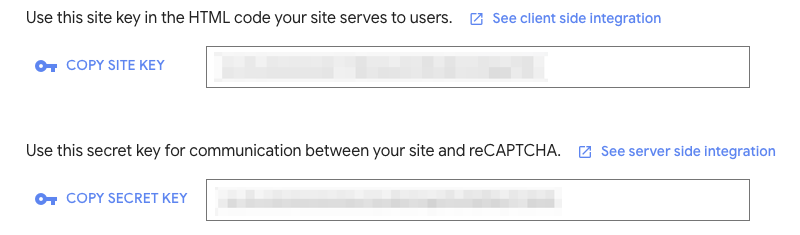
8. Copy your Site Key and Secret Key.