Shellnium
March 28, 2026 · View on GitHub


Shellnium
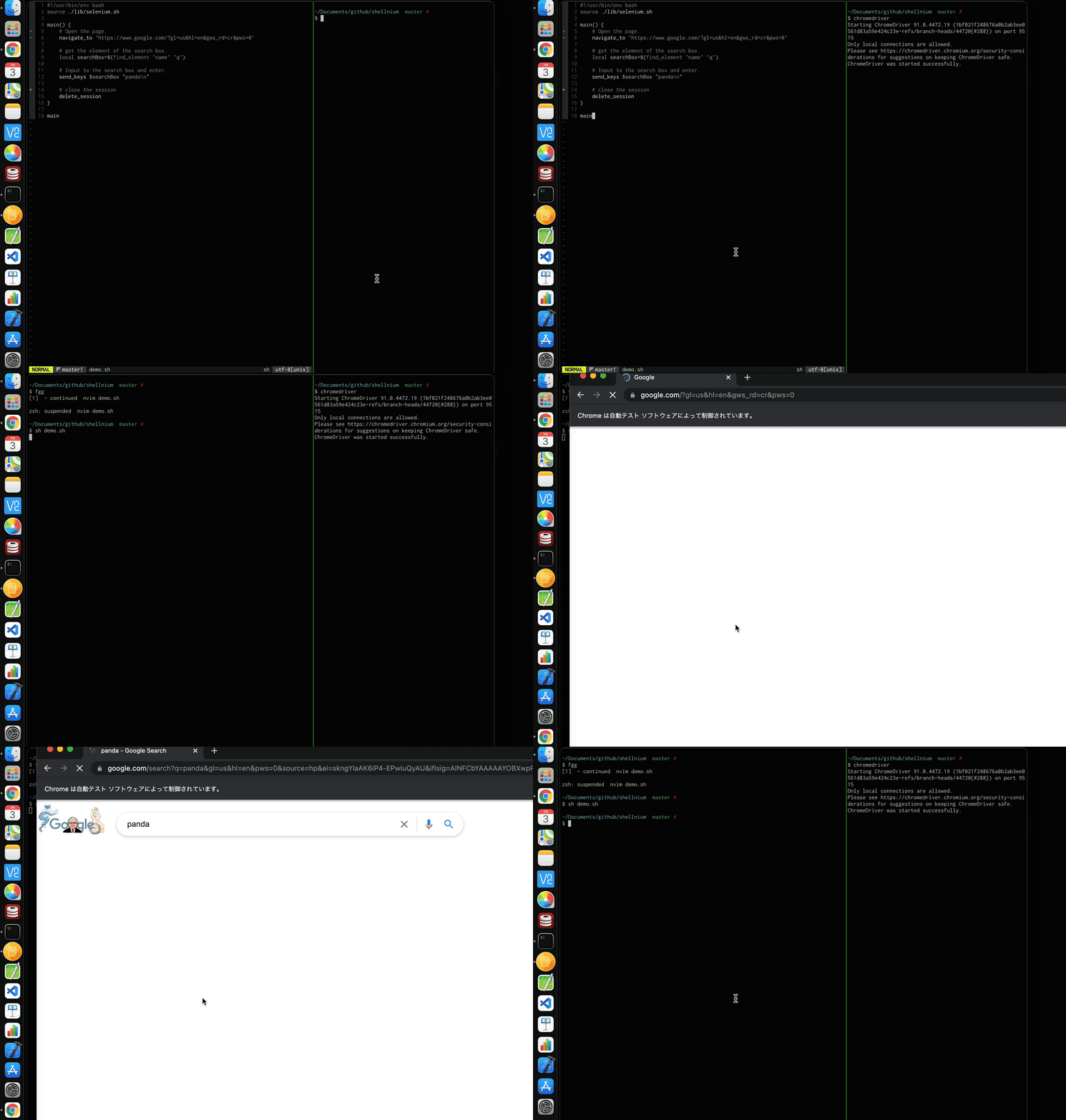
Shellnium is the Selenium WebDriver for Bash. You can automate browser actions simply from your terminal. All you need is Bash or Zsh.
#!/usr/bin/env bash
source ./selenium.sh

main() {
    # Open the URL
    navigate_to 'https://google.com'

    # Get the search box
    local searchBox=$(find_element 'name' 'q')

    # Send keys and press Enter
    send_keys $searchBox "panda${KEY_ENTER}"
}

main
Documentation
https://shellnium-site.vercel.app
If you learn by watching videos, check out this screencast by @gotbletu to explore shellnium features.
Installation
git clone https://github.com/Rasukarusan/shellnium.git
cd shellnium
Requirements
ChromeDriver is automatically downloaded and managed by Shellnium. You don't need to install it manually.
Install dependencies
macOS:
brew install jq
Ubuntu / Debian:
sudo apt-get install -y jq unzip
Arch Linux:
sudo pacman -S jq unzip
Quick Start
# Just run it — ChromeDriver is set up automatically!
bash demo.sh
Development
For local development and agent-driven verification, use the standardized make targets:
# Run the standard Docker-first verification pipeline
make ci
make ci runs local syntax checks, then runs ShellCheck and Bats inside Docker. You do not need local shellcheck or bats installations.
If you want to run demos locally, install the optional runtime dependencies:
make bootstrap
Available targets:
make syntax- bash syntax checks for tracked scriptsmake lint- ShellCheck on library, example, and helper scriptsmake test- Bats unit and syntax testsmake smoke- headless browser smoke examplemake docker-test- lint and test in Dockermake docker-smoke- smoke test in Dockermake ci-local- local lint and test for users who already have the tools installed
If you are using an AI coding agent, start with the instructions in AGENTS.md.
Docker
Run Shellnium instantly without installing Chrome or ChromeDriver locally:
# Run the demo
docker run --rm --shm-size=2g ghcr.io/rasukarusan/shellnium demo.sh

# Run your own script
docker run --rm --shm-size=2g -v ./my_script.sh:/app/my_script.sh ghcr.io/rasukarusan/shellnium my_script.sh

# Using docker compose
docker compose run --rm shellnium
Or build locally:
docker build -t shellnium .
docker run --rm --shm-size=2g shellnium demo.sh
You can also run ShellCheck and unit tests inside the container:
# Run the container-based verification flow
make docker-test
You can pass Chrome options like --headless:
bash demo.sh --headless --lang=es
ChromeDriver is automatically downloaded to ~/.cache/shellnium/ and started on port 9515. When your script finishes, ChromeDriver is stopped automatically.
Configuration
| Environment Variable | Default | Description |
|---|---|---|
SHELLNIUM_HEADLESS | (unset) | Set to true or 1 to enable headless mode (no visible browser window) |
SHELLNIUM_DRIVER_URL | http://localhost:9515 | Custom ChromeDriver URL (disables auto-setup) |
SHELLNIUM_PORT | 9515 | Port for auto-started ChromeDriver |
SHELLNIUM_CACHE_DIR | ~/.cache/shellnium | Cache directory for downloaded ChromeDriver |
SHELLNIUM_DEBUG | (unset) | Set to true to enable verbose debug logging |
Debug Mode
Enable debug mode to see all HTTP requests and responses sent to ChromeDriver, as well as any WebDriver error messages:
SHELLNIUM_DEBUG=true bash demo.sh
Debug output is written to stderr so it won't interfere with your script's normal output. WebDriver errors (e.g., element not found, stale element reference) are always surfaced to stderr regardless of debug mode.
Headless Mode
Headless mode runs Chrome without a visible browser window, which is essential for CI/CD pipelines and server-side automation.
# Enable headless mode via environment variable
SHELLNIUM_HEADLESS=true bash demo.sh

# Or export it for the entire session
export SHELLNIUM_HEADLESS=true
bash demo.sh
You can also pass --headless directly as a Chrome option (e.g., bash demo.sh --headless), but the environment variable is recommended for CI/CD environments.
GitHub Actions Example
name: Browser Automation
on: [push]

jobs:
  automate:
    runs-on: ubuntu-latest
    steps:
      - uses: actions/checkout@v4
      - name: Install dependencies
        run: sudo apt-get install -y jq unzip google-chrome-stable
      - name: Run automation script
        env:
          SHELLNIUM_HEADLESS: true
        run: bash demo.sh
Examples
The examples/ directory contains practical scripts demonstrating common use cases:
| Script | Description |
|---|---|
| scraping.sh | Extract data from web pages (scrapes Hacker News top stories) |
| form_fill.sh | Auto-fill and submit HTML forms |
| login.sh | Automate login flow with cookie saving |
| screenshot_batch.sh | Take screenshots of multiple URLs in batch |
| ci_smoke_test.sh | CI/CD smoke test suite with pass/fail reporting |
| multi_tab.sh | Open, switch between, and manage multiple browser tabs |
Run any example:
# With browser window
bash examples/scraping.sh

# Headless mode
bash examples/scraping.sh --headless
Methods
Shellnium provides the following methods. See document or core.sh for details.
Session
is_readynew_sessiondelete_sessionget_all_cookies/get_named_cookie/add_cookie/delete_cookie/delete_all_cookies
Navigate
navigate_to/get_current_url/get_titleback/forward/refresh
Timeouts
get_timeouts/set_timeoutsset_timeout_script/set_timeout_pageLoad/set_timeout_implicit
Element Retrieval
find_element/find_elementsfind_element_from_element/find_elements_from_elementget_active_element
Element State
get_attribute/get_property/get_css_valueget_text/get_tag_name/get_rectis_element_enabled/is_element_displayed
Element Interaction
send_keys/click/element_clear
Key Constants
Use these constants with send_keys to send special keys:
send_keys $element "hello${KEY_ENTER}"    # Type "hello" then press Enter
send_keys $element "${KEY_TAB}"           # Press Tab
| Constant | Key |
|---|---|
KEY_BACKSPACE | Backspace |
KEY_TAB | Tab |
KEY_RETURN | Return |
KEY_ENTER | Enter |
KEY_SHIFT | Shift |
KEY_CONTROL | Control |
KEY_ALT | Alt |
KEY_ESCAPE | Escape |
KEY_SPACE | Space |
KEY_ARROW_LEFT / KEY_ARROW_UP / KEY_ARROW_RIGHT / KEY_ARROW_DOWN | Arrow keys |
Document
get_source/exec_scriptscreenshot/element_screenshot
Context
get_window_handle/get_window_handlesnew_window/delete_window/switch_to_windowswitch_to_frame/switch_to_parent_frameget_window_rect/set_window_rectmaximize_window/minimize_window/fullscreen_window
Wait / Retry
wait_for_element— Wait until an element is found (configurable timeout and polling interval)wait_for_clickable— Wait until an element is displayed and enabledwait_for_text— Wait until specific text appears in the page sourcewait_for_url— Wait until the current URL matches a patternretry— Retry any command up to N times with interval
Alerts
get_alert_text/send_alert_textaccept_alert/dismiss_alert
Actions
Perform low-level mouse and keyboard actions using the W3C WebDriver Actions API.
perform_actions/release_actions— low-level actions API- Mouse:
mouse_move_to/double_click/right_click/hover/drag_and_drop - Keyboard:
key_press/key_down/key_up/send_key_combo
Key constants are available for keyboard actions (e.g., $KEY_CONTROL, $KEY_SHIFT, $KEY_ENTER, $KEY_TAB, $KEY_ESCAPE, $KEY_ARROW_DOWN, etc.).
Contributing
Contributions are welcome! Please see CONTRIBUTING.md for guidelines.
Article
English https://dev.to/rasukarusan/shellnium-simple-selnium-webdriver-for-bash-1a9k
Japanese https://qiita.com/Rasukarusan/items/70a54bd38c71a07ff7bd
Example

bash demo2.sh
demo2.sh requires iTerm2 and macOS.
This script is headless and displays ChromeDriver's behavior as iTerm's background with AppleScript.
Reference
LICENSE
MIT