Steps to contribute
January 11, 2025 · View on GitHub
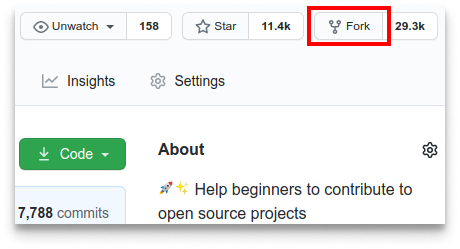
Fork this repository by clicking on fork button
Clone your fork of this repository.
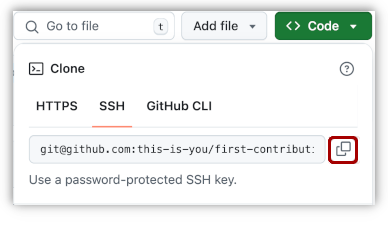
In your fork of this repository, click on code button. Select SSH tab and then click on copy to clipboard button.
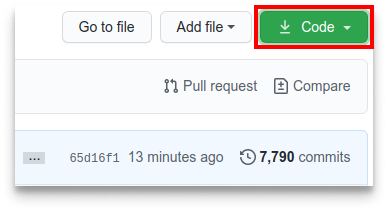 Open a terminal and run `git clone` command
git clone "url you copied"
Important
In the following steps, when you see <your-github-id> your should replace it with your GitHub ID.
For example, if your GitHub ID is aaronsw,
git switch -c add-<your-github-id> becomes git switch -c add-aaronsw
contributors/<your-github-id>.html becomes contributors/aaronsw.html
Create a branch
Go to the repository directory if you're not already there
cd code-contributions
Create a branch with git switch command
git switch -c add-<your-github-id>
Create your card
You can add your card as an HTML file in contributors directory. Create a file with your username in contributors directory. You can copy the following template to get started.
contributors/<your-github-id>.html
<article>
  <h3>Your username</h3>
  <p>A small bio about you (optional)</p>
  <h4>Programming languages I use</h4>
  <section class="container">
    <div class="badge" style="background-color: #3874a4; color: white">
      Python
    </div>
    <div class="badge" style="background-color: #f7df1e; color: black;">
      JavaScript
    </div>
  </section>

  <h4>Tools I use</h4>
  <section class="container">
    <img
      class="icon"
      src="https://cdn.jsdelivr.net/gh/devicons/devicon@latest/icons/bash/bash-original.svg"
    />
    <img
      class="icon"
      src="https://cdn.jsdelivr.net/gh/devicons/devicon@latest/icons/linux/linux-original.svg"
    />
  </section>
</article>
<style>
  body {
    font-family: sans-serif;
  }
  .container {
    display: flex;
    flex-wrap: wrap;
    gap: 1rem;
  }
  .badge {
    padding: 0.5rem;
    border-radius: 0.25rem;
  }
  .icon {
    width: 2rem;
  }
</style>
Add your card to contributors list
Add the name of the file you created to scripts/contributors.js file.
scripts/contributors.js
const contributorFiles = [
  "<your-github-id>.html", // add your file name here
  "roshanjossey.html",
  "gokultp.html",
];
View your changes in a web browser
You can see your changes by opening index.html in a web browser. You should be able to see the new card you added in the previous steps.
You can continue making changes to your card and refresh the web browser tab to see those changes.
Commit your changes
First stage your changes with git add command
git add contributors/<your-github-id>.html
Now commit your changes with git commit command
git commit -m "add <your-github-id>"
Push your changes to GitHub
git push -u origin add-<your-github-id>
Submit your changes for review
If you go to your repository on GitHub, you'll see a Compare & pull request button. Click on that button.
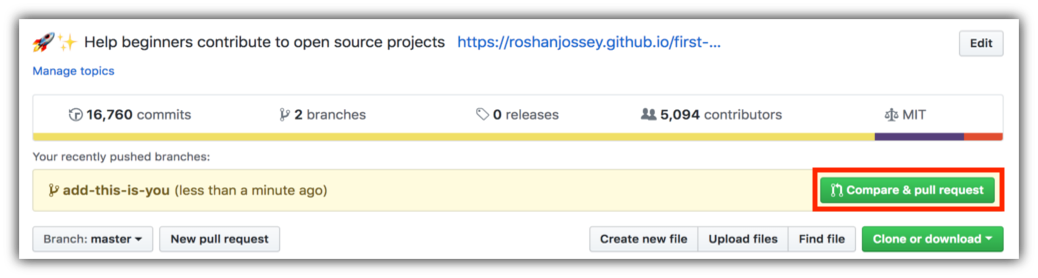
Now submit the pull request.
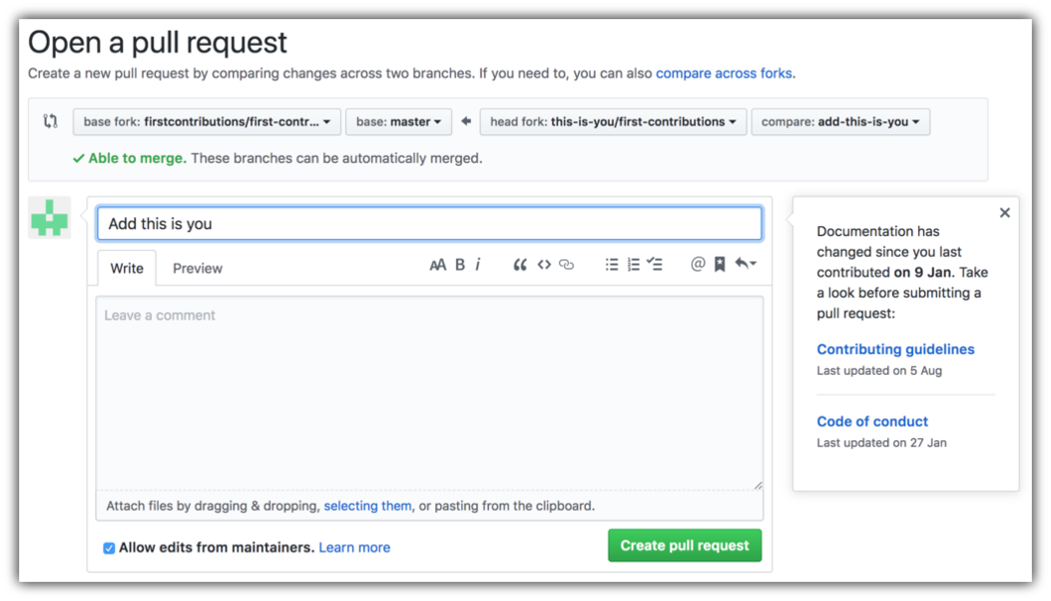
You will get a notification email once the changes have been merged.