vue-svg-map
September 21, 2025 · View on GitHub
A set of Vue 3 components to display an interactive SVG map.
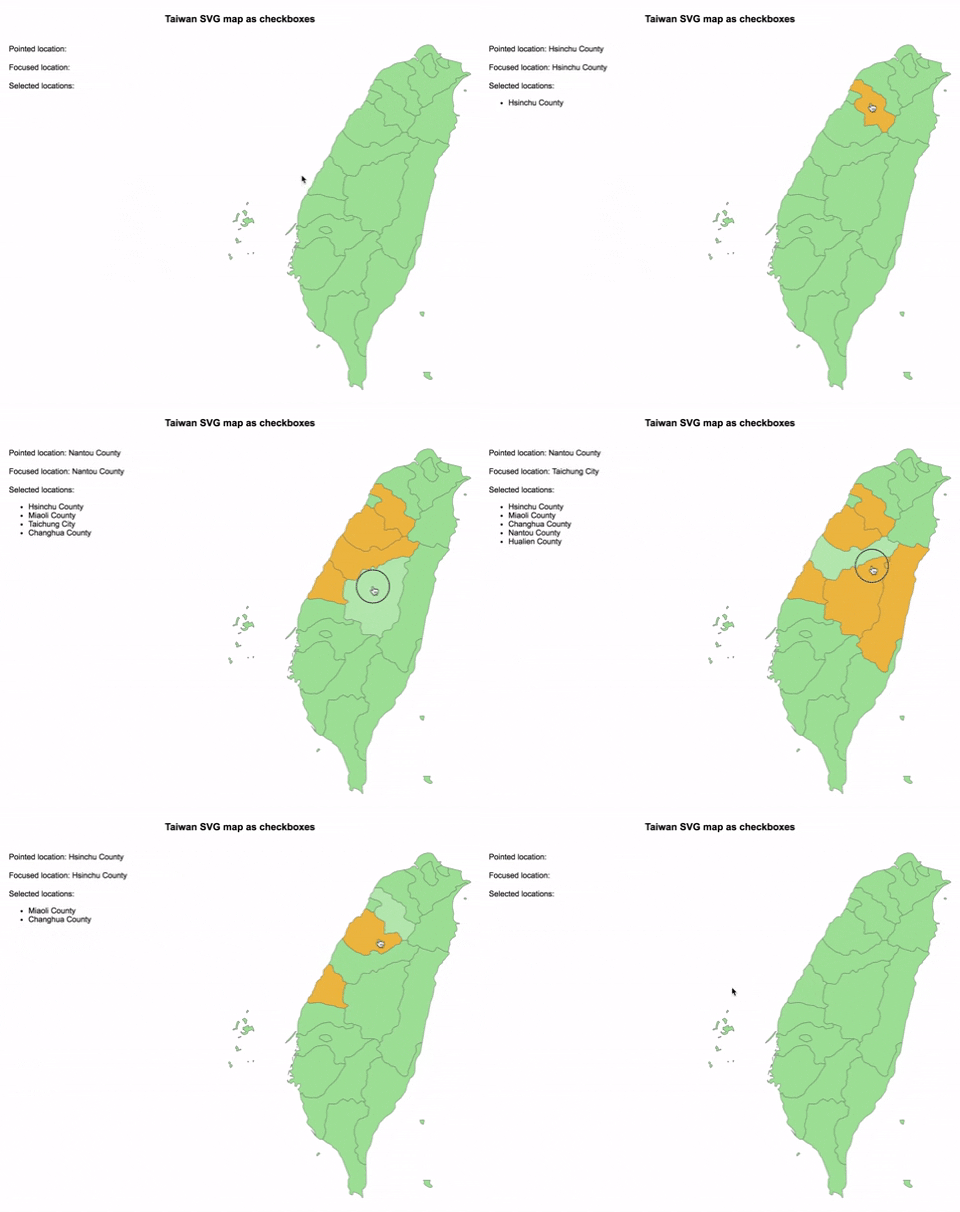
Demo
Installation
npm install --save vue-svg-map
Usage
Install the map you need from svg-maps or use your own map. See maps section for more details.
:earth_africa: Simple SVG Map
This is the base component to display an SVG map.
In a SFC (Single File Component):
- Import
SvgMapcomponent fromvue-svg-map - Import the map you want
- Optionally, import
vue-svg-map/style.cssif you want to apply the default styles
<script setup>
import { SvgMap } from "vue-svg-map";
import Taiwan from "@svg-maps/taiwan";
</script>

<template>
	<SvgMap :map="Taiwan" />
</template>

<style src="vue-svg-map/style.css"></style>
Props
| Prop | Type | Default | Description |
|---|---|---|---|
| map | Map | required | Describe SVG map to display. See maps section for more details. |
| locationAttributes | SVGAttributes | ((location: Location, index: number) => SVGAttributes) | {} | Attributes of each <path>. The function parameters are the location object and the location index. |
Events
All the listeners (click, keypress...) are applied to each location.
Slots
There are 2 named slots:
beforewhich is before the locationsafterwhich is after the locations
:ballot_box_with_check: Checkbox SVG Map
This is an implementation of SvgMap that behaves like a group of checkboxes.
It is based on this WAI-ARIA example to support keyboard navigation and be accessible.
- Import
SvgMapCheckboxcomponent fromvue-svg-map - Import the map you want
- Optionally, import
vue-svg-map/style.cssif you want to apply the default styles
<script setup>
import { ref } from 'vue';
import { SvgMapCheckbox } from "vue-svg-map";
import Taiwan from "@svg-maps/taiwan";

const selectedLocationIds = ref([])
</script>

<template>
	<SvgMapCheckbox v-model="selectedLocationIds" :map="Taiwan" />
</template>

<style src="vue-svg-map/style.css"></style>
Props
| Prop | Type | Default | Description |
|---|---|---|---|
| map | Map | required | Describe SVG map to display. See maps section for more details. |
| modelValue | string[] | [] | List of ids of selected locations. Used for v-model. |
| locationAttributes | SVGAttributes | ((location: Location, index: number) => SVGAttributes) | {} | Attributes of each <path>. The function parameters are the location object and the location index. |
Events
Like for SvgMap all the listeners (click, keypress...) are applied to each location.
| Event | Output | Description |
|---|---|---|
| update:modelValue | String[] | Emits the new list of ids when a location is selected/unselected. |
Slots
Like in SvgMap there are 2 named slots:
beforewhich is before the locationsafterwhich is after the locations
Note: inserting focusable elements may break the checkboxes' behaviour.
:radio_button: Radio SVG Map
This is an implementation of SvgMap that behaves like a group of radio buttons.
It is based on this WAI-ARIA example to support keyboard navigation and be accessible.
- Import
SvgMapRadiocomponent fromvue-svg-map - Import the map you want
- Optionally, import
vue-svg-map/style.cssif you want to apply the default styles
<script>
import { ref } from 'vue';
import { SvgMapRadio } from "vue-svg-map";
import Taiwan from "@svg-maps/taiwan";

const selectedLocationId = ref(null)
</script>

<template>
	<SvgMapRadio v-model="selectedLocationId" :map="Taiwan" />
</template>

<style src="vue-svg-map/style.css"></style>
Props
| Prop | Type | Default | Description |
|---|---|---|---|
| map | Map | required | Describe SVG map to display. See maps section for more details. |
| modelValue | string | null | Id of selected location. Used for v-model. |
| locationAttributes | SVGAttributes | ((location: Location, index: number) => SVGAttributes) | {} | Attributes of each <path>. The function parameters are the location object and the location index. |
Events
Like for SvgMap all the listeners (click, keypress...) are applied to each location.
| Event | Output | Description |
|---|---|---|
| update:modelValue | string | Emits the new id when a location is selected. |
Slots
Like in SvgMap there are 2 named slots:
beforewhich is before the locationsafterwhich is after the locations
Note: inserting focusable elements may break the radio buttons' behaviour.
Maps
Existing maps
All the existing maps are in an independant svg-maps project because they may be useful for other components/projects.
Custom maps
You can modify existing maps or create your own.
Modify a map
- Import the map to modify
- Create a new object from this map
- Pass this new object as
mapprop of the component
<template>
	<svg-map :map="customTaiwan" />
</template>

<script>
import { SvgMap } from "vue-svg-map";
import Taiwan from "@svg-maps/taiwan";

export default {
	name: "MyMap",
	components: {
		SvgMap
	},
	data() {
		return {
			customTaiwan: {
				...Taiwan,
				label: "Custom map label",
				locations: Taiwan.locations.map(location => {
					// Modify each location to customize id, name or path
				})
			}
		};
	}
};
</script>
It is recommended to not modify the SVG properties (viewBox, path), because it may break the map's display.
Create a map
If you create a new map (other country, city...), feel free to contribute to svg-maps project!
License
MIT