Features
September 20, 2026 · View on GitHub

A patch that fixes various issues in the PC port of Alice: Madness Returns.
How to Install
Note
Compatible with the Steam and EA App versions of Alice: Madness Returns.
Download: MadnessPatch.zip
Extract the contents of the zip file into the game's Win32 folder, which contains the AliceMadnessReturns.exe file.
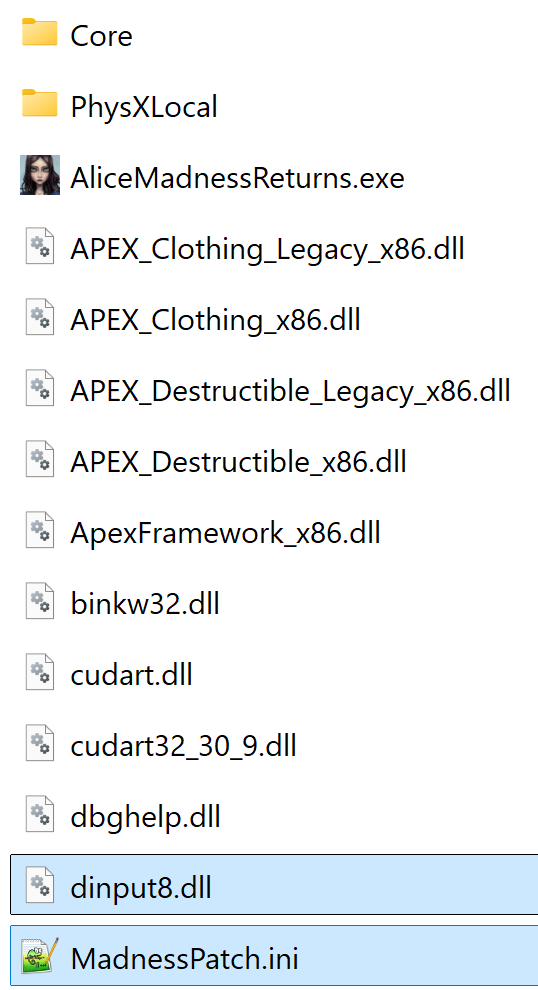
Directory path for Steam:
SteamLibrary\steamapps\common\Alice Madness Returns\Binaries\Win32
Directory path for EA App:
EA\Alice Madness Returns\Game\Alice2\Binaries\Win32
Warning
If the game doesn't start on Windows after installing the patch, try updating the latest Microsoft Visual C++ Redistributable (x86).
You can download it here: https://aka.ms/vs/17/release/vc_redist.x86.exe
Tip
If you own the remastered version of American McGee's Alice, check out VorpalFix!
Features
Subtitle Font Scaling
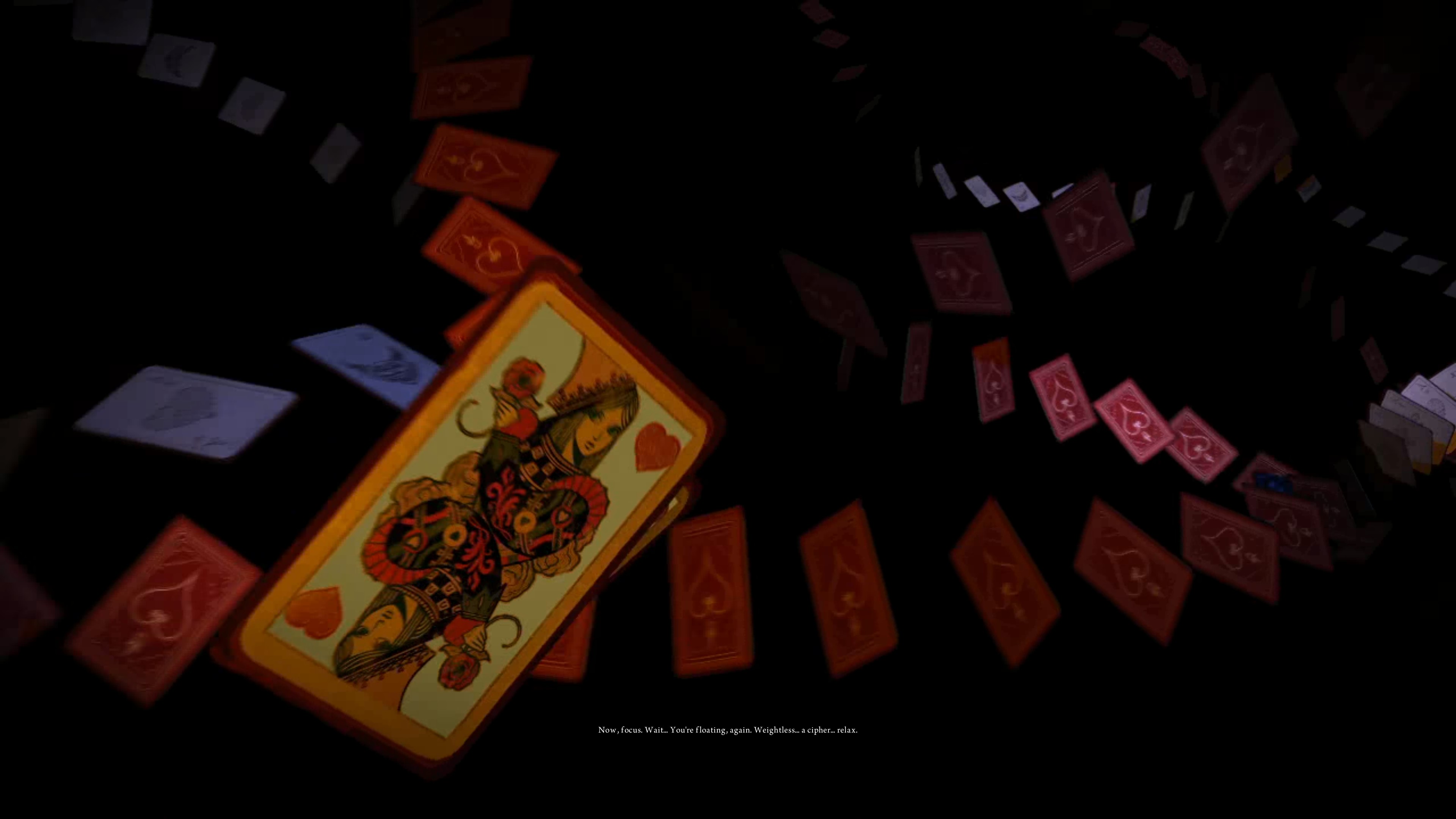
Scales subtitles properly on high-resolution displays. The game was originally designed for consoles and limits subtitle size above 720p, making text harder to read on 1080p or higher. This fix removes that limit so subtitles scale correctly with your resolution.
If you want a different size, you can fine-tune it with FontScalingFactor in MadnessPatch.ini.
 |
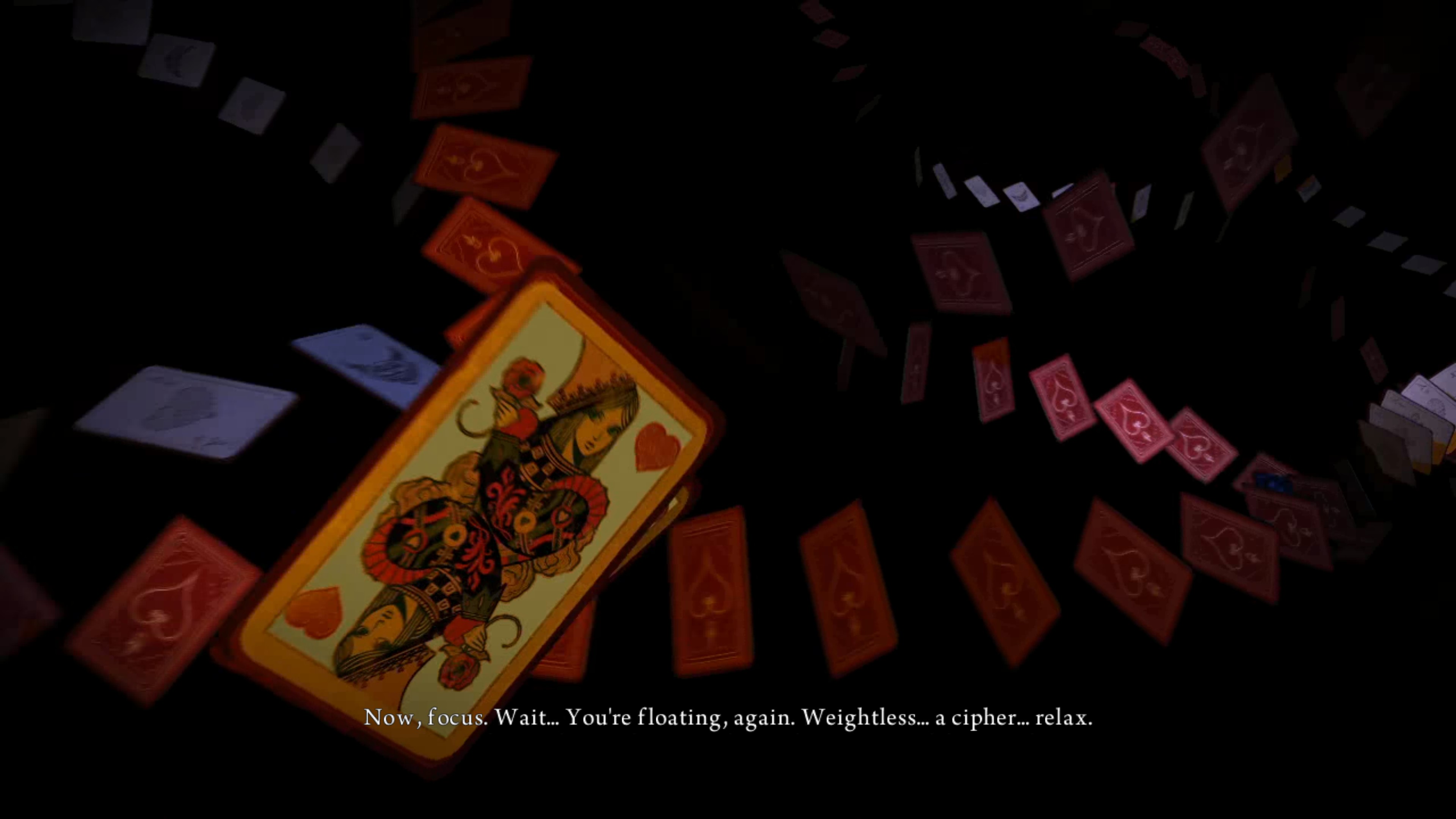 |
| 4K Vanilla | 4K MadnessPatch |
Achievement Support
Adds an in-game achievement overlay that tracks your progress and shows a notification when one is unlocked, using the same achievements as the Xbox 360 and PlayStation 3 versions. Press HOME, or L3 + D-Pad Up on a controller, to open the list at any time.
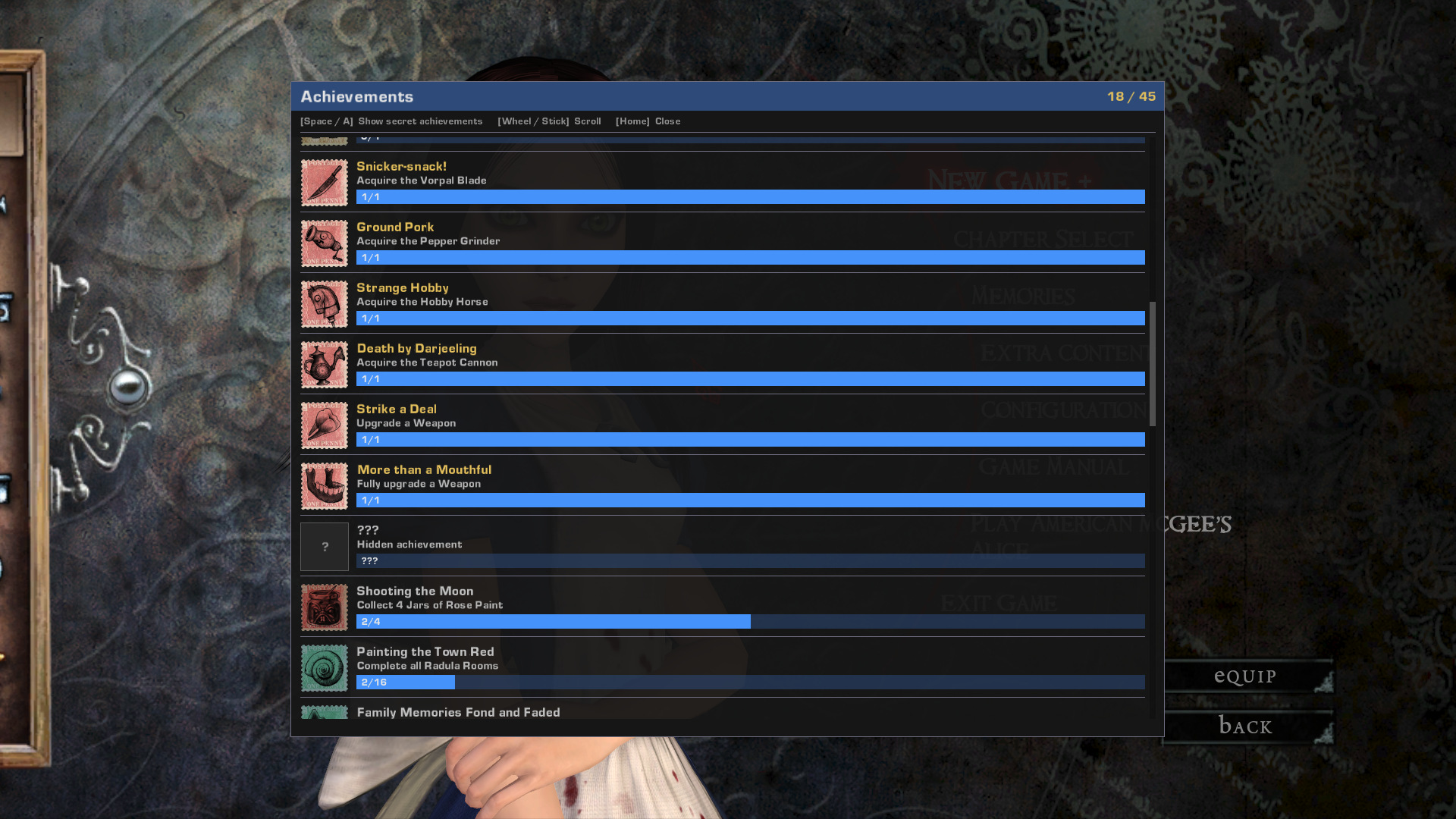 |
| Achievement List |
Note: Achievements that unlock automatically are the ones whose progress is stored in your save data. Any achievement obtained while MadnessPatch isn't running isn't recorded anywhere.
Note: Can be disabled by setting
AchievementSupport = 0inMadnessPatch.iniif wanted.
High FPS Fixes
Fix multiple physics and gameplay issues that occur at high framerates by preventing hair and dress physics from becoming unstable and ensuring consistent hitbox size for projectiles like the Pepper Grinder.
Crashes and Infinite Loading Fix
Prevents crashes and infinite loading screens caused by race conditions that occur more frequently at higher framerates during map transitions. It also fixes a crash that can occur when the game runs PhysX in CPU mode instead of on the GPU.
Save Protection
Writes save files more safely to help prevent corruption, and keeps a backup (.bak) of your save just in case.
Disable with AtomicSaves = 0 in MadnessPatch.ini.
Input Binding Fix
Fix issues where certain input mappings fail to respond correctly. This particularly affects the umbrella key and other special action bindings that may not register during the input initialization process.
Stuck Keys Fix
Stops Alice from moving on her own when using keyboard and mouse, caused by a sync issue between the game's key state and your actual key presses.
Force High Resolution Textures
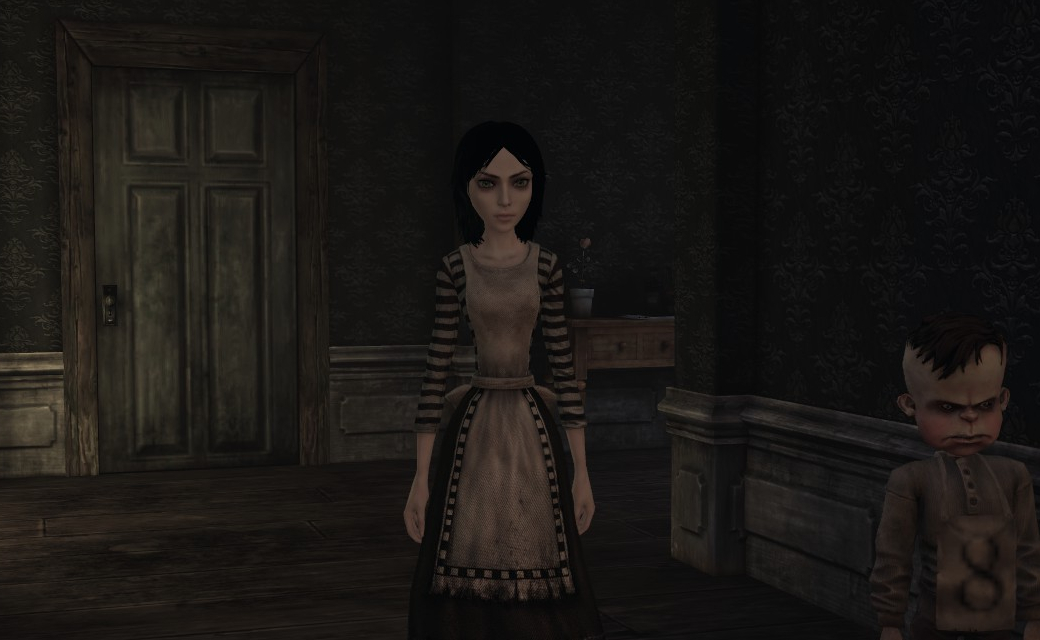
The game normally loads blurry textures first and then sharpens them as you get closer, which was meant for consoles but looks distracting on PC. This patch forces the highest texture resolution from the start and improves texture streaming, so you don't see textures popping into clarity as you move around. It also slightly reduces mipmap bias, improving texture sharpness at a distance.
 |
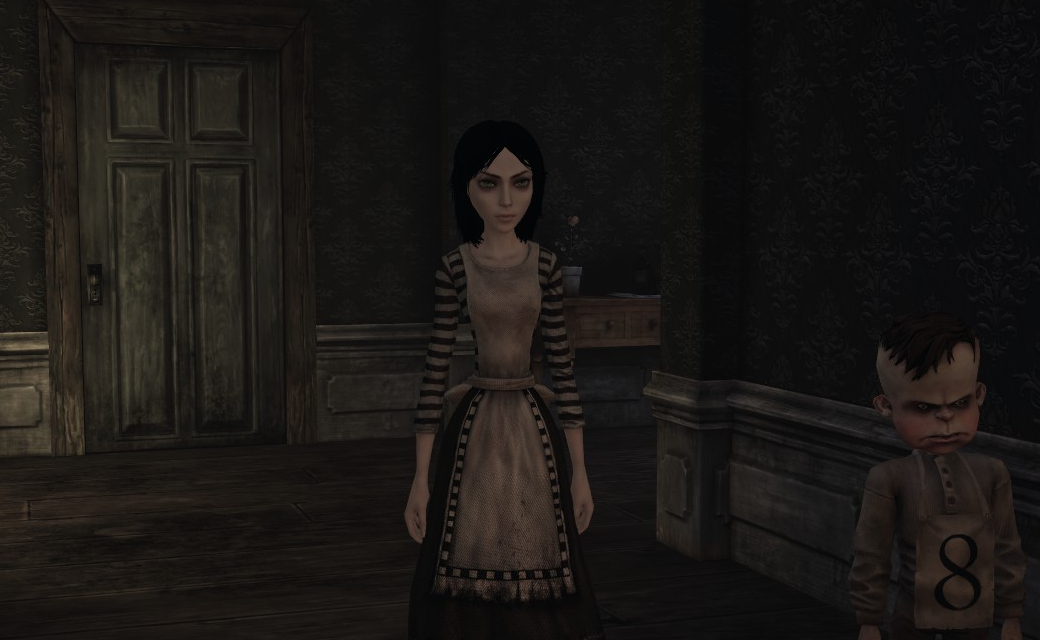 |
| Vanilla | Force High Res |
Note: May increase VRAM usage and impact performance on systems with limited graphics memory.
Disable Background Level Streaming
Disables the engine's background level streaming during gameplay, which can cause stuttering as levels are loaded in the background while playing. Will increase loading times.
Disable with DisableBackgroundLevelStreaming = 0 in MadnessPatch.ini.
Missing Music Fix
Area music is triggered by in-game scripts, so loading a checkpoint or missing a trigger can leave an area silent. This fixes it so the music still plays.
Hatter Elevator Fix
Fixes the Chapter 1 softlock where the Hatter elevator's pressure pad stops responding when returning to pick the second section, a broken state the game can then bake into the checkpoint permanently. The room's script is kept re-entrant so it reconfigures on every visit, and saves already affected are repaired when loaded.
Input Improvements
SDL Controller Support
Adds support for PlayStation and Nintendo Switch controllers via SDL3.
PlayStation button icons are automatically displayed in the UI when a PlayStation controller is detected.
Controller Button Icons
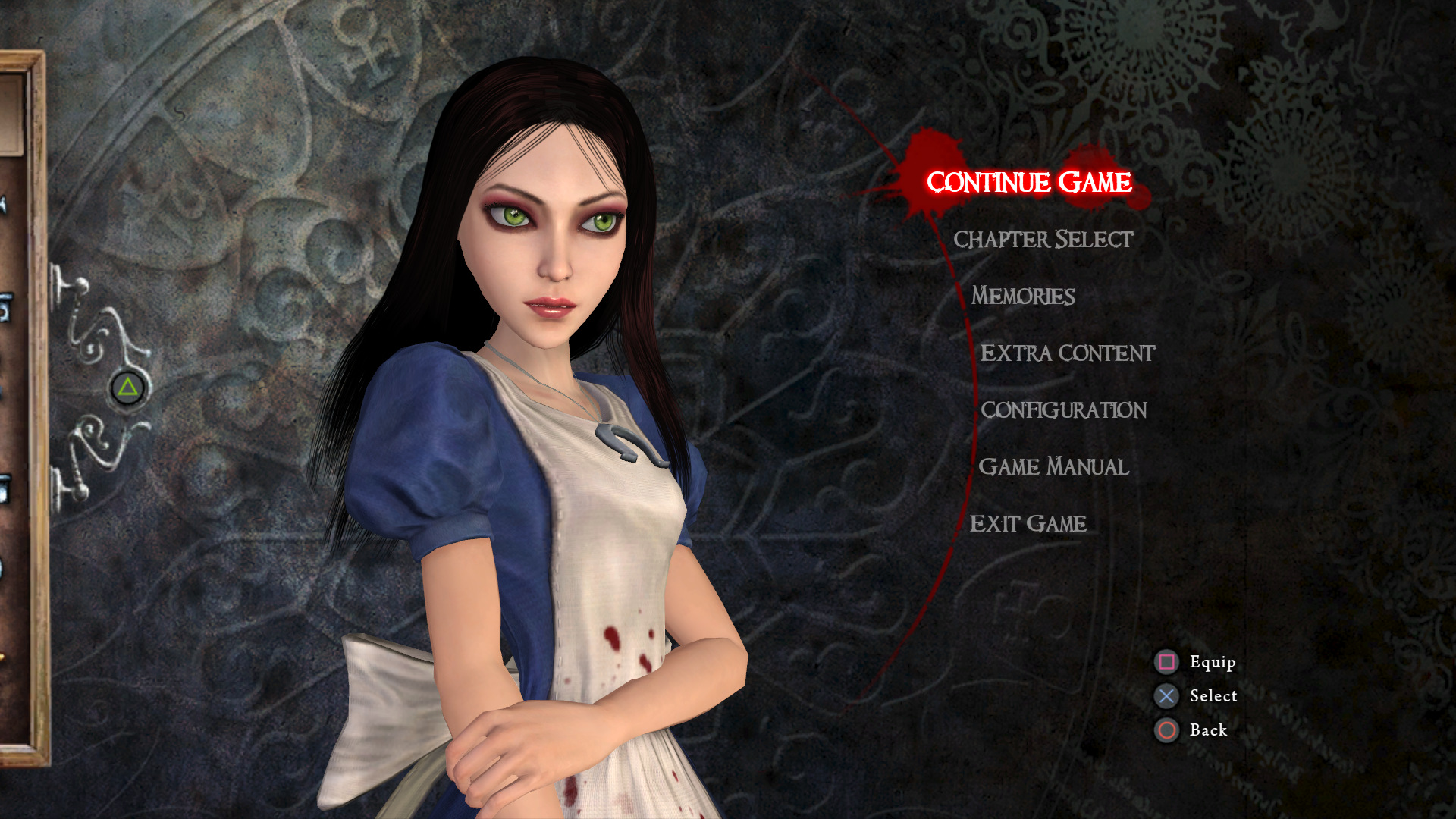
Replaces the keyboard and mouse button prompts with matching controller button icons while a controller is connected, using PlayStation or Xbox icons to match your controller. Disconnecting the controller switches the prompts back automatically.
 |
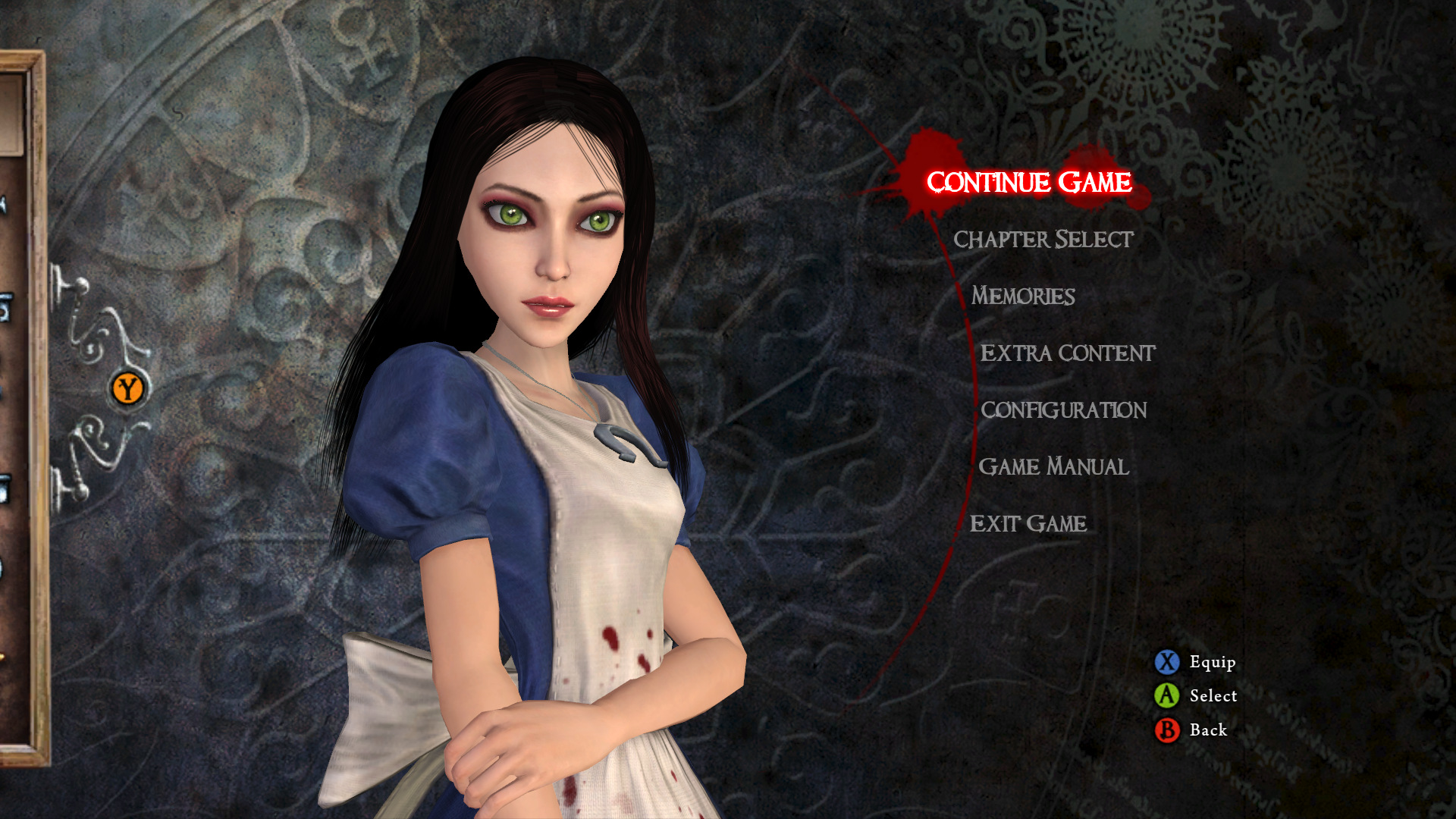 |
| PlayStation | Xbox |
Note: While a controller is connected, the mouse cursor is hidden in menus, so you'll need to unplug the controller to use the mouse there.
Disable with EnableControllerIcons = 0 in MadnessPatch.ini.
Profile Creation Screen
Adds an option to skip the profile creation and selection screen and go straight to the main menu. Useful for controller-only players, as profile names can't be typed with a controller.
Note: A save created while this is disabled won't be selectable in the profile screen if it's re-enabled later.
Disable with ShowProfileCreation = 0 in MadnessPatch.ini.
Disable Mouse Acceleration
Stops the game from ramping up mouse speed when you start moving it.
Disable Controller Acceleration
Turns off the same acceleration system for controllers. The game speeds up your look input as the stick starts moving, and this option removes that so the stick behaves more consistently.
Disable with DisableControllerAcceleration = 0 in MadnessPatch.ini.
Disable Mouse Smoothing
Turns off camera smoothing so the view responds instantly to your mouse movements.
Enable with DisableMouseSmoothing = 1 in MadnessPatch.ini.
Aspect Ratio Fix
Removes pillarboxing and adjusts the field of view for ultrawide monitors, and also removes the letterboxing that appears on 16:10 and narrower aspect ratios during gameplay.
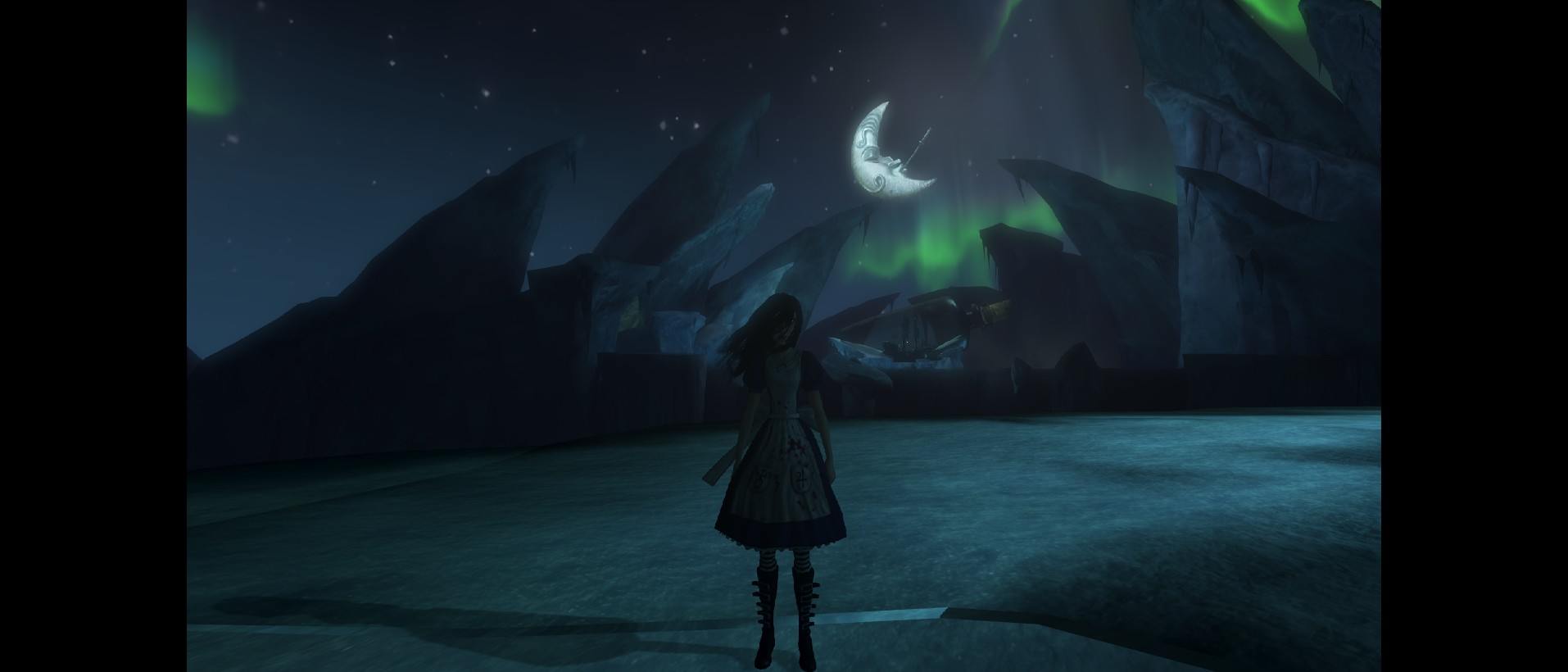 |
| Vanilla 21:9 (Cropped Viewport) |
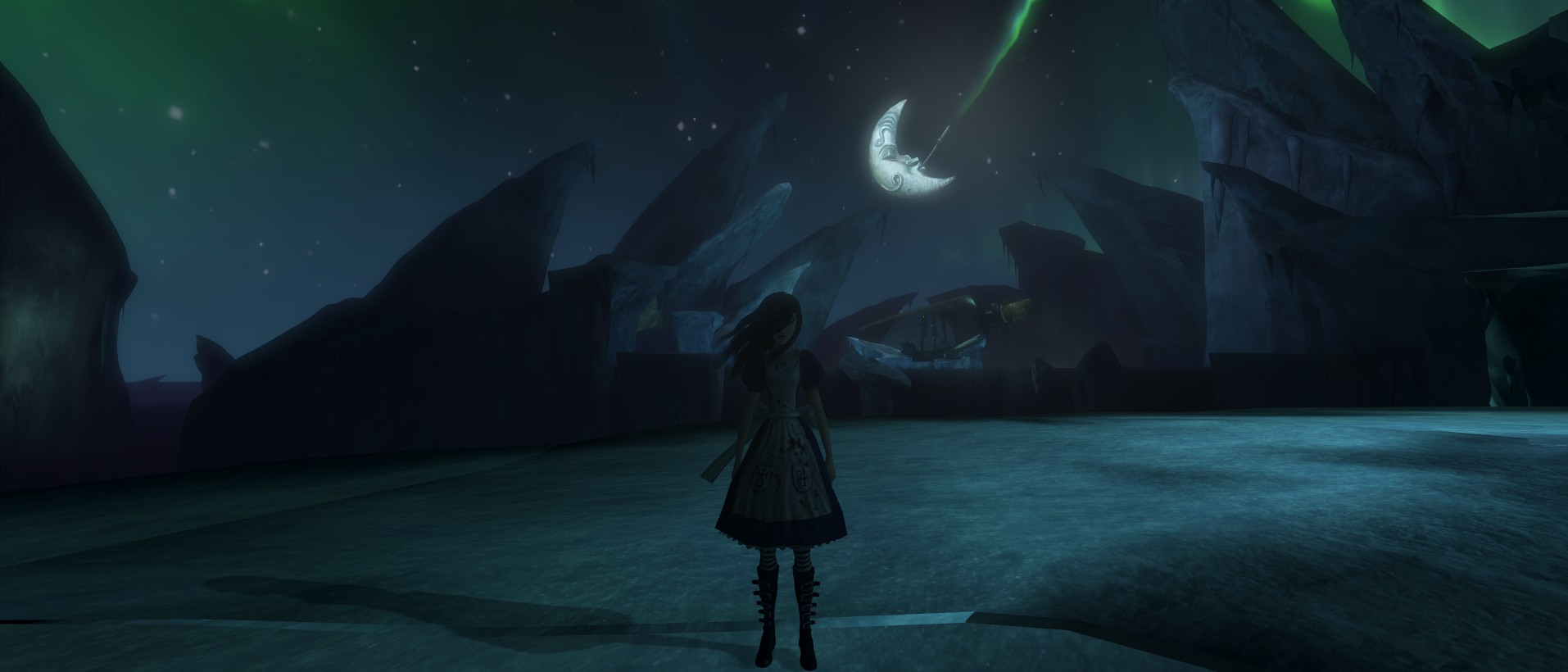 |
| MadnessPatch 21:9 |
Bink Video Color Space Fix
Switched the Bink video color profile from BT.601 to BT.709, which is the standard for HD video, so pre-rendered videos now show correct colors, especially deep reds and warm tones.
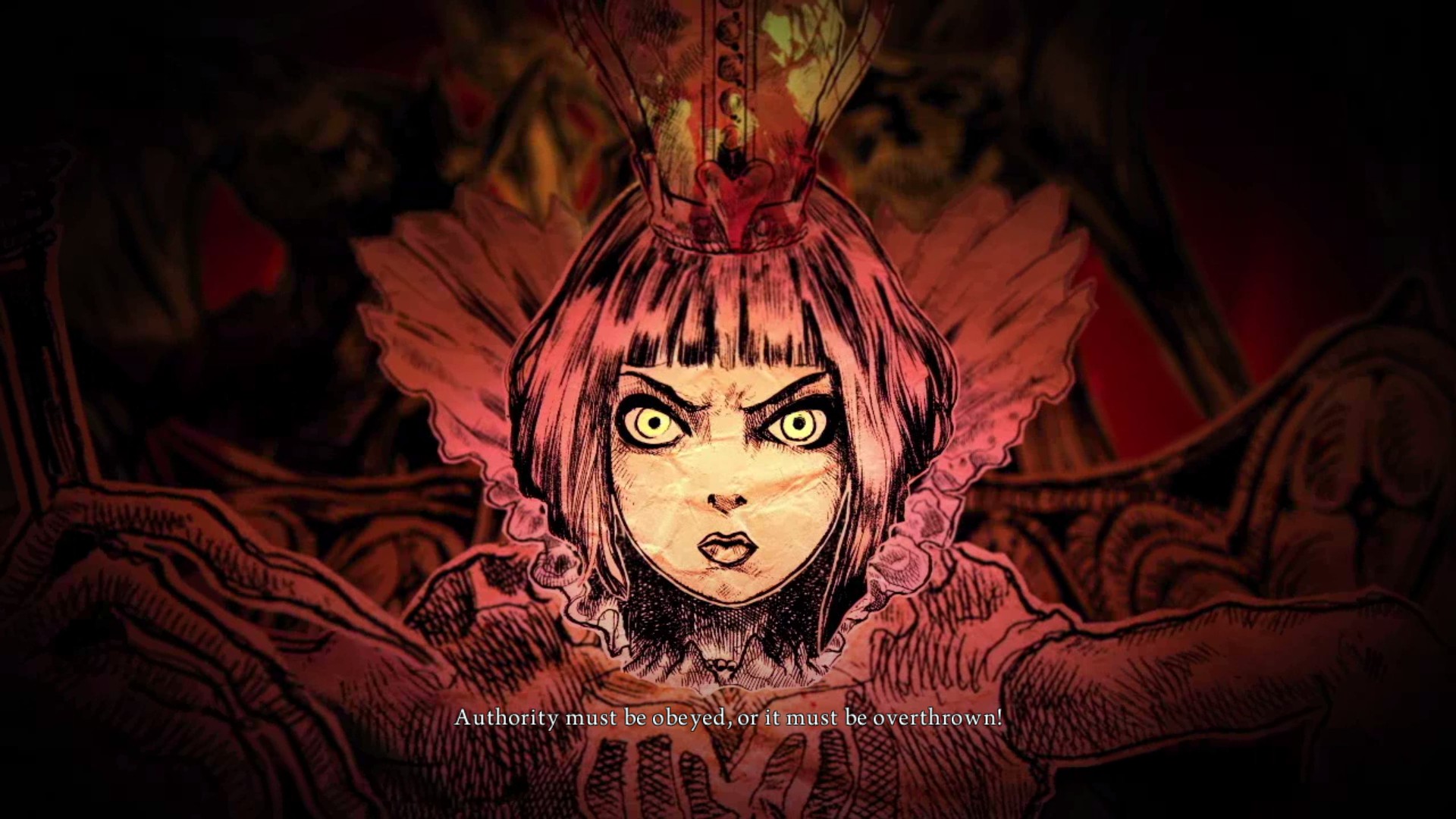 |
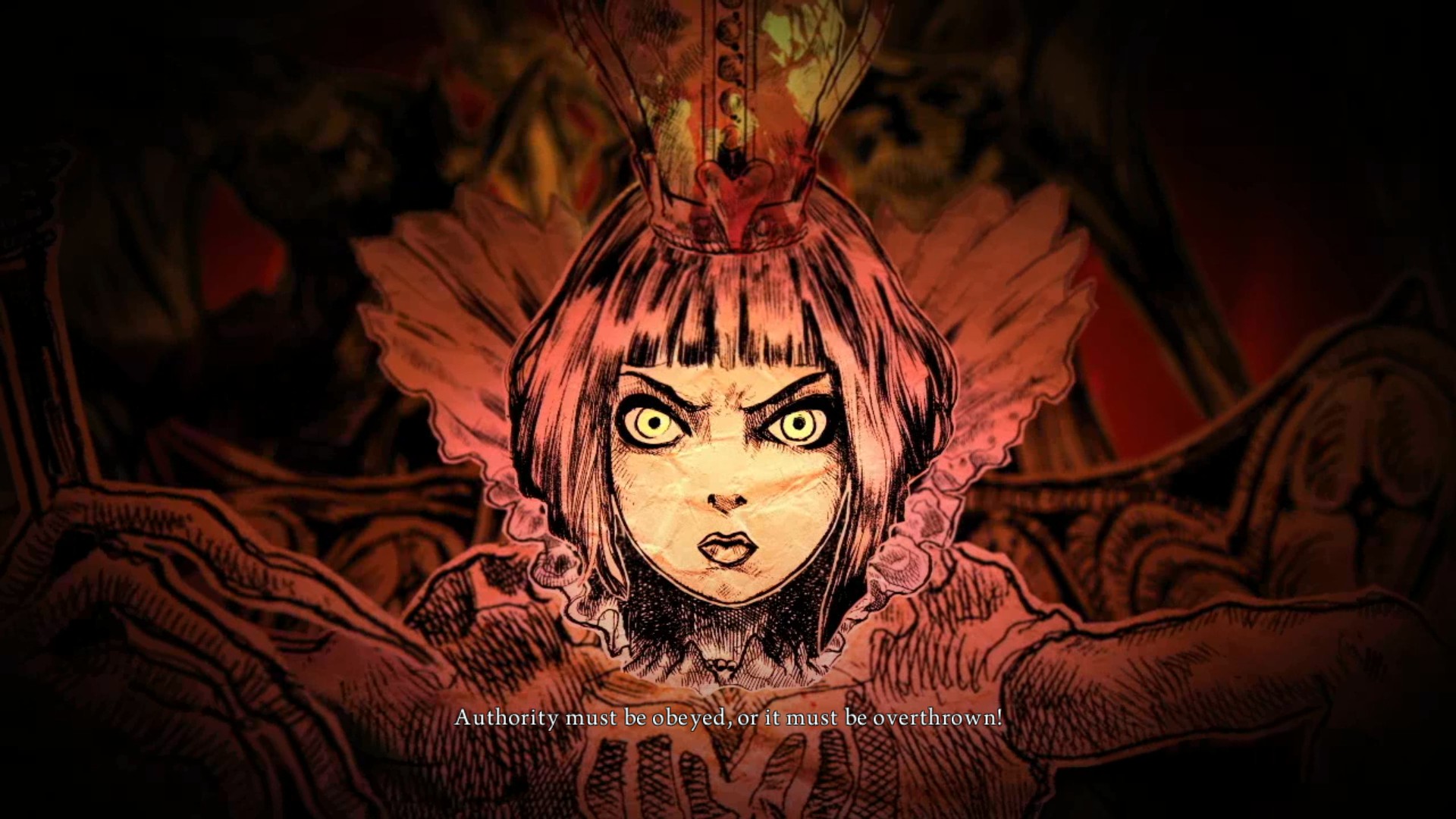 |
| Vanilla (BT.601) | MadnessPatch (BT.709) |
Skip Cutscenes with Enter
Prevent accidental cutscene skips by moving the skip key from Space (jump) to Enter.
Disable with SkipCutscenesWithEnter = 0 in MadnessPatch.ini.
Framerate Limiter
Allow to set a framerate limit easily without editing the game's files.
Set MaxFPS in MadnessPatch.ini (0 = disable, recommended maximum: 120).
Complete Edition DLC Unlock
Unlocks all Complete Edition costumes, weapons, and adds a menu option to launch the original Alice game without editing the game's files.
Improved Window Management
Fixes window management to allow standard Windows functionality:
- Close the game using ALT+F4.
- Use the Windows key to access the Start Menu or switch applications at any time. (previously blocked after clicking back into the game window)
- Free mouse cursor when the game loses focus in windowed mode. (cursor is no longer trapped when alt-tabbing or clicking outside the window)
Audio Device Switching Fix
Upgrades the game's legacy XAudio 2.6 audio system to XAudio 2.9, fixes cases where in-game audio is missing while cutscenes still have sound, and restores audio after switching, disconnecting, or reconnecting the default output device, such as a headset, monitor, or TV.
Windowed Mode & Borderless Fullscreen
Adds windowed and borderless fullscreen modes.
Enable with UseWindowed = 1 for windowed mode and BorderlessFullscreen = 1 for borderless fullscreen in MadnessPatch.ini.
Auto Resolution
Automatically sets the game to your screen resolution on first launch instead of defaulting to 1280×720.
Force Game Language
Runs the game in a specific language regardless of what the launcher or your system locale selects.
| Value | Language | Value | Language |
|---|---|---|---|
0 | English | 3 | Italian |
1 | French | 4 | Spanish |
2 | German | 5 | Japanese |
Set ForceLanguage = 5 in MadnessPatch.ini for Japanese. -1 (the default) keeps the game's own selection.
Alice 1 Installation Check
The Complete Edition menu adds an option to launch the original American McGee's Alice. Two settings control what happens when Alice 1 isn't installed:
- WarnAlice1InstallFolder: shows a warning prompt if Alice 1 can't be found in its expected installation directory when you try to launch it.
- HideAlice1WhenMissing: removes the Alice 1 entry from the in-game menus entirely when it isn't installed.
Both are enabled by default and can be turned off individually in MadnessPatch.ini.
Developer Console
Enables the game's built-in developer console, bound to the F2 key.
Crash Handler
Installs a crash handler that writes a detailed report (crash_YYYYMMDD.txt) whenever the game crashes. Each report captures what the game was doing at the moment it failed, which makes problems much easier to track down. If you run into a crash, these reports can be shared to help diagnose the issue and improve the patch in future updates.
Disable with EnableCrashHandler = 0 in MadnessPatch.ini.
Additional Fixes
Fixes a couple of small UI issues, such as a leftover HUD cursor sprite from the first weapon-upgrade popup and an incorrect Pinball Cannon button prompt on PC. Full screen fades also reach true black now instead of leaving the scene faintly visible, especially at the beginning of Chapter 2.
Skip Intro Videos
Bypasses intro videos on game launch:
- SkipEAIntro: Skips the EA logo video
- SkipSHIntro: Skips the Spicy Horse studio logo video
- SkipUEIntro: Skips the Unreal Engine logo video
Enable individually in MadnessPatch.ini.
Archive Asset Dump
Writes the game's assets into an archive_dump folder as they are loaded, using the same paths they have inside the archives.
Enable with DumpArchiveAssets = 1 in MadnessPatch.ini.
Mod File Loading
Replaces game assets with loose files from mods\<mod name>, laid out the same way as the dump.
Configuration
All features can be customized via the MadnessPatch.ini file.
Credits
- SDL3 for improved controller support.
- safetyhook for hooking.
- mINI for INI file handling.
- CRASHARKI for the logo.