Image Viewer
April 21, 2026 · View on GitHub
View and manage images in your workspace: thumbnail grid, large preview, copy Base64 / path / file name, and per-project include/exclude folders.
Screenshots
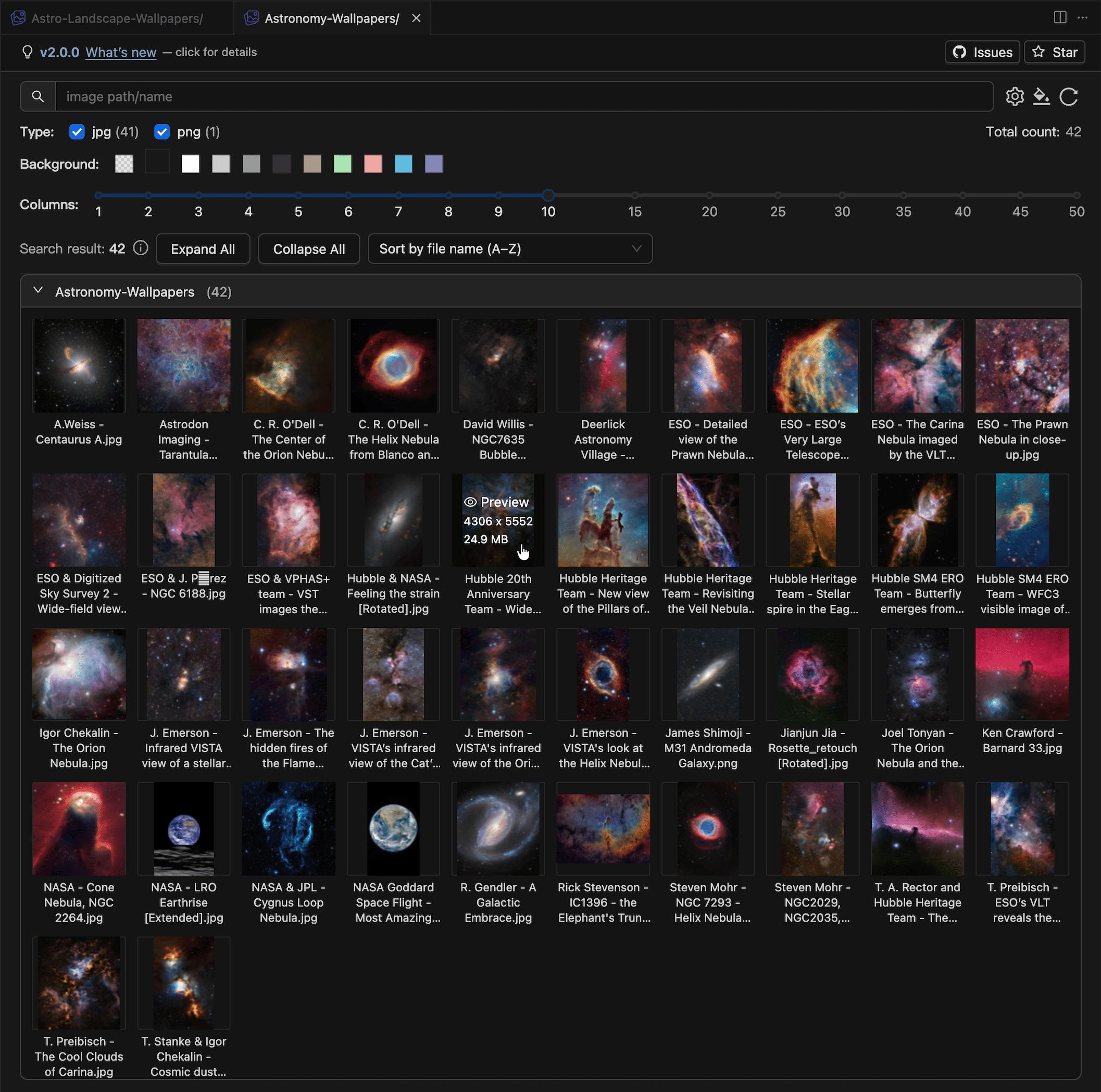
Main panel
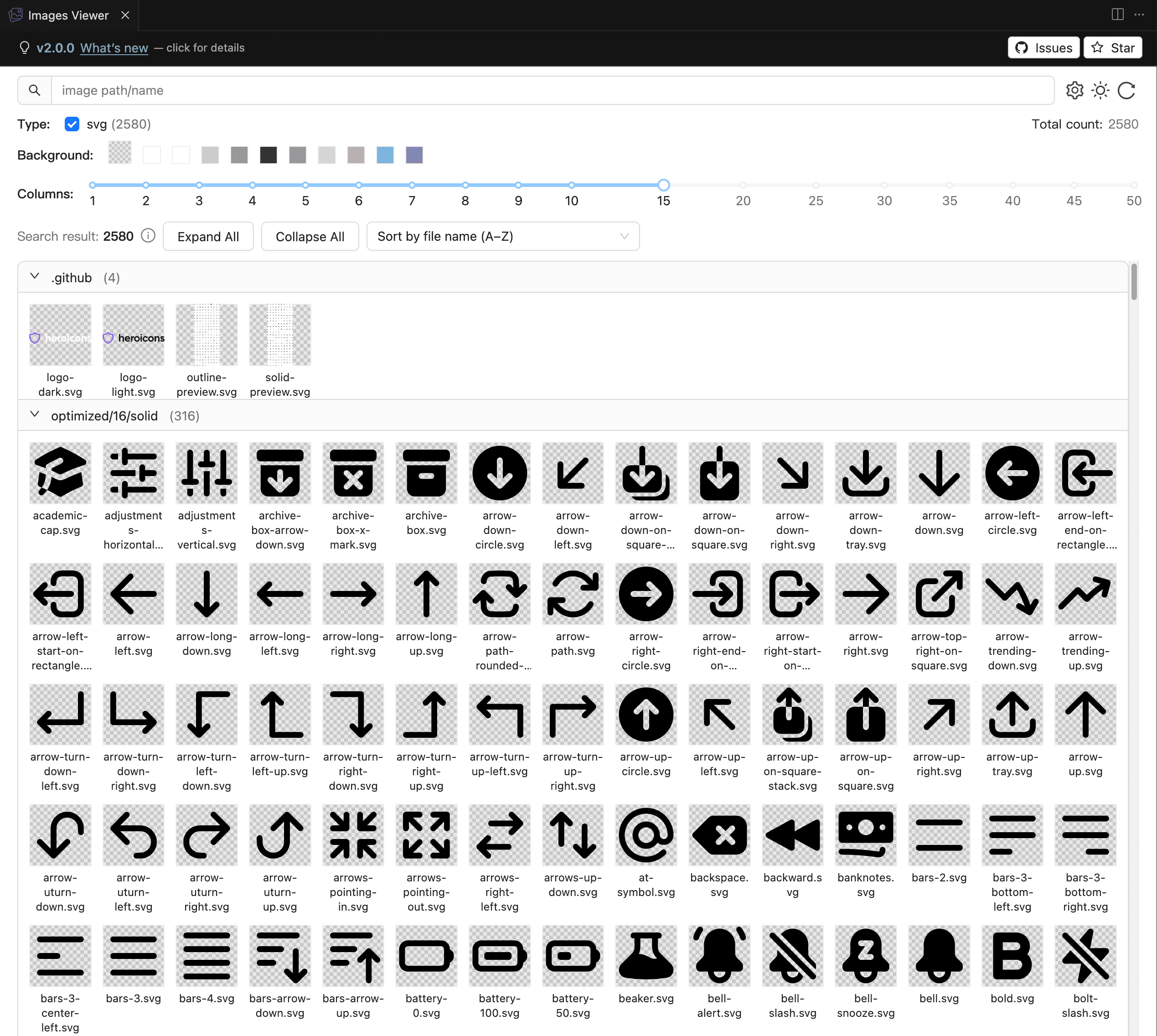
This shows another light theme style, as well as switching to a checkerboard background to reveal the transparent parts of SVG images.
Features
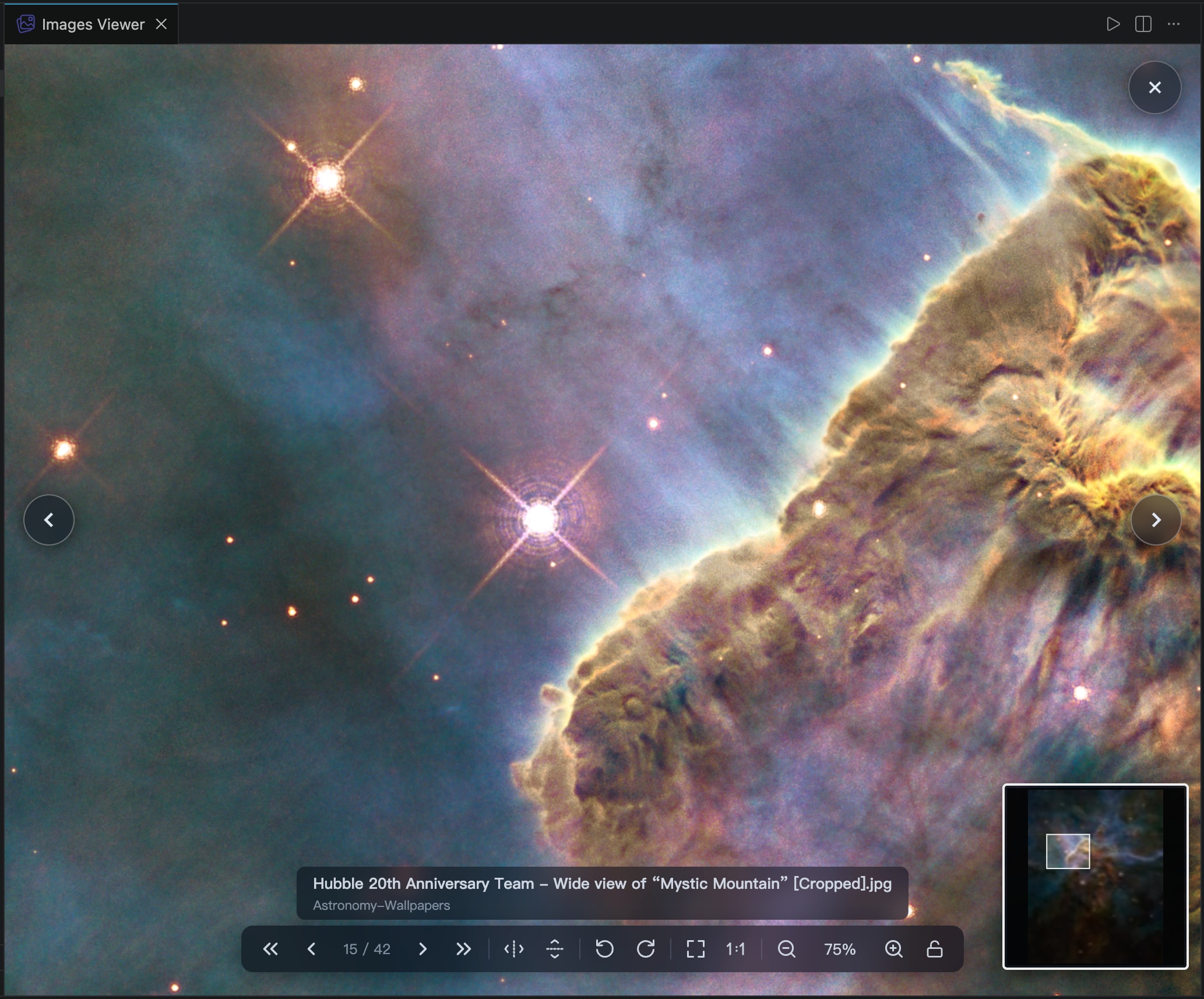
- The full-screen viewer is now powered by our own preview engine, with a smoother browsing experience.
- Moving to next/previous images now feels more natural and follows the folder order you see in the panel.
- The small overview map in preview looks clearer and loads faster, especially for very large images.
- Preview interactions are richer and easier to use (mouse wheel zoom, double-click zoom, quick flip, and easier navigation buttons).
- Thumbnail grid with lazy loading and tuning for large libraries (many high-resolution images).
- Column count controls grid density (uses panel width efficiently).
- Sort images inside each folder (name, modified time, size, asc/desc).
- Light / dark UI for the panel; default follows your VS Code or Cursor theme (toggle in the toolbar).
- Preview backdrops: checkerboard, transparent (default), and solid swatches; useful for PNG/SVG with alpha.
- Zoom and navigate with keyboard.
- Search by path/name; filter by file type.
- Include / exclude folders
- Copy path, file name, or Base64 from the image menu.
- Open a folder from Explorer: only that folder tree is scanned (fast in huge repos). Multiple Image Viewer tabs for different folders; tab title includes the folder name.
How to use
- Open a folder or workspace in VS Code / Cursor.
- Whole workspace (default):
Ctrl+Shift+P/⌘⇧P→ run 「View Images」 (command id:vscode-infra.webviewImageViewer). - Folder only: In the Explorer, right-click a folder (or an image file) → View Images 🌄. Only that directory (and subfolders) is indexed in that panel; the editor tab title reflects the folder.
More documentation
- See CHANGELOG.md for release notes
- Issues: GitHub Issues