Git-Plus package
December 17, 2018 · View on GitHub

vim-fugitive like package for atom. make commits and other git things without the terminal
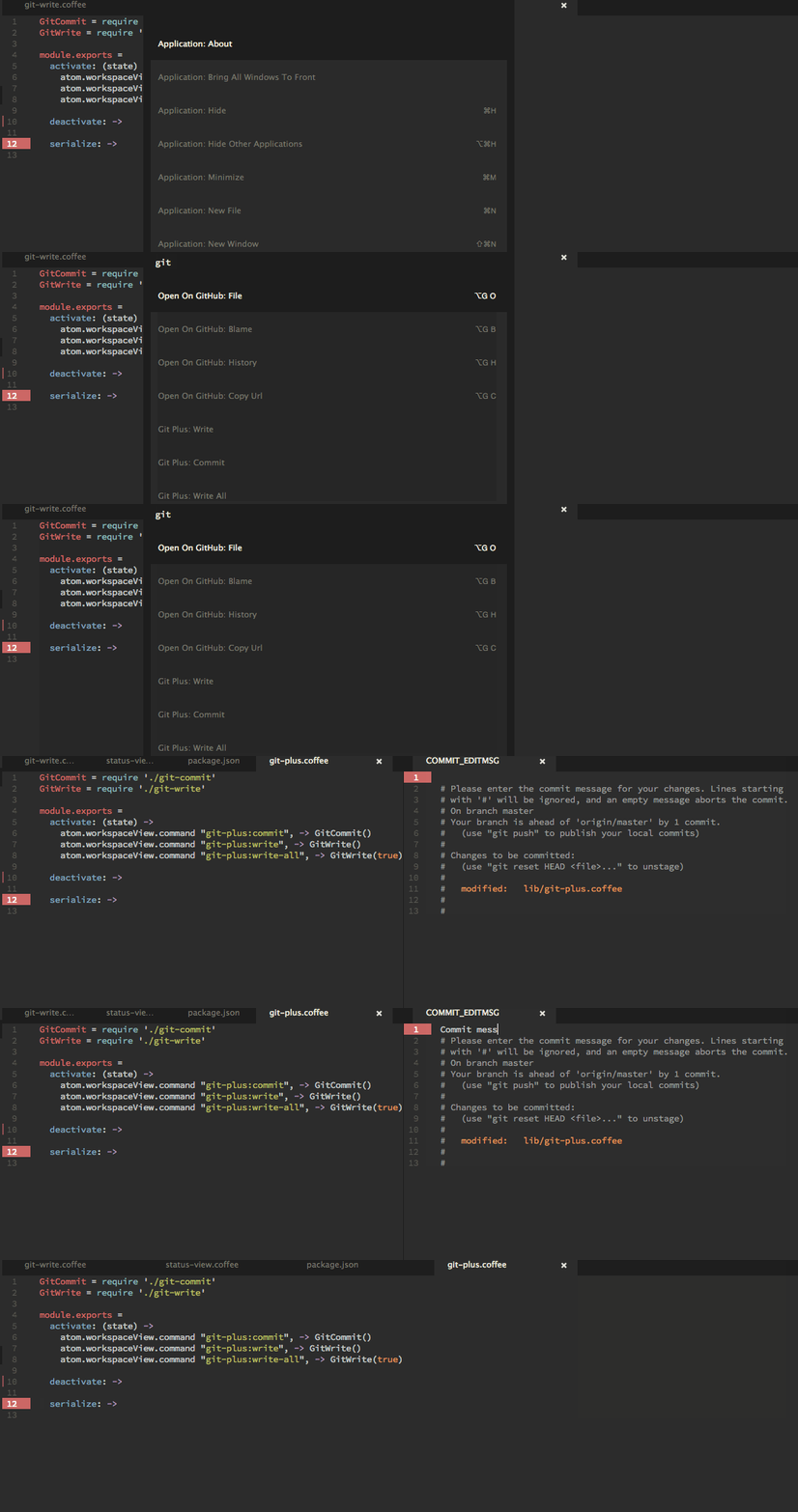
Usage
IMPORTANT:
Make sure your gitconfig file is configured. You must configure at least the user.email and user.name variables.
Also, the package currently favors an ssh setup that doesn't expect to be prompted for credentials in order to push/pull, .etc. Github has a guide to help you set that up here
If you are on a Windows machine, I recommend checking out this thread if you have issues pushing/pulling from a remote repository with this package. I also don't have the means to do my own user testing in a windows environment so I won't be immediately able to help troubleshoot windows problems.
Showing the Git-Plus Palette
Cmd-Shift-Hon MacOSCtrl-Shift-Hon Windows + LinuxGit Plus: Menuon the atom command palette.
Push/Pull/Fetch notifications
Notifications will appear in a console output above the status bar. This view can be toggled by clicking the 'git+' icon in the bottom right of the status bar.
Auto-Fetch
Keeps your local repo bang up to date by automatically fetching from all remotes in the background every minute by default. But this can be set to any interval up to an hour, or disabled if you prefer. A notification can also be set to keep you informed.
Commands
Commands are accessible for keybindings by dasherizing the command title. Add your own keybindings in your ~/.atom/keymap.cson file
Git Add ==
git-plus:add
Git Add All Commit And Push ==
git-plus:add-all-commit-and-push
Note: The following list of commands is not exhaustive. If what you want isn't a feature, you can use Git Run and enter the command.
| Command | Effect |
|---|---|
Git Run | Execute a command manually by typing it without the git part. ex. fetch --all |
Git Status | Show current status. |
Git Add | Add the current file to the index. |
Git Add All | Adds all files to the index (ex. git add .). |
Git Commit | Commit the staged changes. Git-Plus will show an editor for the commit message. To make the commit, save the file. To cancel the commit, close the tab. |
Git Add And Commit | Stages the current file before preparing a commit. (Git add all and Git commit run in succession) |
Git Add All and Commit | Stages all changes before preparing a commit. (Git add all and Git commit in succession) |
Git Add And Commit And Push | Commit currently open file and push to a remote repo. |
Git Add All Commit And Push | Commit all changes and push to a remote repo. |
Git Commit Amend | Amend the previous commit. |
Git Checkout Current File | Undo changes and reset the current file to HEAD. |
Git Checkout[ref] | Change to another ref (branch or tag). |
Git Checkout New branch | Create a new branch. |
Git Diff [All] | Show the diff of the current file, or all files. The diff can either be against the staged or un-staged tree, as selected in the options. |
Git Diff Branches | Show the diff of the current branch against another branch. |
Git Diff Branch Files | Show the diff of the current branch file against another branch version. |
Git [Push⎮Pull] | Push to or pull from a remote repo. If you have multiple remote repos, you can choose which to push to or pull from. |
Git Remove [current file] | git rm the current file or open an selector to select the files to remove. You can select multiple files at once. |
Git Log [Current File] | Show the commit history [for the current file] and show display the selected commit. |
Git Show | Show the specified object, for example HEAD, HEAD~2,3925a0d, origin/master or v2.7.3. |
Git Open Changed Files | Open tabs with all added, modified or renamed files. |
Git Tags | Operate on tags individually. There are options to add, show, push, checkout, verify, and delete. |
Manage Stashes | Similar to Git Tags. There are options to apply, pop, and drop. |
Select lists that allow selecting multiple options
Commands like Stage hunk and Cherry-Pick provide a list with the ability to select multiple options.
In this view, there are 'cancel' and 'apply/complete' buttons. The esc key can be used to cancel and
the 'confirm' option can be invoked with shift-enter or ctrl-enter.
Commit Window
To change where the commit window appears go to settings and find

Experimental Features
If you would like to use experimental features, enable them in the package settings.
-
Custom Commands
If enabled, you can define your own commands in your atom
init.coffeeorinit.jsfile. These commands will appear in both the atom command palette as well as the Git-Plus command palette. Just like any other commands, you can define keybindings for them as well.Example command for undoing the last commit:
# In init.coffee
atom.packages.onDidActivateInitialPackages () ->
if gitPlus = atom.packages.getActivePackage('git-plus')?.mainModule.provideService()
  gitPlus.registerCommand 'atom-text-editor', 'custom-git-commands:undo-last-commit', ->
    gitPlus.getRepo() # If there are multiple repos in the project, you will be prompted to select which to use
    .then (repo) -> gitPlus.run repo, 'reset HEAD~1'
The name of the command in the Git-plus palette will be the undasherized version of what you provided -> 'Undo Last Commit'.
Please beware of giving your commands the same name(undo-last-commit) as existing commands. They will appear as duplicates in the Git-plus palette.
Check out some commands here
-
Stage Files Beta
When enabled, the 'Unstage Files' and 'Stage Files' commands will be merged into one view where the staged status of multiple files can be toggled.
Contributing
- Fork it
- Create your feature branch (
git checkout -b my-new-feature) - Write tests
- Make your changes
- Run
npm test - Commit your changes
- Push to the branch (
git push origin my-new-feature) - Create new Pull Request