How to Create a GitHub Profile
September 4, 2024 · View on GitHub
How to Create a GitHub Profile
Written by Amar Panjwani
Technical Writer

Creating a GitHub profile is a great way to show visitors what you're all about as a developer - what languages and frameworks you know, types of work you are interested in, and general background information.
In this guide, we'll cover how to create a repository that doubles as a profile and how to add advanced tools that display cool statistics about your coding history and habits.
Create a Profile Repository
To make a GitHub profile, you must first create a repository with the same name as your GitHub username.
1. Create a new repository
In the upper-right hand corner of the GitHub dashboard:
- a. Click
+ - b. Click
New repository

2. Add the details for the new repository
- a. Under "Repository name", type in your GitHub username
For example, if my GitHub username is linuxfan123, I would type inlinuxfan123 - b. Click the
Publicoption so all users can see your newly created profile - c. Check the
Add a README filebox - d. Click the green
Create repositorybutton to make the new repository with all the above settings

3. View your new default profile
- a. Click the white
View Profilebutton on the right side of the page - b. Take a look at your new profile - by default, some placeholder text is inputted.
- c. Click the pencil icon in the top-right hand corner of your new profile to initiate editing


4. Edit your new profile
- a. Delete lines 3-6 and the ending
-->

- b. Add the missing information - think about what important information visitors looking at your code should know
- c. Click the
Previewtab to see what the new edits will look like

- d. When satisfied, click the green
Commit changesbutton to finalize the changes
5. View your new profile
In the upper-right hand corner of the GitHub dashboard:
- a. Click your profile picture
- b. Click
Your Profile

Advanced Coding Statistic Add-ons
You can also choose to add from a variety of add-on tools that display insightful and interesting statistics about your coding history and habits.
Note: Make sure to replace <your-github-username> with your own GitHub username when using the following code snippets and then delete the angle brackets <>.
Activity
Displays total stars, commits, pull requests, etc.
[](https://github.com/anuraghazra/github-readme-stats)
Top Languages
Lists your most frequently coded in languages by percentage
[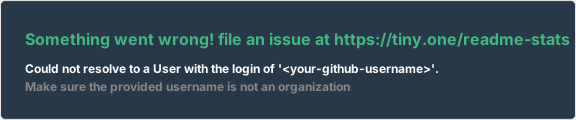](https://github.com/anuraghazra/github-readme-stats)
Repository Highlight
Displays a single repository (just as it would look underneath your GitHub profile)
<a href="https://github.com/<your-github-username>/<repository-name>"><img align="center" style="margin:20px" src="https://github-readme-stats.vercel.app/api/pin/?username=<your-github-username>&repo=<repo-name>&theme=vue-dark" /></a>
Streak Counter
Lists your current and longest streak of making at least one daily GitHub commit
[](https://git.io/streak-stats)
Visitor Counter
A running counter of how many times your GitHub profile has been visited

If you find this tutorial helpful, please consider giving it a :star: