Git Log
August 27, 2026 · View on GitHub


A visual Git log, commit graph, history browser, and repository operations extension for Visual Studio Code.
Git Log is designed to provide a complete Git history workflow inside VS Code rather than restyling the built-in Source Control view. It combines a refs tree, commit topology graph, changed-files tree, commit details, native diffs, and common branch and commit operations.
Installation
Install Git Log — Commit Graph & History from the Visual Studio Marketplace, or search for ascenx.git-log in the VS Code Extensions view.
Git Log supports VS Code 1.85.2 and later with Git 2.27 or newer.
You can also install it from the command line:
code --install-extension ascenx.git-log
Screenshots
Git Log Workbench
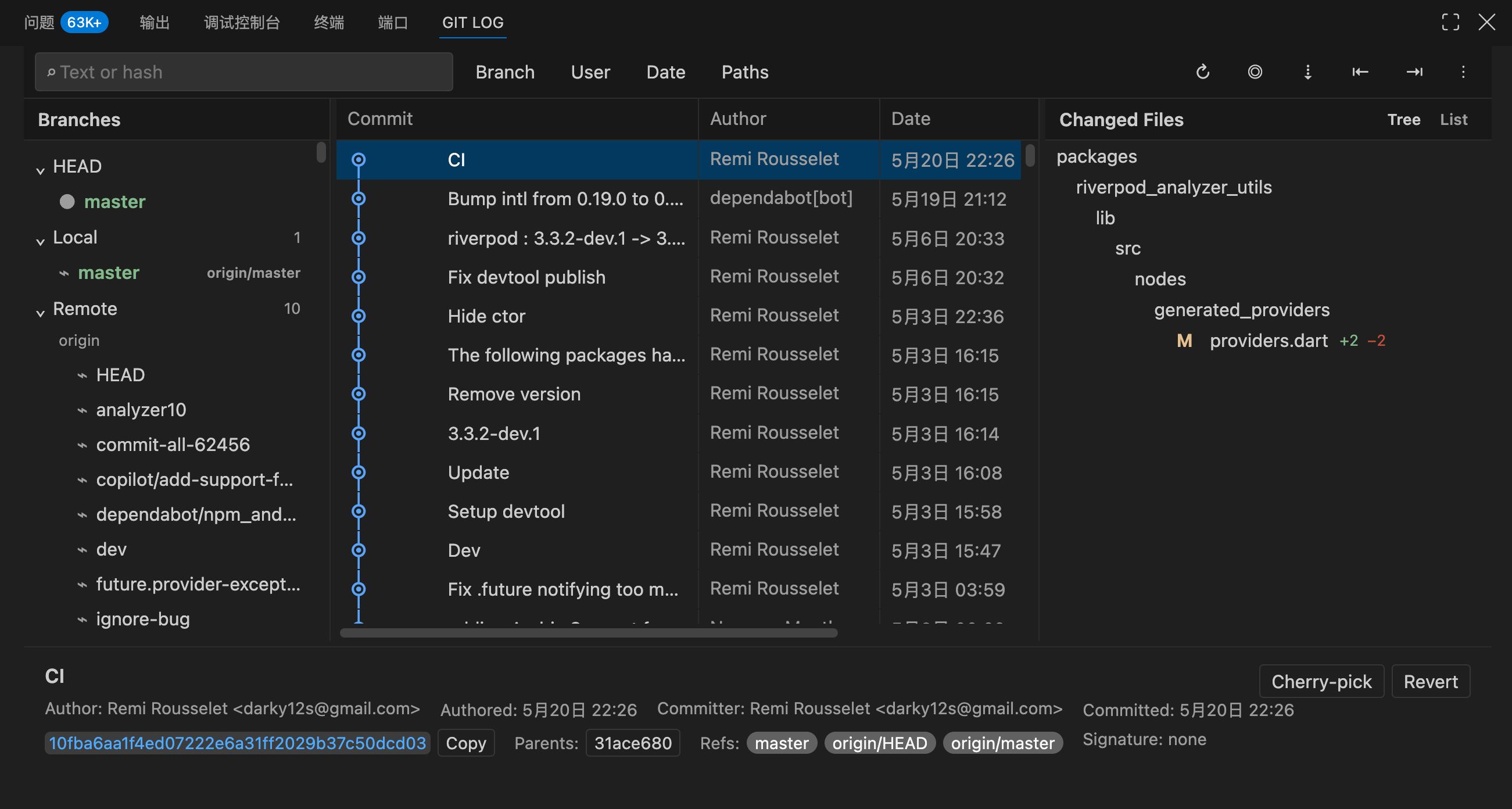
Current-line Blame and Editor Menu

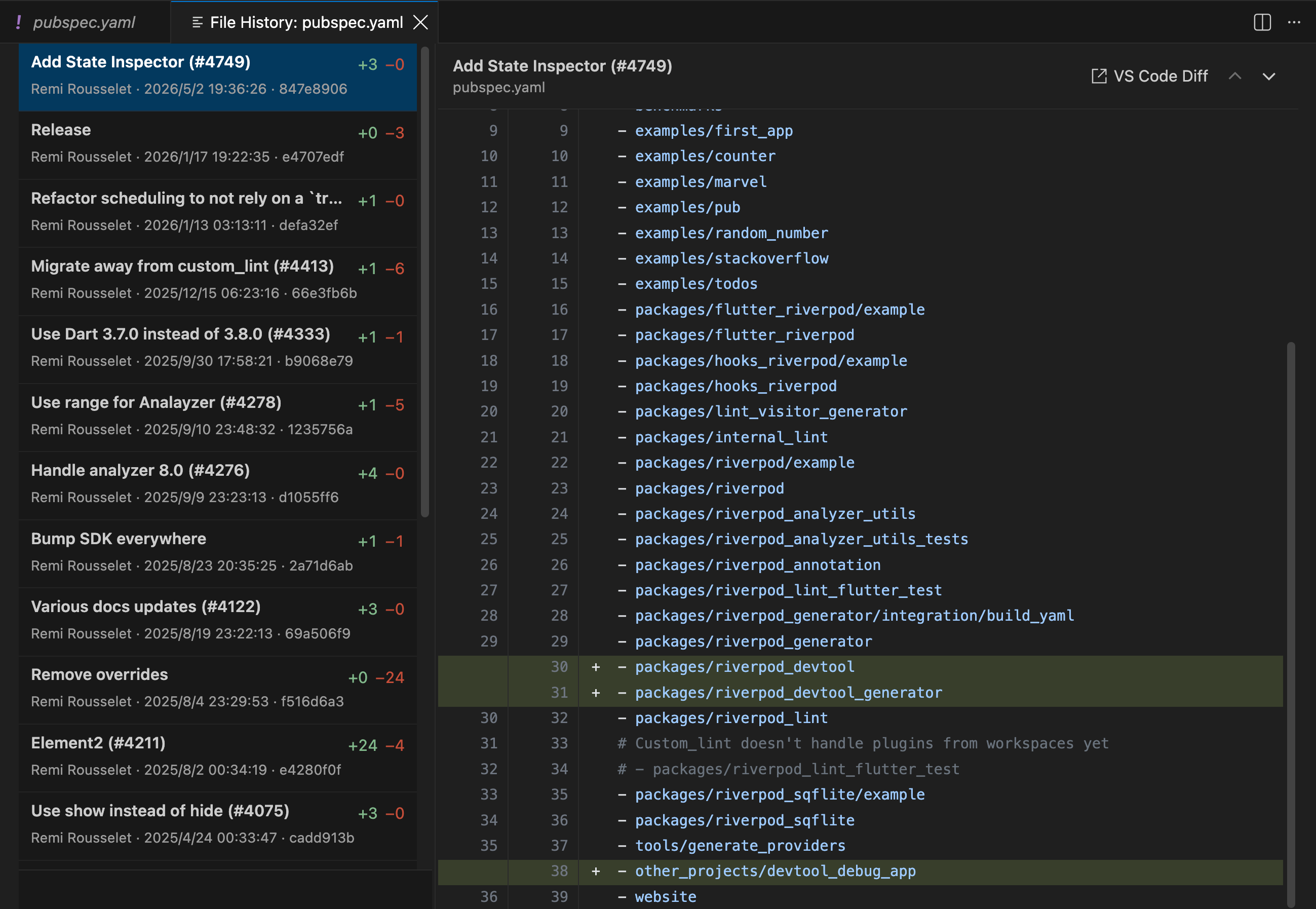
File History
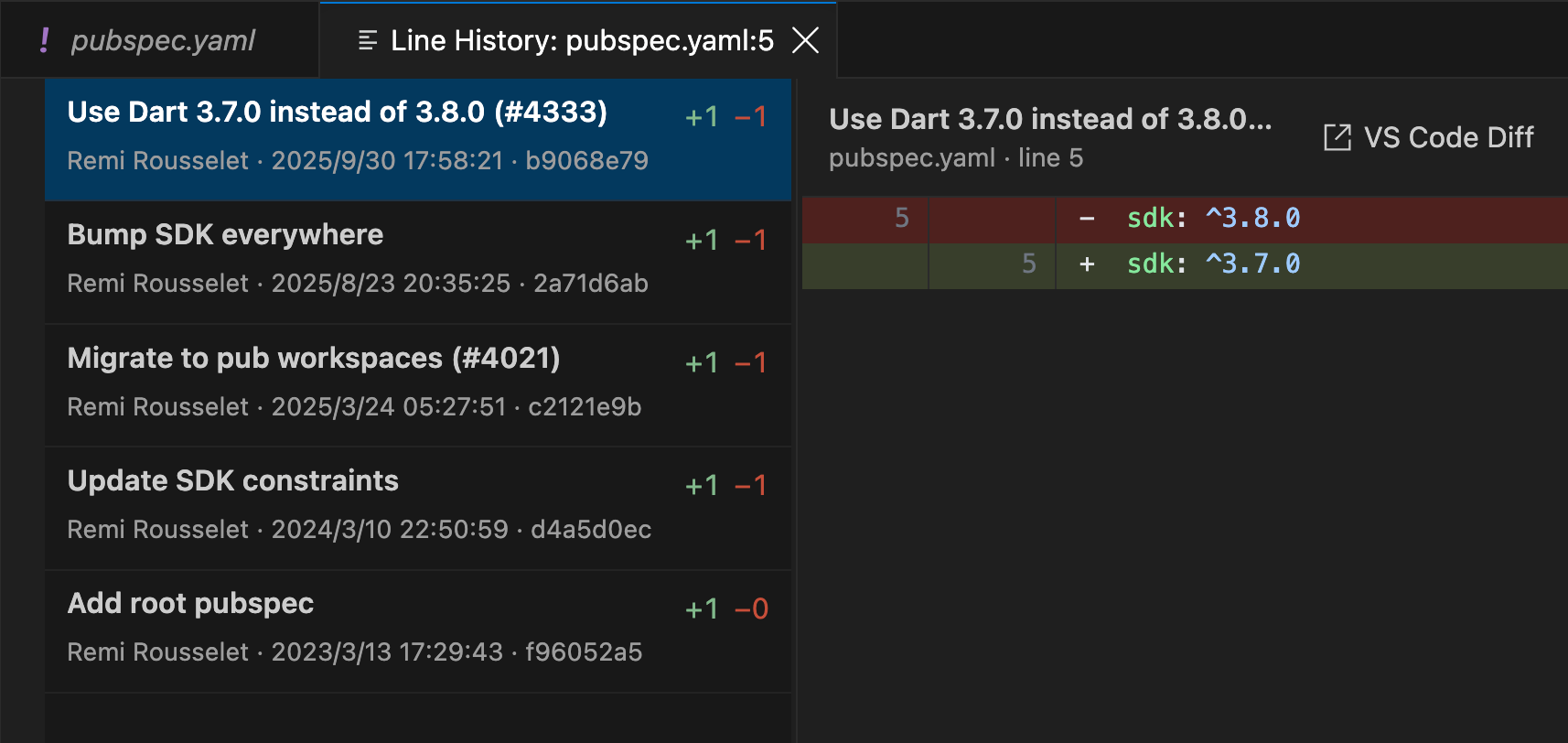
Line History
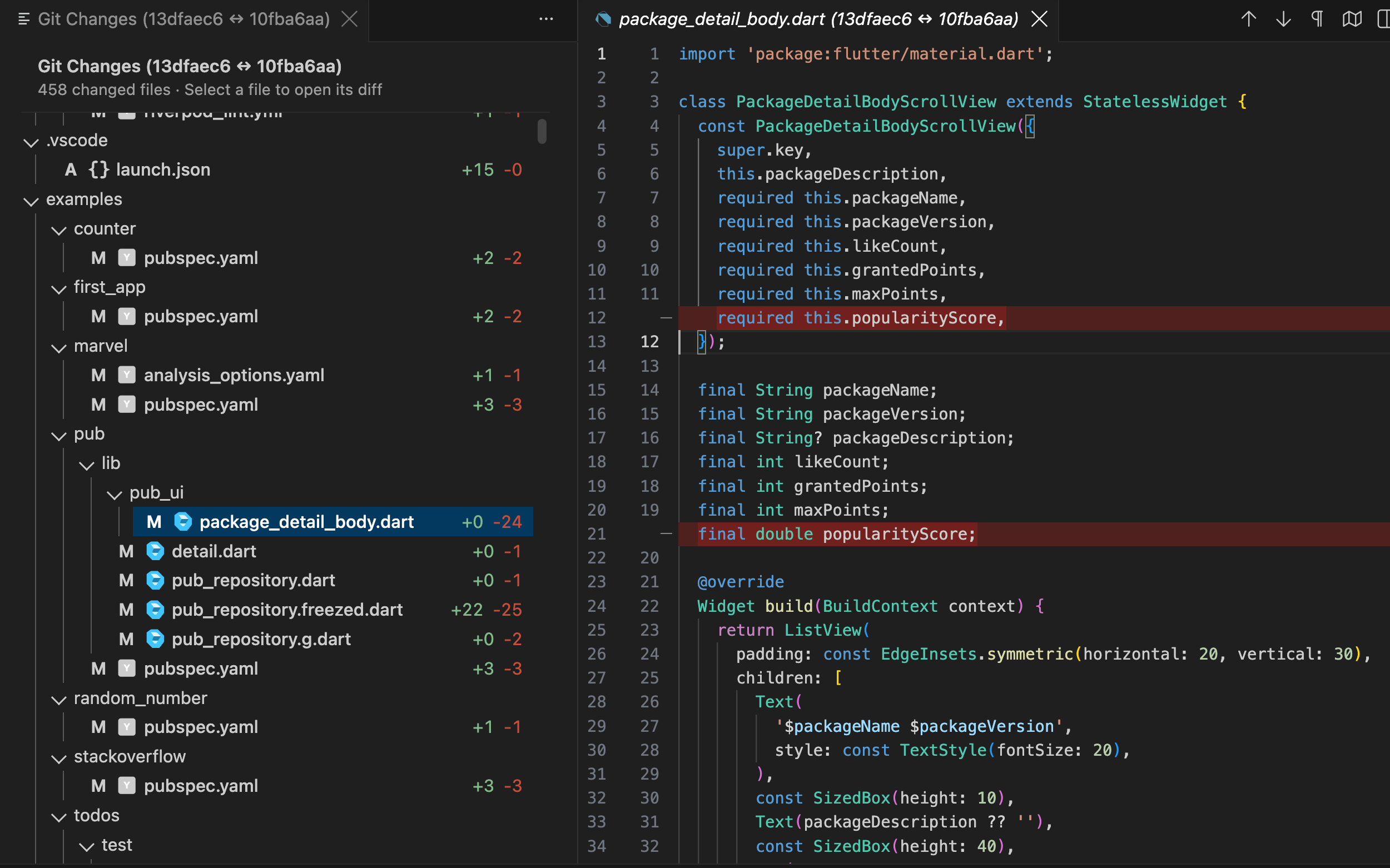
Compare with Branch or Tag
Core principles
- Provide a dense, clear, and efficient Git history workflow.
- Treat the Git CLI as the source of truth for repository data and operations.
- Reuse native VS Code editing, diff, and merge capabilities whenever possible.
- Use pagination, bounded caches, and virtual scrolling for large repositories instead of loading the full history.
- Show the exact target, impact, and confirmation step for every destructive operation.
- Back every implementation milestone with automated tests and executable acceptance checks.
Implemented Git Log features
┌─────────────────────────────────────────────────────────────────────┐
│ Ref filter │ Text/hash │ Branch │ User │ Date │ Paths │ Actions   │
├─────────────┬───────────────────────────────────┬───────────────────┤
│ HEAD        │ Commit graph                      │ Changed files     │
│ Local       │ ● fix: ...        main   Alice   │ src/              │
│   main      │ │\                                │   extension.ts    │
│   feature   │ │ ● feat: ...     feature Bob    │ package.json      │
│ Remote      │ ●─┘ refactor: ...                 │                   │
│ Tags        │                                   │                   │
├─────────────┴───────────────────────────────────┴───────────────────┤
│ Commit message │ hash │ author │ date │ parents │ action toolbar    │
└─────────────────────────────────────────────────────────────────────┘
The current version covers Milestones 0–6 and the editor history work from Milestone 7:
- Multi-root repository discovery for standard repositories, bare repositories, linked worktrees, and detached HEAD states.
- Synchronized Refs, Commit Graph, Changed Files, and Commit Details areas.
- A dedicated Branch pane search and a recursive, collapsible reference tree that groups slash-delimited Local, Remote, and Tag names into folders. Remote names containing
/remain distinct top-level folders. - A dedicated
Git Logtab in the VS Code bottom Panel alongside Problems, Output, and Terminal.Open Logfocuses this tab directly without opening an editor page or intermediate welcome view. - Paginated logs, bounded sliding windows, custom DAG lanes, graph continuation across windows, fixed-row virtual scrolling, and large-list performance benchmarks. Deep-page global offsets, selections, and relative scroll positions can be restored.
Go to HEADlocates the checked-out HEAD in the active filtered list and aligns it as the first visible row without changing the filter. - Combined Text/Hash, Branch, User, Date, and Path filters with cancellation and stale-response rejection. Repository refreshes do not overwrite an active search draft. Text queries scan the full message, author name, and email in canonical
git log --date-orderorder while preserving child-before-parent topology. - Changed-file handling for root, merge, rename, copy, and binary commits, with native VS Code diffs. Multi-commit selections combine files from every selected commit while retaining the correct commit and parent for each file action.
- Checkout, Checkout Revision, Branch, Tag, Fetch, Pull, Push, Cherry-pick, Revert, Merge, Rebase, Reset, and branch rename/delete operations, with context menus for commits and Local, Remote, Tag, and HEAD refs.
- Complete stash management supports optional untracked files, change previews, Apply, Pop, and confirmed Drop.
- Branch clicks select and display that branch's commits without checking it out; checkout remains an explicit Ref context-menu action.
- Commits can be selected as a contiguous range with Shift+click or Shift+Arrow keys, or toggled individually with Ctrl/Cmd+click. Changed Files combines every selected commit; Drop and Squash remain limited to contiguous ranges. Squash preloads the selected full commit messages in visible top-to-bottom order. History rewrites require a clean worktree and explicit confirmation, and reject root commits, merge commits, stale selections, and changes to the active branch or HEAD during confirmation.
- Local Branch context menus provide a confirmed
Force Delete…action for non-current branches. Normal deletion failures for unmerged branches also offer a warning-colored Force Delete recovery action, and error notices remain visible for five seconds before closing automatically. - Serialized writes per common Git directory, per-repository Webview operation locks, destructive-operation confirmation dialogs, classified Git errors, redacted Output Channel diagnostics, and post-operation repository refreshes.
- Draggable panes and columns, collapsible panes, and workspace-scoped width and height persistence. Commit Details can switch between the full-width bottom area and the bottom of Changed Files, with its placement retained across panel sessions. Commit, Author, Date, and Refs columns are always visible, and deep-page selections and scroll positions survive reopening the panel.
- Resizable Commit and Refs table columns with persisted widths. Changed Files supports horizontal scrolling for deep paths, with additions in green and deletions in red.
- Changed Files preview, Tree/List modes, Show Diff, Open File at Revision, Open Current File, Copy Path, and Commit/Ref/File context menus. Menus close on outside clicks and after executing an enabled action.
- Compare with Current opens a dedicated file list with file status and green addition/red deletion counts. Select one file for a native VS Code diff, or use
All Changesto open every non-binary file in a single multi-file diff. - A
Git Logeditor context submenu for current-line history, selection history, complete file history, and comparison of the current file with the same path in a Local Branch, Remote Branch, or Tag. - A
Git LogExplorer context submenu opens File History for files and recursive Folder History for directories. Folder History uses a temporary path filter in the bottom Git Log and restores the previous log state when closed. - Theme-aware current-line blame annotations show the author, relative time, and commit subject. Hovering displays the author email, exact time, commit hash, and full message. Uncommitted edit ages update automatically and are retained in workspace state. The custom annotation is automatically suppressed when VS Code's built-in
git.blame.editorDecoration.enableddecoration is enabled. - Line history maps workspace lines back to
HEAD. Unsaved content participates through an in-memory Extension Host snapshot without triggering a save. Purely uncommitted added lines show a clear empty state, while partial or discontinuous selections are not incorrectly assigned to a commit. File history supports renames, pagination, HEAD-scoped caching, and green/red change statistics. - Current Line, Selection, and File History open in dedicated editor tabs. The left side lists related commits and change counts, and the divider between the commit list and diff is draggable and persisted.
- History tabs show an inline diff for the focused range or complete file. A separate Worker uses Shiki with lazily loaded grammars for syntax highlighting.
VS Code Diffopens the current commit in the native Diff Editor with minimap, search, language support, and standard shortcuts. Switching commits cancels stale highlighting work, while timeouts, oversized patches, long lines, or excessive token budgets fall back to plain text without blocking the Extension Host. - Complete keyboard navigation, two-stage
Escapehandling in search,Ctrl/Cmd+Ccommit hash copying, and light, dark, and high-contrast theme support. - The current branch tip supports Amend HEAD with commit-message editing and staged-change inclusion.
Local development
npm install
npm run typecheck
npm run lint
npm run test:unit
npm run test:integration
npm run build
In VS Code, select Run Extension to launch the Extension Development Host, then run Git Log: Open Log or click the Git Log tab in the bottom Panel.
Build a local VSIX with:
npm run package
Usage tips
- Click or double-click a Local or Remote branch to display its commit history without checking it out. Use the Local branch context menu when you explicitly want to check it out.
- Use
Go to HEADto locate the repository's checked-out HEAD inside the commit list currently being viewed; it does not switch the active Branch filter. - Use
Force Delete…only when a non-current Local Branch must be removed even though it is not fully merged. Git Log shows a modal confirmation before running the operation. - Use the Branch pane search to filter references locally. Slash-delimited names are grouped into folders that can be expanded or collapsed independently.
- Hold Shift while clicking another commit or pressing Up/Down to extend a contiguous range. Use Ctrl+click on Windows/Linux or Cmd+click on macOS to toggle non-contiguous commits. Changed Files combines all selected commits, while
Drop commits…andSquash commits…appear only for contiguous ranges. - Right-click a single commit and choose
Checkout Revisionto inspect it in detached HEAD state; create a branch before committing if the work should be retained. - Click a Changed File to inspect its path, status, and change summary. Double-click it or choose
Show Diffto use the native VS Code Diff Editor. - In a commit comparison, use
All Changesto review all text-file changes together; binary files remain listed but are omitted from the multi-file diff. - Use the arrow button in Commit Details to move it below Changed Files or return it to the full-width bottom area. The selected placement is saved for the workspace.
- Right-click a normal local file and open
Git Log: with no selection it shows current-line history, with a selection it shows selection history, and it can also open complete File History in a dedicated tab. Branch/Tag comparison uses native VS Code diff capabilities, including minimap, syntax highlighting, search, and diff shortcuts. - Current-line history shows three visually subdued logical context lines above and below each change by default. Old and new context is aligned across formatting changes, and the Commit list filters out commits that only touched another line in Git's expanded tracking range. Configure
gitLogWorkbench.lineHistory.contextLinesfrom0to20; use0to show only the tracked change. - In the Explorer, right-click a local file or folder and open
Git Log. Files use the dedicated File History tab; folders filter the bottom Git Log to commits that touched that directory. UseBackto restore the previous filters and position. Git does not track folders as objects, so folder renames are not followed automatically. - Current-line blame is enabled by default and can be disabled with
gitLogWorkbench.currentLineBlame.enabled. - Use
Ctrl/Cmd+Fto focus search,Ctrl/Cmd+Lto focus the Commit Log, andCtrl/Cmd+Cto copy the selected commit's full hash. Arrow keys, PageUp/PageDown, Home, and End navigate commits. - The first
Escapeclears the search field. PressingEscapeagain when search is empty returns focus to the Commit Graph. - Drag pane and commit-column separators with the mouse, or focus a separator and adjust it with the arrow keys. Toolbar actions can collapse Refs and Changed Files; Commit, Author, Date, and Refs remain available.
- The User filter pins
Me (current Git user)to the top using the repository'sgit config user.name/user.email, preferring email matching. Toolbar buttons include hover descriptions. - Refresh reads local repository state only. Fetch, Pull, and Push access the configured remote and reuse the system credential helper or SSH Agent.
- Use
Stashesto create, inspect, apply, pop, or drop saved work.
Security and privacy
- Every Git command uses a
spawnargument array without a shell. - The extension never stores passwords, tokens, or SSH private keys. Remote authentication is delegated to Git.
- The Output Channel redacts URL user information and does not log file contents or complete environment variables.
- Hard Reset, Force Push with Lease, Branch Delete, Force Delete, and other destructive operations show the repository and exact target before confirmation.
- Force-push target resolution, confirmation, and execution occur under the same common Git directory queue lock, pin the source object ID, and reject implicit or incomplete target refspecs.
- A text-history scan is limited to 64 MiB of stdout, the rolling match cache is bounded, and the Webview commit window respects
maxCachedCommits. - Telemetry is disabled by default.