README.md
August 10, 2026 · View on GitHub

💥 Features | 🕹️ Supported Systems | 🚀 Getting Started | 🔫 Lightgun Support | 📃 External Data | 🚑️ Support
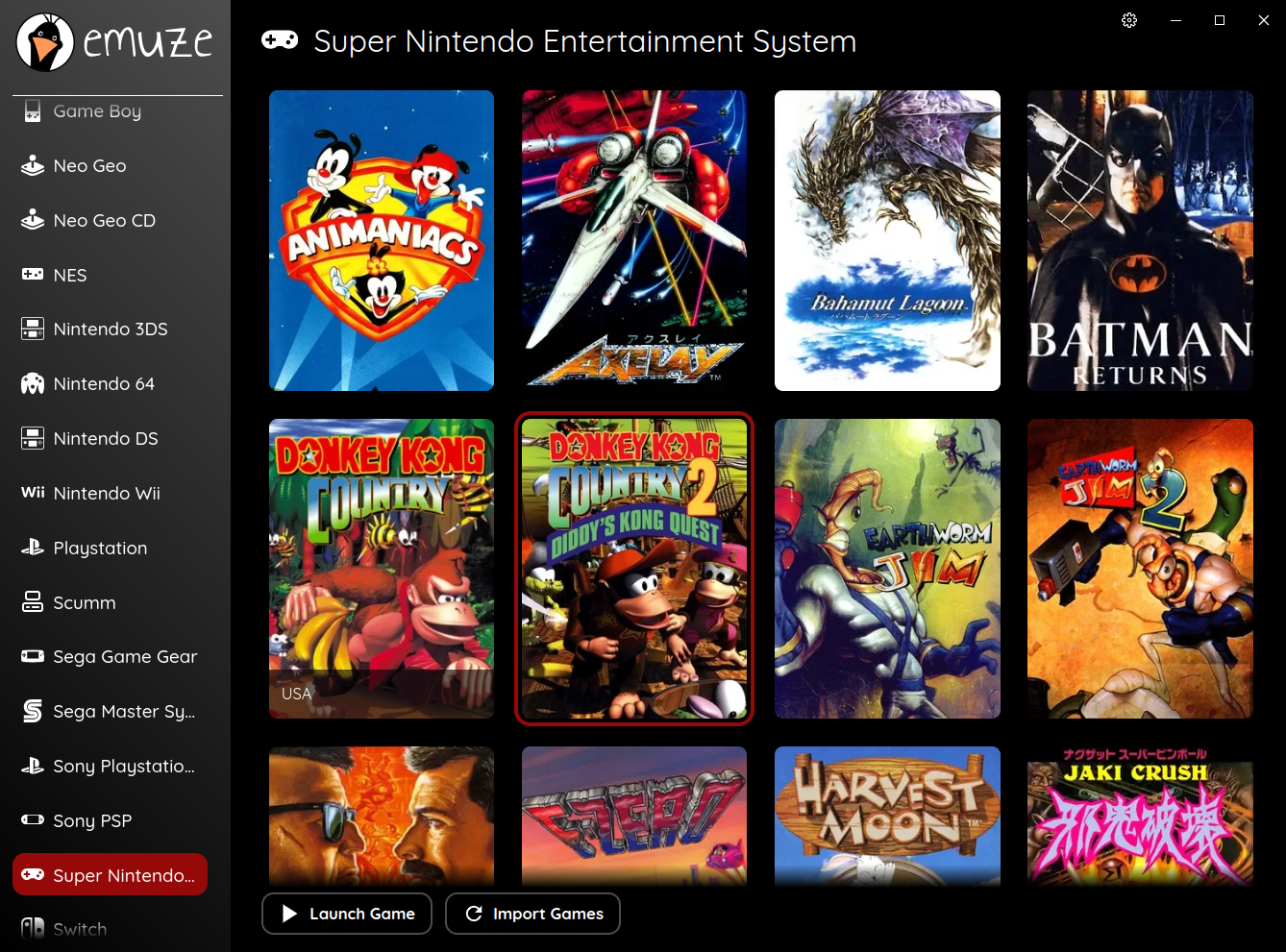
emuze is an emulation frontend designed to simplify your retro gaming experience. It automates the configuration of each emulator, including seamless gamepad integration and automatic import of games along with their metadata. With its console-like interface and intuitive controls, emuze lets you focus on enjoying your retro games, just like you would on a gaming console.
💥 Features
- ⚡️ Intuitive console-like interface
- 🚂 Import all your roms with a click of a button
- 🪄 Provides Metadata from IGDB based on the filenames of your roms
- 🎮️ Seamless gamepad integration for all Systems
- 📦️ Bundles emulators for all Systems
- 🔫 Basic lightgun integration for some Systems
- 💻️ Windows, Linux and Steam Deck support
- 💫 Updates itself
- 🛠️ BIOS handling

🕹️ Supported Systems
The following systems are supported:
| System | Emulator | BIOS needed |
|---|---|---|
| Sega Master System | ares v148 | No |
| Sega Game Gear | ares v148 | No |
| Sega Mega Drive | ares v148 | No |
| Sega 32X | ares v148 | No |
| Sega CD | ares v148 | Yes |
| Mega LD | ares v148 | Yes |
| Sega Saturn | Mednafen v1.32.1 | Yes |
| Sega Dreamcast | Flycast v2.6 | No |
| Nintendo Entertainment System | ares v148 | No |
| Super Nintendo Entertainment System | ares v148 | No |
| Nintendo Game Boy | ares v148 | No |
| Nintendo Game Boy Color | ares v148 | No |
| Nintendo Game Boy Advance | ares v148 | No |
| Nintendo DS | melonDS v1.1 | No |
| Nintendo 3DS | Azahar v2125.1.3 | No |
| Nintendo 64 | ares v148 | No |
| Rosalie's Mupen GUI v0.9.0 | No | |
| Nintendo GameCube | Dolphin v2606 | No |
| Nintendo Wii | Dolphin v2606 | No |
| Nintendo Wii U | Cemu v2.6 | Yes |
| Nintendo Switch | Ryujinx v1.3.3 | Yes |
| Eden v0.2.1 | Yes | |
| Sony PlayStation | DuckStation (Legacy) v0.1-7371 | No |
| Sony PlayStation 2 | PCSX2 v2.6.3 | Yes |
| Sony PlayStation 3 | RPCS3 v0.0.42 | Yes |
| Sony PlayStation Portable | PPSSPP v1.20.4 | No |
| NEC PC Engine | ares v148 | No |
| NEC PC Engine CD | Mednafen v1.32.1 | Yes |
| NEC PC Engine SuperGrafx | ares v148 | No |
| Arcade | MAME v0.288 | No |
| SNK Neo Geo | MAME v0.288 | No |
| SNK Neo Geo CD | MAME v0.288 | Yes |
| SNK Neo Geo Pocket | ares v148 | Yes |
| SNK Neo Geo Pocket Color | ares v148 | Yes |
| Scumm | ScummVM v2026.3.0 | No |
| Dos (Supported Games) | DOSBox Pure Unleashed v1.0-preview6 | No |
| Microsoft XBOX | xemu v0.8.136 | Yes |
Important
❤️ Many thanks to all emulator developers. Without you and your awesome work this wouldn't be possible.
Pre Configured
All Systems are pre configured. This means the following:
Gamepad Mapping
All connected gamepads will be configured for the specific Emulator and should just work without further tinkering.
Keyboard Mapping
If there are no gamepads connected, the keyboard will be configured instead.
Keyboard Mapping
| Button | Key |
|---|---|
| dpadUp | T |
| dpadDown | G |
| dpadLeft | F |
| dpadRight | H |
| a | J |
| b | K |
| x | U |
| y | I |
| back | BACKSPACE |
| start | RETURN |
| leftStick | X |
| rightStick | RSHIFT |
| leftShoulder | L |
| rightShoulder | O |
| leftTrigger | 8 |
| rightTrigger | 9 |
| leftStickUp | W |
| leftStickDown | S |
| leftStickLeft | A |
| leftStickRight | D |
| rightStickUp | UP |
| rightStickDown | DOWN |
| rightStickLeft | LEFT |
| rightStickRight | RIGHT |
Hotkeys
The following Hotkeys are set:
- Open Emulator Menu (if supported from emulator):
F2 - Save State:
F1 - Load State:
F3 - Fullscreen:
F11
Close a Game
You can close a game via
- Xbox:
back + a - PlayStation:
select + x - Nintendo:
select + a
Steam Deck sorted last
If you have gamepads connected with your Steam Deck the Steam Deck Controls will be configured as the last gamepad. This is done to use the Steam Deck on a TV. If you have other PC Handhelds where this feature would come in handy, please let me know.
Bundled
All emulators are provided with emuze in a specific version.
Config files of bundled emulators are stored in ~/.local/share/emuze/emulators/ on linux and AppData\Local\emuze\Data\emulators\ on windows.
BIOS needed
Some emulators need a BIOS or firmware to run. If so you have to set the folder to your BIOS files in the settings. emuze will detect the appropriate file and configures the emulator accordingly.
For some emulators a open source BIOS implementation is bundled with emuze:
| System | Open Source BIOS implementation |
|---|---|
| SNK Neo Geo | neogeo-bios |
| Nintendo Game Boy Advance | gba-bios |
| Sony PlayStation | PCSX Redux Openbios |
Important
❤️ Many thanks to the creators. Your work is a big step forward simplifing emulation.
Supported System Names and file extensions
In general emuze should just detect your systems and games. If not please check the supported system names and file extensions:
System Names and file extensions
| System | System Names | File extensions |
|---|---|---|
| Sega Master System | Sega Master System, Master System, SMS | .sms, .zip |
| Sega Game Gear | Sega Game Gear, Game Gear, gg, sgg | .gg, .zip |
| Sega Mega Drive | Sega Mega Drive, Mega Drive, Sega Genesis, Genesis, smd | .sfc, .smc, .68K, .bin, .md, .sgd, .zip |
| Sega 32X | Sega 32X, 32X, Mega 32X, Genesis 32X, Mega Drive 32X, Super 32X | .32x, .zip |
| Sega CD | Sega CD, Mega CD, Sega Mega CD, smcd | .chd, .cue |
| Mega LD | Mega LD, Sega Mega LD, LaserActive Mega LD, LaserActive Sega PAC, Pioneer LaserActive Mega LD, Pioneer LaserActive Sega PAC | .mmi |
| Sega Saturn | Sega Saturn, Saturn, ss | .cue, .zip |
| Sega Dreamcast | Sega Dreamcast, Dreamcast, dc | .cue, .chd, .gdi, .cdi |
| Nintendo Entertainment System | Nintendo Entertainment System, NES, Famicom, Family Computer, fc | .nes, .fc, .unh, .zip |
| Super Nintendo Entertainment System | Super Nintendo Entertainment System, Super Nintendo, SNES, Super Famicom, Super Family Computer, sfc | .sfc, .zip |
| Nintendo Game Boy | Nintendo Game Boy, Game Boy, GB | .gb, .gbc, .zip |
| Nintendo Game Boy Color | Nintendo Game Boy Color, Game Boy Color, GBC | .gb, .gbc, .zip |
| Nintendo Game Boy Advance | Nintendo Game Boy Advance, Game Boy Advance, GBA | .gba, .zip |
| Nintendo DS | Nintendo DS, DS, nds | .nds |
| Nintendo 3DS | Nintendo 3DS, 3DS, n3ds | .cci, .zcia, .zcci, .z3dsx, .zcxi, .3ds |
| Nintendo 64 | Nintendo 64, N64 | .z64, .n64, .v64 |
| Nintendo GameCube | Nintendo GameCube, GameCube, ngc, gc | .iso, .rvz |
| Nintendo Wii | Nintendo Wii, Wii | .iso, .rvz |
| Nintendo Wii U | Nintendo Wii U, Wii U | Folder |
| Nintendo Switch | Nintendo Switch, Switch | .xci, .nsp |
| Sony PlayStation | Sony PlayStation, PlayStation, psx, ps1, psone | .chd, .cue |
| Sony PlayStation 2 | Sony PlayStation 2, PlayStation 2, ps2 | .chd, .iso |
| Sony PlayStation 3 | Sony PlayStation 3, PlayStation 3, ps3 | USRDIR/EBOOT.BIN, USRDIR/CONTENT/EBOOT.PBP |
| Sony PlayStation Portable | Sony PlayStation Portable, PlayStation Portable, Sony PSP, PSP | .chd, .cso, .iso, .pbp |
| NEC PC Engine | NEC PC Engine, PC Engine, Turbo Grafx, Turbo Grafx 16, NEC Turbo Grafx 16, CoreGrafx, pce | .pce, .zip |
| NEC PC Engine CD | NEC PC Engine CD, PC Engine CD, NEC Turbo Grafx CD, Turbo Grafx CD, pcecd | .cue, .zip |
| NEC PC Engine SuperGrafx | NEC PC Engine SuperGrafx, PC Engine SuperGrafx, NEC Super Grafx, Super Grafx, pcfx | .pce, .zip |
| Arcade | Arcade | .zip, .chd, .cue |
| SNK Neo Geo | SNK Neo Geo, Neo Geo, SNK Neo Geo AES, Neo Geo AES, SNK Neo Geo MVS, Neo Geo MVS, ng, aes, mvs | .zip |
| SNK Neo Geo CD | SNK Neo Geo CD, Neo Geo CD, ngcd | .chd, .cue |
| SNK Neo Geo Pocket | SNK Neo Geo Pocket, Neo Geo Pocket, ngp | .ngp, .zip |
| SNK Neo Geo Pocket Color | SNK Neo Geo Pocket Color, Neo Geo Pocket Color, ngpc | .ngc, .zip |
| Scumm | Scumm, Scumm VM | Folder |
| Microsoft DOS | Microsoft DOS, DOS, MS DOS | .exe, .bat |
| Microsoft XBOX | Microsoft XBOX, XBOX | .iso, .xiso |
Note
Capitalization, special characters and white spaces do not matter in a System Name. E.g. TurboGrafx-16 will be detected as well as turbo grafx 16.
Note
emuze can create the System Folders in the selected Roms Folder. Use the "Create System Folders" Button under Settings General.
🚀 Getting started
🪟 Windows
-
Download the latest Version of emuze and install it
-
Choose the folder where your Roms are located
🐧 Linux
-
Download the latest Version of emuze
-
Mark the AppImage as executable and start emuze
-
Choose the folder where your Roms are located
🎮️ Steam Deck in Game mode
-
Switch to Desktop
-
Download the latest Version of emuze
-
Mark the AppImage as executable
-
Add it via
Add a Non-Steam Gameto Steam and rename it toemuze -
Switch to Game Mode and start emuze
-
Choose the folder where your Roms are located
Steam Input Profile
There is a Steam Input Profile with the name emuze, which has some Hotkeys pre configured on the back pedals of the Steam Deck.
L4: Save StateL5: Load StateR4: Open Emulator Menu (if supported from emulator) or FullscreenR5: Left Mouse ClickLeft Trackpad: Scroll WheelRight Trackpad: Mouse
SteamGridDB
There are several assets for emuze on SteamGridDB which you can use via the SteamGridDB Plugin in Decky Loader.
On an external Monitor / TV
If you use your Steam Deck on an external Monitor or TV I recommend switching to the native resolution via Properties -> Shortcut -> Game Resolution to Native.
Roms Folder
The Roms need to be grouped by their System. E.g. Final Fantasy VII.chd needs to be stored in a folder PlayStation.
roms
|-> PlayStation
|---> Tekken 2.chd
|---> Crash Bandicoot.chd
|---> Final Fantasy VII.chd
|---> ...
|-> Super Nintendo
|---> Super Metroid.sfc
|---> Terranigma.sfc
|---> ...
Note
emuze can create the System Folders in the selected Roms Folder. Use the "Create System Folders" Button under Settings General.
🔫 Lightgun Support
emuze provides basic Lightgun support. Only the Retro Shooter Reaper was tested but others should work too.
You can navigate emuze with the pointer and confirm with the Trigger or use the stick and the Buttons on the side:
Button 1 (Keyboard 1): confirmButton 2 (Keyboard 5): go back
The connected Lightgun will be configured automatically for the following systems:
PlayStation
emuze configures the connected Lightgun as a GunCon.
PlayStation 3
emuze configures the connected Lightgun as a PS Move Controller.
PS Move Controller Mapping
| PS Move Button | Lightgun Button |
|---|---|
| T | Trigger (Mouse Button 1) |
| Start | Reload Button (Mouse Button 3) |
| Select | Button 2 (Keyboard 5) |
| Move | Alternate Reload Button (Mouse Button 2) |
| Combo | Button 1 (Keyboard 1) |
| Triangle | Button 1 + Button 2 |
| Circle | Button 1 + Alternate Reload Button |
| Cross | Button 1 + Trigger |
| Square | Button 1 + Reload Button |
Important
The Lightgun only works in window mode. Therefore emuze deactivates fullscreen mode for PlayStation 3 games if the Lightgun is connected.
Steam Deck
The Lightgun can be used with a Steam Deck too, but you have to switch to Desktop Mode and start emuze there.
📃 External Data
emuze relies on the following external data:
| Data | Usecase |
|---|---|
| IGDB | is used to provide Metadata for your games |
MAME xml list (mame -listxml) | is used to map MAME IDs to game names |
ScummVM games list (scummvm --list-games) | is used to map ScummVM IDs to game names |
| nus-info | is used to map WiiU Title IDs to game names |
| SerialStation | is used to map PlayStation 3 Title IDs to game names |
| SDL_GameControllerDB | is used to add missing sdl controller mappings |
| Annie Use Your Telescope Font | is used for the emuze logo |
| Quicksand Font | is used for all the text |
| React Icons | is used for several System Icons |
| Xbox Series Button Icons and Controls | is used for the Button Icons |
Important
❤️ Many thanks to all the creators. Your work is a huge help.
🔧 Commandline Options
Usage: emuze [options]

Options:
  --help             Show help
  --fullscreen       Start the app in fullscreen mode
  --debug-emuze      Activates verbose logging to /home/.local/share/emuze/emuze.log
🚑️ Support
If you have questions, found a bug or have a feature request, feel free to create an issue or join the Discord.