PyRadio OS Media Controls
March 18, 2026 · View on GitHub
PyRadio can integrate with the operating system’s media control system.
When enabled, PyRadio appears as a media player in your desktop environment and can be controlled using system media controls and hardware media keys.
This allows you to:
- Control PyRadio using media keys
- Control playback from system media widgets
- View station information in OS media panels
- Display station artwork when available
Table of Contents
- What You Can Do With OS Media Controls
- Feature Behavior
- Supported Platforms
- Enabling OS Media Controls
- Platform Support: Linux
- Platform Support: Windows
- Platform Support: macOS
- Notes and Limitations
- FAQ
What You Can Do With OS Media Controls
When OS Media Controls are enabled, PyRadio can be controlled directly from your operating system.
Control playback
You can control PyRadio using system media controls such as:
- Play
- Stop
- Next station
- Previous station
These controls may appear in:
- Desktop media widgets
- System media overlays
- Lock screen media panels
- Hardware media keys on your keyboard
View station information
Your operating system may display information about the current station, including:
- Station name
- Station title
- Playlist name
- Artwork (when available)
- Playback status
Feature Behavior
Playback Behavior
PyRadio streams live radio stations, which behave differently from typical music players.
Supported media actions include:
- Play
- Stop
- Next station
- Previous station
Pause behavior
Since radio streams cannot normally be paused, the Pause action typically behaves like Stop.
Artwork Behavior
When available, PyRadio displays station artwork in the operating system's media controls.
If a station provides an icon, PyRadio will attempt to retrieve and use it as the station artwork.
If artwork is not available or cannot be retrieved, the default PyRadio icon will be used instead.
In some cases the default icon may appear temporarily while station artwork is being retrieved.
Information Displayed by the OS
When OS Media Controls are enabled, PyRadio exposes playback information to the operating system’s media control interface.
This will include:
- Station name
- Station title
- Playlist name
- Artwork
- Playback status
How and where this information is displayed depends entirely on the operating system and the desktop components handling media controls (such as desktop widgets, media overlays, or plugins).
Some environments display detailed information automatically, while others may show limited information or require additional components.
Typical playback states include:
- Playing
- Stopped
Supported Platforms
| Operating System | Integration | Media Keys | System Media Widgets |
|---|---|---|---|
| Linux | MPRIS | Yes | Varies by desktop environment |
| Windows | SMTC | Yes | Varies by system configuration |
| macOS | Now Playing | Yes | Yes |
Enabling OS Media Controls
OS Media Controls can be enabled from the PyRadio configuration menu.
Open the configuration screen and navigate to:
PyRadio Configuration → General Options → Enable OS Media Controls
After enabling the option, the change takes effect immediately.
When this option is disabled, PyRadio behaves like a traditional terminal application and does not interact with the operating system’s media controls.
Platform Support: Linux
Note: This section also applies to BSD systems and Raspberry Pi, as long as dbus is already installed.
Integration
PyRadio integrates with Linux desktop environments using the MPRIS (Media Player Remote Interfacing Specification) interface.
When OS Media Controls are enabled, PyRadio appears as an MPRIS media player and can interact with desktop media widgets, media keys, and compatible media control tools.
What You Will See
PyRadio may appear in your desktop environment's media controls or media widget.
You may also be able to control playback using hardware media keys.
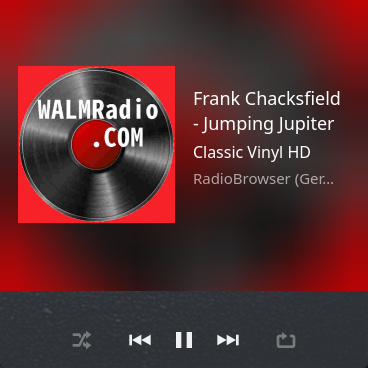
Image: PyRadio media controls on Linux, on KDE with a custom plasmoid
Using playerctl
On Linux systems supporting MPRIS, PyRadio can also be controlled using the playerctl command-line tool.
You can list all MPRIS players currently registered on the system using:
# playerctl -l
firefox
pyradio
mpv
spotify
PyRadio will typically appear as pyradio, so using this name playerctl can control it using:
playerctl -p pyradio play
playerctl -p pyradio stop
playerctl -p pyradio pause
playerctl -p pyradio next
playerctl -p pyradio previous
The playerctl tool can also be used to query playback status and metadata.
Example:
playerctl -p pyradio status
playerctl -p pyradio metadata
Dependencies
Most modern Linux distributions already include the required components such as DBus and MPRIS support.
PyRadio depends on the dbus-next or the dbus-fast Python package, which may not always be installed automatically.
Installation Notes
If PyRadio is installed from your Linux distribution’s package manager, the dbus-next or dbus-fast Python package may or may not be installed automatically.
If it is not installed, use your distro package manager to install it.
Example:
sudo apt install python3-dbus-next

sudo pacman -S python-dbus-next

etc.
or
sudo apt install python3-dbus-fast

sudo pacman -S python-dbus-fast

etc.
If PyRadio is installed using pipx with an isolated environment, the required MPRIS dependencies will not be available automatically.
After installing PyRadio with pipx in an isolated environment, you can install the required packages by running:
pyradio --mpris
This will instruct PyRadio to install dbus-next in the isolated environment.
If dbus-fast is to be used instead, execute the command
pyradio --mpris fast
Note: Media key behavior may depend on the desktop environment and its media control configuration.
Platform Support: Windows
Integration
On Windows, PyRadio integrates with System Media Transport Controls (SMTC).
What You Will See
When OS Media Controls are enabled, PyRadio may appear in the Windows media overlay and system media controls.
Playback can typically be controlled using media keys.

Image: PyRadio media controls on Windows, Rainmeter with the MediaPlayer plugin
Dependencies
No additional setup is normally required.
Platform Support: macOS
Integration
On macOS, PyRadio integrates with the system Now Playing interface.
What You Will See
When OS Media Controls are enabled, PyRadio may appear in the macOS Control Center media widget and the system Now Playing panel.
Media keys and system media controls can be used to control playback.
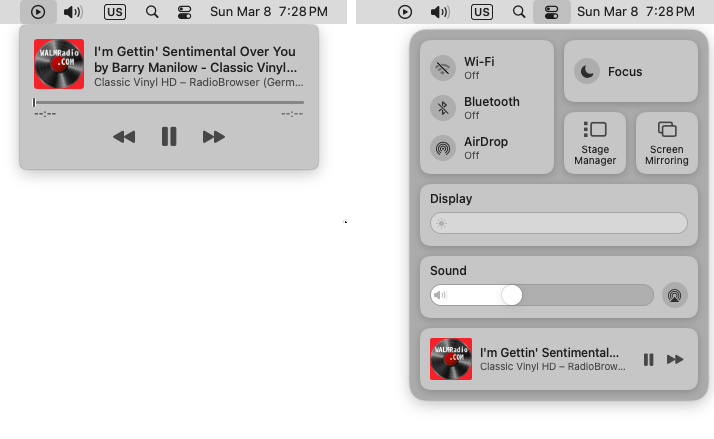
Image: PyRadio media controls on macOS - Now Playing and Control Center
Dependencies
No additional setup is normally required.
Notes and Limitations
Linux desktop environments
Media control integration depends on the desktop environment. Most modern environments supporting MPRIS will work correctly.
Media keys
Media keys usually work automatically once OS Media Controls are enabled, but behavior may vary depending on the operating system and desktop configuration.
Station metadata
Station information depends on what the radio station provides. Some stations may not transmit full metadata.
FAQ
Why does Pause behave like Stop?
Radio streams are continuous live streams and typically cannot be paused. For this reason, the Pause action usually stops playback.
Why don't I see artwork?
Not all radio stations provide artwork. If no station artwork is available, PyRadio will display its default icon.
Why don't my media keys work on Linux?
Media key behavior depends on the desktop environment and whether it supports MPRIS media players.