Zsh Editing Workbench
May 24, 2017 · View on GitHub


Zsh Editing Workbench
Also check out  Zsh Navigation Tools
and
Zsh Navigation Tools
and  Zsh Command Architect
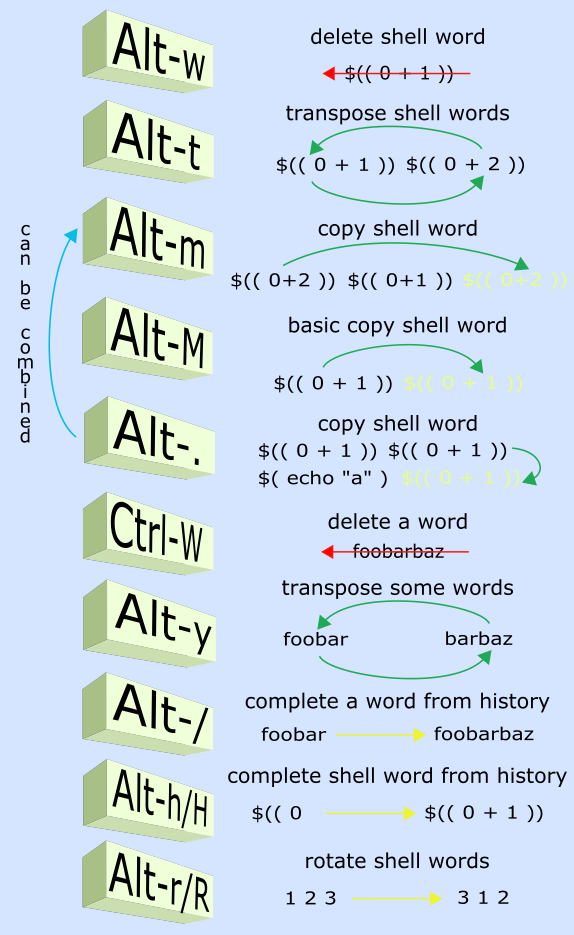
Incremental history word completing (started with Alt-h/H or Option-h/H on Mac):

Swapping, copying, deleting shell words, also undo:

Installation With Zplugin
Add zplugin load psprint/zsh-editing-workbench to .zshrc. The config files will be available in ~/.config/zew.
Installation With Zgen
Add zgen load psprint/zsh-editing-workbench to .zshrc and issue a zgen reset (this assumes that there is a proper zgen save construct in .zshrc).
The config files will be available in ~/.config/zew.
Installation With Antigen
Add antigen bundle psprint/zsh-editing-workbench to .zshrc. There also
should be antigen apply. The config files will be in ~/.config/znt.
Manual Installation
After extracting ZEW to {some-directory} add following two lines
to ~/.zshrc:
fpath+=( {some-directory} )
source "{some-directory}/zsh-editing-workbench.plugin.zsh"
As you can see, no plugin manager is needed to use the *.plugin.zsh
file. The above two lines of code are all that almost all plugin
managers do. In fact, what's actually needed is only:
source "{some-directory}/zsh-editing-workbench.plugin.zsh"
because ZEW detects if it is used by any plugin manager and can
handle $fpath update by itself.
Introduction
Organized shortcuts for various command line editing operations, plus new operations (e.g. incremental history word completion).
IRC Channel
Channel #zplugin@freenode is a support place for all author's projects. Connect to:
chat.freenode.net:6697 (SSL) or chat.freenode.net:6667
and join #zplugin.
Following is a quick access via Webchat 
Configuring terminals
XTerm
To make Alt key work like expected under XTerm add XTerm*metaSendsEscape: true to your resource file, e.g.:
echo 'XTerm*metaSendsEscape: true' >> ~/.Xresources