omm
March 6, 2026 · View on GitHub




omm (stands for "on-my-mind") is a keyboard-driven task manager for the
command line.

🤔 Motivation
The fundamental idea behind omm is that while we might have several tasks on
our to-do list — each with its own priority — we typically focus on one task at
a time. Priorities frequently change, requiring us to switch between tasks.
omm lets you visualize this shifting priority order with a very simple list
interface that can be managed entirely via the keyboard.
💾 Installation
homebrew:
brew install dhth/tap/omm
go:
go install github.com/dhth/omm@latest
Or get the binary directly from a release. Read more about verifying the authenticity of released artifacts here.
Note
Would you like to see omm on Windows? Vote
here.
💡 Guide
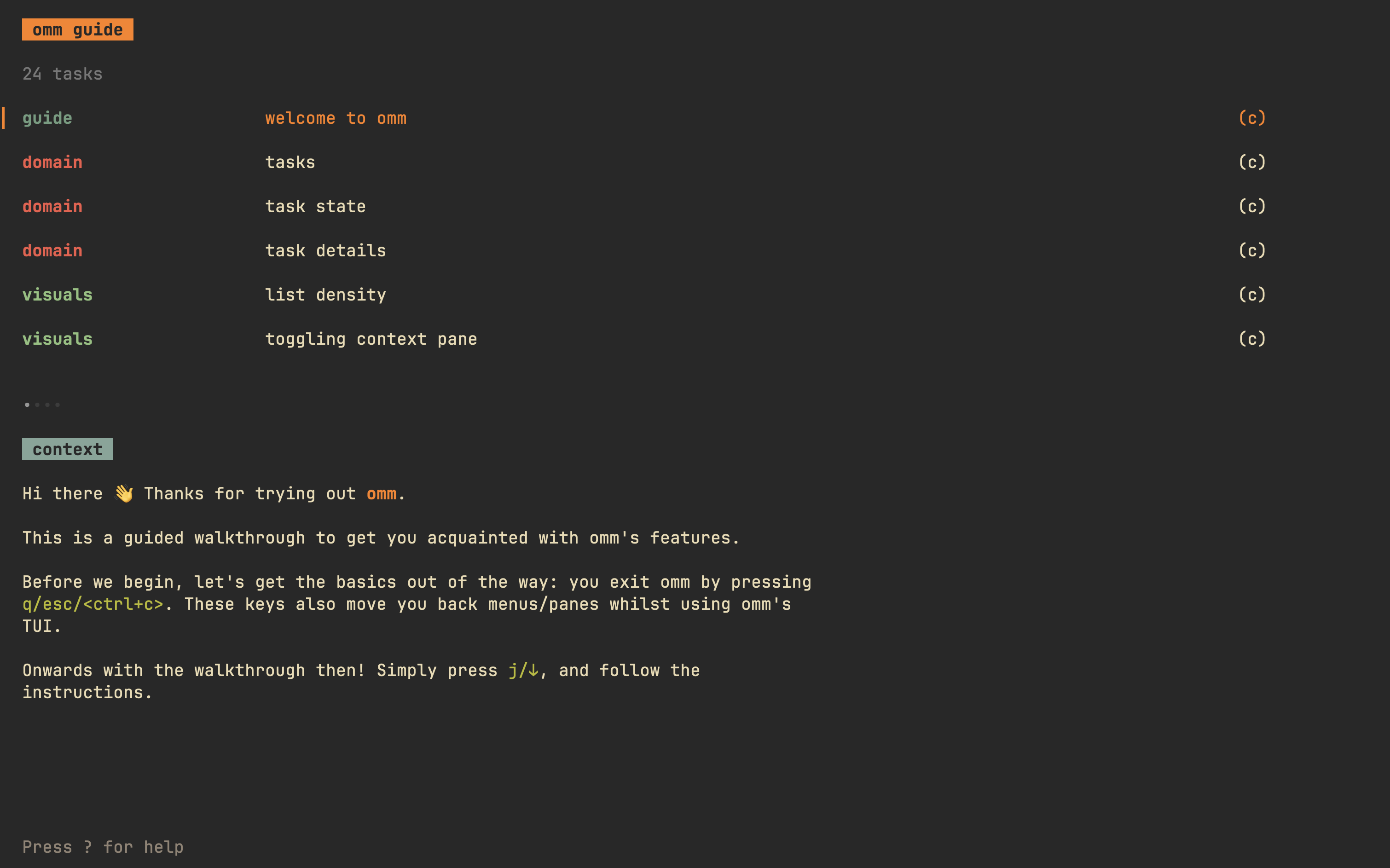
omm offers a guided walkthrough of its features, intended for new users of it. Run it as follows.
omm guide
📋 Updates
Check out the latest features added to omm using:
omm updates
⚡️ Usage
omm -h
Usage:
  omm [flags]
  omm [command]

Available Commands:
  guide       Starts a guided walkthrough of omm's features
  help        Help about any command
  import      Import tasks into omm from stdin
  tasks       Output tasks tracked by omm to stdout
  updates     List updates recently added to omm

Flags:
      --circular-nav              whether to enable circular navigation for lists (cycle back to the first entry from the last, and vice versa)
  -c, --config-path string        location of omm's TOML config file (default "~/.config/omm/omm.toml")
      --confirm-before-deletion   whether to ask for confirmation before deleting a task (default true)
  -d, --db-path string            location of omm's database file (default "~/.local/share/omm/omm.db")
      --editor string             editor command to run when adding/editing context to a task (default "vi")
  -h, --help                      help for omm
      --list-density string       type of density for the list; possible values: [compact, spacious] (default "compact")
      --show-context              whether to start omm with a visible task context pane or not; this can later be toggled on/off in the TUI
  -t, --theme string              theme to use; possible values: [catppuccin-mocha, dracula, github-dark, gruvbox-dark, monokai-classic, onedark, rose-pine-moon, tokyonight, xcode-dark] (default "gruvbox-dark")
      --title string              title of the task list, will trim till 8 chars (default "omm")
  -v, --version                   version for omm
TUI
omm's TUI is comprised of several views: 4 lists (for active and archived
tasks, one for task bookmarks, and one for prefix selection), a context pane, a
task details pane, and a task entry/update pane.
Active Tasks List
As the name suggests, the active tasks list is for the tasks you're actively working on right now. It allows you to do the following:
- Create/update tasks at a specific position in the priority list
- Add a task at the start/end of the list
- Move a task to the top of the list (indicating that it takes the highest priority at the moment)
- Move task up/down based on changing priorities
- Archive a task
- Permanently delete a task
Archived Tasks List
Once you're done with a task, you can archive it, which puts it in the archived tasks list. It's more for historical reference, but you can also unarchive a task and put it back in the active list, if you need to. You can also permanently delete tasks from here.
Context Pane
For tasks that need more details that you can fit in a one line summary, there is the context pane. You add/update context for a task via a text editor which is chosen based on the following look ups:
- the "--editor" flag
- $OMM_EDITOR
- "editor" property in omm's toml config
- VISUAL
vi(fallback)
Task Details Pane
The Task Details pane lets you see all details for a task in a single scrollable pane.
Task Entry Pane
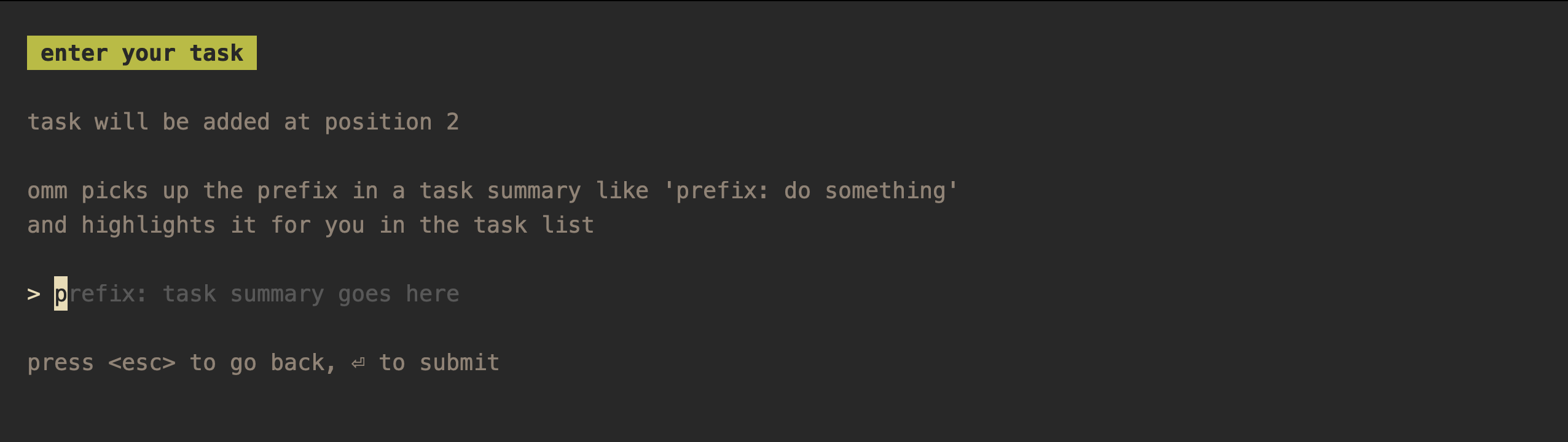
This is where you enter/update a task summary. If you enter a summary in the
format prefix: task summary goes here, omm will highlight the prefix for you
in the task lists.
Tweaking the TUI
Themes
omm comes with the following themes built in:
catppuccin-mochadraculagithub-darkgruvbox-darkmonokai-classiconedarkrose-pine-moontokyonightxcode-dark
You can have omm start with any one of these via its config (described below).
The active theme can also be changed in the TUI using the keymaps [ and ].
Visual density
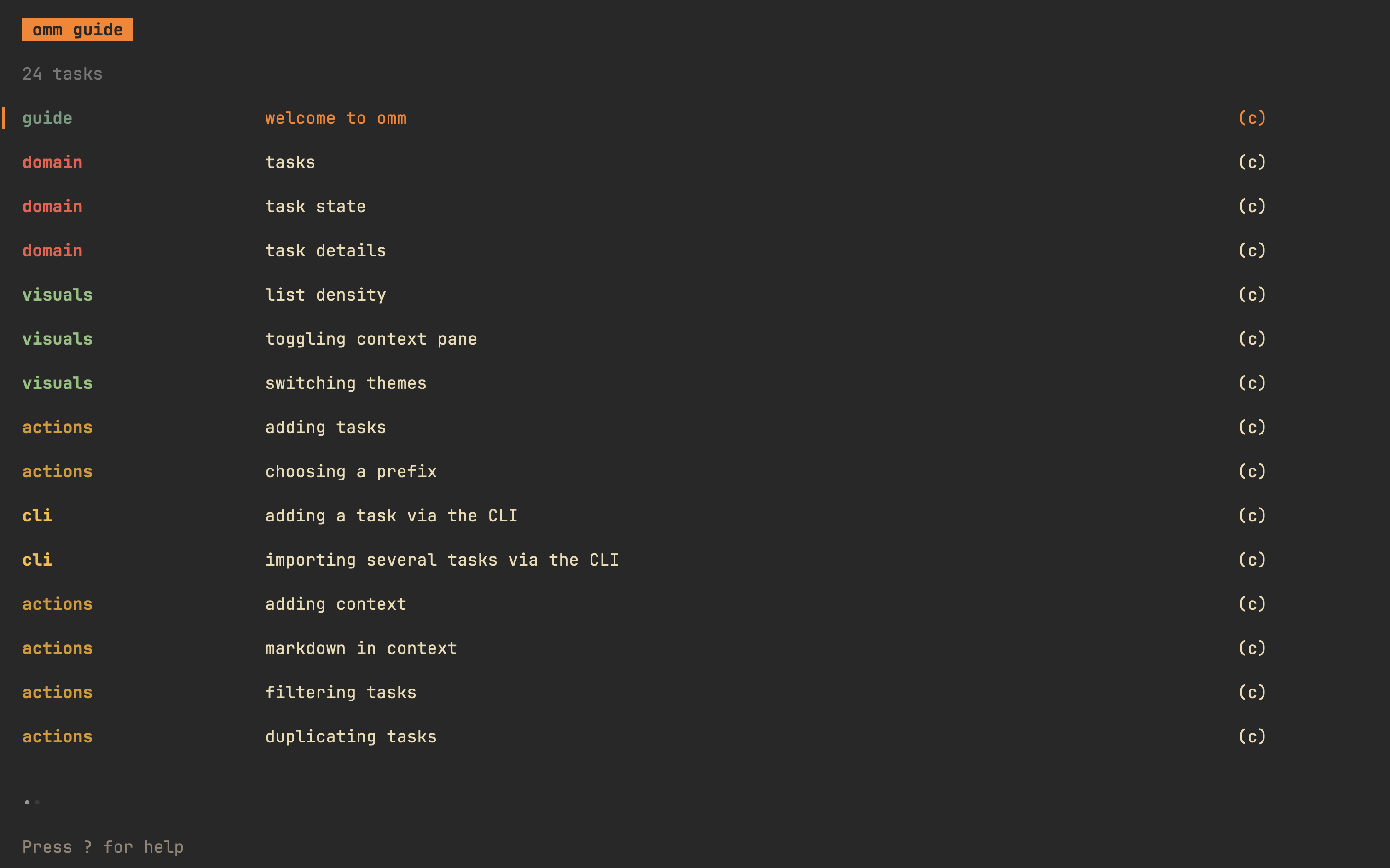
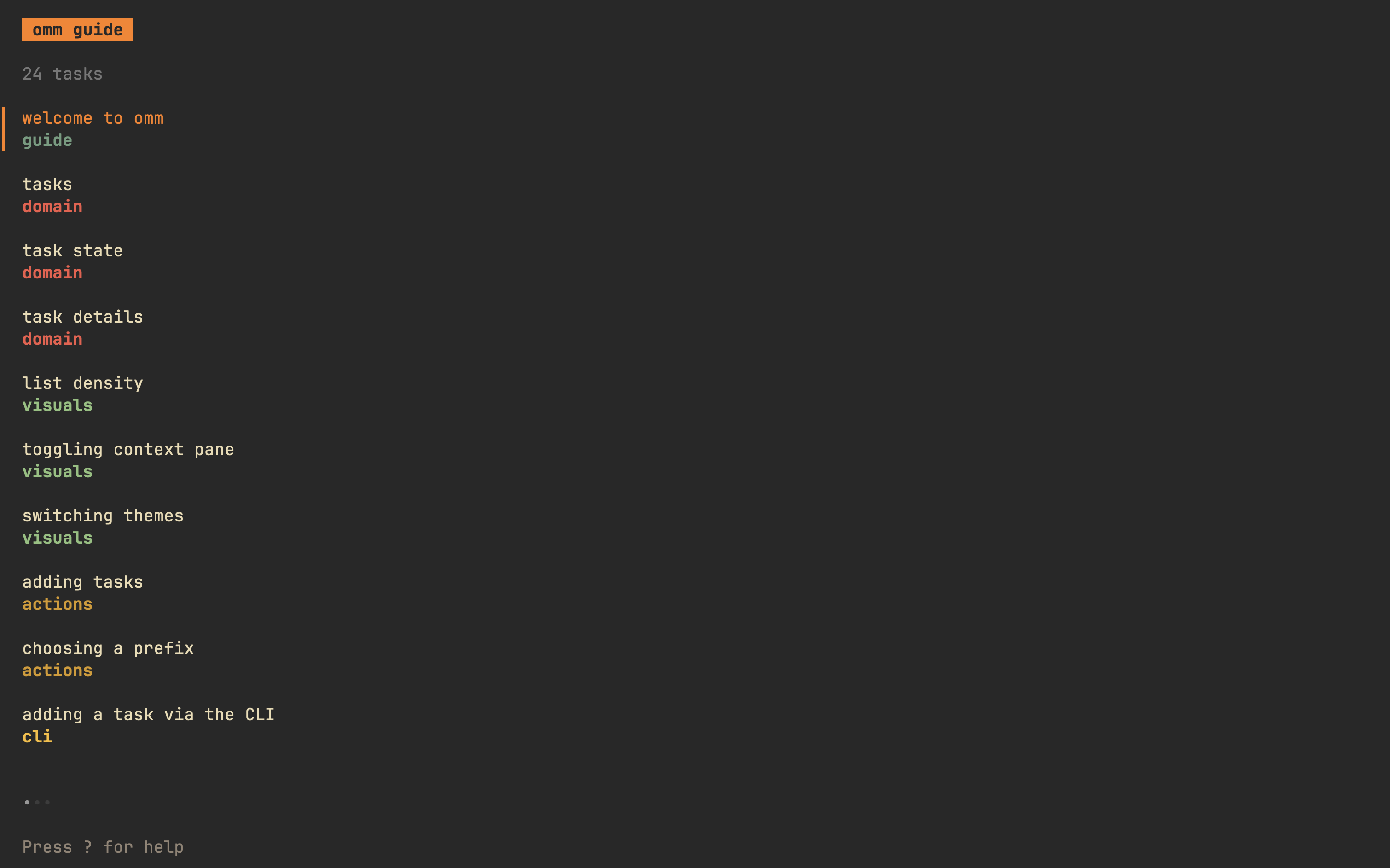
omm offers two modes for the visual density of its lists: "compact" and "spacious", the former being the default. omm can be started with one of the two modes, which can later be switched by pressing "v".
omm --list-density=spacious
This configuration property can also be provided via the environment variable
OMM_LIST_DENSITY.
Compact mode:
Spacious mode:
Importing tasks
Multiple tasks can be imported from stdin using the import subcommand.
cat << 'EOF' | omm import
orders: order new ACME rocket skates
traps: draw fake tunnel on the canyon wall
tech: assemble ACME jet-propelled pogo stick
EOF
Tip: Vim users can import tasks into omm by making a visual selection and
running :'<,'>!omm import<CR>.
Adding a single task
When an argument is passed to omm, it saves it as a task, instead of opening
up the TUI.
omm "Install spring-loaded boxing glove"
Configuration
omm allows you to change the some of its behavior via configuration, which it
will consider in the order listed below:
-
CLI flags (run
omm -hto see details) -
Environment variables (eg.
OMM_EDITOR) -
A TOML configuration file (run
omm -hto see where this lives; you can change this via the flag--config-path)Here's a sample config file:
db_path                 = "~/.local/share/omm/omm-w.db"
theme                   = "tokyonight"
title                   = "work"
list_density            = "spacious"
show_context            = false
editor                  = "vi -u NONE"
confirm_before_deletion = false
circular_nav            = true
Outputting tasks
Tasks can be outputted to stdout using the tasks subcommand.
omm tasks
🤔 Tips
These are some tips to improve your experience of using omm:
- Set up discrete instances of
ommif you need to. You can do so by referencing a different config file (which points to a unique database) for each instance, or by directly using--db-pathflag. Eg. an omm instance for personal tasks, and another for work. Set up as manyomminstances as you need. - Use
omm updatesto stay up to date with omm's latest features/changes.
⌨️ Keymaps
General
| Keymap | Description |
|---|---|
q/esc/ctrl+c | go back |
Q | quit from anywhere |
[ | set previous theme |
] | set next theme |
Active/Archived Tasks List
| Keymap | Description |
|---|---|
j/↓ | move cursor down |
k/↑ | move cursor up |
h | go to previous page |
l | go to next page |
g | go to the top |
G | go to the end |
tab | move between lists |
C | toggle showing context |
d | toggle Task Details pane |
b | open Task Bookmarks list |
B | open all bookmarks added to current task |
c | update context for a task |
ctrl+d | archive/unarchive task |
ctrl+x | delete task |
ctrl+r | reload task lists |
/ | filter list by task prefix |
ctrl+p | filter by prefix via the prefix selection list |
y | copy selected task's context to system clipboard |
Y | yank current task |
v | toggle between compact and spacious view |
Active Tasks List
| Keymap | Description |
|---|---|
q/esc/ctrl+c | quit |
o/a | add task below cursor |
O | add task above cursor |
I | add task at the top |
A | add task at the end |
u | update task summary |
⏎ | move task to the top |
E | move task to the end |
J | move task one position down |
K | move task one position up |
p | paste yanked task below |
P | paste yanked task above |
Task Creation/Update Pane
| Keymap | Description |
|---|---|
⏎ | submit task summary |
ctrl+p | choose/change prefix via the prefix selection list |
Task Details Pane
| Keymap | Description |
|---|---|
h/←/→/l | move backwards/forwards when in the task details view |
y | copy current task's context to system clipboard |
B | open all bookmarks added to current task |
Y | yank current task |
Task Bookmarks List
| Keymap | Description |
|---|---|
⏎ | open URL in browser |
🔐 Verifying release artifacts
In case you get the omm binary directly from a release, you may want to
verify its authenticity. Checksums are applied to all released artifacts, and
the resulting checksum file is signed using
cosign.
Steps to verify (replace A.B.C in the commands listed below with the version
you want):
-
Download the following files from the release:
- omm_A.B.C_checksums.txt
- omm_A.B.C_checksums.txt.pem
- omm_A.B.C_checksums.txt.sig
-
Verify the signature:
cosign verify-blob omm_A.B.C_checksums.txt \ --certificate omm_A.B.C_checksums.txt.pem \ --signature omm_A.B.C_checksums.txt.sig \ --certificate-identity-regexp 'https://github\.com/dhth/omm/\.github/workflows/.+' \ --certificate-oidc-issuer "https://token.actions.githubusercontent.com" -
Download the compressed archive you want, and validate its checksum:
curl -sSLO https://github.com/dhth/omm/releases/download/vA.B.C/omm_A.B.C_linux_amd64.tar.gz sha256sum --ignore-missing -c omm_A.B.C_checksums.txt -
If checksum validation goes through, uncompress the archive:
tar -xzf omm_A.B.C_linux_amd64.tar.gz
./omm
# profit!
Acknowledgements
omm stands on the shoulders of giants.
- bubbletea as the TUI framework
- sqlite as the local database
- goreleaser for releasing binaries