Rat Commander (rc)
July 27, 2026 · View on GitHub
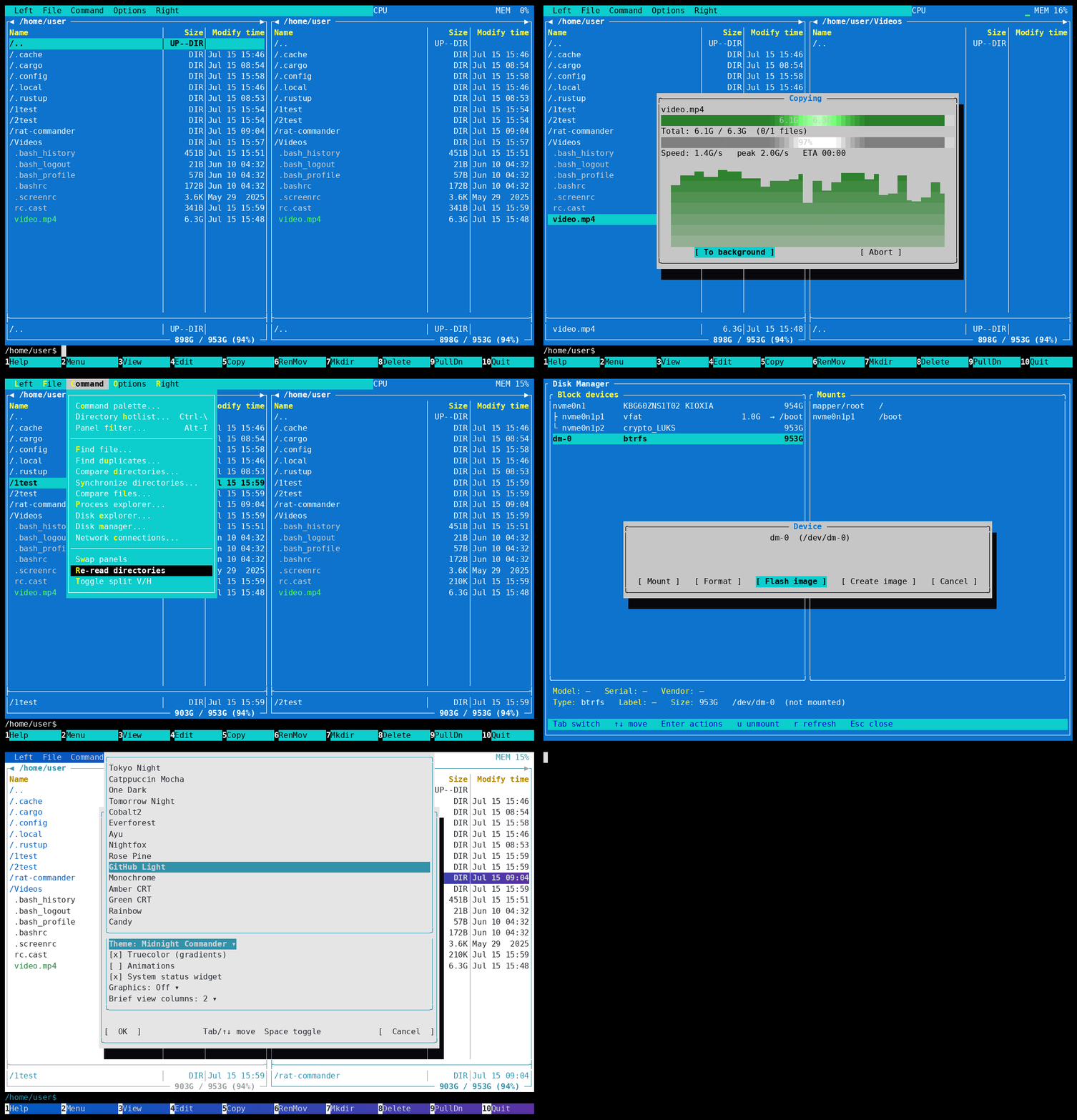
A self-contained terminal file manager with modern features and built-in tools, while staying true to the heritage of classics such as Norton Commander and Midnight Commander. Written in Rust with Ratatui. It aims to need no external tools for its core features: the viewer/editor with syntax highlighting, archive handling, remote (FTP/SFTP/SCP) clients, disk explorer and process explorer are all built in.
The installed executable is named rc for quick typing.
What it can do
- Two panels with full, brief, details and tree view formats, vertical or horizontal split, configurable sort, multi-file selection, type markers and file-type colors. Full mouse support. The details view adds a background-loaded preview of the other panel's item — a syntax-highlighted text head, a centered image thumbnail (true-pixel where graphics are available, else half-block art) with an EXIF summary, an archive's file list, or a directory tree.
- File operations — copy / move / delete with a progress window and transfer-speed chart, rich overwrite handling, chmod / chown / symlink (with recursion), and make-directory.
- Built-in viewer (F3) — text and hex modes, goto, line wrap, syntax
highlighting, a rendered Markdown mode for
.mdfiles, and hex-color swatches. Pages huge files straight from disk. Opens images fullscreen — true-pixel where the terminal supports graphics, half-block art otherwise (F8 toggles to the raw bytes). - Built-in editor (F4) —
mcedit-style block copy/move/delete, clipboard, search & replace, undo/redo, syntax highlighting, and an in-place hex editor for arbitrarily large files. Launch straight into it withrc /edit <file>(or the installedrcedit <file>shortcut), orrc /editwith no file for a blank buffer that prompts for a name on the first save; closing the editor then exits. - Multi rename — batch-rename selected files with a masked, live two-column preview, counter, case transform and search-and-replace.
- Search — one dialog for the editor (F7/F4) and the viewer (F7): literal, regex, hex or wildcard, with case / whole-word / backwards options. Find all highlights every line holding the term and keeps it highlighted while you work; repeating a search steps to the next occurrence and wraps.
- Git-aware panels — inside a git work tree each file is tagged with its VCS
state (
>modified,+staged,?untracked,!conflict) in colour, the current branch + ahead/behind shows on the panel border, and one-key actions stage/unstage (Ctrl-G) or open a side-by-side diff against HEAD (Alt-D). Status is gathered in the background, so large repos stay responsive. - Git menu (
Alt-G, or File → Git) — the everyday porcelain without leaving the panels: status, log, add, unstage, rm, restore, commit, fetch, pull, push (with--force-with-leaseor--force), sync (pull + push), checkout, reset, init and clone. Each one is a guided dialog rather than a memorised flag — checkout lists your local and remote branches in a dropdown (or creates a new one), push offers its remote and force options, reset spells out what each mode throws away — and destructive actions confirm first. Whatever git prints comes back verbatim in a scrollable output box. - Command palette (Ctrl-P) — one fuzzy-search box over every menu action, every setting (switch theme/language/graphics or flip a toggle in place), your directory bookmarks, the open remote connections, and your saved remote servers (reconnect); type a few letters and press Enter.
- Directory navigation — a per-panel back/forward history (
Alt-←/Alt-→or MC'sAlt-y/Alt-u, plus a clickable◀at each panel's top-left corner and▶at its top-right) thatAlt-Halso lists as a pickable window to jump straight to any of them;Alt-Ipoints the other panel at this one andAlt-Oshows the cursor's directory there while stepping down the listing; a directory hotlist of bookmarks (Ctrl-\), and a persistent listing filter (Alt-Shift-I, a glob like*.rsor plain text) that hides non-matching files until you clear it. - Find file, Compare directories, Find duplicates, and a side-by-side Compare files diff with in-place merging.
- Synchronize directories — mirror one panel's tree onto the other, in one-way (optionally deleting whatever the source doesn't have) or two-way (newer file wins) mode. The plan is previewed in full — every copy and delete, with totals — before a byte moves, and then runs through the ordinary transfer engine, so it shows progress, aborts, and can be sent to the background: "mirror this folder to my SFTP server while I keep working" is two dialogs. Works local↔local and local↔SFTP in full (copies carry their source's timestamp, so re-running only moves what changed). FTP/SCP report no file times, so there it compares by size and one-way modes only; an archive can be a source but not a destination.
- Checksum — compute a CRC32/MD5/SHA-1/SHA-256/SHA-512 digest of a file with a progress bar, and optionally verify it against a pasted reference checksum.
- Send over LAN (File menu) — share the highlighted file with a nearby phone or laptop: a one-shot HTTP server starts on a free port bound to your LAN IP, and the download URL is shown as a QR code (pixel graphics, or half-block cell art as a fallback). Select several files or a directory and they are zipped first (with a progress bar); the box shows a live download count and the server stops when you close it.
- Archives — browse
.zip,.tar(.gz/.bz2/.xz),.7zand.rarlike directories; copy in/out, delete, and compress a selection. - Remote filesystems — SFTP, SCP and FTP/FTPS, each mounted into a panel; copy/move/delete works transparently across local, remote and archive panels. On an SFTP/SCP panel, the command line and Ctrl-O run a shell on the remote host over the same SSH connection — its output on the same console backdrop, no second login.
- Disk explorer (treemap of disk usage), process explorer (btop-style system monitor), and a disk manager (Linux) to mount/unmount/format/sync drives and flash or image raw disk images.
- Network connections (Linux) — listening ports with their programs and all active connections with their type, service, live per-connection traffic rate (with a sparkline) and a details view; filter, sort, kill the owning process, and an optional root password for full visibility. A per-service overview diagram (Tab) groups connections into colour-coded cards showing each peer IP and its direction, with clickable/navigable addresses and reverse-DNS lookups.
- Look & feel — many color themes (fully customizable via
themes.toml), truecolor animated gradients, an optional CPU/memory status widget, optional Nerd Font file-type icons in the listings, and a configurable F2 user menu. - Terminal graphics — on terminals with a Kitty, Sixel or iTerm2 graphics protocol, the progress bars, process-explorer graphs, transfer speed graph and the disk-explorer treemap (a nested "pillow" map of each folder's biggest files) are drawn as true-pixel gradient images, falling back automatically to block-character rendering elsewhere (can be forced off in settings).
- Localization — Configurable UI language with 18
languages built in (English, German, French, Spanish, Portuguese, Dutch,
Czech, Slovak, Hungarian, Serbian, Ukrainian, Russian, Japanese, Chinese
traditional & simplified, Hindi, Persian, Arabic); translations live in
editable
lang/*.tomlfiles and new languages can be dropped in. Right-to-left scripts (Arabic, Persian) are shaped and bidi-reordered for display on terminals without native bidi support (a Reshape RTL text setting turns this off when the terminal handles bidi itself). - Windows support — Full support for windows drives using the familiar
Alt-F1/Alt-F2 Norton Commander shortcuts. All features except Drive Manager and
Network Connections are available. The command line and
Ctrl-Oshell run the classic suspend-and-run way on Windows (the TUI pauses whilecmd.exeruns, then resumes) rather than the persistent behind-the-panels console used on Unix, so there is no live console backdrop there.
For a full, feature-by-feature walkthrough see the user manual — also available in-program by pressing F1.
Keyboard shortcuts
On terminals where the function keys are awkward to reach, every Fn shortcut
also has a Midnight-Commander-style alias: press Esc then a digit — Esc 1
… Esc 9 for F1…F9, and Esc 0 for F10 (or a quick Alt+digit).
Panels
| Key | Action |
|---|---|
F1 | Help (the user manual) |
F2 | User menu (configurable) |
F3 | View file |
F4 | Edit file |
F5 | Copy |
F6 | Rename / move |
Shift-F6 / Ctrl-F6 | Multi rename (selected files) |
F7 | Make directory |
F8 | Delete |
F9 | Pulldown menu (Left/Right follows the active panel) |
F10 | Quit (confirmation) |
Ctrl-Q | Quit immediately |
Tab | Switch active panel |
↑ ↓ / PgUp PgDn / Home End | Move the cursor |
Enter | Open dir / enter archive / open file / run command line |
cd <dir> + Enter | Change the active panel's directory |
Insert / Ctrl-T | Tag file and advance |
+ / - / * | Select / unselect group (wildcard) / invert selection |
Ctrl-O | Toggle the persistent subshell |
Ctrl-P | Command palette (fuzzy-search every action, setting, bookmark, connection) |
Ctrl-\ | Directory hotlist (bookmarks): jump / add / remove |
Alt-← / Alt-→ (or Alt-y / Alt-u) | Go back / forward through the panel's visited directories |
Alt-H | Directory history: pick any visited directory from a list |
Alt-I | Point the other panel at this panel's directory |
Alt-O | Show the cursor's directory on the other panel, and step down one entry |
Alt-T | Cycle view format (full / brief / details / tree) |
Alt-Shift-I | Set / clear the panel's persistent listing filter |
Alt-Shift-H | Shell history window (recall a command without running it) |
Alt-G | Open the Git menu (status, log, commit, push/pull, checkout, …) |
Ctrl-G / Alt-D | Git: stage/unstage the selection · diff the file against HEAD |
Ctrl-R | Re-read the active panel |
Alt-S / Ctrl-S | Quick search the active panel (jump to the first matching name) |
Ctrl-E | Toggle reverse sort order |
Ctrl-X | Toggle vertical / horizontal split |
Ctrl-U | Swap the two panels |
Ctrl-F1 / Ctrl-F2 | Hide / show the left / right panel (reveals the console) |
Ctrl-F4 | Toggle half-height panels (reveals the console below) |
Ctrl-F5 | Show / hide the command prompt (hidden: typing starts a quick search) |
Alt-F1 / Alt-F2 | Drive / connection picker (left / right panel) |
Viewer (F3)
| Key | Action |
|---|---|
F1 | Help (opens the user manual) |
F2 | Toggle line wrap |
F4 | Toggle hex / text mode |
F5 | Goto (line / percent / byte offset) |
F7 | Search (n repeats) |
F8 | (Markdown) toggle Raw / Render — (image) toggle Image / Raw |
Esc / F10 / q | Close |
Editor (F4)
| Key | Action |
|---|---|
F1 | Editor shortcut help |
F2 | Save |
Shift-F2 / Ctrl-F2 | Save as… (browse + name) |
F3 | Start / end block mark |
F4 | Search & replace |
F5 / F6 / F8 | Copy / move / delete block |
F7 | Search |
Ctrl-C / Ctrl-V | Copy block to clipboard / paste |
Ctrl-Z / Ctrl-Y | Undo / redo |
F9 | Toggle in-place hex editor |
Shift-F9 / Ctrl-F9 | Toggle word wrap |
Esc / F10 | Quit (prompts if modified) |
Dialogs
Tab/arrows move between fields and onto the OK/Cancel buttons, Space
toggles checkboxes and cycles choices, Enter confirms, Esc cancels (and
aborts progress dialogs, including long-running git network operations and the
directory-sync scan). The OK/Cancel and Yes/No buttons are also clickable.
See the user manual for the process-explorer, disk-explorer and hex-editor key tables, and for what every feature does.
Installation
Pre-built packages
Grab a release from the Releases page:
- Linux —
rc-<ver>-<arch>.tar.gzarchive, or a.deb(amd64,arm64for Raspberry Pi 64-bit,armhffor 32-bit):sudo dpkg -i rat-commander_<ver>_arm64.deb - Windows —
rc-<ver>-x86_64-pc-windows-msvc.zip, or the.msiinstaller (addsrcto your PATH). - macOS —
rc-<ver>-<arch>.tar.gz, or the.pkginstaller (installsrcto/usr/local/bin). Intel and Apple Silicon builds are provided. The package is unsigned, so the first launch may require System Settings → Privacy & Security → Open anyway.
From source
Requires a recent stable Rust toolchain (edition 2024, Rust ≥ 1.85):
git clone https://github.com/dividebysandwich/rat-commander
cd rat-commander
cargo install --path .      # installs `rc` into ~/.cargo/bin
# or just run it:
cargo run --release
Building & packaging
cargo build --release            # target/release/rc
cargo test                       # run the test suite
cargo clippy --all-targets       # lints
Release binaries are stripped and optimized via the [profile.release] settings
in Cargo.toml.
Cross-compiling and packages
The .github/workflows/release.yml workflow builds every artifact. To reproduce
a build locally:
# Debian package (native arch)
cargo install cargo-deb
cargo build --release --target x86_64-unknown-linux-gnu
cargo deb --no-build --target x86_64-unknown-linux-gnu

# Raspberry Pi (cross-compiled) – needs Docker + `cross`
# (--no-default-features drops RAR, whose C++ lib won't cross-compile here)
cargo install cross
cross build --release --no-default-features --target aarch64-unknown-linux-gnu
cargo deb --no-build --no-strip --target aarch64-unknown-linux-gnu

# Windows MSI – on Windows with the WiX toolset
dotnet tool install --global wix --version 4.0.5
wix build packaging/windows/rc.wxs -d Version=0.1.0 \
    -d BinDir=target/x86_64-pc-windows-msvc/release -o rc.msi

# macOS .pkg – on macOS
pkgbuild --identifier com.rat-commander.rc --version 0.1.0 \
    --install-location /usr/local/bin --root <dir-containing-rc> rc.pkg
Some dependencies (unrar, bzip2, xz2, archive backends) compile bundled
C/C++ sources, so a C/C++ toolchain is required (provided automatically by
cross for the Raspberry Pi targets). RAR support is an optional build feature
(rar, on by default), omitted from the Raspberry Pi (arm) packages because the
C++ unrar library doesn't build with those cross toolchains.
Configuration
Configuration lives in your platform config directory
(~/.config/rat-commander/ on Linux): config.toml (written from the
Settings dialog), themes.toml (editable color themes), lang/
(one editable TOML per UI language), and menu (the F2 user menu, in
Midnight Commander format). See the
user manual for details.
Session layout is remembered between runs: on the next launch the initially
active panel opens at the current directory (where you launched rc), the other
panel reopens at its last directory (falling back to the working directory if it
is gone), and the split direction, visibility, active side and listing filters
are restored. When no external editor or viewer is configured, rc falls back to
$VISUAL then $EDITOR for editing and $PAGER for viewing before
using the built-in ones.
License
GNU General Public License, version 2 (GPL-2.0-only). See the LICENSE file.