CONTRIBUTING.md
November 3, 2025 · View on GitHub
Thanks for submitting or fixing an icon! Here is a helpful guide to what you need to include.
- New file which is under 1,024 bytes.
- Which matches the guidelines.
- Add reference image.
- Add official brand guidelines URl.
- Run
python check.pyto makes sure everything is correct.
New File
- The filename should be
nameofservice.svg- all in lower-case. - If a special character must be used, please replace it with an underscore (not a dot nor a dash).
- For example
arch_linux.svg
- For example
- Place the file in
/images/svg/ - At a minimum, your icon needs these components, in this layout:
- The first
...should benameofservice - The second
...should be the SVG paths/objects that make up the logo
- The first
<svg xmlns="http://www.w3.org/2000/svg"
aria-label="..." role="img"
viewBox="0 0 512 512"><path
d="m0 0H512V512H0"
fill="#fff"/> ... </svg>
Shrinking
You can shrink the file size using tools like:
Guidelines
This is the standard guideline. Use this to help with sizing your icons and they will look good no matter what border radius is chosen.
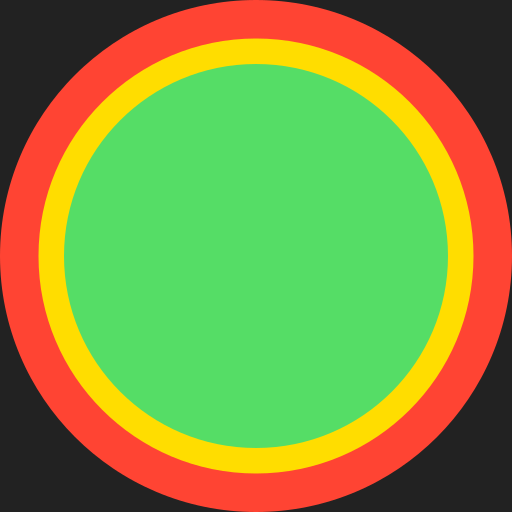
- Green is the safe zone, where the main body of the icon should be.
- Yellow is like a road shoulder, it is there if more space is needed. It should be used for protruding elements, like corners or ornaments.
- Red is off limits. It should not be touched by the icons. Red is also how a circular icon would look.
Reference Image and Brand Guidelines URl
- Find an official logo.
- Add it to
/images/reference/ - It must have the same filename as the image you added to
/images/svg/- It's OK if it has a different extension.
nameofservice.pngis fine.
- It's OK if it has a different extension.
- Add the brand guidelines URl in a new file within
/images/svg/- For example, create a file called
/images/reference/nameofservice.urlwith the contentshttps://example.com/brand-guidelines - The aim of this is to find an official source of the logo. Ideally with information about colours etc. If not, a link to the homepage or favicon will do.
- For example, create a file called
(Optional) Create Android Version
This is a manual process.
To convert in Android Studio, use Vector Asset Studio and import the SVG.
You can also use the command line vd-tool to batch convert images.
Please check the file carefully to see if the preview matches the original. You can check the image in Vector Asset Studio, online, or using npx vector-drawable-svg logo.xml logo.svg
If it does render correctly, add the file to /images/android-vector-drawable/