readme.md
September 14, 2025 · View on GitHub
Important
We thank PingiHost for supporting and sponsoring this. project.
Setup
Server and Docker Setup
Show Server Commands
1. Update the Server
sudo apt update && sudo apt upgrade -y
2. Install Docker
curl -fsSL https://get.docker.com | sh
Install & Run the Bot
Show Run Commands
1. Create Directory and Download Files
mkdir -p /opt/erfjab/servermanagerbot/data
curl -o /opt/erfjab/servermanagerbot/docker-compose.yml https://raw.githubusercontent.com/erfjab/servermanagerbot/master/docker-compose.yml
cd /opt/erfjab/servermanagerbot
curl -o .env https://raw.githubusercontent.com/erfjab/servermanagerbot/master/.env.example
2. Config .env
You can set the database values as you like, but make sure to also add the same values inside the docker-compose.yml file to ensure your database is properly configured.
nano .env
Then edit your docker-compose.yml file as well:
nano docker-compose.yml
3. Pull Docker Image
docker compose pull
4. Start the Bot
docker compose up -d
After a few moments, the bot will start running.
Update the Bot
Show Update Commands
Make sure you're in the servermanagerbot directory:
cd /opt/erfjab/servermanagerbot
Then update the bot:
docker compose pull && docker compose up -d
Manage the Bot
Show Manage Commands
Make sure you're in the servermanagerbot directory:
cd /opt/erfjab/servermanagerbot
-
Restart the Bot:
docker compose restart -
Stop the Bot:
docker compose down -
View Logs:
docker compose logs -f
Switch to GA Mode (preview mode)
Show GA Commands
Make sure you're in the HolderBot directory:
cd /opt/erfjab/servermanagerbot
-
Open the Docker Compose File:
nano docker-compose.yml -
Change the Image Tag:
From:
erfjab/servermanagerbot:latestTo:
erfjab/servermanagerbot:ga -
Pull the Docker Image:
docker compose pull -
Start the Bot:
docker compose up -d
Support
- Telegram Channel: @ErfJabs
- Telegram Chat: @ErfJabChat
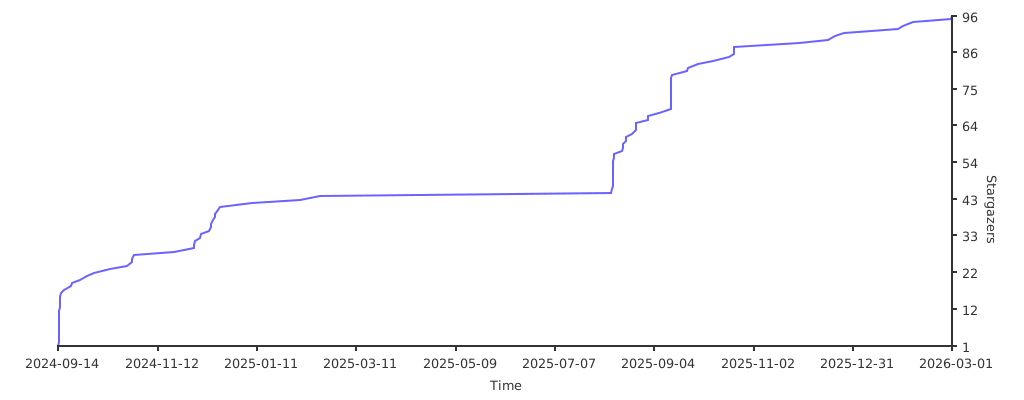
⭐ Star the Project: