⚡ PowerKit
August 28, 2026 · View on GitHub
⚡ PowerKit
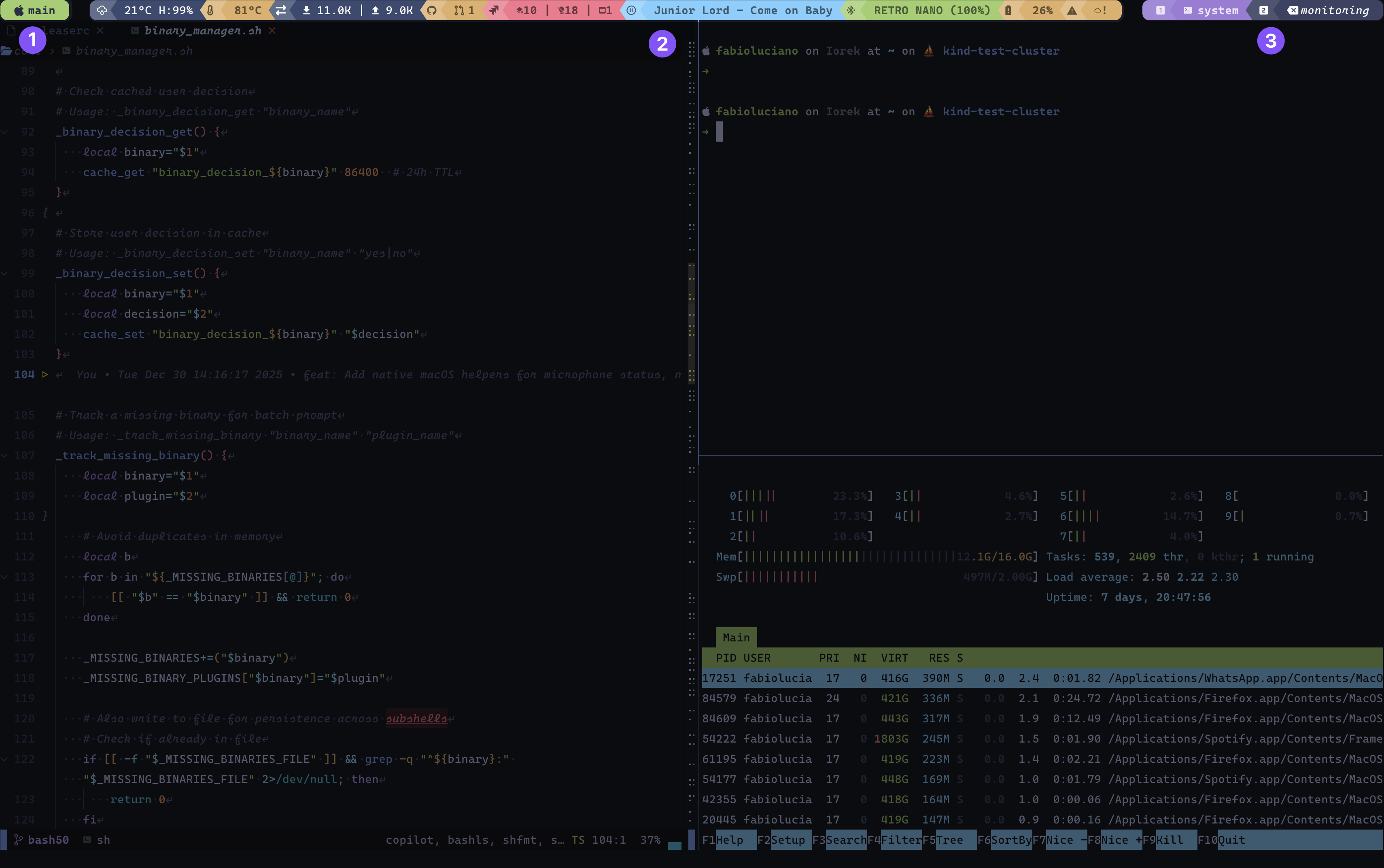
① Session – Current tmux session name with mode-aware icon (changes on prefix/copy mode)
② Plugins – Modular status indicators with health-based colors (cpu, memory, git, datetime, etc.)
③ Windows – Window list with index icons, names, and state indicators (active, zoomed, activity)
The Ultimate tmux Status Bar Framework
48 Plugins • 48 Themes • Infinite Possibilities




Transform your tmux status bar into a powerful, beautiful, and intelligent command center
✨ What Makes PowerKit Special?
🎨 Beautiful by DefaultChoose from 48 carefully crafted themes with 75 variants including Catppuccin, Dracula, Monokai, Nord, Tokyo Night, and more. Every theme supports automatic color variants (light/lighter/dark/darker) for perfect contrast. ⚡ Blazingly FastSmart multi-layer caching, Stale-While-Revalidate (SWR) lazy loading, and optimized background rendering ensure minimal overhead even with dozens of plugins active. Returns stale data immediately while refreshing in background - never blocks on slow API calls or external commands. |
🧩 Truly Modular51 production-ready plugins covering system monitoring, development tools, productivity, media control, and more. Mix and match to create your perfect setup. 🔧 Extensible ArchitectureContract-based plugin system with strict separation of concerns. Create your own plugins, themes, and helpers with ease. |
🚀 Quick Start
Installation with TPM
Add to your ~/.tmux.conf:
# PowerKit plugin
set -g @plugin 'fabioluciano/tmux-powerkit'

# Basic configuration
set -g @powerkit_plugins "datetime,battery,cpu,memory,git,hostname"
set -g @powerkit_theme "catppuccin"
set -g @powerkit_theme_variant "mocha"

# Initialize TPM (keep at bottom)
run '~/.tmux/plugins/tpm/tpm'
Then press prefix + I to install.
Manual Installation
For faster download (~1.5 MB), use shallow clone:
git clone --depth 1 https://github.com/fabioluciano/tmux-powerkit.git ~/.tmux/plugins/tmux-powerkit
Add to ~/.tmux.conf:
run-shell ~/.tmux/plugins/tmux-powerkit/tmux-powerkit.tmux
See Installation Guide for more options (tarball, full clone).
Nix/NixOS
Add to flake.nix:
{
  inputs.tmux-powerkit.url = "github:fabioluciano/tmux-powerkit";
}
Add to configuration.nix or home.nix:
programs.tmux = {
  enable = true;
  plugins = [{
    plugin = inputs.tmux-powerkit.packages.${pkgs.system}.default;
    extraConfig = ''
      set -g @powerkit_plugins "datetime,battery,cpu,memory,git"
      set -g @powerkit_theme "catppuccin"
      set -g @powerkit_theme_variant "mocha"
    '';
  }];
};
For non-flake install, add to your configuration.nix or home.nix:
let
  tmux-powerkit = pkgs.callPackage (pkgs.fetchFromGitHub {
    owner = "fabioluciano";
    repo = "tmux-powerkit";
    rev = "main";  # or pin to a specific commit
    sha256 = "";   # nix will provide correct hash on first build
  } + "/default.nix") {};
in {
  programs.tmux = {
    enable = true;
    plugins = [ tmux-powerkit ];
    extraConfig = ''
      set -g @powerkit_plugins "datetime,battery,cpu,memory,git"
      set -g @powerkit_theme "catppuccin"
      set -g @powerkit_theme_variant "mocha"
    '';
  };
}
Your First Customization
# Choose your separator style
set -g @powerkit_separator_style "rounded"  # or normal, flame, pixel, honeycomb

# Enable spacing between elements
set -g @powerkit_elements_spacing "both"

# Customize update interval
set -g @powerkit_status_interval "5"

# Make it transparent
set -g @powerkit_transparent "true"
That's it! Reload tmux and enjoy your new status bar.
🎯 Plugins
📊 System Monitoring (15 plugins)
Monitor every aspect of your system in real-time:
| Plugin | Description | Highlights |
|---|---|---|
battery | Battery level with charge state | Shows charging status, time remaining, health indicators |
cpu | CPU usage with per-core support | Thresholds, multi-core detection, platform-specific |
memory | RAM usage and availability | Multiple formats (percentage, usage, available) |
swap | Swap memory usage | Cross-platform, threshold alerts, multiple display formats |
disk | Disk usage by mount point | Configurable thresholds, multiple drives |
loadavg | System load average | 1/5/15 minute averages, per-core normalization |
temperature | CPU temperature | macOS (osx-cpu-temp), Linux (hwmon) |
fan | Fan speed monitoring | Dell SMM, ThinkPad, generic hwmon, macOS |
gpu | GPU utilization | NVIDIA, AMD, Intel, macOS support |
iops | Disk I/O operations | Read/write operations per second |
brightness | Screen brightness | Linux only (sysfs, brightnessctl, light, xbacklight) |
uptime | System uptime | Human-readable format |
hostname | System hostname | Color-coded by environment |
topproc | Top CPU process | Process name and usage %, threshold alerts |
sysstatus | Aggregated system health badge | Combined OK/WARN/CRIT across CPU, memory, disk, temperature |
🌐 Network (8 plugins)
Stay connected and informed:
| Plugin | Description | Features |
|---|---|---|
netspeed | Upload/download speed | Real-time bandwidth monitoring |
wifi | WiFi SSID + signal strength | Signal quality indicators |
vpn | VPN connection status | Detects active VPN tunnels |
ping | Network latency | Configurable host, threshold alerts |
external_ip | Public IP address | Cached with configurable TTL |
ssh | SSH session indicator | Shows when connected via SSH |
weather | Weather from wttr.in | Location-based, customizable format |
connectivity | Internet connectivity status | Online/offline indicator, configurable endpoint |
🎵 Media (6 plugins)
Control your media experience:
| Plugin | Description | Platform |
|---|---|---|
volume | System volume level | macOS only |
nowplaying | Current music track | Music.app, Spotify (macOS) |
audiodevices | Active audio output device | macOS (SwitchAudioSource) |
camera | Camera usage indicator | macOS (lsof) |
microphone | Microphone mute status | macOS (osascript) |
bluetooth | Bluetooth status + devices | macOS (blueutil), Linux (bluetoothctl) |
💻 Development (13 plugins)
Supercharge your development workflow:
| Plugin | Description | Features |
|---|---|---|
git | Git branch + status | Modified files, branch info, repo state |
github | GitHub notifications | PRs, issues, notifications (gh CLI) |
gitlab | GitLab merge requests | MRs, todos (glab CLI) |
bitbucket | Bitbucket pull requests | PR count via API |
jira | Jira assigned issues | Issue count via API |
kubernetes | K8s context + namespace | Current context and namespace |
terraform | Terraform workspace | Active workspace indicator |
cloud | Cloud provider profile | AWS/Azure/GCP active profile |
cloudstatus | Cloud service status | Service health monitoring |
yadm | yadm dotfile status | Modified/untracked dotfiles, ahead/behind counts |
chezmoi | chezmoi dotfile status | Pending dotfile changes |
packages | Pending system updates | brew, apt, yum, pacman support |
docker | Docker or Podman containers | Running, stopped, and unhealthy container counts |
⏰ Productivity (6 plugins)
Boost your productivity:
| Plugin | Description | Features |
|---|---|---|
datetime | Date and time | 15 format presets, fully customizable |
timezones | Multiple timezones | Display multiple zones simultaneously |
pomodoro | Pomodoro timer | Work/break phases, keybindings |
bitwarden | Bitwarden vault status | Lock status, quick access |
smartkey | Custom environment variables | Display any env var or command output |
appearance | macOS appearance | Light/dark mode and theme switching |
💰 Financial (2 plugins)
Track your investments:
| Plugin | Description | Source |
|---|---|---|
crypto | Cryptocurrency prices | CoinGecko API |
stocks | Stock prices | Yahoo Finance API |
🎨 Themes
PowerKit comes with 48 beautiful themes and 75 variants, each carefully designed for optimal readability and aesthetics
Popular Themes
| Tokyo Night night • storm • day |
Catppuccin mocha • macchiato • frappe • latte |
Dracula dark |
| Nord dark |
Gruvbox dark • light |
Rose Pine main • moon • dawn |
| Material default • ocean • palenight • lighter |
Solarized dark • light |
GitHub dark • light |
| Ayu dark • mirage • light |
Night Owl default • light |
Moonlight default |
Plus Monokai, Cobalt2, SynthWave '84, Horizon, Iceberg, Snazzy, Spacegray, Molokai, Vesper, Poimandres, Flexoki, Slack, and more!
Theme Features
- ✅ Automatic color variants - Each base color generates 6 variants (light/lighter/lightest/dark/darker/darkest)
- ✅ Smart health mapping - Plugin states automatically map to theme colors
- ✅ Transparent mode - All themes support transparent backgrounds
- ✅ Consistent contrast - Automated foreground color selection for perfect readability
Quick Theme Switch
# Tokyo Night - Night variant
set -g @powerkit_theme "tokyo-night"
set -g @powerkit_theme_variant "night"

# Catppuccin - Mocha variant
set -g @powerkit_theme "catppuccin"
set -g @powerkit_theme_variant "mocha"

# Dracula
set -g @powerkit_theme "dracula"
set -g @powerkit_theme_variant "dark"
See all themes: Themes Documentation
🎭 Separator Styles
Choose from 9 beautiful separator styles to customize your status bar appearance:
| Style | Right | Left | Unicode |
|---|---|---|---|
| normal | E0B0/E0B2 | ||
| rounded | E0B4/E0B6 | ||
| slant | E0B8/E0BA | ||
| slantup | E0BC/E0BE | ||
| trapezoid | E0C8/E0CA | ||
| flame | E0C0/E0C2 | ||
| pixel | E0C4/E0C6 | ||
| honeycomb | E0CC/E0CD | ||
| none | - | - | - |
# Configure separator style
set -g @powerkit_separator_style "rounded"

# Different style for edge separators
set -g @powerkit_edge_separator_style "flame"

# Add spacing between elements
set -g @powerkit_elements_spacing "both"  # false, true, both, windows, plugins
⚙️ Advanced Configuration
Session Customization
You can customize the padding around the session text.
# Disable the padding space around the session name
set -g @powerkit_session_padding "false"
Window Customization
You can customize the text color of the active and inactive windows, as well as the padding around the window index. By default, text colors are automatically calculated based on the window's background color, and the index padding is enabled.
# Override automatic text color calculation
set -g @powerkit_active_window_fg "#ffffff"
set -g @powerkit_inactive_window_fg "#c0caf5"

# Disable the padding space around the window index number
set -g @powerkit_window_index_padding "false"
Plugin Customization
You can control the edge separator background color when a plugin's icon is hidden (e.g. set to 'none'). By default, it uses the hidden icon's background color.
# Set the edge separator background to match the text content block instead of the icon block when the icon is hidden
set -g @powerkit_plugin_no_icon_bg_style "content" # default is "icon"
Plugin-Specific Options
Every plugin is highly customizable. Example with the battery plugin:
# Battery plugin options
set -g @powerkit_plugin_battery_warning_threshold "30"
set -g @powerkit_plugin_battery_critical_threshold "15"
set -g @powerkit_plugin_battery_icon ""
set -g @powerkit_plugin_battery_icon_warning ""
set -g @powerkit_plugin_battery_icon_charging ""
set -g @powerkit_plugin_battery_cache_ttl "5"
set -g @powerkit_plugin_battery_show_only_on_threshold "false"
CPU Plugin with Thresholds
set -g @powerkit_plugin_cpu_warning_threshold "70"
set -g @powerkit_plugin_cpu_critical_threshold "90"
set -g @powerkit_plugin_cpu_show_cores "false"
set -g @powerkit_plugin_cpu_icon ""
Git Plugin
set -g @powerkit_plugin_git_icon "" # Default git icon
set -g @powerkit_plugin_git_icon_modified "" # Icon used when repository has modifications
set -g @powerkit_plugin_git_show_branch "true"
set -g @powerkit_plugin_git_show_files "true"
set -g @powerkit_plugin_git_max_length "30"
Network Speed
set -g @powerkit_plugin_netspeed_interface "auto" # or eth0, wlan0, etc.
set -g @powerkit_plugin_netspeed_icon_up ""
set -g @powerkit_plugin_netspeed_icon_down ""
set -g @powerkit_plugin_netspeed_format "both" # up, down, both
DateTime Formats
Choose from 15 preset formats or create your own:
set -g @powerkit_plugin_datetime_format "preset_1"  # %Y-%m-%d %H:%M:%S
set -g @powerkit_plugin_datetime_format "preset_7"  # %I:%M %p
set -g @powerkit_plugin_datetime_format "preset_12" # %a %b %d
# Or custom format
set -g @powerkit_plugin_datetime_format "%Y-%m-%d %A"
🎮 Keybindings
PowerKit includes powerful interactive helpers with keybindings:
# Built-in keybindings (all customizable)
set -g @powerkit_options_key "C-e"          # View all options
set -g @powerkit_keybindings_key "C-y"      # View keybindings
set -g @powerkit_theme_selector_key "C-r"   # Theme selector
set -g @powerkit_cache_clear_key "C-d"      # Clear cache

# Plugin-specific keybindings
set -g @powerkit_plugin_bitwarden_keybinding_unlock "C-b u"
set -g @powerkit_plugin_bitwarden_keybinding_lock "C-b l"
set -g @powerkit_plugin_pomodoro_keybinding_start "C-p s"
set -g @powerkit_plugin_pomodoro_keybinding_pause "C-p p"
Interactive Helpers
PowerKit includes several interactive helpers:
- Options Viewer (
prefix + C-e) - Browse all configuration options - Keybindings Viewer (
prefix + C-y) - View all active keybindings - Theme Selector (
prefix + C-r) - Interactively switch themes - Cache Manager (
prefix + C-d) - Clear plugin cache - Bitwarden Selector - Quick password access
- Audio Device Selector - Switch audio outputs
🏗️ Architecture
PowerKit uses a contract-based architecture with strict separation of concerns:
┌─────────────────────────────────────────────────────────────────┐
│                         POWERKIT CORE                            │
│  Lifecycle • Cache • Options • Datastore • Theme Loader         │
└───────┬──────────────────────┬──────────────────┬───────────────┘
        │                      │                  │
        ▼                      ▼                  ▼
┌──────────────┐      ┌─────────────────┐   ┌─────────────┐
│   PLUGINS    │      │    RENDERER     │   │   THEMES    │
├──────────────┤      ├─────────────────┤   ├─────────────┤
│ • Data       │─────▶│ • Colors        │◀──│ • Color     │
│ • State      │      │ • Icons         │   │   Palette   │
│ • Health     │      │ • Separators    │   │             │
│ • Context    │      │ • Formatting    │   │             │
└──────────────┘      └─────────────────┘   └─────────────┘
Key Principles
- Plugins provide data and semantics (state, health, context)
- Renderer handles all UI decisions (colors, icons, formatting)
- Themes define color palettes only
- Core orchestrates the lifecycle and manages caching
This architecture ensures:
- ✅ Plugins never decide colors or formatting
- ✅ Themes are purely declarative
- ✅ Rendering is consistent across all plugins
- ✅ Easy to extend without breaking existing code
Learn more: Architecture Documentation
📐 Layout Options
Single vs Double Layout
# Single line layout (default)
set -g @powerkit_bar_layout "single"

# Double line layout (session on top, plugins on bottom)
set -g @powerkit_bar_layout "double"
Element Order and Centered Layout
PowerKit supports flexible element ordering with automatic centered layout:
# 2-element orders (auto-expanded with windows):
set -g @powerkit_status_order "session,plugins"  # Standard: session+windows LEFT, plugins RIGHT
set -g @powerkit_status_order "plugins,session"  # Inverted: plugins LEFT, windows+session RIGHT

# 3-element orders enable CENTERED layout:
set -g @powerkit_status_order "session,windows,plugins"  # session LEFT, windows CENTER, plugins RIGHT
set -g @powerkit_status_order "plugins,windows,session"  # plugins LEFT, windows CENTER, session RIGHT
set -g @powerkit_status_order "session,plugins,windows"  # session LEFT, plugins CENTER, windows RIGHT
Any element in the middle position will be automatically centered in the status bar.
Lazy Loading (SWR Caching)
PowerKit uses Stale-While-Revalidate caching for optimal performance:
# Enable lazy loading (default: true)
set -g @powerkit_lazy_loading "true"

# Stale multiplier: how many times the TTL before data is considered "too old"
# Example: TTL=300s, multiplier=3 → data up to 900s old can be returned while refreshing
set -g @powerkit_stale_multiplier "3"
How it works:
- Fresh data (within TTL): Returns cached data immediately
- Stale data (within TTL × multiplier): Returns stale data immediately, refreshes in background
- Too old data (beyond TTL × multiplier): Blocks and refreshes synchronously
This ensures your status bar never hangs waiting for slow API calls or network requests.
Plugin Groups
Group related plugins together using the group(...) syntax for visual cohesion:
# Group related plugins with shared separator backgrounds
set -g @powerkit_plugins "group(cpu,memory,loadavg),group(git,github),datetime"
Groups are assigned colors from the @powerkit_plugin_group_colors palette in order:
# Customize group color palette (comma-separated theme colors or hex values)
set -g @powerkit_plugin_group_colors "info-base-darker,window-active-base-darker,ok-base-darker,warning-base-darker,error-base-darker,disabled-base"
By default, group colors only affect the separator backgrounds between plugins in the same group. Each plugin still uses its own health-based colors for the segment itself.
To create a fully unified visual band where all plugins in a group share the same background color, enable group coloring:
# Apply group palette colors to plugin segment backgrounds (default: false)
set -g @powerkit_plugin_group_coloring "true"
When group coloring is enabled:
- Plugin segment backgrounds use the group's palette color instead of health-based colors
- Health feedback is preserved through bold text styling (warning/error states render bold)
- Special states (
inactive,failed) still use their semantic colors and are not overridden - Transparent mode (
@powerkit_transparent "true") disables group coloring and falls back to health-based colors - Stale data applies a darkened variant of the group color, consistent with the normal stale behavior
🔧 Creating Your Own Plugin
PowerKit makes it easy to create custom plugins. Here's a minimal example:
#!/usr/bin/env bash
POWERKIT_ROOT="${POWERKIT_ROOT:-$(cd "$(dirname "${BASH_SOURCE[0]}")/../.." && pwd)}"
. "${POWERKIT_ROOT}/src/contract/plugin_contract.sh"
plugin_get_metadata() {
metadata_set "id" "my_plugin"
metadata_set "name" "My Plugin"
metadata_set "description" "What this plugin does"
}
plugin_declare_options() {
declare_option "icon" "icon" "" "Plugin icon"
declare_option "cache_ttl" "number" "60" "Cache duration"
}
plugin_collect() {
# Collect your data
local value="42"
plugin_data_set "value" "$value"
}
plugin_get_content_type() { printf 'dynamic'; }
plugin_get_presence() { printf 'always'; }
plugin_get_state() { printf 'active'; }
plugin_get_health() { printf 'ok'; }
plugin_render() {
local value=$(plugin_data_get "value")
printf '%s' "$value"
}
plugin_get_icon() {
printf '%s' "$(get_option 'icon')"
}
Learn more: Developing Plugins
🎨 Creating Your Own Theme
Themes are simple color definitions:
#!/usr/bin/env bash
declare -A THEME_COLORS=(
    # Status bar
    [statusbar-bg]="#1a1b26"
    [statusbar-fg]="#c0caf5"

    # Session
    [session-bg]="#7aa2f7"
    [session-fg]="#1a1b26"

    # Windows (variants auto-generated)
    [window-active-base]="#7aa2f7"
    [window-inactive-base]="#3b4261"

    # Health states (variants auto-generated)
    [ok-base]="#9ece6a"
    [info-base]="#7dcfff"
    [warning-base]="#e0af68"
    [error-base]="#f7768e"
)
The system automatically generates 6 color variants (light/lighter/lightest/dark/darker/darkest) for each base color!
Learn more: Developing Themes
📚 Complete Documentation
| Resource | Description |
|---|---|
| Installation Guide | Detailed setup instructions |
| Quick Start | Get started in 5 minutes |
| Configuration Reference | All configuration options explained |
| Plugin Documentation | Detailed docs for all available plugins |
| Theme Gallery | Preview all themes and variants |
| Developing Plugins | Create your own plugins |
| Developing Themes | Create custom themes |
| Architecture | Understanding the contract system |
| API Reference | Core APIs and utilities |
📋 Complete Options Reference
A fully documented configuration file with all available options is maintained at:
wiki/assets/powerkit-options.conf
📥 Download powerkit-options.conf
Use this file as a reference or copy the options you need to your ~/.tmux.conf. Every option includes descriptions, valid values, and defaults.
🚦 Requirements
- tmux 3.0 or higher
- Bash 5.0 or higher (5.1+ recommended for optimal performance)
- TPM (Tmux Plugin Manager)
- Nerd Font (recommended for icons)
Note for macOS users: macOS ships with Bash 3.x. Install a modern version with
brew install bash.
Bash Version Features Used
| Version | Features Used |
|---|---|
| 5.0+ | $EPOCHSECONDS, $EPOCHREALTIME, ${var,,}, ${var^^} |
| 5.1+ | assoc_expand_once (performance optimization) |
Platform Support
- ✅ macOS (Intel & Apple Silicon)
- ✅ Linux (Ubuntu, Debian, Fedora, Arch, and more)
- ✅ FreeBSD (limited testing)
- ✅ WSL (Windows Subsystem for Linux)
💡 Example Configurations
Minimal Setup
set -g @powerkit_plugins "datetime,hostname"
set -g @powerkit_theme "tokyo-night"
set -g @powerkit_separator_style "rounded"
Developer Setup
set -g @powerkit_plugins "git,github,kubernetes,terraform,cpu,memory,datetime"
set -g @powerkit_theme "dracula"
set -g @powerkit_plugin_git_show_files "true"
set -g @powerkit_plugin_kubernetes_show_namespace "true"
System Monitor Setup
set -g @powerkit_plugins "cpu,memory,disk,loadavg,temperature,fan,netspeed,datetime"
set -g @powerkit_theme "gruvbox"
set -g @powerkit_theme_variant "dark"
set -g @powerkit_plugin_cpu_show_cores "true"
set -g @powerkit_plugin_netspeed_format "both"
Productivity Setup
set -g @powerkit_plugins "pomodoro,datetime,timezones,bitwarden,git,battery"
set -g @powerkit_theme "catppuccin"
set -g @powerkit_theme_variant "mocha"
set -g @powerkit_plugin_timezones_zones "UTC,America/New_York,Europe/London"
🤝 Contributing
We welcome contributions! Here's how you can help:
Ways to Contribute
- 🐛 Report bugs - Open an issue with details
- 💡 Suggest features - Share your ideas
- 📝 Improve documentation - Fix typos, add examples
- 🔌 Create plugins - Share your custom plugins
- 🎨 Design themes - Create beautiful color schemes
- 💻 Submit PRs - Fix bugs or add features
Development Workflow
- Fork the repository
- Create a feature branch (
git checkout -b feature/amazing-feature) - Commit your changes (
git commit -m 'Add amazing feature') - Push to the branch (
git push origin feature/amazing-feature) - Open a Pull Request
Development Tools
# Validate syntax
bash -n src/**/*.sh

# Run shellcheck
shellcheck src/**/*.sh

# Test render
POWERKIT_ROOT="$(pwd)" ./bin/powerkit-render

# Test specific plugin
POWERKIT_ROOT="$(pwd)" ./bin/powerkit-plugin battery
See: Development Guide
🏆 Credits & Acknowledgments
PowerKit is built on the shoulders of giants:
- Powerline - Original inspiration
- tmux - The best terminal multiplexer
- TPM - Tmux Plugin Manager
- All theme creators for their beautiful color schemes
- The tmux community for continuous feedback and support
📄 License
PowerKit is released under the MIT License.
See LICENSE for full details.
📬 Support & Community
- 🐛 Bug Reports: GitHub Issues
- 📖 Documentation: Wiki
- ⭐ Show Support: Star this repository!
Made with ❤️ by @fabioluciano
If PowerKit improves your tmux experience, please consider starring the repo! ⭐