CoreUtils
February 18, 2022 · View on GitHub
Structural systems and tools that make using Unity easier and more productive.
Editor Tools
Asset Dragnet
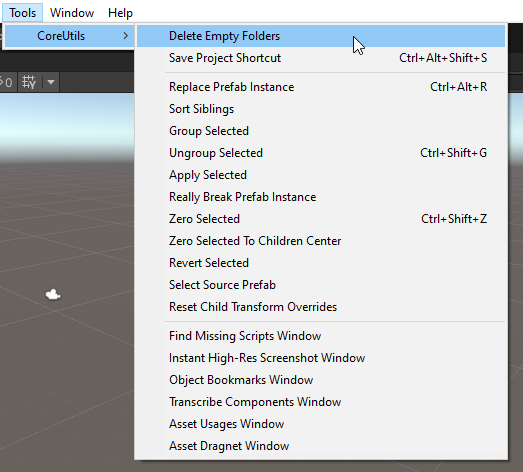
Tools > CoreUtils > Asset Dragnet Window
System for batch-renaming files based on Regex searches.
Asset Usages
Tools > CoreUtils > Asset Usages Window
Project Window > Right-click Asset > Find All Uses in Project
Global asset reverse-lookup system.
AutoFill Attributes
AutoFill fills in a serialzed object field based on what properties you give it when the field is seen in the inspector.
[AutoFill]- Searches the current GameObject for the component.[AutoFillFromParent]- Searches the current and parent GameObjects for the component.[AutoFillFromChildren]- Searches the current and children GameObjects for the component.[AutoFillAsset]- Searches the Project for the component. Displays a drop-down of valid assets. The optionDefaultNameattribute property can give this the ability to auto-select specific assets that are expected to be in the project.
Create Editor Script
Project Window > Right-Click C# Component Script > Create > Create C# Editor Script
Quickly sets up an editor for the component.
Delete Empty Folders
Tools > CoreUtils > Delete Empty Folders
Removes any empty folders and their associated .meta files.
Find Missing Scripts
Tools > CoreUtils > Find Missing Scripts
A window that helps track down missing components. (Broken/renamed/re-GUID scripts on objects.)
Group/Ungroup Selected
Tools > CoreUtils > Group Selected (Ctrl+G)
Takes all objects selected in the hierarchy and groups them under a new GameObject.
Tools > CoreUtils > Ungroup Selected (Ctrl+Shift+G)
Takes the selected game object and removes it, leaving the children in place.
NOTE: Grouping sometimes creates issues with RectTransforms.
Instant Screenshot
Tools > CoreUtils > Instant High-Res Screenshot Window
A window that allows you to quickly take screenshots at any resolution on any camera. (Works in editor mode and play mode.)
Object Bookmark Window
Tools > CoreUtils > Object Bookmarks Window
A conveniant window to bookmark scene and project object references and allow them to be quickly re-selected and opened.
Replace Prefab Instance
Tools > CoreUtils > Replace Prefab Instance (Ctrl+Alt+R)
A way to quickly replace game objects with a replacement prefab while maintaining the object's position and rotation.
NOTE: Both a GameObject in the Hierarchy Window and a Prefab in the Project Window must be selected. (Hold Ctrl to multi-select.)
Transcribe Components Wizard
Tools > CoreUtils > Transcribe Components Window
Transcribes components from one object to another including components in the hierarchy and optionally creating missing game objects along the way. Also transcribes the local references of the components.
This is especially useful for copying components added on one complex .fbx hierarchy (e.g. a character .fbx) to another.
Zero Selected
Tools > CoreUtils > Zero Selected
Resets position and rotation of the selected game object to zero without moving the children. There's also a 'Zero Selected to Children Center' that centers the object on the boundaries of the child objects.
NOTE: Sometimes has issues with rotation and RectTransforms
Runtime Systems
Asset Buckets
Create Menu > CoreUtils > Buckets > ...
A system for auto-adding assets to a ScriptableObject based on the project's folder structure. The bucket can then be easily referenced by different systems to access those assets without relying on Resource folders.
Delay Sequences
e.g. Delay.For(3, this).Then(Action)
A system for chaining delay timers (seconds or frames) and waiting for testable events (predicates).
GameEvents and GameVariables
Create Menu > CoreUtils > Game Events > ...
Create Menu > CoreUtils > Game Variables > ...
A system for creating generic events and variables as ScriptableObjects that can be referenced by systems that don't know about one another. This is the glue that can quickly connect various components across loading/unloading scenes and prefabs.
Singleton
e.g. YourComponent : Singleton<YourComponent> {}
Easy way to make sure you have a component that exists once and only once and access it globally.
StateMachine
Add Component > State Machine
Add Component > State
A cleaned up version of the Surge State Machine that includes clickable states at editor time and other improvements.
Contributing
Pull requests are welcome. For major changes, please open an issue first to discuss what you would like to change.