Workwize MCP Server
April 15, 2025 · View on GitHub
An MCP server implementation for the Workwize Public API.
Features
- Access to Workwize Public API through MCP tools
- Secure API token handling
- Easy to extend with new tools
Requirements
- Python 3.11+
uv0.6.9+
You can follow the uv installation instruction here.
You will also need an MCP client. You can, for example, use Claude Desktop.
Setup
First of all, you will need to create a Workwize API token. You can do so by going to your account page and generating an API token at the bottom of the page.
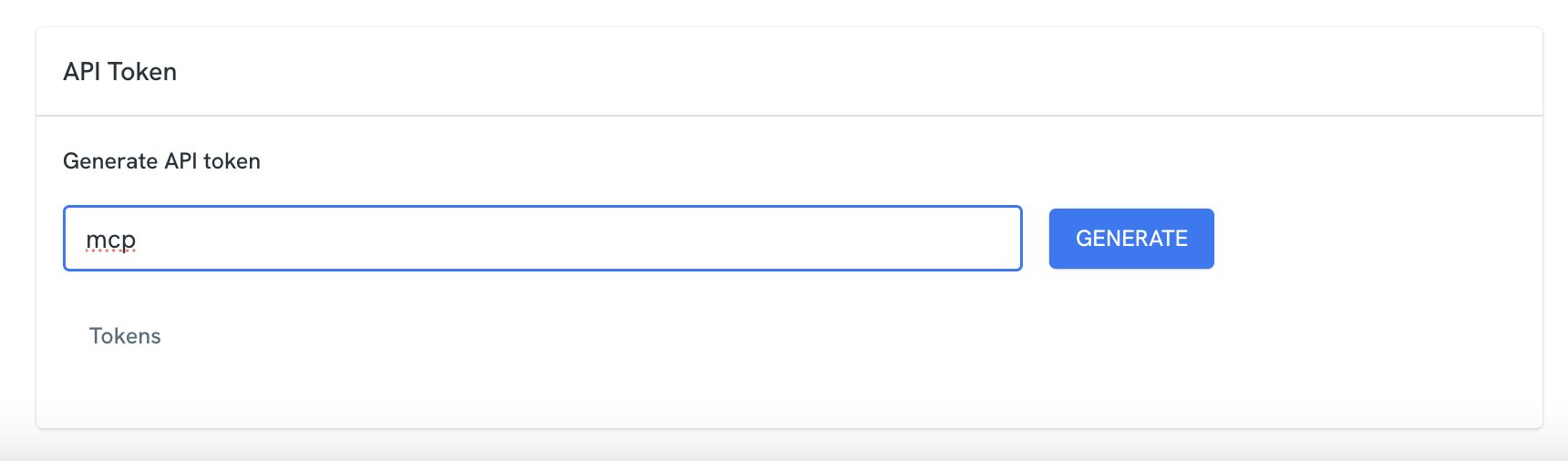
Then, once you have uv installed and your token generated, you can open Claude Desktop or your preferred MCP client and add the following server:
{
    "mcpServers": {
        "wize-mcp": {
            "args": [
                "wize-mcp"
            ],
            "command": "uvx",
            "env": {
                "WORKWIZE_API_TOKEN": "your-token-here"
            }
        }
    }
}
To add a server in Claude Desktop, you can open the Settings menu and click on the "Developer" tab. Then, click on "Get started" and paste the above JSON.
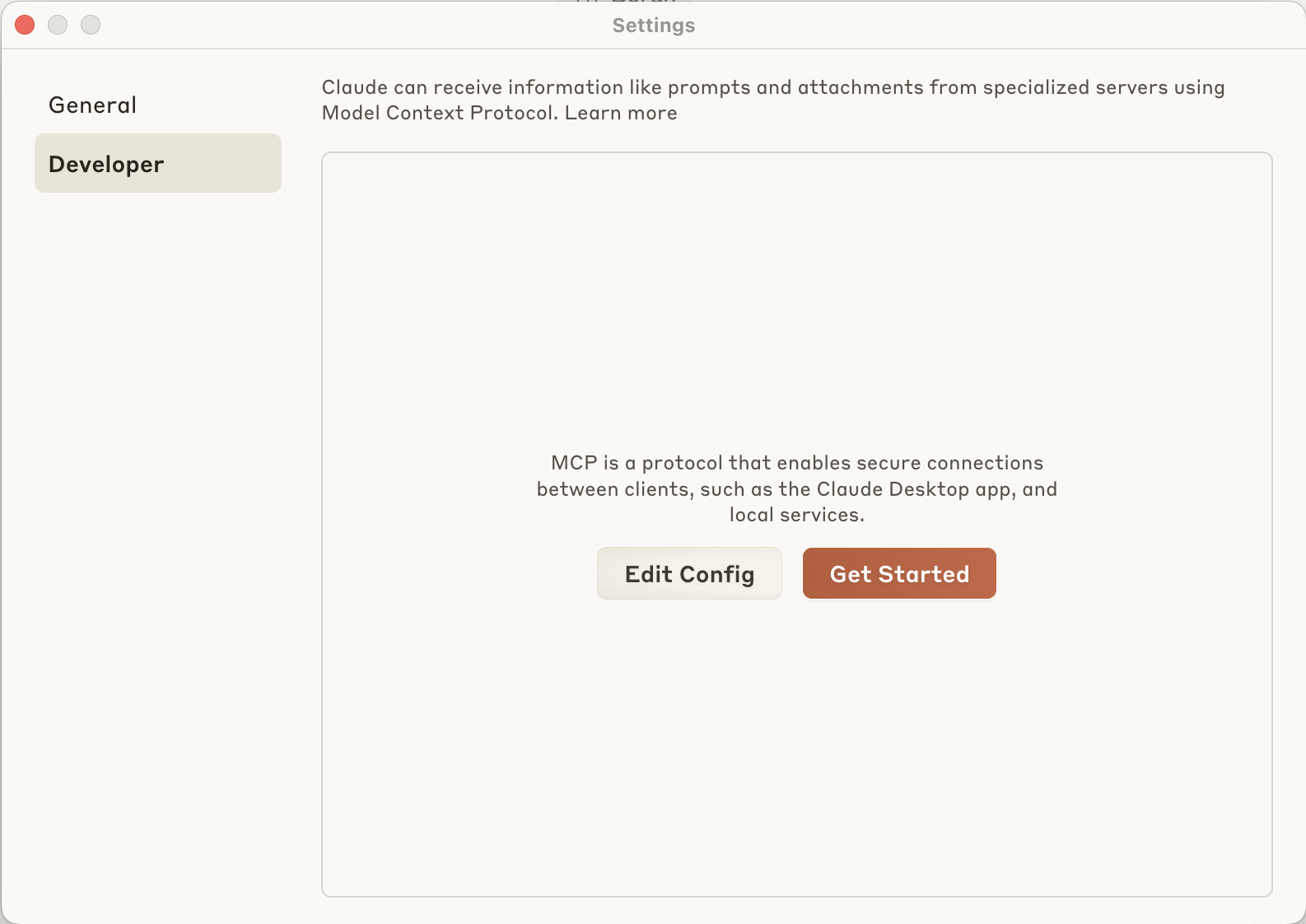
Make sure to replace your-token-here with your actual Workwize API token.
Then, restart Claude Desktop or your preferred MCP client to load the configuration.
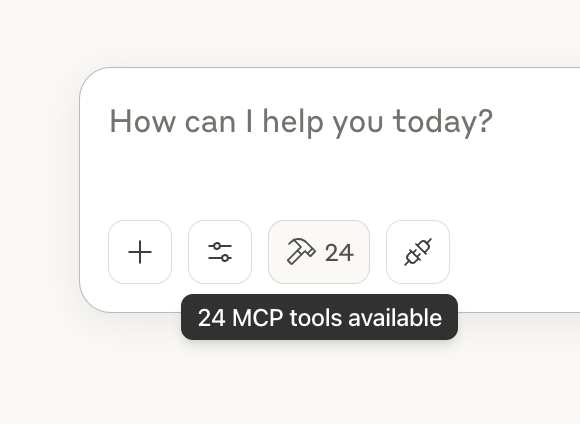
Finally, verify the MCP server is working by looking for the hammer icon in the Claude interface.
Troubleshooting
If the command uvx is not found it may have been installed in a different directory. You can check the installation directory with which uvx and use that path instead:
{
    "mcpServers": {
        "wize-mcp": {
            "args": [
                "wize-mcp"
            ],
            "command": "/Users/username/.local/bin/uvx",
            "env": {
                "WORKWIZE_API_TOKEN": "your-token-here"
            }
        }
    }
}
License
MIT