Dmenufm
September 26, 2022 · View on GitHub
A simple dmenu file manager written in POSIX-compliant shell script.
- Minimal (only require POSIX compliant shell and coreutils)
- File management (yank, move, symbolic link, ranger style bulk rename, etc)
- Remember you last path (CD on Exit)
- Rolling menu for dynamic file browsing (Rolling Menu)
- Compatible with other menu system
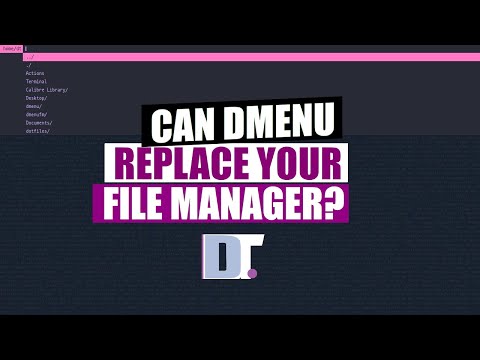
Distrotube introduced my project much better than I would.
Table of Content
- Preview
- Dependencies
- Installation
- Usage
- Terminal
- Open in...
- CD on Exit
- Rolling Menu
- Actions
PCPto copy path.NEWto make new file / directoryMVVto move fileYAKto copy filesLNKto create symbolic linksDELto removeTRHto put in trash.REMto rename files / directoriesHISto record historyBMKto store as bookmarksCMDto store commandSDOto enter super user modeEYEto preview your file
- Open files
- Configuration
- Note
- Troubleshooting
- TODO
- License
Preview


Dependencies
With POSIX-compliance in mind, dmenufm makes use of and requires (or recommends) the below utilities.
sed,grepxclip,findcat,wc,cp,mv,rm,mkdir,touch(GNU coreutils)wmctrlforEYEactiontar,unlzma,bunzip2,unrar,unzip,uncompress,7z,unxz,cabextract
In Debian- or Ubuntu-based distributions of Linux, the packages needed (versions are a guideline) are listed below, at least as is the case in Ubuntu 16.04 (Xenial).
- bzip2 >= 1.0.6-8
- findutils >= 4.6.0+git+20160126-2
- grep >= 2.25-1~16.04.1
- gzip >= 1.6-4
- sed >= 4.2.2-7
- suckless-tools >= 42-1
- tar >= 1.28-2.1
- unzip >= 6.0-20
- xclip >= 0.12+svn84-4
- xz-utils >= 5.1.1alpha+20120614-2
Installation
For Arch Linux user, there is an AUR package available.
If you are not a archlinux user
do this:
- In order for this to work you need to install
make,git,dmenu - Install this programs.
- clone this gitrepo
git clone https://github.com/huijunchen9260/dmenufm/ - cd to the repo directory you just cloned
cd dmenufm - run
sudo make install
To uninstall dmenufm, type sudo make uninstall in terminal. On the gitrepo directory.
Usage
- Type
dmenufmto launch, or assigndmenufmto your favorite hot key. You may supply a directory as an argument to start dmenufm in the specified directory. ../to go back to parent directory../to open your file manager in current working directory (determined byxdg-open)- Choices with
/are directory; choices without/are files.
Usage output (as of 2019-12-16) showing optional arguments for custom usage:
$ dmenufm --help
            DMENUFM
            Written by huijunchen9260 <chen.9260@osu.edu>

            Simple file manager using dmenu

SYNTAX:     dmenufm [OPTS]

OPTS:       -h | --help               - Show this usage information.
            -d | --directory          - Only directories.
            -f | --file               - Only show files.
            -D | --dotdirectory       - Only show hidden directories.
            -F | --dotfile            - Only show hidden files.
            -p | --lastpath           - Opens in last working directory. (cd on exit)
            -r | --rollingmenu        - Rolling menu based on selected files.
            -t | --termpath           - Print out the path of file / directory.
	    -m | --menu               - Choose other menu system
	    -o | --option             - Choose options for other menu system
	   -no | --notif-option      - Choose NotiPrompt options for other menu system
	   -do | --danger-option     - Choose DangerPrompt options for other menu system
Terminal
Terminal to open terminal in current working directory. To define terminal, add
export TERMINAL=<your terminal> to the end of your .bashrc file (or any other system configuration file, like .profile, zshrc, etc).
Open in...
Open in... to temporarily open a file in a different program from FM_OPENER or xdg-open.
Requires dmenu_path. This function use dmenu_path to search for programs that is going to open the next selected file.
CD on Exit
Use -p | --lastpath option:
dmenufm -p
Rolling Menu
Use -r option for rolling menu based on the file that you opened:
dmenufm -r
For example, the original list is
../
./
Actions
Terminal
file1
file2
file3
file4
You open file3. After you close file3, the menu would be
../
./
Actions
Terminal
file3
file4
file1
file2
Actions
Actions is the actions you can do.
PCP to copy path.
Example:
- current working directory is
$HOME(your user's own home directory), ifESCis pressed to leave dmenufm, then$HOMEwill be copied intoxclip. - You can browse into the directory; inside that directory, choose
./, and the current working directory will be copied.
NEW to make new file / directory
Name with slash will consider as a directory; without as file.
- Example: Type
dirname/to create new directory, andfilenameto create new file.
MVV to move file
- To move file to destination:
- Choose source and destination to move your file. Enter the directory and choose
./to confirm the destination. Bulk Movefor multi-selectionBulk Move Allto move all the content in the directory.Bulk Move Massto move contents that is selected by editing the list of content in default text editor.
- Choose source and destination to move your file. Enter the directory and choose
YAK to copy files
- The usage of this action is the same as
MVR, but will copy the file instead of moving it.
LNK to create symbolic links
- The usage of this action is the same as
MVR, but will create the symbolic link for the file instead of moving it.
DEL to remove
Delete directories or files.
Bulk Deletefor multi-selectionBulk Delete Allto delete all the content in the directory.Bulk Delete Massto delete contents that is selected by editing the list of content in default text editor.
TRH to put in trash.
$HOME/.cache/dmenufm/trashis the directory storing trashes for dmenufm.Move file to trashwill generate a new dmenu prompt.- Choose any file to move to trash.
- To move a directory to trash, enter the directory, and choose
./to confirm this directory.. Bulk Trashfor multi-selectionBulk Trash Allto delete all the content in the directory.Bulk Trash Massto delete contents that is selected by editing the list of content in default text editor.
Go to trashwillcdto trash directory.Empty trashwill remove all files/directories in trash directory.
REM to rename files / directories
- Open the name of the selected files / directories to your
$EDITOR/ text editor.Bulk Renamefor multi-selectionBulk Rename Allto rename all the content in the directory.Bulk Rename Massto rename contents that is selected by editing the list of content in default text editor.
HIS to record history
- history file stored in
$HOME/.config/dmenufm/dmenufm_history. - The maximum number of history is 5000.
BMK to store as bookmarks
- Choose the listed bookmark to enter that directory. Bookmarks are stored in
$HOME/.config/dmenufm/dmenufm_bookmark - Choose
Add BMKto browse between directories using new dmenu prompt.- To add file to bookmark, choose files in new dmenu prompt.
- To add directory to bookmark, enter the directory and choose
./to confirm.
- Choose "Delete BMK" to delete one file/directory in bookmark.
CMD to store command
- Choose "Add CMD" to add both the command and command description in
$HOME/.config/dmenufm/dmenufm_command. - Choose "Delete CMD" to delete any command in
$HOME/.config/dmenufm/dmenufm_command. - Choose any stored command to execute.
- If your command is a single command with no argument, e.g.
ncdu, then dmenufm will open a terminal to run this command. - If your command has arguments, e.g.
chmod +x \$1, you only need to write one argument ($1part), and dmenufm will open a bulk mode, which allows you to choose files to execute.
- If your command is a single command with no argument, e.g.
CMD Notes:
GUI application will open only one windows, and terminal application will open a terminal for this command.
If there is no terminal opened for your terminal application, you need to modify executecmd function in dmenufm.
ExecCMD () { # Usage ExecCMD [CMD]
    software=$(printf '%s' "${1%% *}")
    appdesktop=$(find "$XDGDIR1" "$XDGDIR2" -name "*$software*.desktop" | tail -n 1)
    if [ -n "$appdesktop" ] && grep 'Terminal=false' "$appdesktop"; then
	printf '%s' "\$1" | ${SHELL:-"/bin/sh"}
    else
	$TERMINAL -e \$1 | ${SHELL:-"/bin/sh"}
    fi
}
$TERMINAL -e \$1 is the one you need to modify.
SDO to enter super user mode
Enter you password to enter super user mode (sudo).
The prompt will be all red because this is a dangerous action.
EYE to preview your file
The EYE prompt will appear at the button of the screen.
Recommend using this function with Rolling Menu
Need wmctrl to automatically close the opened file.
Open files
Files are opened using xdg-open. If you have any trouble, go to troubleshooting on xdg-open
For compression, now you can choose the compression, and it will extract into a new directory named by the compression.
Configuration
There are many environment variables you can use to configure dmenufm by exporting them in your system or shell configuration file.
Alternatively, you can cp /etc/dmenufm.conf $HOME/.config/dmenufm/dmenufm.conf and modify $HOME/.config/dmenufm/dmenufm.conf to your needs.
Use other menu system
To use other menu system, you need to specify seven additional variables in dmenufm.conf. Take the default value for bemenu as example:
FM_PROG="bemenu"
FM_OPTS="-l 10"
FM_OPT_PROMPT="-p"
FM_OPTS_GENERIC="--sb='#005577'"
FM_OPTS_ACTION_LV1="--sb='#33691e'"
FM_OPTS_ACTION_LV2="--sb='#FF8C00'"
FM_OPTS_ACTION_BULK="--sb='#CB06CB'"
Use terminal menu system
The terminal menu system, such as fzf and shellect, will slightly change the stty settings in an unknown way such that the original terminal color scheme will be distorted when opening text files in vim/neovim.
The way to fix it is to use install a vim/neovim colorscheme, and include the following line in your .vimrc / init.vim:
set tgc
This will enable the termguicolors setting inside vim/neovim, and force the color scheme to match your installed vim/neovim color scheme.
Note
If you hate GUIarrowy world like me, based on man dmenu, you can
Ctrl-nto go up,Ctrl-pto go down,Ctrl-yto paste from primary X selection- Everything your "are selecting" can be paste into dmenu by this hot key.
Meta-hto go up,Meta-lto go down,Meta-kto go one page up,Meta-jto go one page down,
where Meta is also called Alt.
Troubleshooting
Why some of my GUI app will open in terminal?
For GUI application like sxiv, default setting will open sxiv in a new terminal. In total, 2 windows will be opened.
This is because sxiv.desktop has no Terminal=false entry.
To fix this, use
< $(locate sxiv.desktop | tail -n 1) sudo ${EDITOR:-vi}
to open .desktop file in your editor, and add
Terminal=false
You can replace sxiv to any GUI application which has the same issue.
Why files do not open in the right application
dmenufm use xdg-open to open files in the default application.
To open in the application that you want, you need to
- find the filetype (
minor/major) of the file - Set xdg-open default applications.
For example, I am using sxhkd. So I need to modify sxhkdrc. However, it is not opened in nvim.desktop, but in firefox.desktop.
So I
- find the filetype:
Find filetype# Go to directory cd ~/.config/sxhkd # find the filetype xdg-mime query filetype sxhkdrctext/x-matlab - Set
xdg-opendefault applications:xdg-mime default nvim.desktop text/x-matlab
and you are all set.
I want to configure the color and font of dmenufm
See Configuration
I want to use menu system other than dmenu
See
TODO
See Issues.
License
GNU General Public License v3.0
See LICENSE.md for detail information.