Quick Start
September 6, 2025 · View on GitHub
Table of Contents
1. Install
2. Integrate with the Function API
Initialization
Import i18n.js in the Application Entry File
Wrap text with t
3. Initialize Command Line Configuration File
4. Adjust i18nrc.ts Configuration
5. Execute Translation Command
6. Import Language Pack
Static import
Asynchronous loading callbacks
Dynamic loading at runtime
7. Switch Language
8. Demo
1. Install
npm i i18n-pro
# or
yarn add i18n-pro
# or
pnpm i i18n-pro
2. Integrate with the Function API
Initialization
// i18n.js
import { initI18n } from 'i18n-pro'

const {
  t,
  setI18n,
} = initI18n({
  // The namespace attribute must be configured
  namespace: 'testI18n',
})

// Optional: The API can be mounted to a global object to facilitate global calls (for Node environment, please replace window with global)
// Note: If used in third-party libraries or components, mounting is not recommended to avoid naming conflicts.
window.t = t
window.setI18n = setI18n

// Or export the API for other modules
export { t, setI18n }
Import i18n.js in the Application Entry File
// App.js
import './i18n.js'

// Subsequent rendering logic
Wrap text with t
Use the t function to wrap the text that needs to be translated:
// test.js
// If already mounted globally, this import can be omitted
import { t } from './i18n.js'

// text-as-key
const text = t('hello world')
// custom-key
const keyText = t.t('custom-key', 'hello key')
3. Initialize Command Line Configuration File
Enter the following command at the command line terminal, more commands
npx i18n init
After the command execution is successful, a i18nrc.ts file will be generated in the current directory. The default configuration will be as follows:
import { fileURLToPath } from 'node:url'
import { join, dirname } from 'node:path'
import { Config } from 'i18n-pro'

const __filename = fileURLToPath(import.meta.url)
const __dirname = dirname(__filename)

export default {
  funcName: 't',
  // entry: join(__dirname, './src/'),
  // fileRegExp: /\.[jt]s$/,
  input: 'src/**/*.{js,ts}',
  output: {
    path: join(__dirname, './i18n/'),
  },
  translator: 'googlex',
  googlexConfig: {
    from: 'en',
    to: ['zh-CN', 'ja'],
    codeLocaleMap: {
      'zh-CN': 'zh',
    },
    // proxy: 'http://127.0.0.1:7997',
  },
} as Config
4. Adjust i18nrc.ts Configuration
Adjust the configuration items in the configuration file according to the requirements, Description of configuration items
5. Execute Translation Command
npx i18n t
After successful command execution, language pack files will be generated in the specified directory
By default, language pack are generated as separate files per language (output.langType == 'multiple'), which will generate 2 language pack: zh.json and ja.json
// zh.json
{
  "hello world": "你好世界",
  "custom-key": "你好key"
}

// ja.json
{
  "hello world": "こんにちは世界",
  "custom-key": "こんにちはkey"
}
If the generated language pack is a single aggregated file (output.langType == 'single'), it will generate 1 language pack: langs.json
// langs.json
{
  "zh": {
    "hello world": "你好世界",
    "custom-key": "你好key"
  },
  "ja": {
    "hello world": "こんにちは世界",
    "custom-key": "こんにちはkey"
  }
}
6. Import Language Pack
After the language pack is generated, it needs to be integrated into the project
Currently supports 3 ways to import language pack
- Static import
- Asynchronous loading callbacks
- Dynamic loading at runtime
Static import
Not suitable for pure frontend projects as it may increase first screen load time.
If the generated language pack is a separate file form (output.langType == 'multiple') for each language, the operation is as follows:
// i18n.js
import { initI18n } from 'i18n-pro'
import zh from './i18n/zh.json'
import ja from './i18n/ja.json'
// ... More languages

initI18n({
  namespace: 'testI18n',
  locale: 'en',
  langs:{
    zh,
    ja,
    // ... More languages
  },
})
If the generated language pack is in the form of aggregation (output.langType == 'single'), the operation is as follows:
// i18n.js
import { initI18n } from 'i18n-pro'
import langs from './i18n/langs.json'

initI18n({
  namespace: 'testI18n',
  locale: 'en',
  langs,
})
Asynchronous loading callbacks
Recommended when using separate files per language, enables on-demand loading to optimize bundle size and improve performance.
// i18n.js
import { initI18n } from 'i18n-pro'
import ja from './i18n/ja.json'
initI18n({
namespace: 'testI18n',
// Note: When the initial locale is a non-default language (such as ja), the language pack must be imported statically.
locale: 'ja',
langs: {
// Other languages can be loaded dynamically on demand
zh: () => import('./i18n/zh.json'),
ja, // Initial language pack must be statically imported
},
})
Dynamic loading at runtime
Ideal for dynamic language pack loading during runtime (e.g., via remote APIs). Suitable for cross-platform or dynamic language environments.
// Dynamically obtaining language pack through interfaces or other means
const zh = await fetch('/xxx/xxx/zh.json').then(res => res.json())

// Set the current language and language pack, support subsequent dynamic switching
setI18n({
  locale: 'zh',
  langs: {
    zh,
  },
})
At this point, the internationalization function has been integrated. Simply set locale as the target language to display the corresponding translated content on the page. If there is a new text (requires a t function wrap), just re-execute the npx i18n t command to generate the latest language pack to ensure that all new content is translated.
7. Switch Language
Switch the current language by:
setI18n({
  locale: 'en', // Set the specified language
})
Note: Rendered content does not update automatically after
setI18nlanguage switching. New translations appear only whentis re-invoked.If you need to achieve refresh-free switching, it is recommended to use it in combination with official integrations for these frontend frameworks:
8. Demo
This section only introduces basic usage. For more advanced usage, please refer to the subsequent documentation
- For real examples, please see Live Demo
- This document supports multilingual implementations based on
i18n-proand jsx-to-md - The console output of the
Command Line Toolalso supports multilingual display- The command line interactive interface of the Chinese version can be viewed through the command
npx i18n h -L zh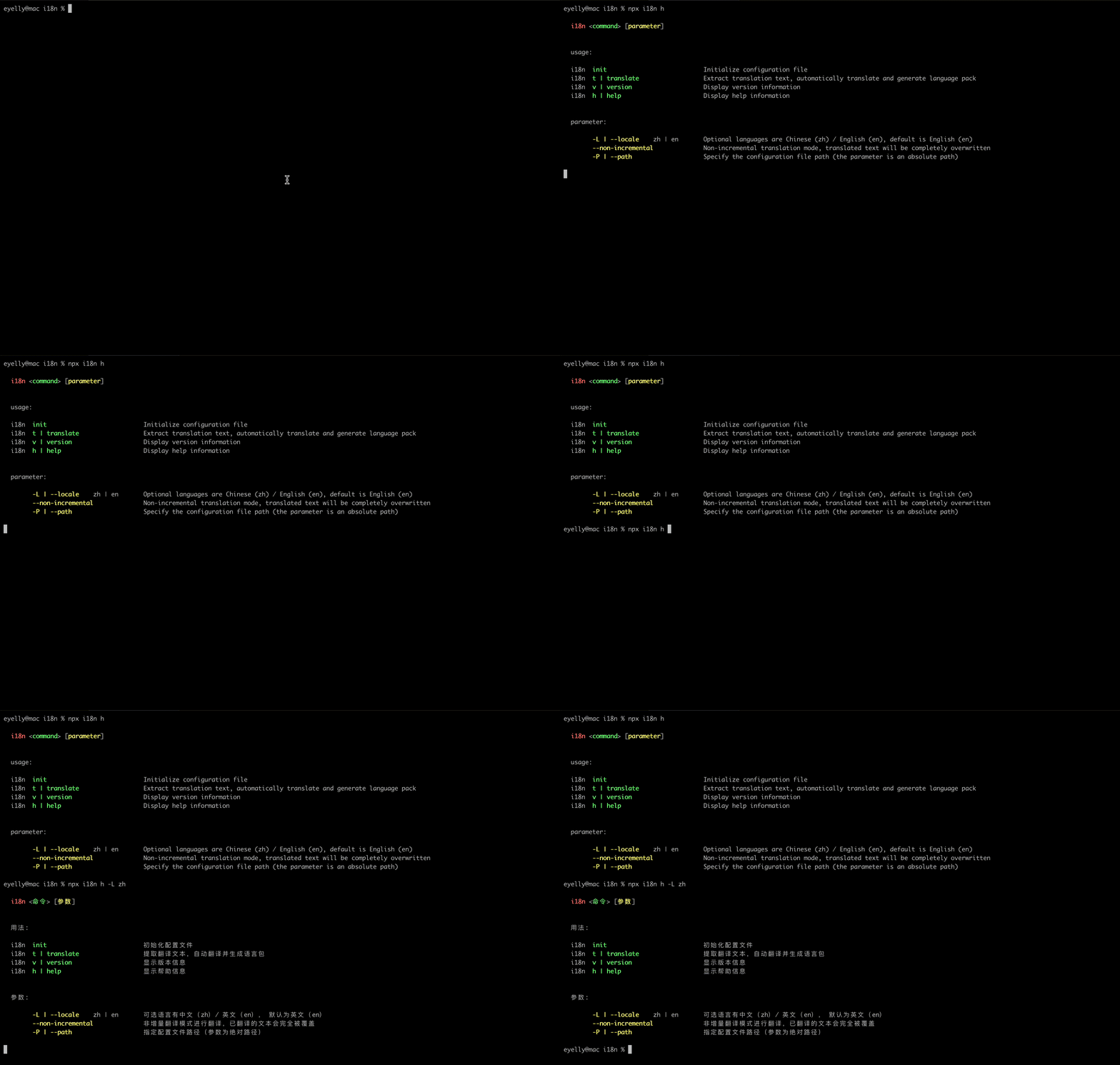
- The command line interactive interface of the Chinese version can be viewed through the command