MASM Runner
October 7, 2025 · View on GitHub


MASM Runner is x86/x64 MASM (Microsoft Macro Assembly Language) code compiler, linker, runner extension for vscode that comes packaged with the Irvine Library and runs on all OS.
This app is made possible through the use of JWlink and JWasm to compile x86/x64 MASM and a 32-bit wine terminal to execute x86 executable binaries on mac and linux (webview) using Boxedwine emscripten port.
This will also compile/link and execute MASM code (x86/x64) natively on windows through the vscode terminal (powershell/cmd) out of the box when the webview is not open on all windows systems.
Please note that this extension is far from perfect, contributions are appreciated.
Preview version outside vscode:
WARNING the web version is ~50mb in size.
The web version can be viewed masm.isas.dev or see repo for the web version HERE
How To Use
Current commands can be accessed by pressing Ctrl+Shift+p on windows or Command ⌘+shift+p on mac
Starting and Running Code
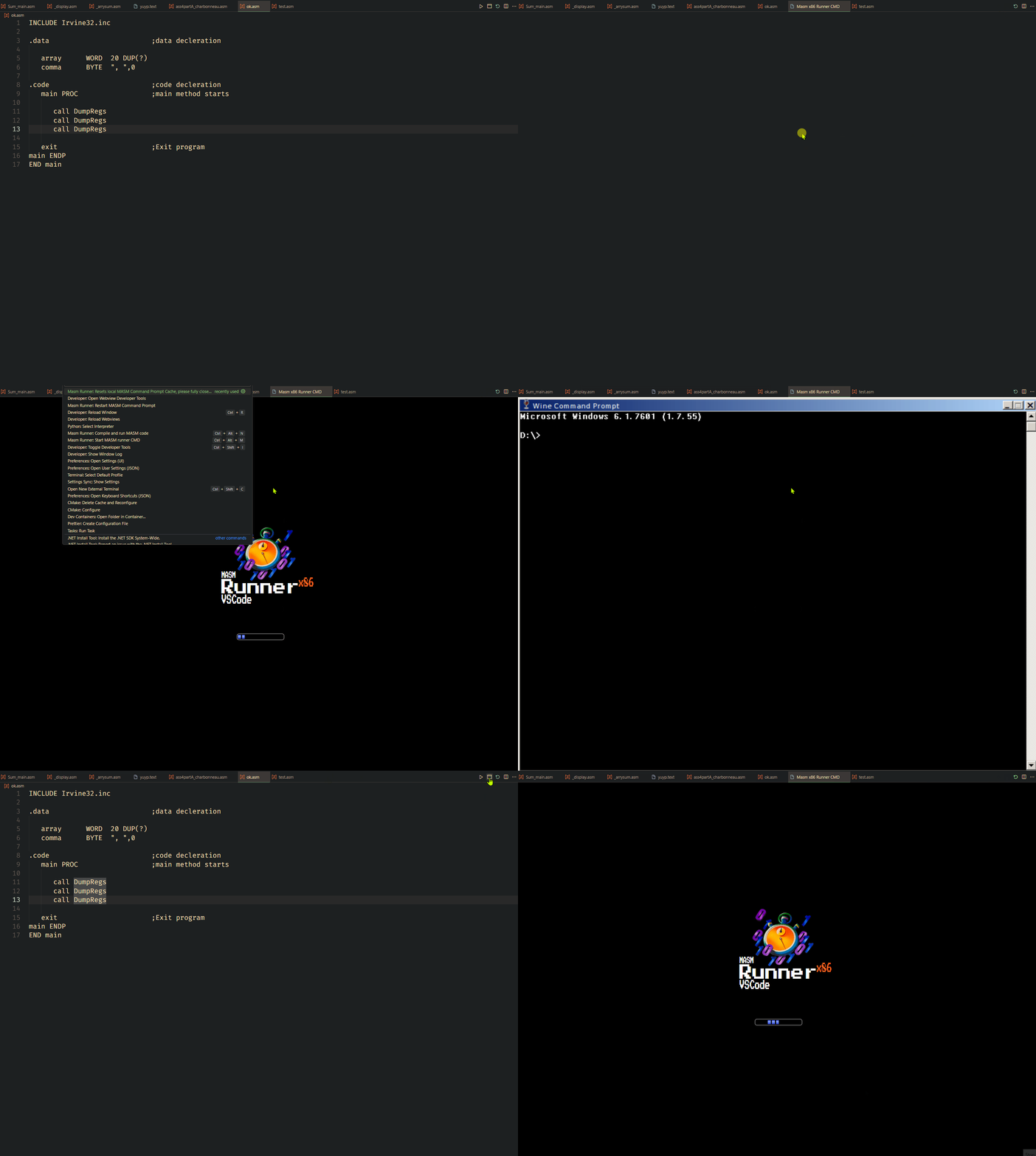
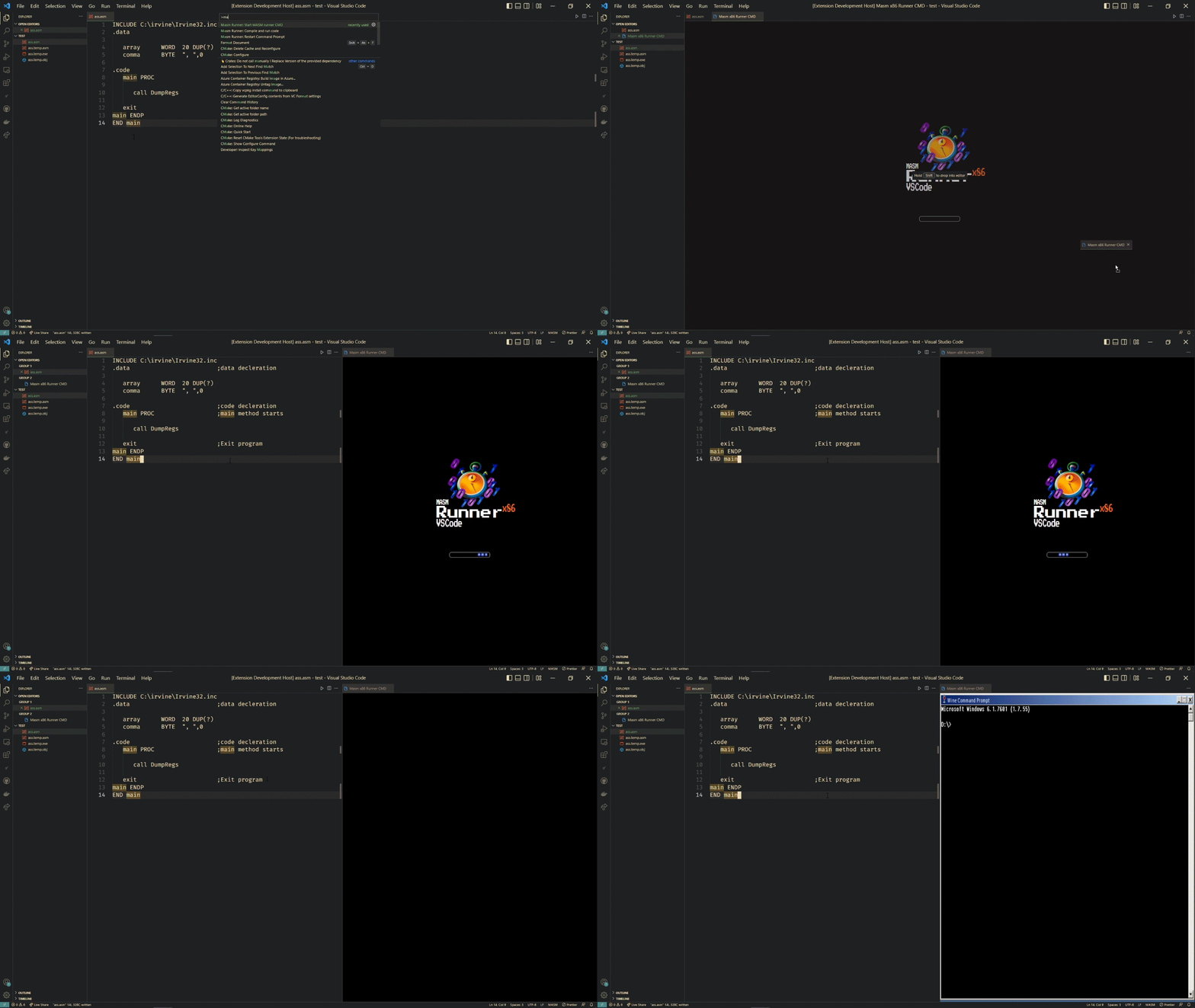
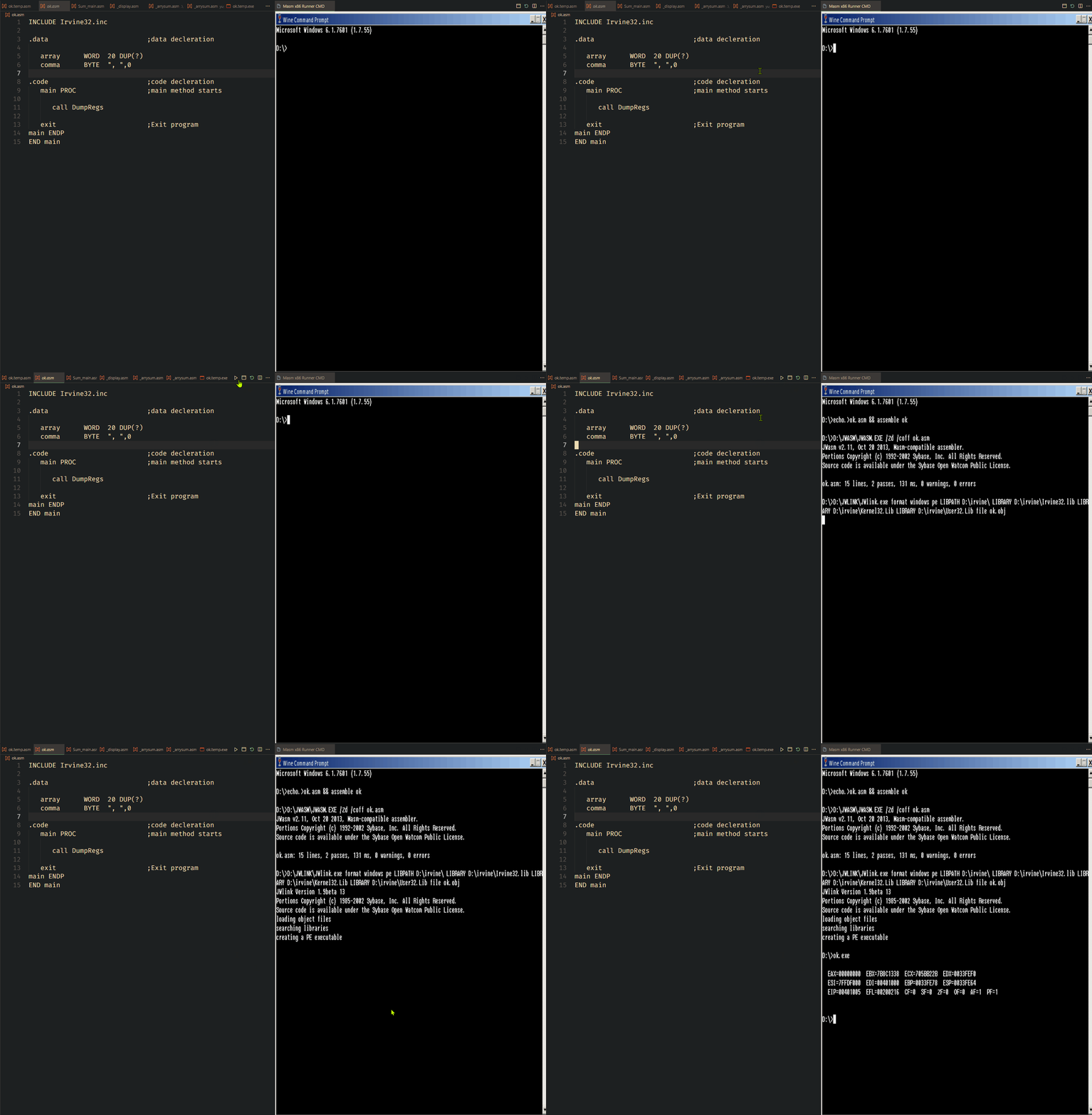
MASM Runner Webview (CMD terminal) Start
- Command: masm runner start
- Description: Starts MASM CMD to allow compilation and running of code
- Start Webview Via Hotkey:
- Windows/Linux:
Ctrl + Alt + m - Mac:
⌘ Command + alt + m
- Windows/Linux:
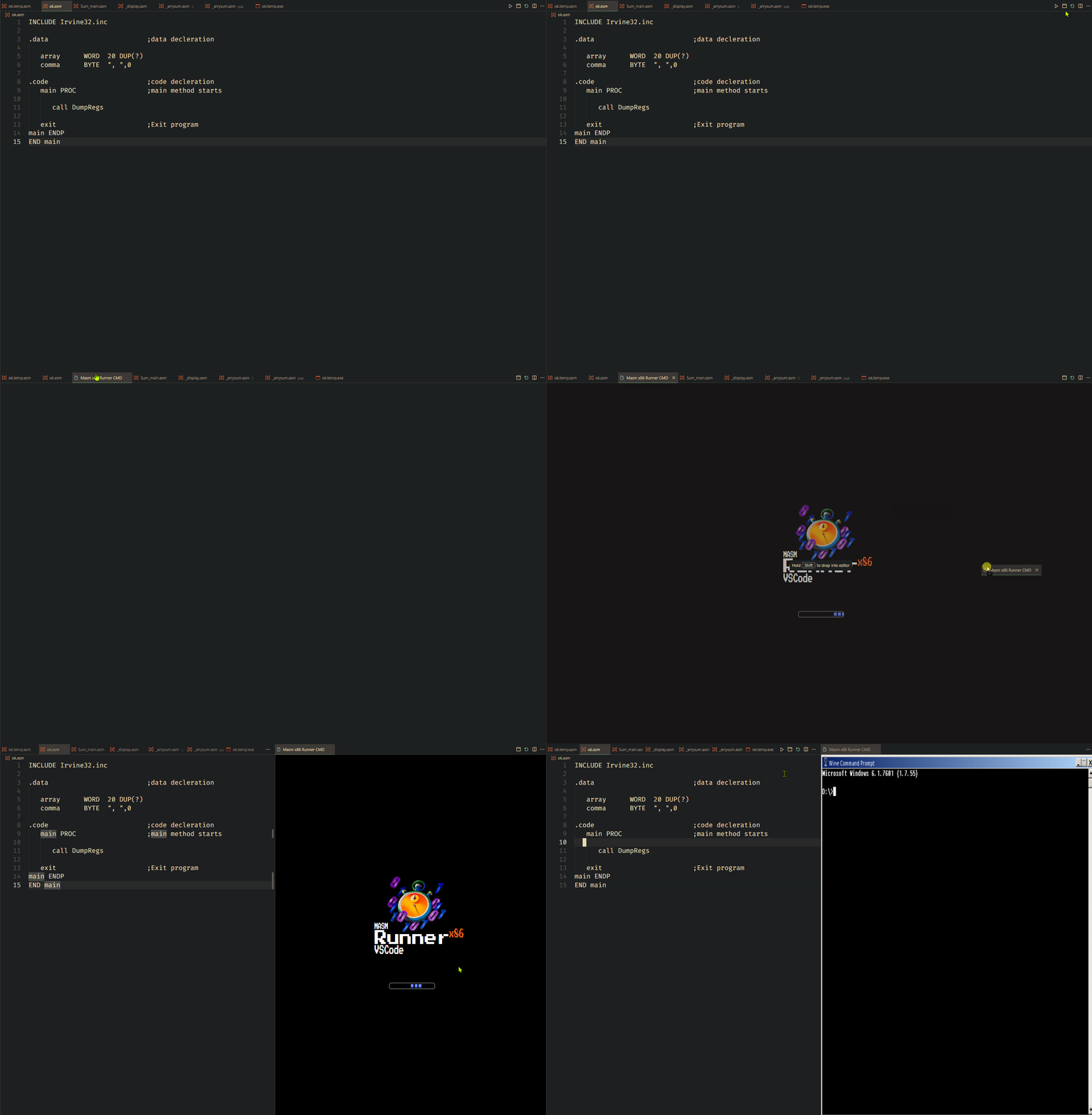
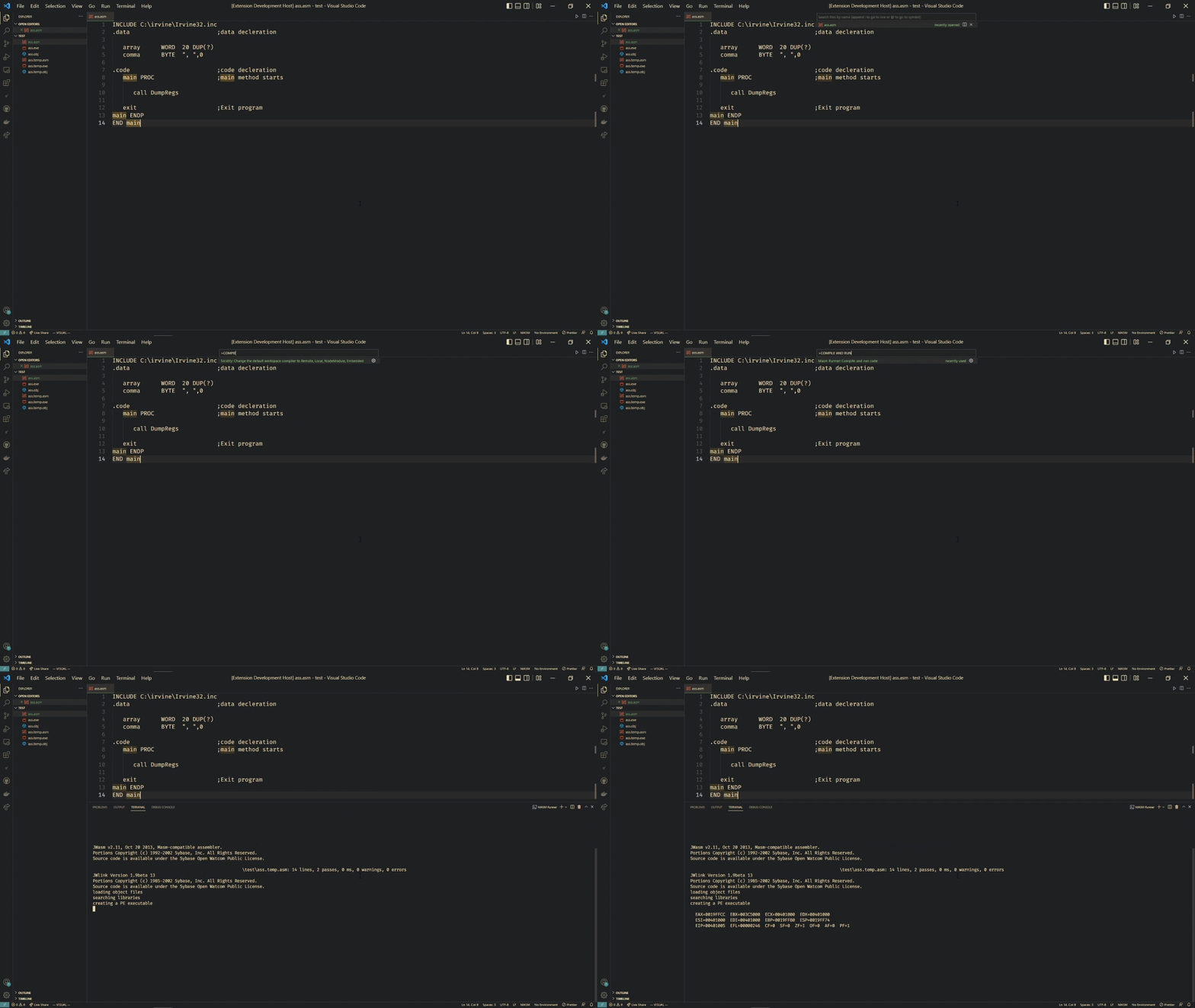
Compile and Run
- Command: masm runner compile
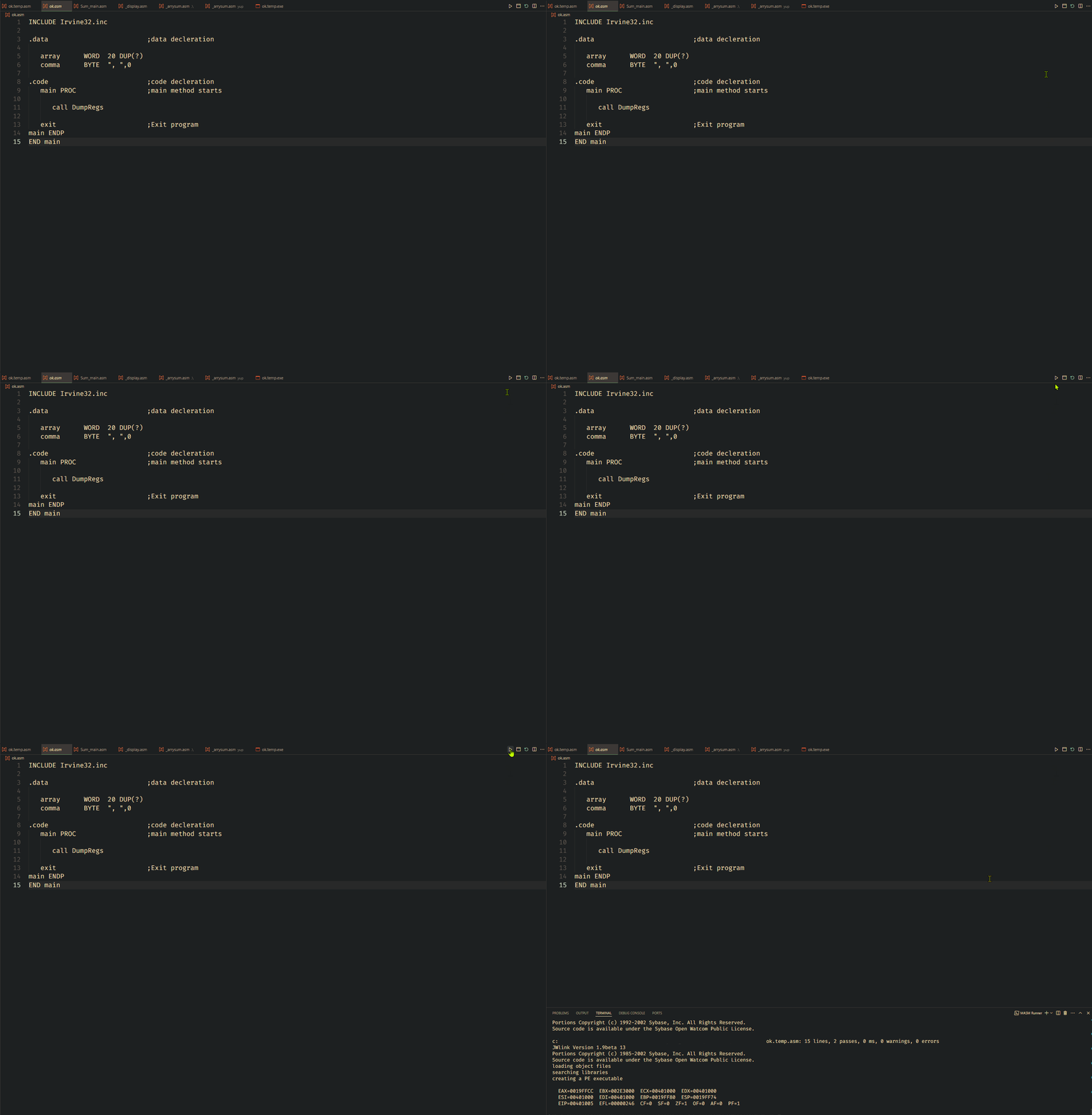
- Description: Runs code in current file and exports .obj and .exe files to file or workspace directory. Runs code in current file and exports .obj and .exe files to file or workspace directory. When executed this command will either compile/link and run the code:
- In the native vscode terminal (Windows Only) running PowerShell, Command Prompt or Git Bash. Note if the webview is open native compiling will NOT occur - supports running x86/x64 (32-bit and 64-bit) MASM.
- In the webview - supports running x86 (32-bit) MASM. Please note if the webview is running (you ran masm runner start) it will compile/link and run in the webview.
- Settings (via vscode options):
- masmRunner.exportBinaries
- Description: Export .exe and .obj from boxedwine webview on compile?
- Default Value: True
- masmRunner.exportBinaries
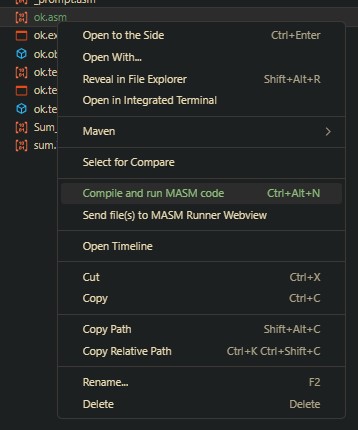
- Running Code via Hotkey:
- Windows/Linux:
Ctrl + alt + n - Mac:
⌘ Command + Alt + n
- Windows/Linux:

Other Commands and Features
MASM Runner restart
- Command: masm runner restart
- Description: restarts MASM Runner webview (If this does not work click the terminal and type ctrl+r or Command ⌘+r)
- Button is available in Menu next to run code and launch MASM webview button

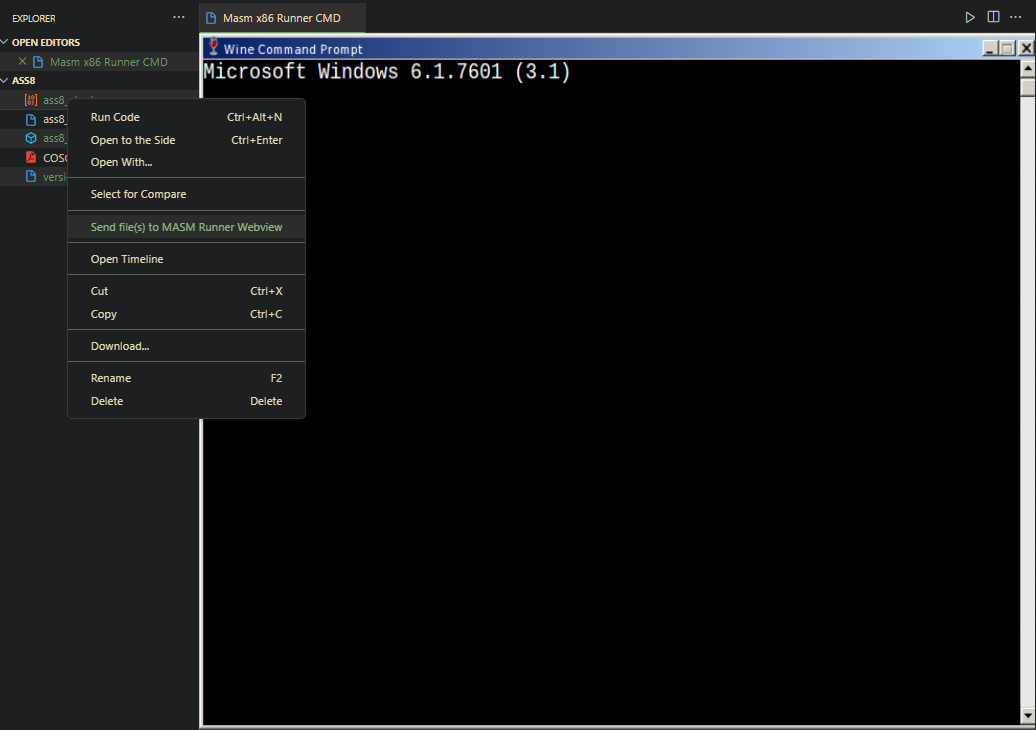
Send File(s) to Webview
- Command: masm send file(s) to webview
- Description: Send file(s) to MASM Runner Webview
- Context Menu: In File explorer you can right click files to send to webview
- Settings (via vscode options):
- masmRunner.enableContextMenus
- Description: Enables context menu in Explorer (used to send files to boxedwine webview (cmd) - Default Value: True)
- Default Value: True
- masmRunner.enableContextMenus
Snippets
Current snippets include:
- i-irvine32 - Inserts
INCLUDE Irvine32.incdirective from irvine library - i-macros - Inserts
INCLUDE Macros.incdirective from irvine library - i-smallwin - Inserts
INCLUDE SmallWin.incdirective from irvine library - i-virtualkeys - Inserts
INCLUDE VirtualKeys.incdirective from irvine library - i-graphwin - Inserts
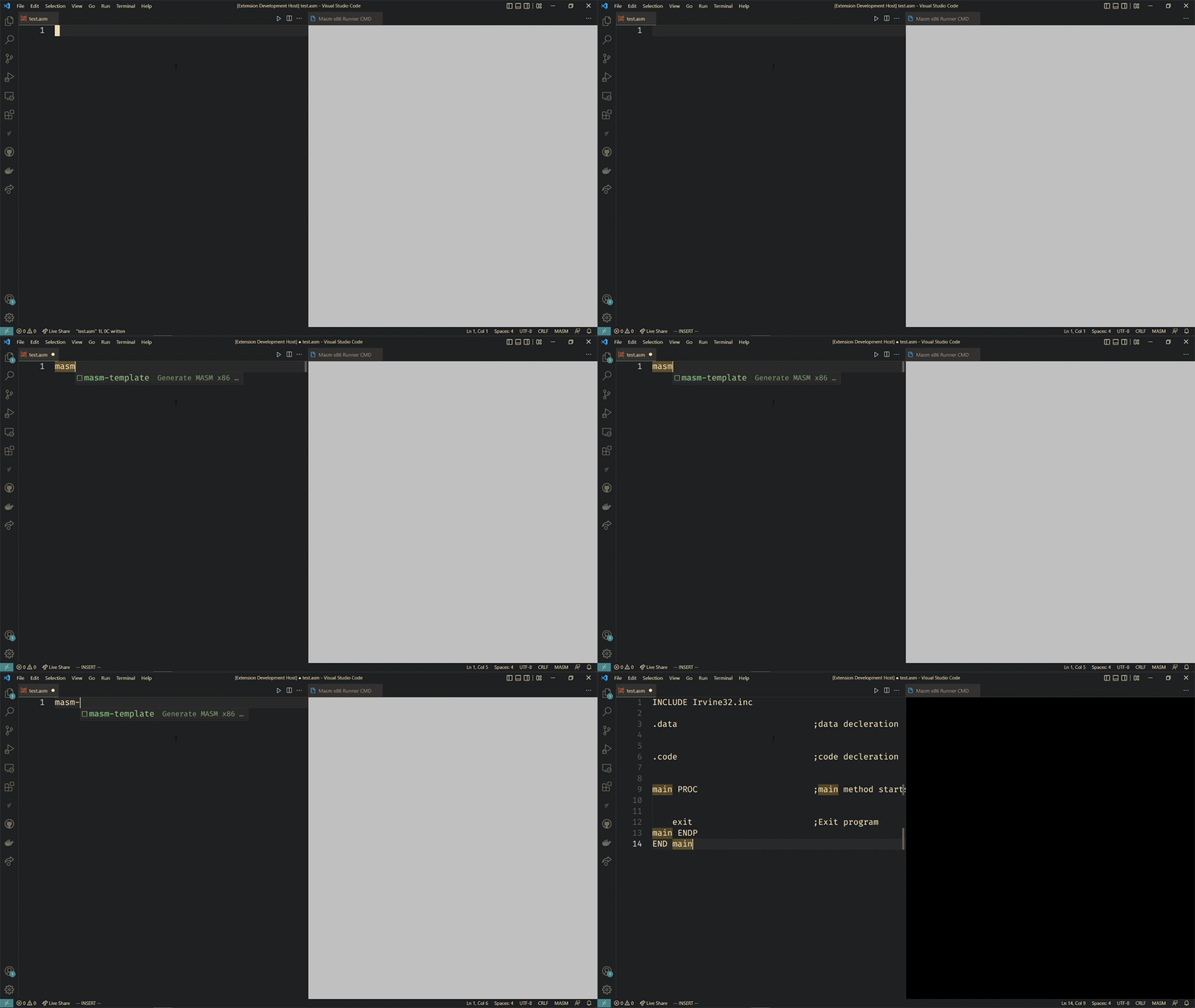
INCLUDE GraphWin.incdirective from irvine library - masm-template - Generates standard template to write MASM x86 using Irvine32 library
Syntax Highlighting
This extension includes semantic syntax highlighting for MASM (.asm/.ASM) files powered by a TextMate grammar. This is a very rough implementation there are likely bugs if you would like to contribute to fixing this please visit here and put in a PR/Issue masm-grammar.
Disabling Syntax Highlighting
If you prefer to disable the semantic syntax highlighting, you can do so through VSCode settings:
- Open VSCode Settings (File > Preferences > Settings or
Ctrl+,/Cmd+,) - Search for "MASM Runner"
- Uncheck the option: "Masm Runner: Enable Syntax Highlighting"
Or add the following to your user settings.json file:
"masmRunner.enableSyntaxHighlighting": false
Contributing
For development and contributing see HERE
Troubleshooting
Webview
If you have issues with the MASM webview please reset cache by doing the following:
Manual
- Open the MASM Webview
- By pressing Ctrl+Shift+p on windows or Command ⌘+shift+p on mac open the command box
- Type the following into the command box: ">Developer: Open Webview Developer Tools
- Navigate to Application tab in 'Develop Tools' window
- Go to Local Storage on the left menu verticle menu and expand it
- Delete all key value pairs from the list from one of the sub menu items for Local Storage
- Close the MASM WebView and reopen it
Command
Alternatively:
- Open MASM Webview
- By pressing Ctrl+Shift+p on windows or Command ⌘+shift+p on mac open the command box
- Type the following into the command box: ">masmRunner.resetCMDCache"
- Close the MASM Webview
- Reopen the MASM Webview, Cache should be cleared and everything should work