Simon for FlipBoard
February 3, 2024 · View on GitHub
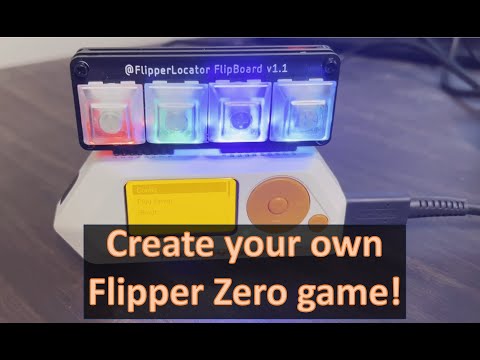
Introduction
The FlipBoard is MacroPad for the Flipper from MakeItHackin! We can use the device to create our own Simon memory game. Simon is a game where you have to remember and repeat a sequence of button presses. Each button has a different color and sound. The game starts by showing you one button press. You have to press the same button. Then the game adds another button press to the sequence. You have to press both buttons in the same order. The game keeps adding more button presses until you make a mistake or finish the song. This guide will show you how to build and play the game using the FlipBoard.
This guide is written with extensive details. You should be able to successfully create the game without needing to read any of the VSCODE, C LANGUAGE, FLIPPER CODE, FLIPBOARD CODE, or SIMON CODE sections. Feel free to bypass any topics that don't apply to you.
- VSCODE: Covers concepts related to the Visual Studio Code development environment.
- C LANGUAGE: Covers concepts related to the C programming language, which is the language we use for Flipper applications.
- FLIPPER CODE: Covers concepts specific to the functions provided by the Flipper Zero libraries.
- FLIPBOARD CODE: Covers concepts specific to the common code provided by the FlipBoard.
- SIMON CODE: Covers concepts specific to the code we are developing.
NOTE: Concepts are only explained the first time it applies in the document, so you may need to scroll to a previous section for clarification. You can use Bing Chat for more detailed understanding of the C language. For example, you can ask what does #include do in c? and it can provide a detailed explanation and answer follow-up questions.
Hardware Prerequisites
- Flipper Zero - order from Flipper
- FlipBoard - order from MakeItHackin
- USB cable - included with Flipper Zero
Environment Prerequisites
Ensure your build environment is correctly set up by following the steps outlined in Building with VS Code. It's crucial to have a functional build environment before proceeding. This tutorial involves copying common code from an existing project, so you'll also need to clone the flipboard tutorial.
Steps
Click on any step to see all of the detailed instructions for that step.
For the most fun, it is recommended that you at least do steps 8-16 yourself; so that you build your very own game! Also, be sure to read the first 7 steps, and pay attention to the notes on step 3c & step 6d since you may need the information later. You should edit the application.fam file's fap_author and fap_weburl entries to have your name and url (this was from step 1e).
Each step of this tutorial has a corresponding directory in the completed directory. If you are trying to learn coding on the Flipper Zero, you may want to do all the steps yourself. If you are just trying to get a working game, you can copy the files from the completed directory into your project. If you are stuck, you can look at the completed files to see what you are missing (typically the app.c file).
NOTE: If you are getting strange behavior where the step doesn't seem to be doing anything, you might want to try changing your app_id in application.fam as your firmware may pre-install some version of this application.
- Step 1. Create a new
flipsimonproject - Step 2. Setup basic FlipBoard project
- Step 3. Create the startup sequence
- Step 4. Draw message (Press OK to play)
- Step 5. Add game state to the model
- Step 6. Allow user to start new game
- Step 7. Handle the
Backbutton - Step 8. Turn the FlipBoard lights on (dim)
- Step 9. Generate a song
- Step 10. Teach the notes to the user
- Step 11. Allow player turn to repeat the notes
- Step 12. Check if the user pressed the correct button
- Step 13. Tell the user if they won or lost
- Step 14. Create special ending for a lost game
- Step 15. Create special ending for a won game
- Step 16. Change the speed of the song (and add more notes)
- Congratulations!
Step 1. Create a new flipsimon project
The flipsimon project serves as the primary project for the Simon game. Initially, the project will consist of an application that exits immediately. As we progress through the steps, we will incrementally enhance the project with additional functionalities.
Step 1a. Create a flipsimon folder for the project
- Open Visual Studio Code.
- Right click on
applications_usersfolder. - Choose
New Folder... - Type
flipsimonand pressEnter. - You should see "> flipsimon" in the Explorer pane. If you see lines lines to flipsimon instead of an arrow, delete flipsimon and try again, verifying you picked
New Folder....
Step 1b. Copy flipblinky.png and rename to flipsimon.png
The flipsimon.png will be the icon that shows in the App menu on the Flipper Zero.
- Open the
flipblinkyfolder from the tutorials. - Right click on
flipblinky.pngand chooseCopy. - Right click on the
flipsimonfolder and choosePaste. - Right click on the newly pasted
flipblinky.pngand chooseRename. - Type
flipsimon.pngand pressEnter.
Step 1c. Edit the flipsimon.png image
We will use the Luna Paint - Image Editor extension to edit the image.
- On the left side of Visual Studio Code, click on Extensions.
- Search for
Luna Paint - Image Editor. - Click on
Install. - On the left side of Visual Studio Code, click on Explorer.
- Open the
flipsimon.pngfile. - Edit the image (creating a black and white 10x10 pixel PNG image).
- NOTE: You can use left click to set a pixel and right click to clear a pixel.
- NOTE: You can use CTRL+scroll wheel to zoom out, which may be helpful.
- Save the image
Step 1d. Copy the application.fam from the flipblinky tutorial
- Open the
flipblinkyfolder. - Right click on
application.famand chooseCopy. - Right click on the
flipsimonfolder and choosePaste.
Step 1e. Edit the application.fam file
The application.fam file is a JSON formatted text file that contains the information about the application.
- Set the
appidtoflipboard_simon. This is the unique identifier for the application. It must be unique across all applications. Lowercase letters, numbers and underscores are allowed. - Set the
nametoFlipBoard Simon. This is the name that will show in the App menu on the Flipper Zero. - Set the
entry_pointtoflipboard_simon_app. This is the name of the function that will be called when the application is started. - Set the
fap_versionto(1, 0). This is the version of the FAP (Flipper Application Protocol). You should increase this number whenever you release new features. - Set the
fap_icontoflipsimon.png. - Set the
fap_categorytoGames. - Remove the
fap_icons_assetsentry if it exists. This is the folder where PNG files will get converted into Icon and IconAnimation assets. We will not be using this feature in this tutorial. - Edit the
fap_descriptiontoSimon memory game for the FlipBoard. You can enter any description you would like. - You can also add
fap_authorandfap_weburlentries it you want, as described in the AppManifest.md file - Save the
application.famfile.
Step 1f. Create a new app.c file
- Right click on the
flipsimonfolder and chooseNew File. - Type
app.cand pressEnter.
Step 1g. Add fliboard_simon_app entry point to app.c
Add the following code to the app.c file, then save the file:
#include <furi.h>

/**
 * @brief This is the entry point of the application.
 * @details The application.fam file sets the entry_point property to this function.
 * @param p Unused parameter.
 * @return int32_t Returns a 0 for success.
 */
int32_t flipboard_simon_app(void* p) {
    UNUSED(p);

    return 0;
}
-
FLIPPER CODE: The statement
#include <furi.h>brings in the Flipper Universal Registry Implementation, which provides essential definitions for Flipper Zero programming. As we advance in this tutorial, we will add more#includestatements. Thefuri.hfile resides in thefuridirectory, which is included in the search path. -
C LANGUAGE: You can think of the
#includestatement as a command to copy and paste the content of the specified file. This statement is a preprocessor directive, meaning it's processed before the compiler interprets the code. If the file name is enclosed in<>, the preprocessor searches for the file in the include search path. If it's enclosed in"", the preprocessor looks for the file in the current directory. -
C LANGUAGE: The compiler treats everything between
/*and*/as a comment, ignoring it during compilation. Similarly,//initiates a single-line comment, causing the compiler to ignore everything following it on the same line. Note: While compilers disregard comments, AI assistants like GitHub Copilot use them to better understand the code's purpose. You can enhance documentation by using additional markup such as@brief,@details,@param, and@return. -
FLIPPER CODE:
int32_trepresents a 32-bit signed integer, which can hold both positive and negative values. In contrast, unsigned integers such asuint32_tcan only hold positive values (and zero). The range of a 32-bit signed integer is from -2,147,483,648 to 2,147,483,647. -
C LANGUAGE:
flipboard_simon_appis the function's name. Parentheses()follow the function name and are used to pass parameters to the function. Curly braces{}define the function's scope, which is the area where the function's code resides. The function's name corresponds to theentry_pointin theapplication.famfile, which is the function the Flipper Zero will execute when the application starts. -
C LANGUAGE:
void* prepresents the function's parameter list.void*is the parameter's type, indicating a pointer to an unspecified type.pis the parameter's name, serving as a local variable accessible only within the function's scope. -
FLIPPER CODE: The
pis not used in this function, so it is marked asUNUSED. TheUNUSEDmacro is defined infuri.hand is used to prevent compiler warnings about unused variables. -
C LANGUAGE:
return 0;is the return statement for the function. Thereturnstatement is used to return a value from the function. The0is the value that is returned from the function. The0is the return code for the function. A return code of0from this function means that the function completed successfully. Functions must return a value at the end of the function.
Step 1h. Run the application

- Make sure you save app.c & any other files you edited.
- Make sure qFlipper is not running & no CLI is running.
- Make sure no applications are running on the Flipper Zero.
- Make sure Flipper Zero is plugged into the computer.
- Press Control+Shift+B
- Choose
[Debug] Launch app on Flipper
If you get an error message displayed in red, read it out loud and hopefully there will be a clue as to the issue. If you can't figure it out, ask for help in the Discord server. If it just says ***FBT Errors*** check to see if the text a few lines above has the message “sections requires a defined symbol root specified by -e or -u”. If so, you need to confirm that the entry_point value in application.fam file matches the name of the method in app.c (the casing must be identical). If you still can't figure out the error, you may want to compare your code with the code in the completed files.
NOTE: The application doesn't actually do anything, so it will run and then immediately exit.
NOTE: You should now be able to find the application on your Flipper Zero! Navigate to App menu, then choose the Games category. You should see the FlipBoard Simon application (set by the name property in the application.fam file). If you click on the application, it will run and then immediately exit.
Step 2. Setup basic FlipBoard project
The fundamental FlipBoard project will include a menu, a Configuration screen, an About screen, and a "Play Simon" screen. For the time being, the "Play Simon" screen will remain empty.
Step 2a. Copy the common folder from the flipblinky tutorial
- Open the
flipblinkyfolder. - Right click on the
commonfolder and chooseCopy. - Right click on the
flipsimonfolder and choosePaste.
Step 2b. Copy the app_config.h file from the flipblinky tutorial
- Open the
flipblinkyfolder. - Right click on the
app_config.hfile and chooseCopy. - Right click on the
flipsimonfolder and choosePaste.
Step 2c. Edit the app_config.h file
- Change the
TAGto"FlipBoardSimon". This TAG is used for logging messages. - Change the
FLIPBOARD_APP_NAMEto"simon". The FLIPBOARD_APP_NAME is used for saving the application settings. - Change the
FLIPBOARD_PRIMARY_ITEM_NAMEto"Play Simon". This is the name that will show in the the applications menu. - Delete the line
#define FIRMWARE_SUPPORTS_SUBGHZ 1. This is not needed for this application, since we do not use the SUBGHZ radio. - Change the
ABOUT_TEXT. This is the text that will display in the About dialog. Each line must end with a '' character to continue to the next line. The last line must not have a '' character. Put the text in quotes. A\nwill create a new line. - Save the file.
Step 2d. Replace the contents of the app.c file
Replace the entire contents of the app.c file with the following code:
#include <furi.h>
#include <gui/view.h>
#include "app_config.h"
#include "./common/flipboard.h"

/**
 * @brief Returns a View* object.
 * @details Returns a View* object, configured with default settings.
 * @param context Unused parameter.
 * @return View* The view* object.
 */
static View* get_primary_view(void* context) {
    UNUSED(context);
    return view_alloc();
}

/**
 * @brief This is the entry point of the application.
 * @details The application.fam file sets the entry_point property to this function.
 * @param p Unused parameter.
 * @return int32_t Returns a 0 for success.
 */
int32_t flipboard_simon_app(void* p) {
    UNUSED(p);

    ActionModelFields fields = ActionModelFieldColorDown | ActionModelFieldFrequency;
    bool single_mode_button = true;

    Flipboard* app = flipboard_alloc(
        FLIPBOARD_APP_NAME,
        FLIPBOARD_PRIMARY_ITEM_NAME,
        ABOUT_TEXT,
        fields,
        single_mode_button,
        false,
        NULL,
        NULL,
        0,
        get_primary_view);

    view_dispatcher_run(flipboard_get_view_dispatcher(app));

    flipboard_free(app);

    return 0;
}
-
FLIPPER CODE: The statement
#include <gui/view.h>brings in the Flipper GUI View Implementation. GUI stands for Graphical User Interface. TheView*will serve as the primary view of the application during gameplay. It will manage Flipper D-Pad button inputs and the messages displayed throughout the game. -
C LANGUAGE: Observe that the
#include "app_config.h"statement employs double quotes instead of angle brackets. This implies that the preprocessor will search for the file in the current directory. -
SIMON CODE: The statement
#include "app_config.h"incorporates the application settings that we previously modified. -
FLIPBOARD CODE: The
#include "./common/flipboard.h"statement will include the based FlipBoard Implementation files. The FlipBoard* will be the main application object. It will handle the application settings, the application menu, the About dialog, and the application view. -
C LANGUAGE: The
statickeyword, when used before a function definition, limits the function's visibility to the current file. Such a function is known as astatic function. It is good practice to mark all of your functions as static unless they will need to be accessed by another file. -
SIMON CODE: The function
View* get_primary_view(void* context)returns a pointer to the primary View object. We allocate a View object and return it. The context parameter is currently unused. As we progress through the tutorial, we will configure this View to perform specific tasks. The function's name is passed as the final parameter toflipboard_alloc, informing the FlipBoard about the callback function to invoke to obtain the primary View object. -
FLIPBOARD CODE:
ActionModelFields fields = ActionModelFieldColorDown | ActionModelFieldFrequency;specifies the list of fields we want to display in the action configuration screen. -
C LANGUAGE: Each field represents a bit (a binary digit) and the
|operator combines those bits together into a signal value. Down is00000010b,Frequencyis00000100b; so the combined value is00000110b. -
C LANGUAGE:
bool single_mode_button = true;creates a variable namedsingle_mode_buttonwith a value oftrue. Aboolis a boolean value; which can be eithertrueorfalse. Thesingle_mode_buttonis used to determine if the application should allow multiple button presses at the same time. -
C LANGUAGE: Variables can be named anything you want. The name of the variable should be descriptive of what the variable is used for.
-
FLIPPER CODE: In Flipper Zero code, variable names are typically all lowercase with underscores between words. This is called snake case. The variable name should be descriptive of what the variable is used for.
-
FLIPBOARD CODE:
Flipboard* app = flipboard_alloc(...);creates a variable namedappand allocates a new Flipboard object. Theflipboard_allocfunction takes many parameters.- The first parameter is the name of the application.
- The second parameter is the name of the primary menu item.
- The third parameter is the About text.
- The fourth parameter is the list of fields to display in the action configuration screen.
- The fifth parameter is the single mode button.
- The sixth parameter is true for HID keyboard, otherwise false.
- The seventh parameter is the keystroke keyboard. NULL means no keyboard.
- The eighth parameter is the shifted keystroke keyboard. NULL means no keyboard.
- The ninth parameter is the number of rows. We use
0because there are no rows. - The tenth parameter is the function to call to get the primary view object.
-
C LANGUAGE:
NULLis a specific pointer value indicating "no reference" or "no value". Pointers are often initialized toNULLwhen they aren't currently referencing any memory location. Typically,NULLis equivalent to0. -
FLIPBOARD CODE:
flipboard_get_view_dispatcher(app)returns the ViewDispatcher* for the Flipboard object. The ViewDispatcher* is used to dispatch messages to the current View object. -
FLIPPER CODE:
view_dispatcher_run(flipboard_get_view_dispatcher(app));runs the ViewDispatcher. This will start the application and run until the application is exiting. The remainder of the function will not be executed until the application is exiting. -
FLIPBOARD CODE:
flipboard_free(app);frees the Flipboard object. This will free all of the memory used by the Flipboard object. It is important to free any resources you allocate.
Step 2e. Run the application


- Make sure you save app.c & any other files you edited.
- Follow the same steps to run the application as you did in step 1 above.
The application should run and show the main application:
- The
Configshould show configuration forAction 1,Action 2,Action 4andAction 8. Each action should show a setting for thePress colorand theMusic note. - The
Aboutshould show the contents of theABOUT_TEXTconfigured inapp_config.hfile. - The
Play Simonshould show theViewcreated in theapp.cfile. The view doesn't do anything (it's just a blank screen). The back button isn't handled yet; so you will need to reboot the Flipper (press and holdBack+Leftbuttons.)
Step 3. Create the startup sequence
The startup sequence will be the sequence of blinking lights on the FlipBoard when the application starts.
Step 3a. Add more include statements to app.c
At the top of the app.c file, replace the include statements with the following:
#include <furi.h>
#include <gui/view.h>
#include "app_config.h"
#include "./common/config_colors.h"
#include "./common/custom_event.h"
#include "./common/flipboard.h"
#include "./common/flipboard_model.h"
#include "./common/leds.h"
-
FLIPBOARD CODE: The
#include "./common/config_colors.h"statement will include the FlipBoard Config Colors Implementation. This contains the definitions for the colors that are used in the application. -
FLIPBOARD CODE: The
#include "./common/custom_event.h"statement will include the FlipBoard Custom Event Implementation. This contains the definitions for the custom events that are used in the application. -
FLIPBOARD CODE: The
#include "./common/flipboard_model.h"statement will include the FlipBoard Model Implementation. The model represents all of the properties of your main application. We will be extending the model in a later step. -
FLIPBOARD CODE: The
#include "./common/leds.h"statement will include the FlipBoard LEDs Implementation.
Step 3b. Register the custom event callback.
Add the following code in the flipboard_simon_app function, just before the view_dispatcher_run statement:
    view_dispatcher_set_event_callback_context(flipboard_get_view_dispatcher(app), app);
    view_dispatcher_set_custom_event_callback(
        flipboard_get_view_dispatcher(app), custom_event_handler);
-
FLIPPER CODE: The
view_dispatcher_set_event_callback_contextsets the context that is passed in event callbacks. This will be one of the parameters to the custom event handler. The parameter itself is avoid*so in the function we will need to cast it to the correct type, so we can use it. -
FLIPPER CODE: The
view_dispatcher_set_custom_event_callbacksets the function to invoke for the custom event callback. In this case, we are specifying the function is namedcustom_event_handler. This will be called when a custom event is sent to the view dispatcher. The custom event handler will be defined in a later step. -
VSCODE: You can right click on
view_dispatcher_set_custom_event_callbackand chooseGo to Definitionto see the definition of the function. You can then right click on the second parameter typeViewDispatcherCustomEventCallbackand chooseGo to Definitionto see the definition of theViewDispatcherCustomEventCallback. -
C LANGUAGE: The type definition is
typedef bool (*ViewDispatcherCustomEventCallback)(void* context, uint32_t event);. This means that the return type should be abool. The first parameter is avoid*and the second parameter is auint32_t. You can name the function anything, we have picked a name ofcustom_event_handler. This means we would declare the function as:bool custom_event_handler(void* context, uint32_t event).
Step 3c. Create the custom event handler.
Add the following code above the flipboard_simon_app function:
NOTE: Functions are left aligned, so whenever you looking for function, look at code that starts in column 1. If it's indented, it is not the function. Typically our functions start with the word static but flipboard_simon_app is an exception to this rule since it is the entry point for our application. In our case, the line we are looking for is int32_t flipboard_simon_app(void* p) {. When the directions say to add code above the function, if the function has a comment above it, you should add the code above the comment. Comments are usually in green and start with /** and end with */. When the directions say to add code below the function, the code should be added below the function's closing } (which will be in column 1).
/**
 * @brief Handles the custom events.
 * @details This function is invoked whenever the ViewDispatcher is
 *      processing a custom event.
 * @param context Pointer to Flipboard object.
 * @param event The custom event.
 * @return bool Returns true for event handled.
 */
static bool custom_event_handler(void* context, uint32_t event) {
    Flipboard* flipboard = (Flipboard*)context;
    FlipboardModel* model = flipboard_get_model(flipboard);

    flipboard_model_update_gui(model);

    if(event == CustomEventAppMenuEnter) {
        loaded_app_menu(model);
    }

    return true;
}
-
SIMON CODE: The
custom_event_handlerwill get invoked every time the ViewDispatcher receives a custom event. For now, we will check for theCustomEventAppMenuEnterevent and callloaded_app_menueach time that event is received. -
FLIPPER CODE: Our
custom_event_handlertakes two parameters. The first parameter is avoid*and the second parameter is auint32_t. The first parameter is the context that we set in theview_dispatcher_set_event_callback_contextfunction. The second parameter is the event id that was sent to the ViewDispatcher. -
C LANGUAGE: The
void*is a pointer to an unknown type. We will need to cast it to the correct type, so we can use it. In this case, we know that the context is aFlipboard*so we cast it to aFlipboard*. -
FLIPBOARD CODE: The
flipboard_get_modelfunction returns the FlipboardModel* for the Flipboard object. The FlipboardModel* is used to get and set the properties of the Flipboard object. -
FLIPBOARD CODE: The
flipboard_model_update_guifunction will update the screen. -
FLIPBOARD CODE: The
CustomEventAppMenuEnteris a custom event that is sent to the ViewDispatcher when the main application menu is displayed. -
C LANGUAGE: An
ifstatement follows the structureif (expression) {statements}. Theexpressionis evaluated, and if it's true, thestatementswithin the curly braces are executed. If theexpressionis false, thestatementsare bypassed. Theexpressioncan be any condition that results in a boolean value. In this instance, we're verifying ifeventequalsCustomEventAppMenuEnter. Notice==is the equality operator, while=is the assignment operator. If the condition is true (i.e., the event matchesCustomEventAppMenuEnter), we invoke theloaded_app_menufunction (which we will define next). -
FLIPPER CODE:
return true;is the return statement for the function. A return code oftruefrom this function means that the function handled the custom event. In this tutorial we will always returntrue, even if we didn't actually handle the event.
Step 3d. Create the loaded_app_menu function.
Add the following code above the custom_event_handler function:
/**
 * @brief Invoked whenever the main application menu is loaded.
 * @details This function is invoked whenever the main application
 *          menu is loaded.  The first time (inital_load) we will
 *          show an LED startup sequence, then turn the LEDs off.
 *          If not the first time, we just turn the LEDs off.
 * @param model Pointer to FlipboardModel object.
 */
static void loaded_app_menu(FlipboardModel* model) {
    static bool initial_load = true;
    FlipboardLeds* leds = flipboard_model_get_leds(model);
    if(initial_load) {
        flipboard_leds_set(leds, LedId1, adjust_color_brightness(LedColorRed, 16));
        flipboard_leds_set(leds, LedId2, adjust_color_brightness(LedColorGreen, 16));
        flipboard_leds_set(leds, LedId3, adjust_color_brightness(LedColorBlue, 16));
        flipboard_leds_set(leds, LedId4, adjust_color_brightness(LedColorCyan, 16));
        flipboard_leds_update(leds);
        furi_delay_ms(200);

        flipboard_leds_set(leds, LedId1, adjust_color_brightness(LedColorRed, 255));
        flipboard_leds_update(leds);
        furi_delay_ms(300);

        flipboard_leds_set(leds, LedId1, adjust_color_brightness(LedColorRed, 16));
        flipboard_leds_set(leds, LedId3, adjust_color_brightness(LedColorBlue, 255));
        flipboard_leds_update(leds);
        furi_delay_ms(300);

        flipboard_leds_set(leds, LedId3, adjust_color_brightness(LedColorBlue, 16));
        flipboard_leds_set(leds, LedId2, adjust_color_brightness(LedColorGreen, 255));
        flipboard_leds_update(leds);
        furi_delay_ms(300);

        flipboard_leds_set(leds, LedId2, adjust_color_brightness(LedColorGreen, 16));
        flipboard_leds_set(leds, LedId4, adjust_color_brightness(LedColorCyan, 255));
        flipboard_leds_update(leds);
        furi_delay_ms(300);

        initial_load = false;
    }

    flipboard_leds_set(leds, LedId1, LedColorBlack);
    flipboard_leds_set(leds, LedId2, LedColorBlack);
    flipboard_leds_set(leds, LedId3, LedColorBlack);
    flipboard_leds_set(leds, LedId4, LedColorBlack);
    flipboard_leds_update(leds);
}
-
SIMON CODE: The function
loaded_app_menuis triggered by the custom event handler each time the main application menu appears. If it's the menu's initial display, the startup sequence will play before the lights are switched off. For subsequent displays of the menu, only the lights will be turned off. -
C LANGUAGE: The
voidreturn type for the function means that the function does not return any value. You can usereturn;inside a conditional block to exit the function early. You are not required to end the function with areturn;statement when the function is void. -
C LANGUAGE: The
loaded_app_menutakes a single parameter, a pointer to a FlipboardModel object. We could have made it take avoid*and had the user cast it into aFlipboardModel*, but it is better to take an explicit type, so the caller knows what they need to pass. Many of thefuri_functions takevoid*since the Flipper Developers don't know what context the application will require. -
C LANGUAGE:
static bool initial_load = true;declares a static variable within a function. This variable is only accessible within this function. It's initially set totrue, but if the function modifies its value (as seen in theinitial_load = false;statement towards the end of the function), the updated value is retained for subsequent function calls. -
FLIPBOARD CODE:
flipboard_model_get_leds(model)returns a pointer to the FlipboardLeds object. This object can then be used to set colors or turn on the LEDs. -
C LANGUAGE:
if(initial_load)will evaluate the expression initial_load. If it evaluates totrueit will run the code inside the{}. If it evaluates tofalseit will skip over the code inside the{}. -
FLIPBOARD CODE: The function
adjust_color_brightnessaccepts two parameters. The first parameter represents the color in the format 0x00RRGGBB, where 'RR' stands for red, 'GG' for green, and 'BB' for blue. Each color component is a byte ranging from 0x00 to 0xFF. The second parameter specifies the brightness level, which can vary from 0 [none] to 0xFF [maximum]. For instance, a value of 16 yields dim colors, while 0xFF results in the brightest colors. -
FLIPBOARD CODE: The function
flipboard_leds_setrequires three parameters. The first parameter is a pointer to the FlipboardLeds object. The second parameter specifies the LED to modify. The third parameter determines the new color for the LED, provided in the 0x00rrggbb format. Note that this function only changes the LED's color in memory and does not immediately update the LED's displayed color. -
FLIPBOARD CODE:
flipboard_leds_updateupdates the LEDs on the FlipBoard buttons to reflect whatever colors are set. -
FLIPPER CODE:
furi_delay_mswaits for the number of milliseconds specified before running the next statement. A value of 1000 will be a 1 second delay. -
SIMON CODE: Before concluding the
ifstatement, we set theinitial_loadvariable tofalse. This ensures that the code within theifstatement won't execute during subsequent function calls. -
SIMON CODE: Following the
ifstatement, we switch off all the lights by setting them to Black. We then invokeflipboard_leds_updateto reflect this change on the LEDs.
Step 3e. Run the application
- Make sure you save app.c.
- Follow the same steps as above.
The application should run. When it starts the LEDs should light following the pattern we defined.
Step 4. Draw message (Press OK to play)
We will be using the Flipper Zero screen to inform the user of the current state of the game. In this initial step, we will just tell them "Press OK to play."
Step 4a. Add more include statements to app.c
Add another include statement to the top section of app.c. Typically these are sorted, so this would be added after the line #include "./common/flipboard_model.h":
#include "./common/flipboard_model_ref.h"
- FLIPBOARD CODE: The header file
./common/flipboard_model_ref.hprovides a mechanism to reference an existingFlipboardModel*object. This is particularly useful when your model is automatically created for you.
Step 4b. Replace the get_primary_view function
Replace the existing get_primary_view function and comment with the following code:
/**
 * @brief Returns a View* object.
 * @details Returns a View* object, configured with draw settings
 *          and the model.
 * @param context Unused parameter.
 * @return View* The view* object.
 */
static View* get_primary_view(void* context) {
    Flipboard* flipboard = (Flipboard*)context;
    FlipboardModel* model = flipboard_get_model(flipboard);
    View* view = view_alloc();
    view_set_draw_callback(view, simon_view_draw);
    view_allocate_model(view, ViewModelTypeLockFree, sizeof(FlipboardModelRef));
    FlipboardModelRef* ref = (FlipboardModelRef*)view_get_model(view);
    ref->model = model;
    return view;
}
-
C LANGUAGE: The
void*is a pointer to an unknown type. We will need to cast it to the correct type, so we can use it. In this case, we know that the context is aFlipboard*so we cast it to aFlipboard*. -
FLIPBOARD CODE: The
flipboard_get_modelfunction returns the FlipboardModel* for the Flipboard object. The FlipboardModel* is used to get and set the properties of the Flipboard object. -
FLIPPER CODE: The
view_set_draw_callbacksets the function that we will invoke to draw on the screen. We set it tosimon_view_drawfunction, which we will define in a future step. -
VSCODE: Right click on
view_set_draw_callbackand chooseGo to Definitionto see the definition of the function. Right click on the second parameter typeViewDrawCallbackand chooseGo to Definitionto see the definition of theViewDrawCallback. -
C LANGUAGE: The type definition
typedef void (*ViewDrawCallback)(Canvas* canvas, void* model);specifies the function should not return a value (void). It should accept aCanvas*as the first parameter and avoid*as the second parameter. You can assign any name to the function. In this case, we've chosensimon_view_draw. Therefore, the function declaration would look like this:void simon_view_draw(Canvas* canvas, void* model). -
FLIPBOARD CODE: The
view_allocate_modelfunction allocates memory for the model that is associated with the view. The first parameter is the view to be assocaited with. The second parameter is the locking, which we will chooseViewModelTypeLockFree(which means you can safely access the model without having to aquire a lock). The third parameter is the number of bytes to allocate. -
SIMON CODE: We use
sizeof(FlipboardModelRef)to allocate enough storage to store the FlipboardModelRef structure. This structure just exposes one property, namedmodel, which we use to access the actual model we are using. -
C LANGUAGE: The
->operator is used to access a property of an object through a pointer. In this case,refis a pointer to aFlipboardModelRefobject, andmodelis a property of theFlipboardModelRefobject. -
SIMON CODE: We use
ref->model = model;so that themodelproperty is set to the model. There are multiple approaches you can take to allow multiple views to share a single model, but this is the approach this tutorial is using.
Step 4c. Add a new simon_view_draw function
Add the following code above the get_primary_view function:
/**
 * @brief Draw the simon game screen.
 * @details Draw the message "PRESS OK TO PLAY".
 * @param canvas Pointer to Canvas object for drawing.
 * @param model Pointer to the View's model (FlipboardModelRef*)
 */
static void simon_view_draw(Canvas* canvas, void* model) {
    UNUSED(model);

    canvas_set_font(canvas, FontPrimary);
    canvas_draw_str_aligned(canvas, 64, 12, AlignCenter, AlignCenter, "PRESS OK TO PLAY");
}
-
C LANGUAGE: Functions and variables must be declared before they can be used. The
#includestatements we've been adding bring in header files that declare numerous functions. If you wish to place this function lower in theapp.cfile, you would need to include the linestatic void simon_view_draw(Canvas* canvas, void* model);before its first reference. This line declares the function's signature, informing the compiler about the function's parameters and return type. -
FLIPPER CODE: The
Canvas*object is used to draw on the screen. -
FLIPBOARD CODE:
canvas_set_fontsets the font size for the canvas drawing routines. We specifyFontPrimaryto use a large font. -
FLIPBOARD CODE:
canvas_draw_str_aligneddraws the specified text at the specified coordinate and alignment (likeAlignRight,AlignTop).
Step 4d. Run the application

- Make sure you save app.c.
- Follow the same steps as above.
The application should run. When you select "Play Simon" from the main menu, you should see a screen that shows "PRESS OK TO PLAY". We haven't implemented playing yet. The back button isn't handled yet; so you will need to reboot the Flipper (press and hold Back+Left buttons.)
Step 5. Add game state to the model
The game model encapsulates all the details pertinent to the current game. At this stage, we will only store the state, specifically, whether the game is over. As we progress, we will introduce additional states and properties.
Step 5a. Add a SimonGameState enumeration
Add the following code after all of the #include statements:
typedef enum SimonGameState SimonGameState;
enum SimonGameState {
    /// @brief Ready for user to start a new game.
    SimonGameStateGameOver,
};
-
C LANGUAGE:
typedef enum EnumName EnumName;signifies thatEnumNameis an enumeration type. An enumeration is a distinct type consisting of a set of named constants called enumerators. You can then declare a variable of typeEnumName, likeEnumName my_enum_value; -
SIMON CODE:
typedef enum SimonGameState SimonGameState;signifies thatSimonGameStateis an enumeration type. -
C LANGUAGE: By convention, the enumeration starts at 0 and increments by 1. Hence, in the provided code,
SimonGameStateOverwould be assigned a value of 0. -
SIMON CODE: We will use
SimonGameStateGameOveras the initial state and also when the game concludes.
Step 5b. Add a SimonGame structure
Add the following lines below the code you added in the previous step:
typedef struct SimonGame SimonGame;
struct SimonGame {
    /// @brief The current state of the game.
    SimonGameState state;
};
- C LANGUAGE:
typedef struct StructName StructName;indicates thatStructNameis a structure type. A structure is a collection of variables (also called properties) under a single name. You can now declare a variable of typeStructName, likeStructName my_struct_value;or a pointer to aStructNamesuch asStructName* my_struct_pointer; - SIMON CODE:
typedef struct SimonGame SimonGame;declares thatSimonGameis a structure type. Currently, it has one property, which is the game state.
Step 5c. Set the custom data in your flipboard_simon_app
Add the following code in the flipboard_simon_app function, just above the view_dispatcher_run line:
    FlipboardModel* model = flipboard_get_model(app);
    SimonGame* simon_game = malloc(sizeof(SimonGame));
    simon_game->state = SimonGameStateGameOver;
    flipboard_model_set_custom_data(model, simon_game);
- C LANGUAGE:
sizeofis a built-in operator that returns the size (in bytes) of a given data type or structure. - C LANGUAGE:
mallocis a function that allocates a specified amount of memory and returns a pointer (void*) to the allocated memory. - SIMON CODE:
malloc(sizeof(SimonGame));allocates memory equivalent to the size of aSimonGamestructure and returns a pointer to this memory. - SIMON CODE:
simon_game->state = SimonGameStateGameOver;assigns thestateattribute of the newly allocatedSimonGameobject toSimonGameStateGameOver. - FLIPBOARD CODE:
flipboard_model_set_custom_dataassigns custom data to the model. This data can be retrieved later usingflipboard_model_get_custom_data.
Step 5d. Replace the simon_view_draw code
Replace the existing simon_view_draw function and comment with the following code:
/**
 * @brief Draw the simon game screen.
 * @details Draw the message "PRESS OK TO PLAY".
 * @param canvas Pointer to Canvas object for drawing.
 * @param model Pointer to the View's model (FlipboardModelRef*)
 */
static void simon_view_draw(Canvas* canvas, void* model) {
    FlipboardModelRef* my_model = (FlipboardModelRef*)model;
    SimonGame* game = flipboard_model_get_custom_data(my_model->model);

    canvas_set_font(canvas, FontPrimary);
    if(game->state == SimonGameStateGameOver) {
        canvas_draw_str_aligned(canvas, 64, 12, AlignCenter, AlignCenter, "PRESS OK TO PLAY");
    }
}
-
SIMON CODE: This new version retrieves the current game data and displays the message only when the game state is
SimonGameStateGameOver. -
FLIPPER CODE: The second parameter of your draw callback function is a
void* model. This represents the model associated with yourView*object, which is distinct from thevoid* contextprovided by most functions (where you can set the context object). You should use the data in your model for rendering, without altering any program state. It's assumed that all necessary rendering data is part of the model. If you need to alter the model, you should do so in a separate function, such as an input callback function. -
SIMON CODE: We use
flipboard_model_get_custom_datato get the additional game data that we associated with the model. -
SIMON CODE: The line
if(game->state == SimonGameStateGameOver)evaluates whether the current game state isSimonGameStateGameOver. If the condition is met, the subsequent code enclosed in{}is executed, resulting in the display of the "PRESS OK TO PLAY" message. -
C LANGUAGE: The
->operator is used to access a property of an object through a pointer. In this case,gameis a pointer to aSimonGameobject, andstateis a property of theSimonGameobject. -
C LANGUAGE: Remember,
==is used for comparison, while=is used for assignment. If you mistakenly use=, it would assign the value ofSimonGameStateGameOverto thestateproperty ofgameand then evaluateSimonGameStateGameOveras a boolean (true if non-zero).
Step 5e. Run the application
- Make sure you save app.c.
- Follow the same steps as above.
The application should run and behave the same a the previous step (since the newly added game state is always GameOver).
Step 6. Allow user to start new game
We will introduce a new custom event to initiate a new game. This event will be triggered when the user presses the Ok button while the current game state is 'game over'. Upon processing this custom event, we will transition the game state to 'new game'. Additionally, we will modify the draw callback to display a message that varies based on the game state.
Step 6a. Create a SimonCustomEventId enumeration
Add the following code above the typedef struct SimonGame SimonGame; line:
typedef enum SimonCustomEventId SimonCustomEventId;
enum SimonCustomEventId {
    /// @brief New game was requested.
    SimonCustomEventIdNewGame = 0x4000,
};
- SIMON CODE:
SimonCustomEventIdNewGamewill be the custom event id that we use when we want to start a new game. Our custom game events start at id 0x4000. We could define some max value in./common/custom_event.hand use that +1 as a starting point instead.
Step 6b. Edit the get_primary_view function
Add the following code in the get_primary_view function, just below the View* view = view_alloc(); line:
    view_set_context(view, context);
    view_set_input_callback(view, simon_view_input);
-
FLIPPER CODE: The function
view_set_contextassigns avoid*context parameter, which is passed in many view callback functions, such as the input callback. -
FLIPPER CODE: The function
view_set_input_callbackdesignates the function as the input callback. -
SIMON CODE: The
simon_view_inputis the function that will be invoked when the user presses a button on the Flipper Zero. We will define this function in the subsequent step. -
VSCODE: To explore the function signature for
simon_view_inputin more detail, use the "Go To Definition" feature.
Step 6c. Create a simon_view_input function
Add the following code above the get_primary_view function:
/* @brief Handles the input events.
 * @details This function is invoked whenever the ViewDispatcher is
 *      processing an input event, like a button press on the Flipper Zero.
 * @param event Pointer to the InputEvent object.
 * @param context Pointer to Flipboard object.
 * @return bool Returns true for event handled.
 */
static bool simon_view_input(InputEvent* event, void* context) {
    Flipboard* flipboard = (Flipboard*)context;
    bool handled_event = false;

    if((event->type == InputTypeShort) && (event->key == InputKeyOk)) {
        FlipboardModel* model = flipboard_get_model(flipboard);
        SimonGame* game = flipboard_model_get_custom_data(model);

        if(game->state == SimonGameStateGameOver) {
            flipboard_send_custom_event(flipboard, SimonCustomEventIdNewGame);
            handled_event = true;
        }
    }

    return handled_event;
}
-
FLIPPER CODE: A short press and release of the D-Pad buttons on the Flipper Zero will result in an event having a type property set to
InputTypeShort. -
VSCODE: If you set your cursor immediately after "InputType" on the word
InputTypeShortand then press CTRL+SPACE you will see auto-complete list with all of the various options. -
FLIPPER CODE: Pressing the
Okbutton on the keypad will result in an event having a key property set toInputKeyOk. -
C LANGUAGE: The
&&operator first evaluates the left-hand side of the expression. If it's false, the entire expression is deemed false without evaluating the right-hand side. If it's true, the right-hand side is then evaluated and its result is returned. This process is known as short-circuit evaluation in logical AND operations. -
SIMON CODE: The code within the
{}of theifstatement will only execute if the event type isInputTypeShortAND the key isInputKeyOk. This implies that the user has quickly pressed and released the 'Ok' button. -
FLIPBOARD CODE: The function
flipboard_send_custom_eventleverages the application'sViewDispatcher*to dispatch a custom event to the application's custom event handler. The event to be dispatched is auint32_t, although we usually employ an enumeration value. -
FLIPPER CODE: The input callback function should return
trueif it has successfully processed the event, otherwise it should returnfalse.
Step 6d. Add SimonGameStateNewGame to enum SimonGameState
Add the following code in the SimonGameState enumeration, just below the SimonGameStateGameOver, line:
NOTE: Enumerations are left aligned, so whenever you looking for enumeration, look at code that starts in column 1. If it's indented, it is not the enumeration. Enumerations start with the keyword enum. In our case, the line we are looking for is enum SimonGameState {. Typically you will add values to the end of the enumeration, on the line right before the }.
    /// @brief Populating a new game
    SimonGameStateNewGame,
- SIMON CODE: We've defined two states:
SimonGameStateGameOver, which indicates that we can initiate a new game, andSimonGameStateNewGame, which signifies that a new game has begun. We will introduce additional states in the future.
Step 6e. Update the custom event handler for SimonCustomEventIdNewGame
Add the following code in the custom_event_handler function, just below the } associated with the if statement:
NOTE: An if statement has an expression in () and then has a { that defines all the statements to run when expression is true. The } ends the set of statements that run when the if statement is true. You add else and else if statements after the } associated with the if statement.
    else if(event == SimonCustomEventIdNewGame) {
        SimonGame* game = flipboard_model_get_custom_data(model);
        game->state = SimonGameStateNewGame;
    }

    flipboard_model_update_gui(model);
-
VSCODE: When you save the file, it may automatically format the code.
-
C LANGUAGE: The
elsestatement is executed only when the precedingif (expr)evaluates to false. You can follow theelsekeyword with{}to execute multiple instructions. In our case, we've placed anotherifstatement afterelseto check a second condition. After the second closing bracket, you could add anotherelseto execute code when neither of the two conditions are true. Thiselsecould be followed by either{}or anotherif. You can repeat this process for all your conditions. An alternative approach is to useswitchandcasestatements, which we won't be using in this tutorial. -
SIMON CODE: If the custom event is
SimonCustomEventIdNewGame, we transition the game state toSimonGameStateNewGame. -
SIMON CODE: We refresh the GUI (screen) at the end of the function, as the program's state may have been altered.
-
SIMON CODE: Redrawing the screen without any changes could cause a minor flicker. To avoid this, you could monitor whether your state has been updated and only invoke
flipboard_model_update_guiwhen the game state changes. Alternatively, you could relocate the initialflipboard_model_update_guicall to theCustomEventAppMenuEnterif block, right before theloaded_app_menucall.
Step 6f. Update draw callback to handle SimonGameStateNewGame
Add the following code in the simon_view_draw function, just below the } associated with the if statement:
    else if(game->state == SimonGameStateNewGame) {
        canvas_draw_str_aligned(canvas, 64, 12, AlignCenter, AlignCenter, "CREATING NEW GAME");
    }
Step 6g. Run the application

- Make sure you save app.c.
- Follow the same steps as above.
Notice that now when you go to "Play Simon" it says "PRESS OK TO PLAY" like before. When you click the Ok button on the Flipper Zero, the message switches to "CREATING NEW GAME". The back button isn't handled yet.
Step 7. Handle the Back button
Next, we'll manage the back button functionality. Upon pressing the back button, the user will be redirected to the main application menu. Moreover, we'll reset the game state to 'game over' each time the user re-enters the "Play Simon" view.
Step 7a. Update get_primary_view function
Add the following code in the get_primary_view function, just below the view_set_draw_callback line:
    view_set_previous_callback(view, flipboard_navigation_show_app_menu);
    view_set_enter_callback(view, simon_enter_callback);
-
FLIPPER CODE: The
view_set_previous_callbackfunction sets a callback that determines the view to be shown when the user presses the back button. -
FLIPBOARD CODE: The
flipboard_navigation_show_app_menufunction returns the view id of the application menu, which isFLIPBOARD_APP_MENU_VIEW_IDand is hard-coded to 0. The main menu is registered as the first view in the Flipboard application. -
SIMON CODE: The statement
view_set_previous_callback(view, flipboard_navigation_show_app_menu);is sufficient for the back button to work. However, the game is expected to reset when the user exits the app and re-enters. -
FLIPPER CODE: The
view_set_enter_callbackfunction sets a callback to be invoked when the user navigates to the given view. Thesimon_enter_callbackfunction, which we will define in the next step, will be used for this purpose.
Step 7b. Create a simon_enter_callback function
Add the following code above the get_primary_view function:
/**
 * @brief This method is invoked when entering the "Play Simon" view.
 * @param context The Flipboard* context.
 */
static void simon_enter_callback(void* context) {
    Flipboard* flipboard = (Flipboard*)context;
    FlipboardModel* model = flipboard_get_model(flipboard);
    SimonGame* game = flipboard_model_get_custom_data(model);
    game->state = SimonGameStateGameOver;
}
- SIMON CODE: Each time the user navigates to the "Play Simon" view, we reset the game state to 'game over'.
Step 7c. Run the application
- Make sure you save app.c.
- Follow the same steps as above.
You should be able go to "Play Simon", it says "PRESS OK TO PLAY". When you click the Ok button on the Flipper Zero, the message switches to "CREATING NEW GAME". Pressing Back should take you back to the main menu. Going back into "Play Simon" should show the "PRESS OK TO PLAY" message.
Step 8. Turn the FlipBoard lights on (dim)
Step 8a. Turn the LEDs on when entering the primary view
Add the following code in the simon_enter_callback function, just below the game->state = SimonGameStateGameOver; line:
    // Set color up to be a lighter version of color down.
    for(int i = 0; i < 4; i++) {
        ActionModel* action_model = flipboard_model_get_action_model(model, 1 << i);
        uint32_t color = action_model_get_color_down(action_model);
        action_model_set_color_up(action_model, adjust_color_brightness(color, 16));
    }
    flipboard_model_set_colors(model, NULL, 0x0);
-
C LANGUAGE: A
forloop is structured into three segments separated by;. The first segment initializes a variable (in this case, an integeriis set to 0). The second segment is a condition that, when met, triggers the execution of the code within{}. Asistarts at 0 and is less than 4, the code block is executed. The third segment, usually an increment, is executed after the code block.i++incrementsiby 1. The loop continues until the condition is no longer met (whenireaches 4). Therefore, thisforloop runs withivalues of 0, 1, 2, and 3. -
C LANGUAGE: The
i++operation increasesiby 1, but the expression itself yields the initial value ofi. Conversely,++ialso augmentsiby 1, but the expression yields the incremented value. An alternative method isi+=1, which also increasesiby 1. In this tutorial, we predominantly usei++, typically on a separate line rather than within an expression. -
C LANGUAGE: The
<<operator performs a left bitwise shift. It shifts the binary representation of the left operand to the left by the number of places specified by the right operand.1 << ishifts00000001bto the left byibits. -
SIMON CODE: Our
forloop block runs withivalues of 0, 1, 2, and 3.1 << 0results in00000001b(which is 1),1 << 1results in00000010b(which is 2),1 << 2results in00000100b(which is 4), and1 << 3results in00001000b(which is 8). This means we obtain the action model for 1, 2, 4, and 8. -
FLIPBOARD CODE: The function
action_model_get_color_downretrieves the hexadecimal color of the button when it's pressed. The format is (0x00RRGGBB), where RR, GG, and BB represent the Red, Green, and Blue components respectively (each color ranges from 0x00 [none] to 0xFF [maximum]). -
FLIPBOARD CODE: The function
adjust_color_brightnessmodifies the brightness of a given hexadecimal color (0x00RRGGBB) based on the second argument. A value of 255 retains the original brightness, while a value of 0 results in no brightness. A value of 8 or 16 yields a relatively dim color, but the original color should still be discernible. -
FLIPBOARD CODE: The function
action_model_set_color_upassigns the hexadecimal color for the button when it's not pressed. In the configuration screen, we only define the color for when the button is pressed; we compute the color for when the button is released. -
FLIPBOARD CODE: The function
flipboard_model_set_colors(model, NULL, 0x0);configures the LEDs with no associated Action Model and no buttons pressed, causing the FlipBoard LEDs to illuminate in their default state when no buttons are active.
Step 8b. Run the application
- Make sure you save app.c.
- Follow the same steps as above.
This time go into Config and set the colors for Action 1, 2, 4 and 8. Then when you go into Play Simon you should see the buttons with a dim versions of those colors.
Step 9. Generate a song
Step 9a. Add constant for max song length
Add the following code after all of the #include statements:
#define MAX_SONG_LENGTH 5
- C LANGUAGE: The
#definedirective replaces all occurrences ofMAX_SONG_LENGTHwith the value5in the code. This is a preprocessor directive, which means the replacement takes place prior to the code compilation.
Step 9b. Add song properties to the SimonGame struct
Replace the existing SimonGame structure with the following code:
NOTE: Structures are left aligned, so look at code that starts in column 1. If it's indented, it is not the structure. Structures start with the keyword struct. In our case, the line we are looking for is struct SimonGame {. Typically the order of items in the structure don't matter (unless the structure is saved to a file.)
struct SimonGame {
    /// @brief The total number of notes in the song
    uint8_t song_length;

    /// @brief The notes for the song (each note is 1,2,4 or 8).
    uint8_t notes[MAX_SONG_LENGTH];

    /// @brief The current state of the game.
    SimonGameState state;
};
- FLIPPER CODE:
uint8_tis an unsigned 8-bit integer. This has the values 0 - 255. - C LANGUAGE: The declaration
uint8_t notes[5]creates an array that can store 5 values of typeuint8_t. The array indices start atnotes[0]and end atnotes[4].
Step 9c. Create a function that returns a random button id.
Add the following code above the simon_view_draw function:
/**
 * @brief Returns a random button id (1, 2, 4 or 8).
 * @return uint8_t
 */
static uint8_t random_button_id() {
    uint8_t number = rand() & 0x3;
    return 1 << number;
}
- SIMON CODE: We create a function that returns a random button id (1, 2, 4 or 8) for use in our song.
- FLIPPER CODE: The
rand()function generates a random 4-byte integer. - C LANGUAGE: The
&operator performs a bitwise AND operation. A bit is set only if it's set in both operands. - SIMON CODE: The expression
rand() & 0x3generates a random number and combines it with 3 (00000011b), resulting in a random value between 0 and 3. This is similar torand() % 4, which divides the random number by 4 and takes the remainder. - SIMON CODE: Shifting 1 by the random number results in 1, 2, 4, or 8.
Step 9d. Create a function that generates a random song.
Add the following code below the random_button_id function:
NOTE: Remember when the directions say to add code below the function, the code should be added below the function's closing } (which will be in column 1).
/**
 * @brief Generates a random song.
 * @details Sets game state to new game & populates the
 *          game song_length and notes.
 * @param model Pointer to a FlipboardModel object.
 */
void generate_song(FlipboardModel* model) {
    SimonGame* game = flipboard_model_get_custom_data(model);
    game->state = SimonGameStateNewGame;

    // Pick some random notes for the game.
    game->song_length = MAX_SONG_LENGTH;
    for(int i = 0; i < game->song_length; i++) {
        game->notes[i] = random_button_id();
        FURI_LOG_D(TAG, "note %d: %d", i, game->notes[i]);
    }
}
- SIMON CODE: The game state is set to
SimonGameStateNewGame. - SIMON CODE: Currently, the song length is set to
MAX_SONG_LENGTH. For variety, you could consider setting it to a random value within a certain range. - SIMON CODE: A loop is utilized to populate the
notes[i]array with random notes, whereiranges from0tosong_length-1. - FLIPPER CODE:
FURI_LOG_Dis used to log debug messages. The TAG is defined inapp_config.hand represents the application's name in the log. The string uses printf format specifiers (%dis replaced with the integer parameters). You can view the log at https://lab.flipper.net/cli using Chrome or Edge. Remember to close the browser before deploying any updated code to the Flipper Zero.
Step 9e. Replace the custom_event_handler SimonCustomEventIdNewGame code
Replace the following code in the custom_event_handler function:
    } else if(event == SimonCustomEventIdNewGame) {
        SimonGame* game = flipboard_model_get_custom_data(model);
        game->state = SimonGameStateNewGame;
    }
With this code:
    } else if(event == SimonCustomEventIdNewGame) {
        generate_song(model);
    }
- SIMON CODE: The
generate_songfunction is responsible for setting the game's state toSimonGameStateNewGame, hence we can safely remove this code from the conditional block. This function also generates a random song. In an upcoming step, we will implement functionality to play this song. For the time being, you can view the song details in the log files.
Step 9f. Run the application
- Make sure you save app.c.
- Follow the same steps as above.
Run the application, then load https://lab.flipper.net/cli and type the command log debug to see the logs from the Flipper. Press the OK button to create a new game and you should see the song notes get logged. If you press Back button and then go back to "Play Simon" and press OK button you should see a different random song get generated.
Step 10. Teach the notes to the user
Step 10a. Add a new custom event for teaching notes
Add the following code in the SimonCustomEventId enumeration, just below the SimonCustomEventIdNewGame, line:
    /// @brief Teach the user the notes.
    SimonCustomEventIdTeachNotes,
Step 10b. Add a #define for the note teach time
Add the following code after the #define MAX_SONG_LENGTH 5 line:
#define SIMON_TEACH_DELAY_MS 1000
- SIMON CODE:
SIMON_TEACH_DELAY_MSis the amount of time to delay before sending theSimonCustomEventIdTeachNotesevent. The value is in milliseconds.
Step 10c. Update custom_event_handler for new game to also send a teach notes event
Replace the following code in the custom_event_handler function:
    } else if(event == SimonCustomEventIdNewGame) {
        generate_song(model);
    }
With this code:
    } else if(event == SimonCustomEventIdNewGame) {
        generate_song(model);
        furi_delay_ms(SIMON_TEACH_DELAY_MS);
        flipboard_send_custom_event(flipboard, SimonCustomEventIdTeachNotes);
    }
- SIMON CODE: We send the new custom event after the song is generated and waiting for the SIM_TEAM_DELAY_MS milliseconds.
Step 10d. Update SimonGameState enum to have a teaching state
Add the following code in the SimonGameState enumeration, just below the SimonGameStateNewGame, line:
    /// @brief Teaching the user the notes.
    SimonGameStateTeaching,
Step 10e. Update the SimonGame struct for notes
Add the following code in the SimonGame struct:
    /// @brief The highest note number that user has successfully repeated.
    uint8_t successful_note_number;

    /// @brief The note number that the flipper is teaching.
    uint8_t note_number;
Step 10f. Update the generate_song function to reset the note numbers
Add the following code in the generate_song function, just below the game->state = SimonGameStateNewGame line:
    game->successful_note_number = 0;
    game->note_number = 0;
Step 10g. Create a function that plays a note
Add the following code above the random_button_id function:
/**
 * @brief Plays a note and lights the button.
 * @param model Pointer to a FlipboardModel object.
 * @param note The note to play (1, 2, 4 or 8).
 */
static void simon_play_note(FlipboardModel* model, int note) {
    furi_assert((note == 1) || (note == 2) || (note == 4) || (note == 8));

    ActionModel* action_model = flipboard_model_get_action_model(model, note);

    // Simulate pressing the button...
    flipboard_model_play_tone(model, action_model);
    flipboard_model_set_colors(model, action_model, action_model_get_action_id(action_model));
    furi_delay_ms(500);

    // Simulate releasing the button...
    flipboard_model_play_tone(model, NULL);
    flipboard_model_set_colors(model, NULL, 0);
    furi_delay_ms(500);
}
- SIMON CODE: The
simon_play_notefunction will play a note and light the button. - FLIPPER CODE:
furi_assertis used to check that the note is 1, 2, 4, or 8. If it's not, the program will crash. This is useful for debugging, but you can remove it if you prefer. - FLIPBOARD CODE:
flipboard_model_play_toneplays a tone on the Flipper Zero. The first parameter is the model, the second is the action model. The action model is used to determine the tone. - FLIPBOARD CODE:
flipboard_model_set_colorssets the LEDs on the FlipBoard. The first parameter is the model, the second is the action model, and the third is the action ID. The action ID is used to determine the buttons that were pressed. - SIMON CODE: We delay 500 milliseconds between pressing and releasing the button. This is a total of 1 second per note. You can adjust this value to change the speed of the note.
Step 10h. Create a function that teaches the current portion of the song
Add the following code below the simon_play_note function:
/**
 * @brief Teaches the current portion of the song.
 * @param flipboard Pointer to a Flipboard object.
 */
static void simon_teach_notes(Flipboard* flipboard) {
    FlipboardModel* model = flipboard_get_model(flipboard);
    SimonGame* game = flipboard_model_get_custom_data(model);
    game->state = SimonGameStateTeaching;

    simon_play_note(model, game->notes[game->note_number]);
    game->note_number++;

    if(game->note_number <= game->successful_note_number) {
        flipboard_send_custom_event(flipboard, SimonCustomEventIdTeachNotes);
    }
}
- SIMON CODE: The
simon_teach_notesfunction will teach the current portion of the song. Thesimon_teach_notesfunction is responsible for setting the game's state toSimonGameStateTeaching. - SIMON CODE: This function also plays the current note and increments the
note_number. - SIMON CODE: If the
note_numberis less than or equal to thesuccessful_note_number, the function sends theSimonCustomEventIdTeachNotesevent. This means we will play all of the notes that the user has successfully repeated plus one more note. In an upcoming step, we will implement functionality to handle this event.
Step 10i. Update the custom_event_handler for SimonCustomEventIdTeachNotes
Add the following code in the custom_event_handler function, just below the } associated with the last else if statement:
    else if(event == SimonCustomEventIdTeachNotes) {
        simon_teach_notes(flipboard);
    }
Step 10j. Update the simon_view_draw function to handle SimonGameStateTeaching
Add the following code in the simon_view_draw function, just below the } associated with the last else if statement:
    else if(game->state == SimonGameStateTeaching) {
        canvas_draw_str_aligned(canvas, 64, 12, AlignCenter, AlignCenter, "TEACHING NOTES");
    }
Step 10k. Run the application
- Make sure you save app.c.
- Follow the same steps as above.
Run the application. Choose the "Play Simon" option. When you press the OK button, the Flipper Zero will generate a random song and then teach you the first note. We don't have any code for the user to repeat the note yet, so the song will only play the first note.
Step 11. Allow player turn to repeat the notes
Step 11a. Add custom event for player turn
Add the following code in the SimonCustomEventId enumeration, just below the SimonCustomEventIdTeachNotes, line:
    /// @brief Player should repeat the notes.
    SimonCustomEventIdPlayerTurn,
Step 11b. Update simon_teach_notes to send player turn custom event
Add the following code in the simon_teach_notes function, just below the } associated with the if statement:
    else {
        flipboard_send_custom_event(flipboard, SimonCustomEventIdPlayerTurn);
    }
- SIMON CODE: This will send the
SimonCustomEventIdPlayerTurnevent when thenote_numberis greater than thesuccessful_note_number.
Step 11c. Update the SimonGameState enum to have a player turn state
Add the following code in the SimonGameState enumeration, just below the SimonGameStateTeaching, line:
    /// @brief User is trying to play the notes.
    SimonGameStateListening,
Step 11d. Update the custom_event_handler for SimonCustomEventIdPlayerTurn
Add the following code in the custom_event_handler function, just below the } associated with the last else if statement:
    else if(event == SimonCustomEventIdPlayerTurn) {
        SimonGame* game = flipboard_model_get_custom_data(model);
        game->state = SimonGameStateListening;
        game->note_number = 0;
    }
- SIMON CODE: We set the game state to
SimonGameStateListeningso that it's the user's turn to repeat the notes. - SIMON CODE: We set the
note_numberto 0 so that the user starts with the first note.
Step 11e. Update the simon_view_draw function to handle SimonGameStateListening
Add the following code in the simon_view_draw function, just below the } associated with the last else if statement:
    else if(game->state == SimonGameStateListening) {
        canvas_draw_str_aligned(canvas, 64, 12, AlignCenter, AlignCenter, "YOUR TURN");
    }
- SIMON CODE: This will display "YOUR TURN" when the game state is
SimonGameStateListening.
Step 11f. Update the simon_enter_callback function to start a button monitor
Add the following code in the simon_enter_callback function, just before the end of the function:
NOTE: The end of the function is the } that is in column 1.
flipboard_model_set_button_monitor(model, flipboard_debounced_switch, flipboard);
- FLIPBOARD CODE: The function
flipboard_model_set_button_monitorassigns a callback that is triggered when a button is pressed or released. We will define this callback,flipboard_debounced_switch, in the subsequent step. Theflipboardobject is passed as the context object.
Step 11g. Create a flipboard_debounced_switch function
Add the following code above the simon_enter_callback function:
/**
 * @brief This method handles FlipBoard button input.
 * @param context The Flipboard* context.
 * @param old_button The previous button state.
 * @param new_button The new button state.
 */
void flipboard_debounced_switch(void* context, uint8_t old_button, uint8_t new_button) {
    Flipboard* flipboard = (Flipboard*)context;
    FlipboardModel* model = flipboard_get_model(flipboard);
    uint8_t reduced_new_button = flipboard_model_reduce(model, new_button, false);

    // Only if we are listening for user to press button do we respond.
    SimonGame* game = flipboard_model_get_custom_data(model);
    if(game->state != SimonGameStateListening) {
        FURI_LOG_D(TAG, "Ignoring button press while in game state: %d", game->state);
        return;
    }

    flipboard_model_update_gui(model);

    ActionModel* action_model = flipboard_model_get_action_model(model, reduced_new_button);
    flipboard_model_set_colors(model, action_model, new_button);
    flipboard_model_play_tone(model, action_model);

    // User stopped pressing button...
    if(new_button == 0) {
        furi_assert(old_button);
        uint8_t reduced_old_button = flipboard_model_reduce(model, old_button, false);
        action_model = flipboard_model_get_action_model(model, reduced_old_button);
        furi_assert(action_model);
        FURI_LOG_D(TAG, "Old button was is %d", action_model_get_action_id(action_model));
    }
}
- FLIPBOARD CODE: The second and third parameters to
flipboard_debounced_switchrepresent the previous and new button states, respectively. These are used to ascertain whether a button was pressed or released. When the button is released, thenew_buttonstate will be 0, and theold_buttonstate will be the button that was released. - FLIPBOARD CODE: The
flipboard_model_reducefunction takes a button state and returns a button state with only one button pressed. If no buttons are pressed, it returns 0. If multiple buttons are pressed, it returns the leftmost or rightmost button, depending on the third parameter. - SIMON CODE: We verify if the game state is
SimonGameStateListeningand return if it's not, thereby ignoring the button press.
Step 11h. Update the get_primary_view to set an exit callback
Add the following code to the get_primary_view function after the view_set_enter_callback(view, simon_enter_callback); line:
view_set_exit_callback(view, simon_exit_callback);
- FLIPPER CODE: The function
view_set_exit_callbackassigns a callback that is triggered when the user navigates away from the given view. Thesimon_exit_callbackfunction, which we will define in the next step, will be used for this purpose.
Step 11i. Create a simon_exit_callback function
Add the following code above the get_primary_view function:
/**
 * @brief This method is invoked when exiting the "Play Simon" view.
 * @param context The Flipboard* context.
 */
static void simon_exit_callback(void* context) {
    Flipboard* flipboard = (Flipboard*)context;
    FlipboardModel* model = flipboard_get_model(flipboard);
    flipboard_model_set_button_monitor(model, NULL, NULL);
}
- FLIPBOARD CODE: The function
flipboard_model_set_button_monitorassigns a callback that is triggered when a button is pressed or released. By passing NULL for both the callback function and the context object, we effectively disable the button monitor that was initiated in thesimon_enter_callbackfunction.
Step 11j. Run the application
- Make sure you save app.c.
- Follow the same steps as above.
Run the application. Choose the "Play Simon" option. It should create a random song, play the first note, and then allow you to press buttons when it is your turn. We have not yet implemented the code to check if you pressed the correct button.
Step 12. Check if the user pressed the correct button
Step 12a. Add wrong note event to SimonCustomEventId enum
Add the following code in the SimonCustomEventId enumeration, just below the SimonCustomEventIdPlayerTurn, line:
    /// @brief Player pressed the wrong note!
    SimonCustomEventIdWrongNote,
Step 12b. Add played sequence event to SimonCustomEventId enum
Add the following code in the SimonCustomEventId enumeration, just below the SimonCustomEventIdWrongNote, line:
    /// @brief Player played the sequence.
    SimonCustomEventIdPlayedSequence,
Step 12c. Update flipboard_debounced_switch to check if the user pressed the correct button
Add the following code in the flipboard_debounced_switch function, just below the FURI_LOG_D(TAG, "Old button was is %d", action_model_get_action_id(action_model)); line:
simon_handle_guess(flipboard, action_model_get_action_id(action_model));
- SIMON CODE: We invoke the
simon_handle_guessfunction, passing in theflipboardobject and the id of the button pressed by the user. This function will be defined in the following step.
Step 12d. Create a simon_handle_guess function
Add the following code above the flipboard_debounced_switch function:
/**
 * @brief This method handles the user's guess.
 * @param flipboard The Flipboard* context.
 * @param played_note The note that the user played.
 */
static void simon_handle_guess(Flipboard* flipboard, uint8_t played_note) {
    FlipboardModel* model = flipboard_get_model(flipboard);
    SimonGame* game = flipboard_model_get_custom_data(model);
    uint8_t expected_note = game->notes[game->note_number];

    if(played_note != expected_note) {
        flipboard_send_custom_event(flipboard, SimonCustomEventIdWrongNote);
    } else {
        game->note_number++;

        if(game->note_number > game->successful_note_number) {
            flipboard_send_custom_event(flipboard, SimonCustomEventIdPlayedSequence);
        }
    }
}
- SIMON CODE: We determine the
expected_notethat the user should have played, which is the note at the currentnote_number(starting from 0). - SIMON CODE: If the
played_notedoes not match theexpected_note, we trigger theSimonCustomEventIdWrongNoteevent. - SIMON CODE: If the
played_notematches theexpected_note, we increment thenote_numberand verify if the user has played all the notes. If they have, we trigger theSimonCustomEventIdPlayedSequenceevent.
Step 12e. Update the custom_event_handler for SimonCustomEventIdWrongNote
Add the following code in the custom_event_handler function, just below the } associated with the last else if statement:
    else if(event == SimonCustomEventIdWrongNote) {
        SimonGame* game = flipboard_model_get_custom_data(model);
        game->state = SimonGameStateGameOver;
    }
- SIMON CODE: We transition the game state to
SimonGameStateGameOverto indicate the end of the current game, allowing the user to start a new one.
Step 12f. Update the custom_event_handler for SimonCustomEventIdPlayedSequence
Add the following code in the custom_event_handler function, just below the } associated with the last else if statement:
    else if(event == SimonCustomEventIdPlayedSequence) {
        SimonGame* game = flipboard_model_get_custom_data(model);
        game->successful_note_number++;
        if(game->successful_note_number == game->song_length) {
            game->state = SimonGameStateGameOver;
        } else {
            game->state = SimonGameStateTeaching;
            game->note_number = 0;
            furi_delay_ms(SIMON_TEACH_DELAY_MS);
            flipboard_send_custom_event(flipboard, SimonCustomEventIdTeachNotes);
        }
    }
- SIMON CODE: We increase the
successful_note_numberto track the number of notes the user has correctly repeated. - SIMON CODE: If the
successful_note_numbermatches thesong_length, we transition the game state toSimonGameStateGameOver, allowing them to initiate a new game. - SIMON CODE: If the
successful_note_numberdoes not match thesong_length, we transition the game state toSimonGameStateTeachingto teach the user the next note. We reset thenote_numberto 0 to start teaching from the first note. We delaySIMON_TEACH_DELAY_MSmilliseconds, before we trigger theSimonCustomEventIdTeachNotesevent.
Step 12g. Run the application
- Make sure you save app.c.
- Follow the same steps as above.
Run the application. Choose the "Play Simon" option. It should create a random song, play the first note, and then allow you to press buttons when it is your turn. You can continue playing until you either win or lose. We don't tell the user if they won or lost yet.
Step 13. Tell the user if they won or lost
Step 13a. Update the simon_enter_callback to reset the song length
Add the following code in the simon_enter_callback function, just below the game->state = SimonGameStateGameOver; line:
game->song_length = 0;
- SIMON CODE: A
song_lengthof 0 indicates we haven't generated a song.
Step 13b. Update the simon_view_draw function
Replace the following code in the simon_view_draw function:
    if(game->state == SimonGameStateGameOver) {
        canvas_draw_str_aligned(canvas, 64, 12, AlignCenter, AlignCenter, "PRESS OK TO PLAY");
    }
With this code:
    if(game->state == SimonGameStateGameOver) {
        if(game->song_length == 0) {
            canvas_draw_str_aligned(canvas, 64, 12, AlignCenter, AlignCenter, "PRESS OK TO PLAY");
        } else if(game->song_length == game->note_number) {
            canvas_draw_str_aligned(canvas, 64, 12, AlignCenter, AlignCenter, "WIN! OK TO PLAY");
        } else {
            canvas_draw_str_aligned(canvas, 64, 12, AlignCenter, AlignCenter, "LOST. OK TO PLAY");
        }
    }
- SIMON CODE: If
game->song_lengthis 0, the message "PRESS OK TO PLAY" is displayed, inviting the user to start a game. - SIMON CODE: If
game->song_lengthequalsnote_number, the user has successfully repeated the entire sequence, and the message "WIN! OK TO PLAY" is displayed. - SIMON CODE: If
game->song_lengthdoes not equalnote_number, the user has made a mistake, and the message "LOST. OK TO PLAY" is displayed.
Step 13c. Run the application
- Make sure you save app.c.
- Follow the same steps as above.
Run the application. Choose the "Play Simon" option. You should now have different messages for when you are just starting, or when you win or lose.
Step 14. Create special ending for a lost game
Step 14a. Replace the custom_event_handler SimonCustomEventIdWrongNote code
Replace the following code in the custom_event_handler function:
    } else if(event == SimonCustomEventIdWrongNote) {
        SimonGame* game = flipboard_model_get_custom_data(model);
        game->state = SimonGameStateGameOver;
    }
With this code:
    } else if(event == SimonCustomEventIdWrongNote) {
        lost_game(model);
    }
- SIMON CODE: We call the
lost_gamefunction to handle the special ending for a lost game. We will define this function next.
Step 14b. Create a lost_game function
Add the following code above the custom_event_handler function:
/**
 * @brief This method handles the special ending for a lost game.
 * @param model Pointer to a FlipboardModel object.
 */
static void lost_game(FlipboardModel* model) {
    SimonGame* game = flipboard_model_get_custom_data(model);
    game->state = SimonGameStateGameOver;
    uint8_t correct_note = game->notes[game->note_number];

    ActionModel* action_model = flipboard_model_get_action_model(model, correct_note);

    for(int i = 0; i < 3; i++) {
        // Simulate pressing the button...
        flipboard_model_play_tone(model, action_model);
        flipboard_model_set_colors(model, action_model, action_model_get_action_id(action_model));
        furi_hal_vibro_on(true);
        furi_delay_ms(200);

        // Simulate releasing the button...
        flipboard_model_play_tone(model, NULL);
        flipboard_model_set_colors(model, NULL, 0);
        furi_hal_vibro_on(false);
        furi_delay_ms(100);
    }
}
- SIMON CODE: We set the
correct_noteto the note that the user should have played. This is the note at the currentnote_number. - SIMON CODE: We play the corrected note 3 times. We also turn on the vibration motor for 200 milliseconds and then turn it off for 100 milliseconds.
Step 14c. Run the application
- Make sure you save app.c.
- Follow the same steps as above.
Run the application. Choose the "Play Simon" option. You should now have different messages for when you are just starting, or when you win or lose. When you lose, the Flipper Zero will play the correct note 3 times and vibrate.
Step 15. Create special ending for a won game
Step 15a. Replace the custom_event_handler SimonCustomEventIdPlayedSequence code
Replace the following code in the custom_event_handler function:
        if(game->successful_note_number == game->song_length) {
            game->state = SimonGameStateGameOver;
        }
With this code:
        if(game->successful_note_number == game->song_length) {
            won_game(model);
        }
- SIMON CODE: We call the
won_gamefunction to handle the special ending for a won game. We will define this function next.
Step 15b. Create a won_game function
Add the following code above the custom_event_handler function:
/**
 * @brief This method handles the special ending for a won game.
 * @param model Pointer to a FlipboardModel object.
 */
static void won_game(FlipboardModel* model) {
    SimonGame* game = flipboard_model_get_custom_data(model);
    game->state = SimonGameStateGameOver;
    FlipboardLeds* leds = flipboard_model_get_leds(model);

    for(int i = 0; i < 3; i++) {
        ActionModel* action_model1 = flipboard_model_get_action_model(model, 1);
        flipboard_leds_set(leds, LedId1, action_model_get_color_down(action_model1));
        ActionModel* action_model2 = flipboard_model_get_action_model(model, 2);
        flipboard_leds_set(leds, LedId2, action_model_get_color_down(action_model2));
        ActionModel* action_model4 = flipboard_model_get_action_model(model, 4);
        flipboard_leds_set(leds, LedId3, action_model_get_color_down(action_model4));
        ActionModel* action_model8 = flipboard_model_get_action_model(model, 8);
        flipboard_leds_set(leds, LedId4, action_model_get_color_down(action_model8));
        flipboard_leds_update(leds);

        Speaker* speaker = flipboard_model_get_speaker(model);

        for(int freq = 0; freq < 16; freq++) {
            speaker_set_frequency(speaker, 400 + (100 * freq));
            furi_delay_ms(50);
        }
        speaker_set_frequency(speaker, 0);

        flipboard_model_set_colors(model, NULL, 0);
        furi_delay_ms(100);
    }
}
- SIMON CODE: We light up all of the LEDs.
- SIMON CODE: We generate a sweeping tone on the speaker, starting at 400 Hz and incrementing the frequency by 100 Hz for 16 iterations.
- CUSTOMIZE IT: Try creating different effects here. Change the frequency and the number of iterations. Any value between a few hundred and 10,000 Hz should be audible to most people. You can even use
rand() % 10000to generate a random frequency between 0 and 10,000 Hz. - SIMON CODE: We turn the speaker off & LEDs off, delay a bit, and repeat a couple of times.
Step 15c. Run the application
- Make sure you save app.c.
- Follow the same steps as above.
Run the application. Choose the "Play Simon" option. You should now have different messages for when you are just starting, or when you win or lose. When you win, the Flipper Zero will play a special tone and flash all the LEDs.
Step 16. Change the speed of the song (and add more notes)
Step 16a. Change the length of the song to 12 notes
Update the #define MAX_SONG_LENGTH with a new value of 12:
#define MAX_SONG_LENGTH 12
- SIMON CODE: We are going to increase the length of the song to 12 notes. This will make the game a little more challenging.
Step 16b. Create an array of delays (in milliseconds)
Add the following code after all of the #define statements:
uint16_t delays[] = {500, 500, 400, 300, 250, 200, 150, 100, 80};
Step 16c. Change simon_play_note to take a delay parameter
Replace the existing simon_play_note function and comment with the following code:
/**
 * @brief Plays a note and lights the button.
 * @param model Pointer to a FlipboardModel object.
 * @param note The note to play (1, 2, 4 or 8).
 * @param delay_ms The delay in milliseconds.
 */
static void simon_play_note(FlipboardModel* model, int note, int delay_ms) {
    furi_assert((note == 1) || (note == 2) || (note == 4) || (note == 8));

    ActionModel* action_model = flipboard_model_get_action_model(model, note);

    // Simulate pressing the button...
    flipboard_model_play_tone(model, action_model);
    flipboard_model_set_colors(model, action_model, action_model_get_action_id(action_model));
    furi_delay_ms(delay_ms);

    // Simulate releasing the button...
    flipboard_model_play_tone(model, NULL);
    flipboard_model_set_colors(model, NULL, 0);
    furi_delay_ms(delay_ms);
}
- SIMON CODE: Our function now takes a delay parameter. We use this delay parameter instead of the hardcoded 500 milliseconds.
Step 16d. Update the simon_teach_notes function to use the delays array
Replace the existing simon_teach_notes function and comment with the following code:
/**
 * @brief Teaches the current portion of the song.
 * @param flipboard Pointer to a Flipboard object.
 */
static void simon_teach_notes(Flipboard* flipboard) {
    FlipboardModel* model = flipboard_get_model(flipboard);
    SimonGame* game = flipboard_model_get_custom_data(model);
    game->state = SimonGameStateTeaching;

    uint8_t speed_index = game->successful_note_number;
    if(speed_index >= COUNT_OF(delays)) {
        speed_index = COUNT_OF(delays) - 1;
    }
    simon_play_note(model, game->notes[game->note_number], delays[speed_index]);
    game->note_number++;

    if(game->note_number <= game->successful_note_number) {
        flipboard_send_custom_event(flipboard, SimonCustomEventIdTeachNotes);
    } else {
        flipboard_send_custom_event(flipboard, SimonCustomEventIdPlayerTurn);
    }
}
- FLIPPER CODE:
COUNT_OFis a macro that returns the number of elements in an array. - SIMON CODE: We set the
speed_indexto thesuccessful_note_number. If thespeed_indexis greater than or equal to the number of elements in thedelaysarray, then we set thespeed_indexto the last element in thedelaysarray.
Step 16e. Run the application
- Make sure you save app.c.
- Follow the same steps as above.
Run the application. Choose the "Play Simon" option. You should now have a longer song that plays faster and faster!
Congratulations!
You have completed the Simon game tutorial. You can now play Simon on your Flipper Zero!
Here are some additional ideas for customizing the game:
-
CUSTOMIZE IT: You can change the
generate_songmethod to pick a random song from a list of songs. Instead of just a memory game, the user would end up learning how to play a song on the Flipper. -
CUSTOMIZE IT: You can change game to allow multiple keypresses (unlocking 15 notes instead of just 4). This would allow you to play more complex songs.