README.md
July 29, 2026 · View on GitHub
 Posteria
Important
Posteria is no longer actively developed
Posteria has been replaced by Marquee — a complete re-write that is faster, easier to run, and actively maintained. All new features and fixes happen there.
Posteria is a web-based media poster management system that allows you to organize and store custom posters for your movies, TV shows, seasons, and collections. It provides an elegant interface for uploading, importing, managing, and accessing your media artwork.
Features
Here's the updated version with the PWA line added:
- 🖥️ Clean, modern interface for managing media posters
- 📁 Organized categories for Movies, TV Shows, TV Seasons, and Collections
- 🔍 Fast, fuzzy search functionality
- 📱 Mobile-responsive design
- 📲 Installable as a PWA (Progressive Web App)
- 🔒 Simple authentication system
- ⚡ Easily upload posters from local files or URLs
- 🎬 Grab posters directly from TMDB, TVDB & Fanart.tv
- 📥 Import posters from Plex
- 🔄 Posters update in Plex automatically
- 🤖 Schedule Auto Imports
- 🧹 Orphan Poster detection
- 🎨 Support for JPG, JPEG, PNG, and WebP formats
- 🖼️ Includes built-in Poster Wall for showing off your posters
- 🛒 Available in the Unraid Community App Store
- Thanks to @ctrlaltd1337ed for putting this together.
Support this project

Screenshots
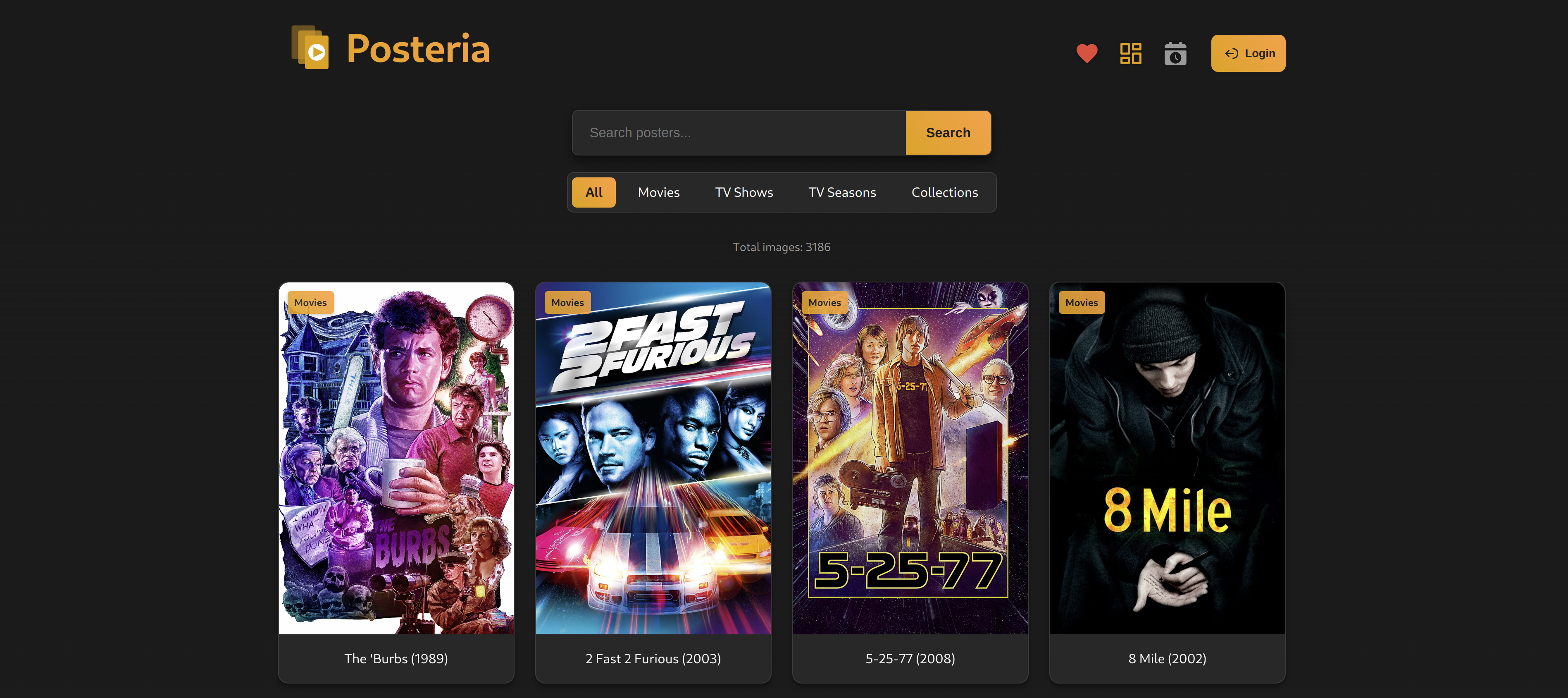
Main Screen
Poster Wall

Installation
- Create a
docker-compose.ymlfile with the following content:
services:
  posteria:
    image: bozodev/posteria:latest
    container_name: posteria
    ports:
      - "1818:80"
    environment:
      - SITE_TITLE=Posteria

      - AUTH_USERNAME=admin # Change this!
      - AUTH_PASSWORD=changeme # Change this!
      - SESSION_DURATION=3600 # In seconds
      - AUTH_BYPASS=false # DO NOT USE if you expose Posteria outside your local network

      - PUID=1000 # Specify the user id
      - PGID=1000 # Specify the group id
      - TZ=Etc/UTC # Specify a timezone to use

      - IMAGES_PER_PAGE=24
      - MAX_FILE_SIZE=5242880 # In bytes

      - PLEX_SERVER_URL=
      - PLEX_TOKEN=
      - PLEX_REMOVE_OVERLAY_LABEL=false # Set to true for Kometa compatibility

      - IGNORE_ARTICLES_IN_SORT=true # Set to false to sort with articles (A, An, The) included
      - SORT_BY_DATE_ADDED=false # Set to true to sort by Recently Added date in Plex instead of Alphabetically

      - AUTO_IMPORT_ENABLED=false # Enable/disable auto-import
      - AUTO_IMPORT_SCHEDULE=1h # Schedule 24h, 12h, 6h, 3h, 1h
      - AUTO_IMPORT_MOVIES=false # Import Movie posters
      - AUTO_IMPORT_SHOWS=false # Import TV Show posters
      - AUTO_IMPORT_SEASONS=false # Import TV season posters
      - AUTO_IMPORT_COLLECTIONS=false # Import Collection posters
      - EXCLUDED_LIBRARIES= # Comma-separated list of library names to exclude (e.g., Kids Movies,Anime)
    volumes:
      - ./posters:/config/posters
      - ./data:/config/data # Logs are found here
    restart: unless-stopped
- Start the container:
docker-compose up -d
Configuration
Environment Variables
| Variable | Description | Default |
|---|---|---|
| SITE_TITLE | Website title | Posteria |
| AUTH_USERNAME | Admin username | admin |
| AUTH_PASSWORD | Admin password | changeme |
| PUID | User ID | More info |
| PGID | Group ID | More info |
| TZ | Timezone | Etc/UTC List |
| SESSION_DURATION | Login session duration in seconds | 3600 (1 Hour) |
| AUTH_BYPASS | Bypass Authentication | false |
| IMAGES_PER_PAGE | Number of posters displayed per page | 24 |
| MAX_FILE_SIZE | Maximum upload file size in bytes | 5242880 (5MB) |
| PLEX_SERVER_URL | URL for your Plex Server | ex: http://your-server:32400 |
| PLEX_TOKEN | Plex Server Token | More info |
| PLEX_REMOVE_OVERLAY_LABEL | Remove Overlay Label | false More info |
| IGNORE_ARTICLES_IN_SORT | Ignore articles in sort | true |
| SORT_BY_DATE_ADDED | Sort by Recently Added | false |
| AUTO_IMPORT_ENABLED | Enable/disable auto-import | true |
| AUTO_IMPORT_SCHEDULE | Schedule 24h, 12h, 6h, 3h, 1h | 1h |
| AUTO_IMPORT_MOVIES | Import Movie posters | true |
| AUTO_IMPORT_SHOWS | Import TV Shows posters | true |
| AUTO_IMPORT_SEASONS | Import TV Seasons posters | true |
| AUTO_IMPORT_COLLECTIONS | Import Collection posters | true |
| EXCLUDED_LIBRARIES | Libraries to exclude from import | (comma-separated, e.g., Kids Movies,Anime) |
Note:
PUID and PGID
When using volumes (-v flags), permissions issues can arise between the host OS and the container, we avoid this issue by allowing you to specify the user PUID and group PGID.
Ensure any volume directories on the host are owned by the same user you specify and any permissions issues will vanish like magic.
In this instance PUID=1000 and PGID=1000, to find yours use id your_user as below:
id your_user
Example output:
uid=1000(your_user) gid=1000(your_user) groups=1000(your_user)
Note:
PLEX_REMOVE_OVERLAY_LABEL
Controls whether Posteria will remove the "Overlay" label in Plex when the poster is updated. The "Overlay" label is used by Kometa for re-applying overlays on updated posters. Set to true if you use Kometa.
Volume Mounts
The Docker container uses the following volume mounts:
/config/posters: Posters/config/data: Logs
Usage
- Access the web interface at
http://your-server:1818 - Log in using your configured credentials
- Import posters form Plex
- Change posters:
- Support for local file upload
- Support for direct URL upload
- Grab posters from TMDB, TVDB, & Fanart.tv
- Posters are automatically updated on Plex
- As you add more media to Plex just re-import to add new posters
- Orphaned poster detection
Frequently Asked Questions
How does Posteria interact with Plex?
Posteria can import posters directly from your Plex Media Server and sync customized posters back to it. To enable this functionality, you need to provide your Plex server URL and authentication token in the configuration. This allows Posteria to securely communicate with your server while maintaining all your customizations.
Keep in mind that Posteria considers Plex to be the "source of truth" for posters. So any changes to the posters in Plex directly or via another tool will override the posters in Posteria on the next import.
To prevent Plex from making changes to the posters during metadata refreshes any poster updated in Posteria will be locked in Plex.
How do I find my Plex auth token?
You can find your Plex authentication token (X-Plex-Token) by following these steps:
- Log in to your Plex Web App
- Browse to any media item
- Click the 3 dots menu and select "Get Info"
- In the info dialog, click "View XML"
- In the URL of the new tab, find the "X-Plex-Token=" parameter
For more detailed instructions, visit the Plex Support article.
Can I use Posteria as a backup for my Plex posters?
No, Posteria should not be considered a backup of your Plex posters. Posteria treats Plex as the "source of truth," which means any changes made in Plex will automatically sync to Posteria during the next import (whether scheduled or manual). This synchronization will override any poster selections in Posteria that differ from what's currently in Plex. We strongly recommend keeping separate backups of both your Plex metadata and your Posteria poster directories to ensure you can restore your preferred poster selections if needed.
What is "Orphan Detection"?
Orphan Detection is a feature that helps you identify posters in Posteria that aren't linked to any media in your Plex library. This can happen when you remove content from your library but the posters remain in Posteria. Posteria can detect these orphaned posters so you can decide whether to keep them for future use or remove them to save space.
How secure is Posteria?
Posteria includes basic authentication to protect your poster collection. You can set your username and password in the docker-compose.yml file. We recommend changing the default credentials and using a strong password. All communication with your Plex server is done securely using your Plex authentication token.
If you want to make Posteria accesible outside your network it is recommended you use a service such as Tailscale™ or another VPN solution.
How do I update Posteria?
To update Posteria to the latest version, follow these steps:
- Navigate to your Posteria directory
- Run
docker-compose pullto download the latest image - Run
docker-compose up -dto restart with the new version
Your poster collection and settings will be preserved during updates as they're stored in the mounted volumes.
Where can I find posters for my media?
There are several excellent resources where you can find high-quality posters for your media library:
- The Poster Database - A community-driven collection of custom posters with various styles and themes
- The Movie Database (TMDB) - Extensive library of official and fan-made artwork, now fully integrated with Posteria for automatic poster fetching
- The TV Database (TVDB) - Comprehensive database for TV show posters and fanart, now fully integrated with Posteria for automatic poster fetching
- Fanart.tv - High-quality artwork for movies, TV shows, and collections, now fully integrated with Posteria for automatic poster fetching
- Mediux - Collection of professionally designed media artwork, now fully integrated with Posteria for automatic poster fetching
Posteria supports using URLS from Mediux YAML files in the URL uploader when changing posters, making it a convenient choice for managing your collection.
Is Posteria available on Unraid?
Yes!
Posteria is available in the Unraid™ Community Apps store.
Is Posteria mobile-friendly?
Yes! Posteria is designed as a responsive Progressive Web App (PWA), which means it works beautifully on all devices from desktops to smartphones. You can even install it on your mobile device's home screen for quick access, just like a native app.
Security Considerations
- Change the default username and password
- Use HTTPS if exposing to the internet
- Regularly backup your poster directories
Breaking Change Notice
License
AI Disclosure
This project was created with the help of AI.