UnityPlayerSync
August 9, 2022 · View on GitHub


UnityPlayerSync is a package that'll add a function that can sync with UnityEditor and an app built with UnityEditor(UnityPlayer). This package allows the following workflow possible in the UnityEditor.
- Transfer the application's Scene to UnityEditor
- Edit Scene in the UnityEditor
- Apply that edit to the application in real time
Sample of sync with existing project(used Android emulator since it's easier to visualize).
GameKit2D

Candy Rock Star

*Note that UntyPlayerSync functions more like restoring limited information rather than a complete sync. There might be a case where the result might differ from the original scene in the UnityEditor.
How to Use
Syncing Scene

Here are the procedures for importing a Scene from UnityEditor to UnityPlayer:
- Create a New Scene
- Select that New Scene that you've created inside the Hierarchy tab
- Right Click
- Select Sync from the Context Menu
With this, UnityEditor can reflect the deployed Scene(Hierarchy) inside the app.
Note:
- It may take some time to import depending on the size of the Scene.
- You don't necessarily have to create a New Scene, but please keep in mind that if you deploy changes to the existing Scene, the changes made can't be saved.
Syncing GameObject

Here are the procedures for updating UnityPlayer for modified GameOjects in UnityEditor.
- Select the GameObject on the Hierarchy Window you wish to update
- Right click
- Select Sync from the Context Menu
Note You could also create/import a new GameObject in UntyEditor and reflect it over to UnityPlayer with the same procedure.
Syncing Component

Since it can sync with Components, a fast syncing experience can be possible in UnityPlayer compared to GameObject Sync.
- Show the Context Menu of the Component you wish to display to the Inspector Window
- Select Sync from the Context Menu
Deleting GameObject
You can also delete the GameObject in the Player by following steps:
- Select the GameObject on the Hierarchy Window you wish to delete
- Right click
- Select Sync Delete from the Context Menu
Deleting Component
After deleting the Component from the GameObject and syncing again, the Component on the Player side is also deleted as well.
Setting UnityPlayerSync
In order to use UnityPlayerSync, we also need the RemoteConnect as well. The setup is complete once the package was added to the Unity project.
Getting the Package
The package is managed by GitHub including any future updates.
When using command line to get the package through git
git clone https://github.com/katsumasa/RemoteConnect.git
git clone https://github.com/katsumasa/UnityPlayerSync.git
When getting the package from a web
- Go to UnityPlayerSync page and click on RemoteConnect. Go to Code > Download ZIP on the top right of the page.

- Extract the Zip file
Placing Prefab

Place UnityPlayerSync Prefab in the scene you wish to build.
Scripting Backend

Set the Scripting Backend to Mono. Go to Editor -> Project Settings ->PlayerScripting and assign the Backend to Mono.
Build

Put a check in the Development Build and Autoconnect Profiler and execute Build(And Run).
Operational Test
Once the build is complete and the app is running on the actual device, it's finally time to test.
- Select
File > New Scenein UnityEditor - With no GameObject selected in the
Hierarchy View, right-click and execute Sync. After waiting for a while, Scene information will appear in the Hierarchy View on the actual device's screen. - Select any GameObject and change the value of Transformation inside the Inspector tab.
- With the GameObject selected in the Hierarchy View, right click and execute Sync. You should be able to confirm that the Transform value of the corresponding GameObject is updated on the actual device.

UnityPlayerSyncEditorWindow

Slect Window > UTJ > UnityPlayerSync. This window pops up once the UnityEditor is connected to the actual device.
ConnectTo
If multiple devices are connected to UnityEditor and this allows you to switch from one device to another. This value works syncs with UnityProfiler.
SYNC
Allows you to relect the Scene on the actual device to UnityEditor. This works the same as right-click and execute Sync without selecting any GameObject in Hierarchy.
GC
Executes System.GC.Collect() on the actual device.
UnloadUnusedAssets
Executes Resources.UnloadUnusedAssets() on the actual device.
Tips
Objects that can be synced
Here are the Objects that can be synced:
- Hierarchy within the GameObject
- Component that's added to the GameObject
- Values of public properties and serialized attributes inside the Component (The same value displayed by the Inspector).
There are restrictions to Component properties and field values:
- System.ValueType(int, float, etc..) and Enumerated type
- Reference to Component
- Major Unity Build-in struct(Color, Vector3, etc...)
- When restoring an Asset(Texture, Mesh, Material, Shader, etc...) on the Editor side, it is limited to what exists within the Project. When restoring an Asset on the Player side, it is limited to what exists within the Hierarchy.
Objects that can't be synced
Here are the following Objects that can't be synced:
-
Data that doesn't exist in Hierarchy (e.g. Lightmap, Skybox).
-
Classes and structures that don't inherit from the Component (I will try to support Unity's Built-in objects as much as possible, but not for objects provided in the package).
-
Asset that exists only in either Runtime or Editor
-
ScriptableObject
-
delegate, UnityEvent
-
Multidimensional and Jagged arrays
-
Multidimensional and Jagged arrays
and etc ・・・
Q&A
Q. Unable to sync 1 A. Check if the profile is created using the Profiler. If the Profile was properly created, please check the Setting UnityPlayerSync section on this page to see if there's any procedure that might get skipped. If the Profile wasn't created, there might be a possibility of UnityEditor and the device not being connected properly. Please refer here to connect the device to UnityEditor.
Q. Unable to sync 2
A. If you wish to delete a synced GameObject, be sure to delete using Sync Delete. Inconsistent sync may cause an unexpected error.
Q. Unable to sync 3 A. If Compile runs on UnityEditor after syncing to a Scene, it could lose the synced information. Be sure to resync the Scene if a Compile occurs.
Q. The result of the UI looks different in the Player display when I applied sync after making changes to the UI in Editor. A. This is due to the difference between the screen size of the device and the size of the GameView in the Editor. Try to match the size of the GameView in the Editor to Canvas Scaler's Reference Resolution value.
Q. Out of Memory occurs during the sync
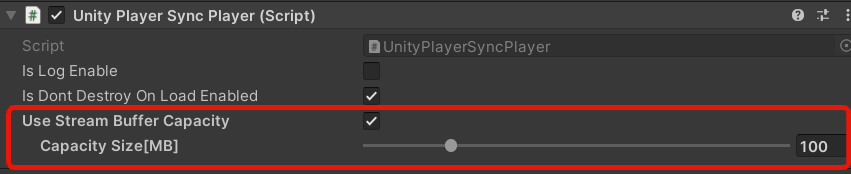
A. The more Objects you put in a Scene, the more memory is secured from the managed memory. Such complex Scene can be synced by enabling UnityPlayerSyncPlayer's Use Stream Buffer Capacity and adjust the Capacity Size[MB](Setting large value might lead to Out of Memory before the sync).
Q. Unable to complete the Sync A. The more Object in the Scene, the time for Sync to complete increases. As a reference, GameKit3D's* Start Scene takes about 10 seconds to sync, but the In-game Scene takes about 5 minutes to sync.
*GameKit3D is a sample Project provided by Unity.
Other
- Please report any requests, comments, or problems through Issue. We cannot promise, but will do our best to respond.
- When reporting an Issue, please attach a project that could reproduce the problem and describe the steps on how it can be replicated. If the problem cannot be reproduced, we may not be able to help.