Save and Export
April 13, 2026 · View on GitHub
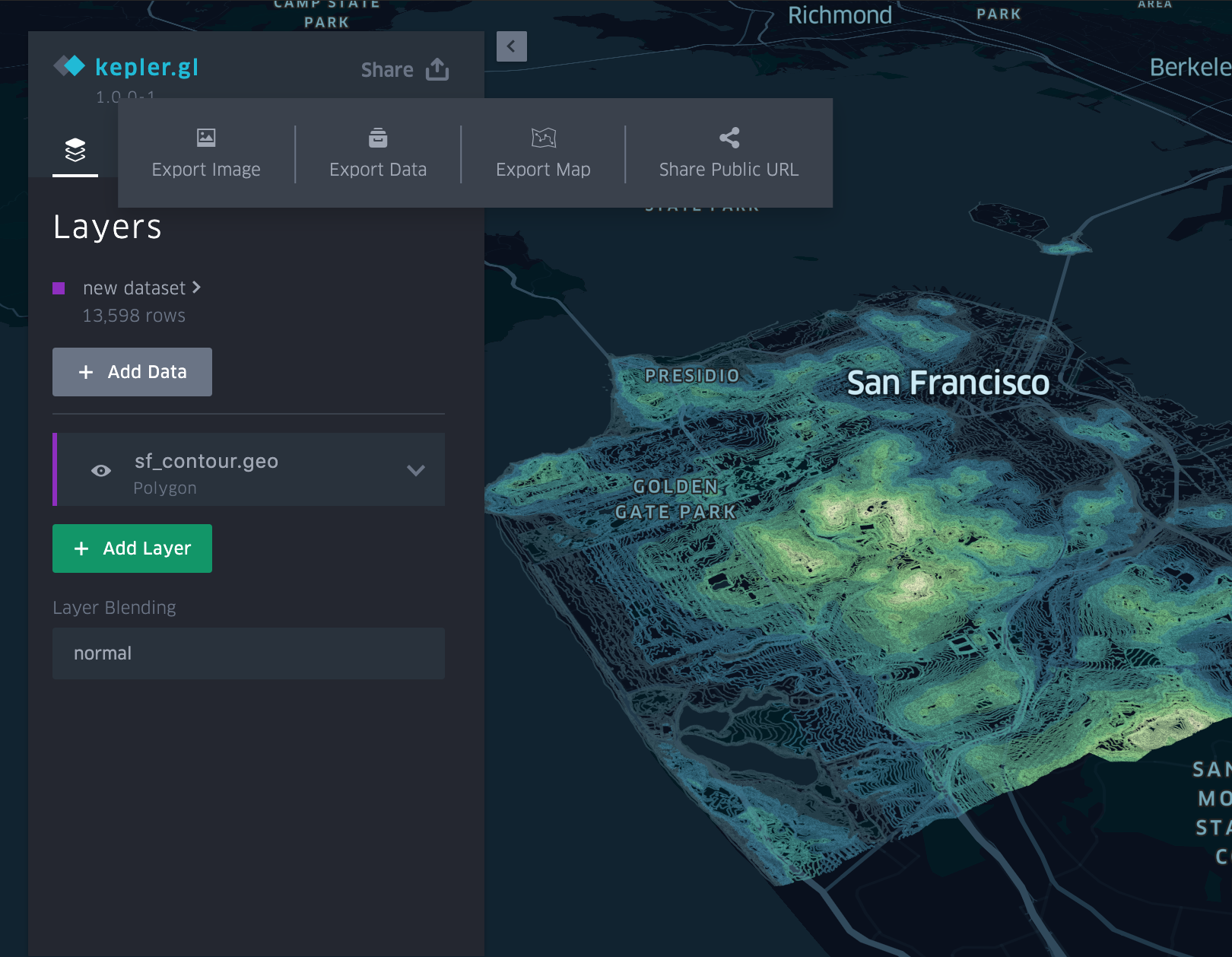
kepler.gl is a client-side only application. In the demo app, the data you uploaded stays in your browser. kepler.gl does not send or store any user data to any backends. This rule poses an limitation on how you can save and share your maps.
However, in the demo app, you can:
- Export map as an image.
- Export filtered or unfiltered data as a csv.
- Export Map
- Export Video
- Share Public URL (Dropbox)
Export Image

You can export the current map as an image. The export window will use the current map viewport, and the preview will show the entire exported map area. To adjust the viewport, you will have to close the export dialog. You can choose different export ratios or resolutions, and also to add a map legend.
Export Data

You can export map data as a csv file, with the option to export ONLY the filtered data or the entire dataset.
Export Map
You can export the current map using two different formats. The Export Map window provides two options:
- HTML: create a single html file loads and renders your current map.
- JSON: create a json file with your current map config and data.
Export Map as HTML
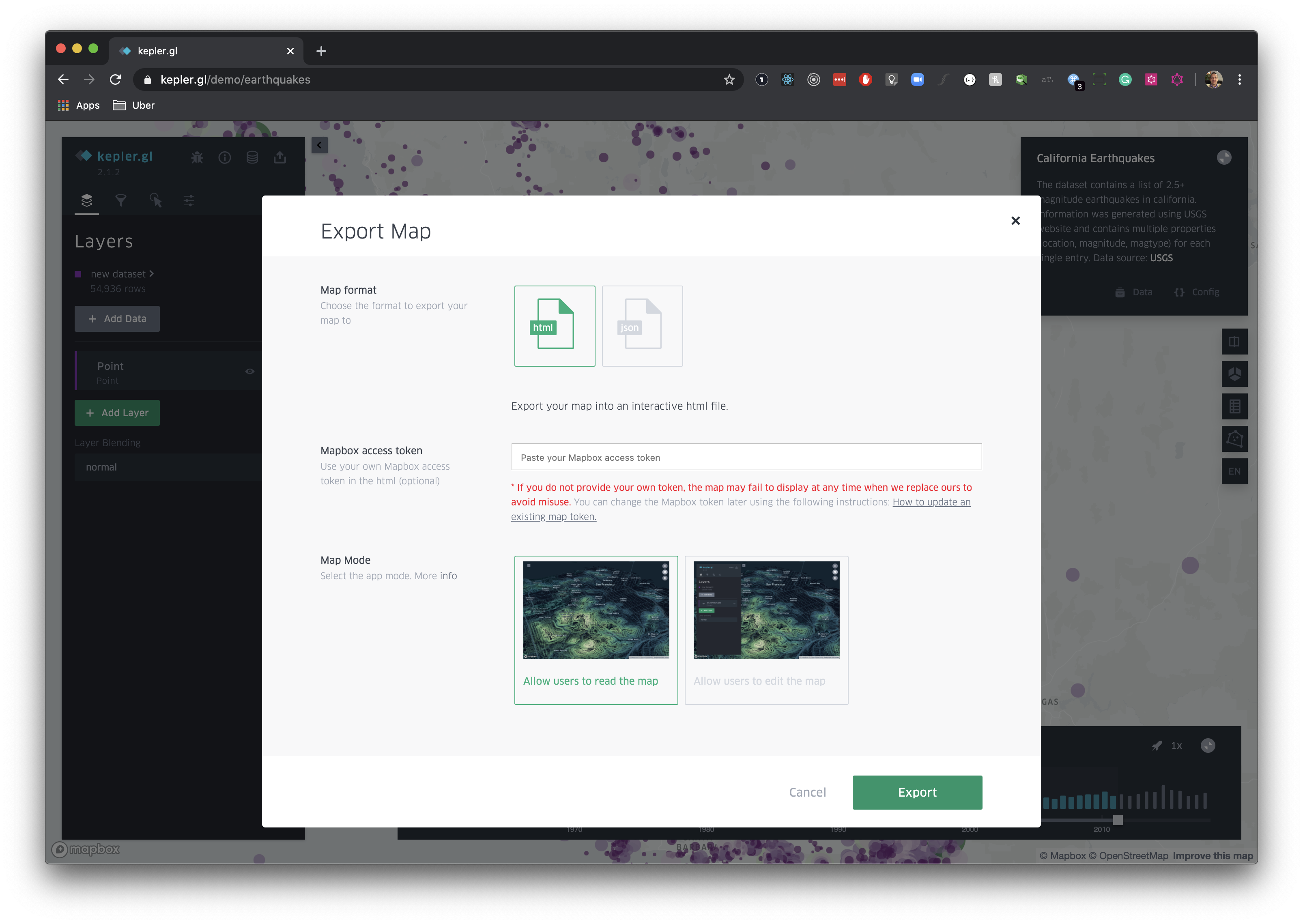
To save and export your current map as HTML file, click on Export Map and subsequently on Export. When prompted provide your own mapbox token to be used in the newly generated file. If you don't provide a Mapbox Token, Kepler.gl will use a default one which can expire at anytime without any communication and therefore break your existing map.
How to update an exported map token
In order to edit the mapbox token in your html file you simply need to perform the following steps:
- Create a new mapbox token or use your existing one.
- Open the kepler.gl.map file with your favorite text editor.
- Locate the following line in the exported file kepler.gl.html:
  /**
   * Provide your MapBox Token
   **/
  const MAPBOX_TOKEN = 'CURRENT_TOKEN';
- Replace the current value with a new valid token. The code should now look like the following:
  /**
   * Provide your MapBox Token
   **/
  const MAPBOX_TOKEN = 'pk.eyJ1IjoidWJlcmRh...';
Export Map as JSON
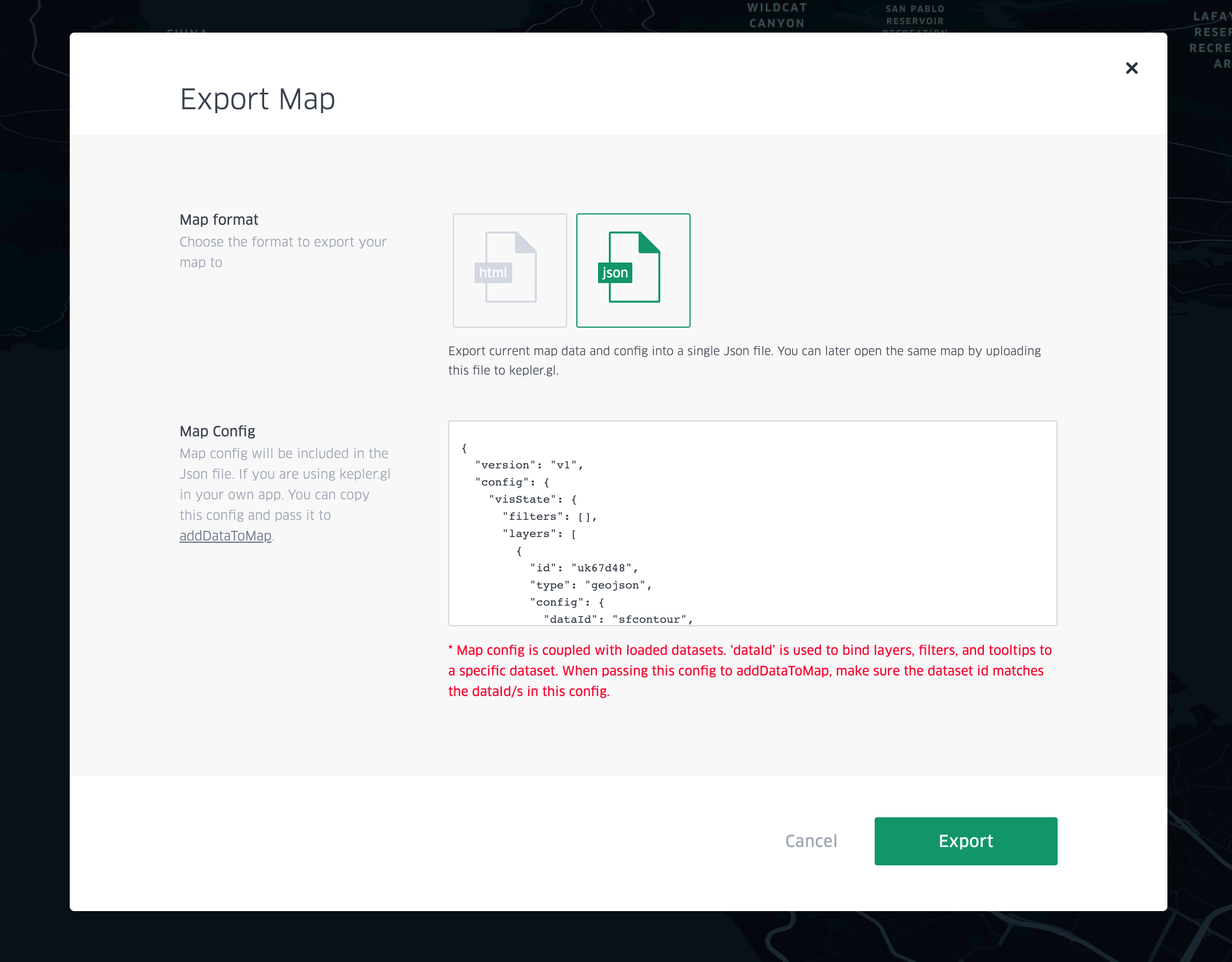
You can export the current map as a json file. This is useful when you are running your own kepler.gl application and want to load your map programmatically.
The JSON file includes:
- dataset: processed data used to render your map
- config: layer, filter, map style and interaction settings. The map config includes the current layer, filter, map style and interaction settings.
Note: kepler.gl map config is coupled with loaded datasets. The dataId key is used to bind layers, filters and tooltip settings to a specific dataset. If you try to upload a configuration with a dataset in your own kepler.gl app, you also need to make sure your dataset id matches the dataId in the config.
Export Video
You can record an animated video of your map and download it directly from the browser. Open the export video dialog from the toolbar by clicking Export Video. The dialog has two tabs — Animation and Settings — along with a live map preview.
Animation tab
The Animation tab controls the motion and timing of the recording.
| Setting | Description |
|---|---|
| Duration | Length of the video, from 0.1 s up to 10 s. Drag the slider or type a value. Longer recordings produce larger files. |
| Camera | An optional camera animation applied during the recording. Available presets: None (static camera), Orbit (90°), Orbit (180°), Orbit (360°), Zoom Out, and Zoom In. When set to None, the camera stays exactly where you position it in the preview. |
Settings tab
The Settings tab controls the output file format and quality.
| Setting | Description |
|---|---|
| File Name | Base name for the downloaded file. Defaults to kepler.gl. |
| Media Type | Output format: WebM Video (default, small file size, supported by most browsers), GIF (widely compatible but larger), PNG Sequence (lossless frame-by-frame images), or JPEG Sequence (compressed frame-by-frame images). |
| Ratio | Aspect ratio of the output: 16:9 (widescreen) or 4:3 (standard). |
| Quality | Resolution of the output. Options depend on the selected aspect ratio. For 16:9: Good (540p), High (720p), Highest (1080p). For 4:3: Good (480p), High (960p), Highest (1440p). Higher resolutions produce sharper video but larger files. |
| File Size | An estimated file size based on the current duration, resolution, and media type. |
Preview and recording
The live preview in the dialog shows exactly what will be recorded, including all visible layers, active effects (brightness, fog, light & shadow, etc.), and the base map. You can pan, zoom, and tilt the map in the preview to set the starting camera position.
- Play (▶) — Preview the animation (camera movement, filter playback) without recording.
- Stop (■) — Stop a running preview or recording.
- Render — Start recording. The map plays through the configured animation and duration, then the browser downloads the resulting file automatically.
Animated filters and trips
If your map has time-range filters in the enlarged (time-slider) view or filters synced with the layer timeline, the video recorder will animate them over the recording duration. Trip layers similarly animate their paths. The animation window mode of each filter (free, incremental, point, or interval) is respected during recording.
Tips
- Use WebM format for the smallest file sizes and fastest rendering. Switch to GIF only when you need universal compatibility (e.g. embedding in documents that don't support video).
- For the sharpest results, choose the Highest quality setting, but be aware that 1080p or 1440p recordings take longer and produce larger files.
- Position your camera in the preview before clicking Render. If you selected a camera preset like Orbit (360°), the orbit starts from whatever position you set.
- All active effects (post-processing filters, fog, lighting) are included in the recording.
Share Public URL (Dropbox)
To export the current map into your Dropbox account, click on Share Public Url and select Dropbox as your cloud storage. Perform the authentication against Dropbox using your credentials. Once the authentication process is completed, click on Upload and Kepler.gl will push your current map onto your account.
At the end of the process Kepler.gl will automatically generate a permalink for your work you can share with other users.