Mac
August 17, 2017 · View on GitHub
Where should it live?

from Mini Calendar
Menubar
- Shortcut Bar - Quickly Access Files & Folders

- XMenu

- Copied – Copy and Paste Everywhere

- Notesey - notes in your menu bar

Within the menubar, you could basically house a mobile app, like Chrono Plus – Time Tracker & Timesheet on the Mac App Store:
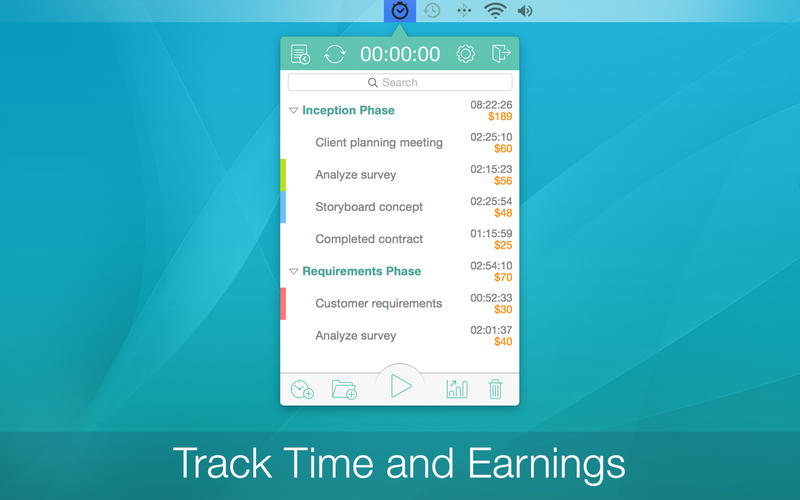
Menubar Capabilities:
- drag from opened menubar app. Dropping will keep it open.
- drag from outside menubar app. Drop onto menubar for your app to receive conent.
Stay Visibileto keep it open even when clicking away- Can dynamically resize the window once it is opened. Even full-screen it.
- See NoteAway — Your Thoughts in the Cloud for an example of all of these.
Considerations:
- dark vs light theme
- global hotkeys?
- full screen mode?
Window
- Window Anatomy - Windows and Views - Human Interface Guidelines for macOS Apps
- Titlebar
- NSWindow title bar and toolbar showcase
- Multiple windows? (like Day One)

- Similarly, pop out controls to separate windows? (like Bear)

Considerations:
- custom titlebar?

- from DaisyDisk on the Mac App Store
- transparent?

- dark vs light theme?
- global hotkeys?
- full screen mode?
Floating window
- Above all others
- Often no titlebar
- Examples
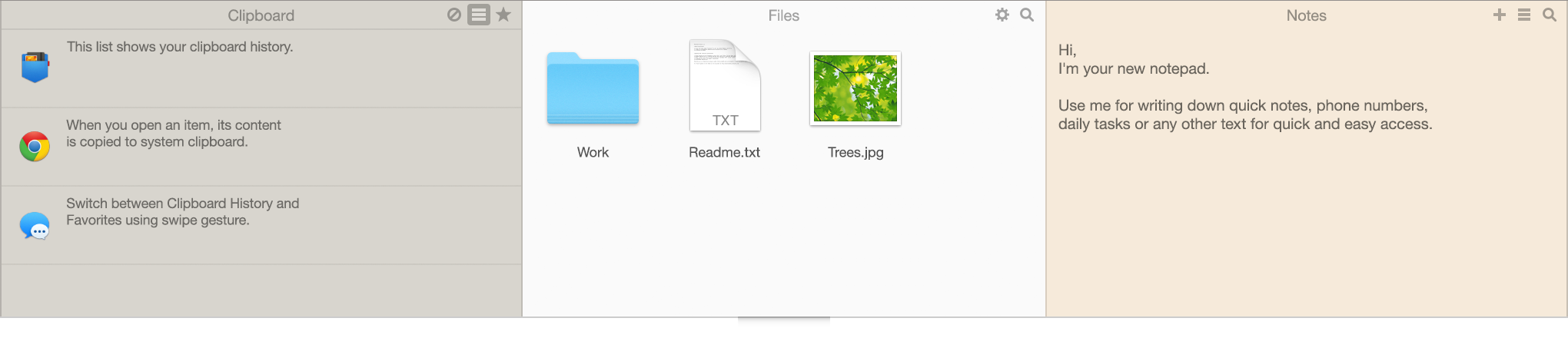
- Means you can essentially take over regions of the screen
- See the popular Yoink - Improved Drag & Drop File Management app below

- DockShelf


- Popup Window

- Even add some creative new gestures, like AppsBar


Considerations:
- adjustable opacity?
- adjustable style (to match user's background)?
- able to toggle "always on top"?
- resizable?
- global hotkeys?
- full screen mode?
Pinned to desktop (Desktop Widget)
- Pinned
- No titlebar
- Power users would have "easy" access to these via the
f11hotkey toShow Desktop(found inMission Controlsettings)
from Countdown Timer Plus on the Mac App Store
Considerations:
- adjustable opacity?
- adjustable style (to match user's background)?
- able to toggle "always on top"?
- resizable?
- global hotkeys?
Dock
- Not just for launching. Can also show information.
- Just update the icon with information. See the built-in Activity Monitor, for example:

- Can also launch popups, like those shown in menubar.
Misc
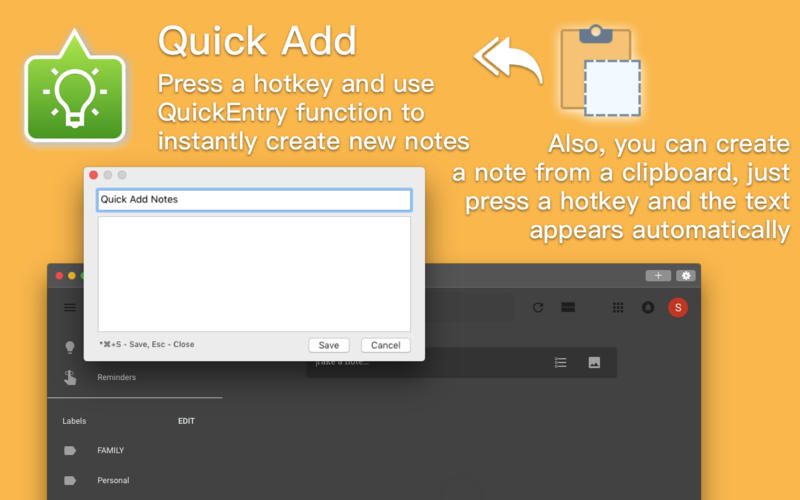
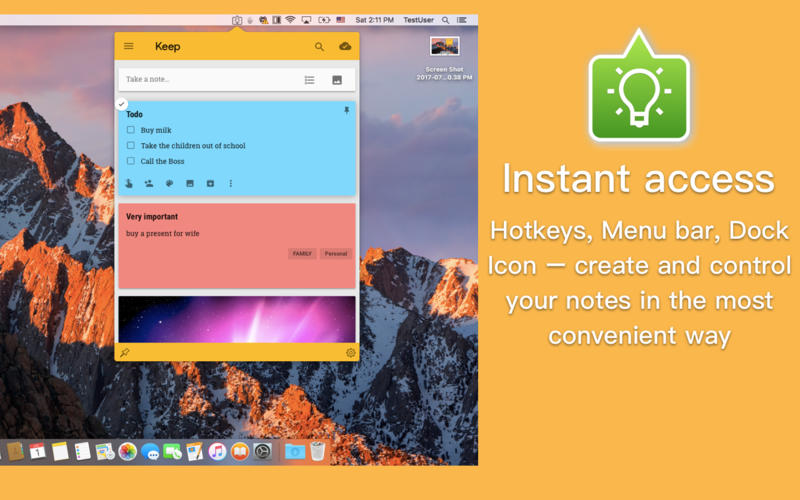
Note that you can use webviews to display web content in these locations, too. Notes for Google Keep and Miya Notes for Google Keep are good examples of this.


Extension Points
Open to all types
Notifications
- "Apps can use notifications to provide timely and important information anytime, even when the screen is locked. For example, notifications may occur when a message arrives, an event occurs, new data is available, or the status of something has changed. Notifications can be local or remote. Local notifications originate and are delivered on the same device. A to-do list app, for example, might use local notifications to alert someone about an upcoming meeting or due date. Remote notifications, also called push notifications, come from a server. A multiplayer game might use remote notifications to let players know when it’s their move." - Notifications - System Capabilities - Human Interface Guidelines for macOS Apps

- User enable/disable-able on a per-app basis via System Preferences
- Two types:
- Banner - "Appears at the top of the screen for a few seconds while the Mac is in use, then disappears. May include up to two buttons for taking action. If a banner includes buttons, they appear only when the pointer is positioned over the notification."

- Alert - "Appears at the top of the screen while the Mac is in use and stays there until manually dismissed. Includes one or two buttons for dismissing the alert and taking action."

Notification Widget
- "A widget is an extension that displays a small amount of timely, useful information or app-specific functionality in the Today pane of Notification Center." - Notification Center Widgets - Extensions - Human Interface Guidelines for macOS Apps
- Timey 2 — Nice Apps

Context Menu (in Finder)
- Not necessarily where it lives, more of how it is invoked. This is an
extension. 
- Context Menu Lite
Actions
- "An Action extension lets people initiate content-specific tasks, such as editing an inline image, adding a bookmark, or displaying selected text in another language, without leaving the current context." - Action Extensions - Extensions - Human Interface Guidelines for macOS Apps
- Two types of Action
- Viewer - display content in a custom way
- Editor - edit content, then replace original with new
- Viewer - display content in a custom way
- Triggered via hovering over certain content (like images), or pressing buttons.


Automator Actions
- "Automator lets people automate time consuming and repetitive tasks by constructing workflows. A workflow consists of one or more actions, each of which performs a single, specialized task in the system or an app—such as opening a file, resizing an image, or opening a webpage. When a workflow runs, its actions execute sequentially, working together toward a common goal." - Automator Actions - Extensions - Human Interface Guidelines for macOS Apps
Share
- "Share extensions provide a convenient way to share information from the current context to apps, social media accounts, and other services. People access share extensions by clicking a Share button in the toolbar or choosing Share in a contextual menu." - Share Extensions - Extensions - Human Interface Guidelines for macOS Apps


Services
"Services let people access functionality in one app from within another app." - Services - Extensions - Human Interface Guidelines for macOS Apps

Question: Service vs Share
The two are really similar and should probably just be consolidated in the future, but as far as I can tell, Service is for primitive selected content (text, image, etc). Share is for non-primitive content, sometimes selected (Finder file select, Things 3 task select) or not selected (current webpage in Safari).
If your app is document-based
Spotlight
Search and Spotlight - System Capabilities - Human Interface Guidelines for macOS Apps

Quicklook
Provide a Quick Look generator if your app creates custom or uncommon types of documents.
Quick Look - System Capabilities - Human Interface Guidelines for macOS Apps

Printing
Printing - System Capabilities - Human Interface Guidelines for macOS Apps
