VS Code
December 28, 2018 · View on GitHub
._____           _
|_   _|__   ___ | |___
  | |/ _ \ / _ \| / __|
  | | (_) | (_) | \__ \
  |_|\___/ \___/|_|___/
VS Code
Reasons to use VS Code
Cross platform, relatively fast, VS Live Share,
Tips
- see Microsoft/vscode-tips-and-tricks: Collection of helpful tips and tricks for VS Code.
- awesome-vscode: A curated list of delightful VS Code packages and resources.
- Tasks in Visual Studio Code
- Use Breadcrumbs!
- Set up CLI
codecommand
Hotkeys/commands
cmd-shift-p(Command Palette)"sort lines"
cmd-shift-onav to symbolcmd-shift-.focus breadcrumbscmd-left/rightmove up/down in breadcrumbs
shift-option-ofor outline of file for quick navctrl-qopen quick switch to section of appctrl-lcodeFileNav (vinegar.vim)cmd-shift-etoggle switch to file explorercmd-\split editorcmd-shift-ofind by symbolcmd-shift-vtoggle markdown previewcmd-k zzen mode
Settings
Disable minimap
"editor.minimap.enabled": false,
Smooth scrolling
"editor.smoothScrolling": true,
Disable tabs
- Be sure to
Close all editors in groupto remove split/pane. Otherwise,cmd-wwill close a file, but the split will still remain if other files have been open in that split.
Settings Plugins
Settings Sync
- This is the first thing you should install and set up - great for backing up and syncing the same config across machines.
- Follow steps in Sync readme to set up a Github Key.
- After install, be sure to
Sync: Advanced Options > Toggle Auto-UploadandToggle Auto-Downloadto force staying in sync.
TSLint for linting .ts rules
- buzinas/tslint-eslint-rules: Improve your TSLint with the missing ESLint rules
- palantir/tslint-react: Lint rules related to React & JSX for TSLint.
- Microsoft/tslint-microsoft-contrib: A set of TSLint rules used on some Microsoft projects.
- vrsource/vrsource-tslint-rules: A extra set of tslint rules
Recommendation: start with
"extends": ["tslint:latest", "tslint-react"]
and trim back rules as you see fit. For reference, tslint:latest is a combination of latest and recommended rules.
Trailing Spaces
GitLens
Everything you could need for git analysis (history, blame, diff). Not for commit and branch management - that is baked in by default.

Navigation Plugins
Ace-jump
I prefer Code Ace Jumper - Visual Studio Marketplace because it has a jump with selection option. I would probably prefer Jumpy if it had a selection option.
Alternatives:
- AceJump - Visual Studio Marketplace
- Find-Jump - Visual Studio Marketplace
- jumpy - Visual Studio Marketplace
Center Editor Window
- Be sure to set
center-editor-window.threeStateToggle: trueto get the Emac's behavior ofrecenter-top-bottom
File Navigator
Closest thing to vinegar.vim
Duplicate file
Add missing Duplicate File entry to File Explorer right-click menu.
OR just copy/paste, then rename the file without this extension
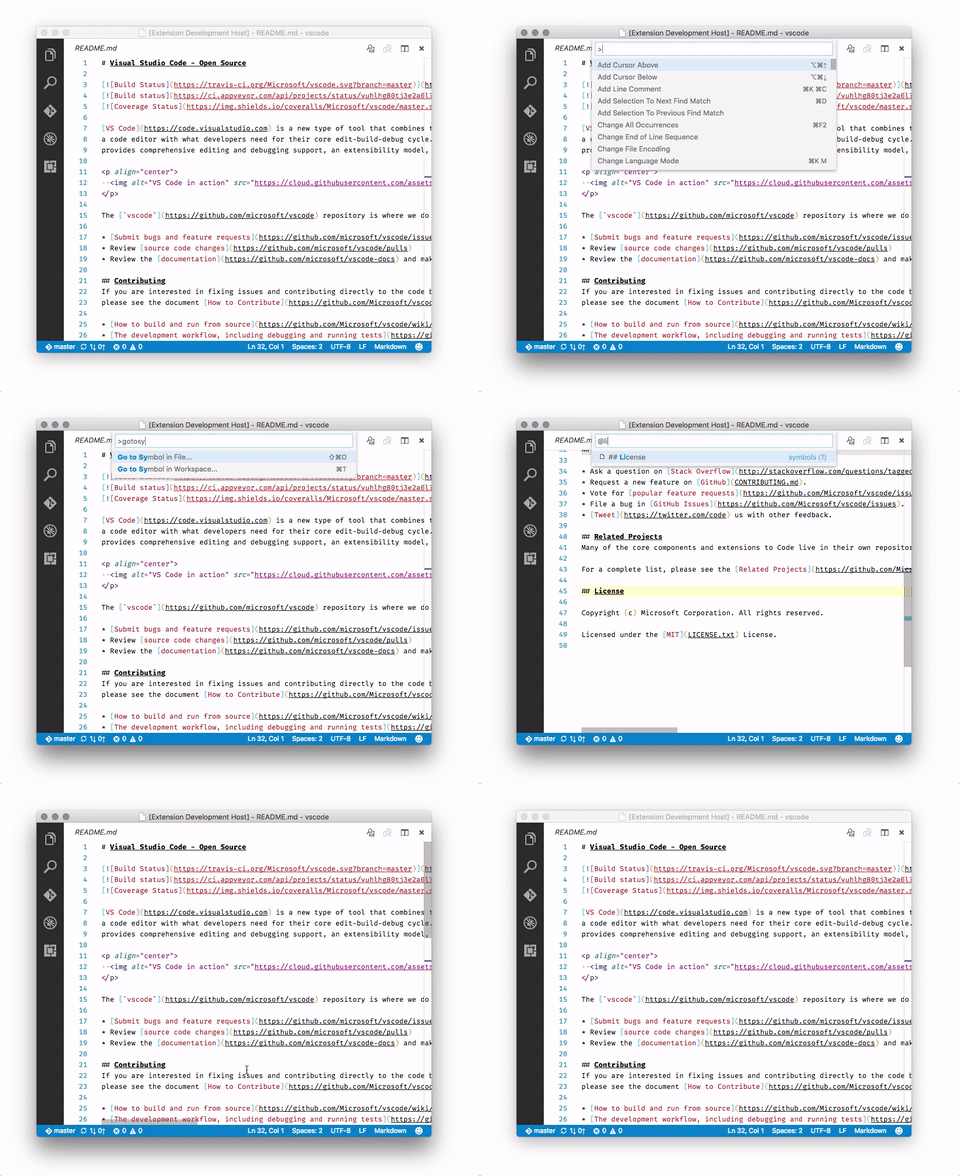
Markdown Navigate
CSS Peek

Editing Plugins
vscode-emacs-tab
Press tab to fix indentation from anywhere in the line. Don't insert a tab at cursor.
Auto Close Tag
Automatically closes tags while writing the first one, and can close tags after the fact with cmd-alt-.
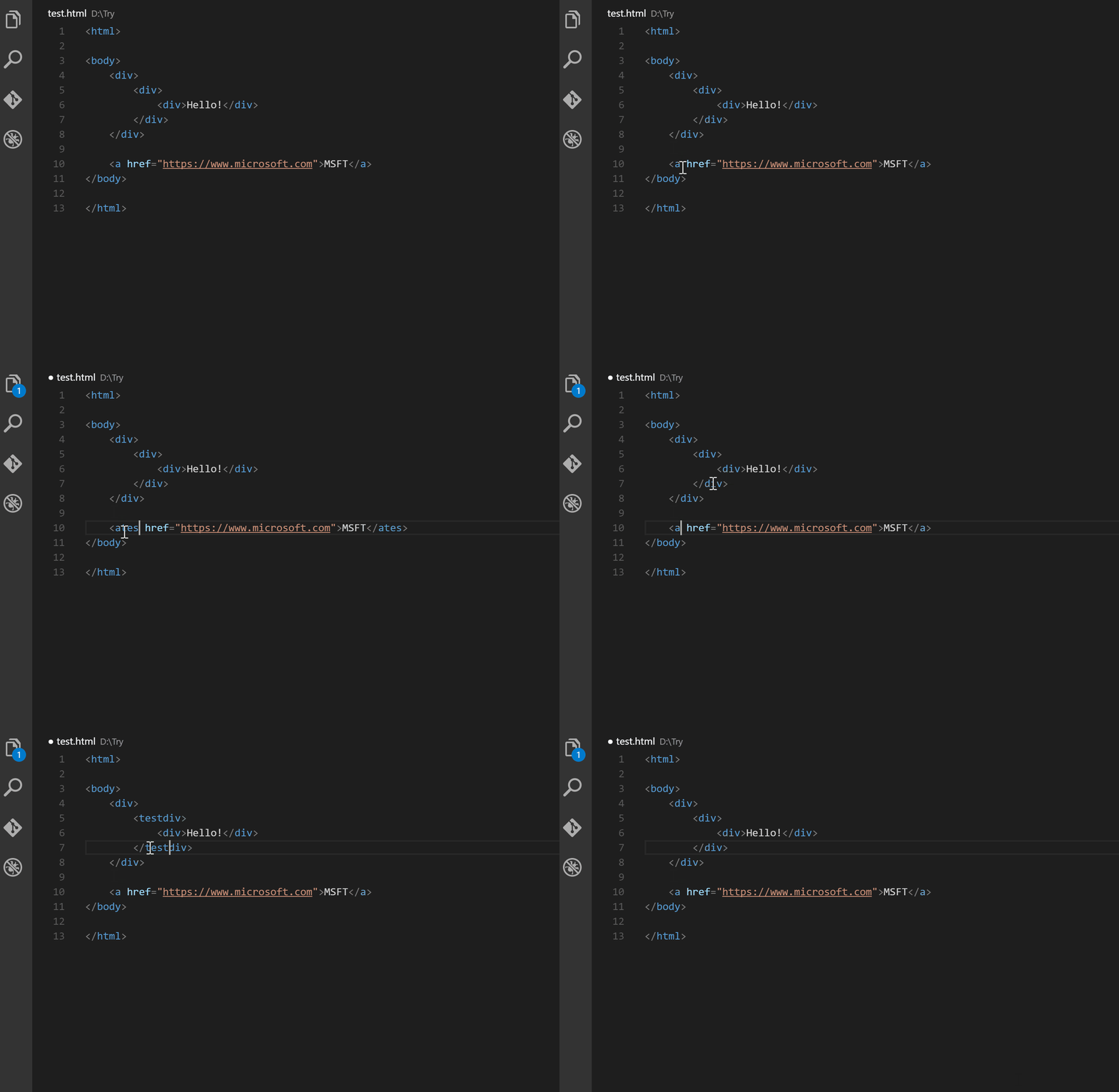
Auto Rename Tag
Currently has a bug with multi-line tags though
htmltagwrap
Select a chunk of code and press alt-w to wrap code in a tag
Path Intellisense
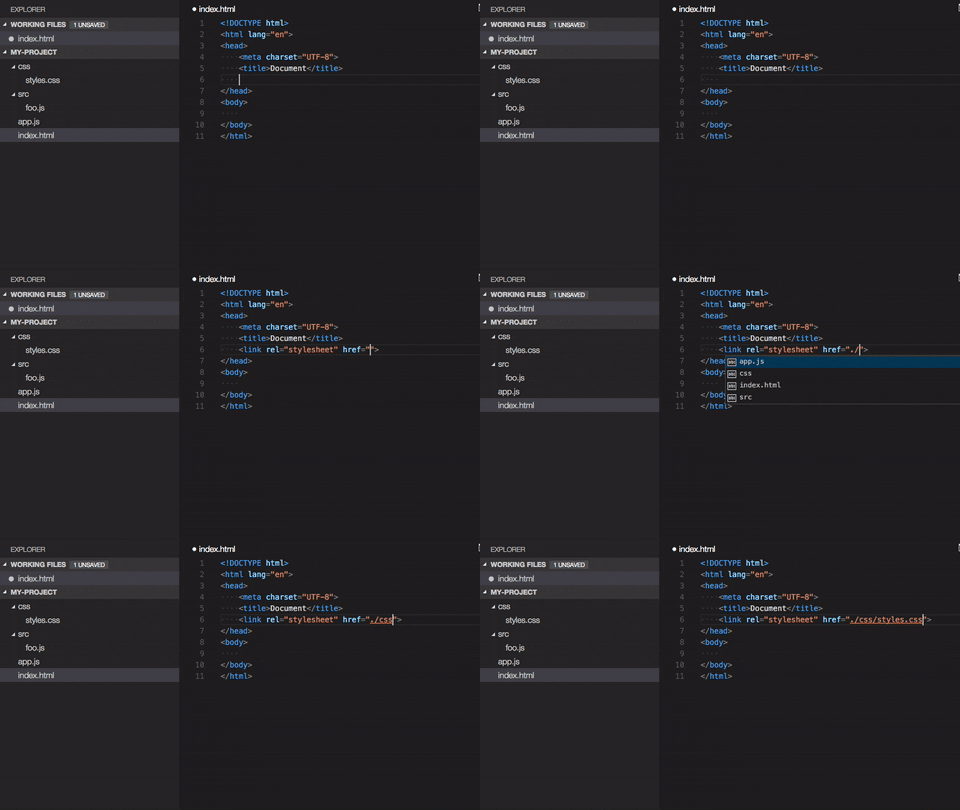
Visual Studio Code plugin that autocompletes filenames.
Colors
Dracula Official
Best colorscheme among all editors :)

Babel JavaScript
Ported syntax highlighting from Atom
Output Colorizer
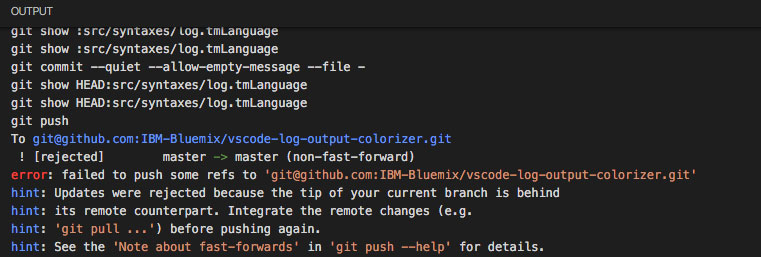
Syntax highlighting for log files
TODO Highlight
Highlight TODO, FIXME or any annotations within your code.

Tools
vscode-chrome-debug
Debug your JavaScript code running in Google Chrome from VS Code.
Color Info
Provides additional information about css colors.

Vim
Why VSCode instead of Vim?
- Main reason: intellisense.
- Also, freedom to customize. I don't want to write an auto-tag close feature for vim. I can easily with ts and vscode though. And because it is ts, I will have intellisense to help me. Unlike atom's CoffeeScript or vim's vimscript.
- vscode interates quickly, and in the open
- vscode works well on Windows. I'm considering a switch, and the smoother the transition, the better.
- vscode format-on-save is great
- vscode is like iphone hardware with ios. The tight integration makes for a wonderful, first-class typescript experience.
Things I would miss from vim: the details. Got my syntax highlighting exactly the way I wanted. Marker folding was great for hiding import statements. Buffers, splits, and tabs for code viewing and organizing is huge to me, as mentioned in TODO vim doc.
Vim is like Linux. Loved customizing it to be (almost) exactly what I wanted, but takes so much time to get it and keep it there. vsCode is like MacOS - sane defaults with fewer customizations and little - no maintenance cost.
Vim and its roadmap of what is available today
You'll want to enable holding down j and k with
defaults write com.microsoft.VSCode ApplePressAndHoldEnabled -bool false
defaults write com.microsoft.VSCodeInsiders ApplePressAndHoldEnabled -bool false
consider using these settings:
"editor.lineNumbers": "relative"
"vim.leader": " ", // map leader to <space>
"vim.hlsearch": true,
"vim.useSystemClipboard": true,
"vim.easymotion": true, // press `<space><space> s` to jump to a character

// fixes c-d, c-u for visual select. see https://github.com/VSCodeVim/Vim/issues/907#issuecomment-264738452
"vim.otherModesKeyBindingsNonRecursive": [
    {
        "before": ["<C-u>"],
        "after": ["2", "5", "k"]
    },
    {
        "before": ["<C-d>"],
        "after": ["2", "5", "j"]
    },
    {
        "before": ["<C-f>"],
        "after": ["5", "0", "j"]
    },
    {
        "before": ["<C-b>"],
        "after": ["5", "0", "k"]
    }
],
Hotkeys/commands
gh- show hover tooltipgb- add an additional cursor at the next place that matches *