Development Guide
September 27, 2021 · View on GitHub
An Overview of How Cyberbrain Works
Check out this YouTube video:
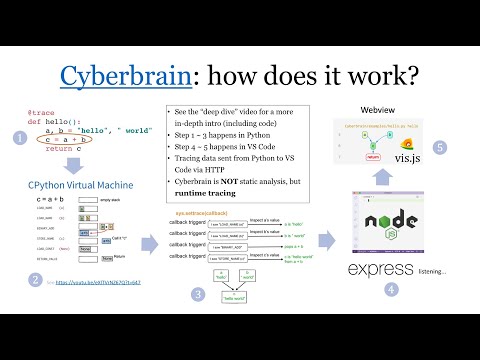
Development Environment Setup


Prerequisites
Make sure you have Python 3.7, 3.8, 3.9, and the latest version of VS Code installed.
NOTE: there's no preference on how to manage different Python versions. I personally use pyenv, others may use Conda. What's important is that the above three Python versions have all been installed.
Important: During development, make sure you:
- Don't install Cyberbrain from PyPI
- Don't install the Cyberbrain VS Code extension
Install Dependencies
Cyberbrain consists of a Python package, and a VS Code extension. We have to install dependencies for both.
Install dependencies for the Python library
We use PDM to manage dependencies. Assuming you've installed PDM and set it up correctly, run:
pdm install
Make sure the default Python version (i.e. the version when you run "python") matches with what's used in VS Code.

Install dependencies for VS Code
Make sure you have Node.js 14.16.0 and npm installed. There's no guarantee that other versions will work.
Then npm install inside the cyberbrain-vsc folder.
Run Tests
After installing dependencies, you always want to run the tests to make sure everything works correctly.
Run Python Tests
In the project root directory. If you're busy coding, use:
pdm run pytest --assert=plain
When you're done with development, make sure to test against all supported Python versions by running:
pdm run tox
Run JavaScript Tests
cd cyberbrain-vsc && npm run unittest
Run End-to-End Tests in VS Code
There are two ways to run the e2e tests.
-
From VS Code's UI (recommended)
-
Make sure
cyberbrain-vscis opened as a top-level folder in VS Code. If you opened the root directoryCyberbrain, thoughcyberbrain-vscis included, it will NOT work. -
You should then see the two options ("Run Extension" and "Extension Tests") show up in the Run view. This means that VS Code has recognized the extension we're developing.

-
Choose "Extension Tests", and click the "run" icon ▶
-
A new VS Code window will pop up and run the tests.
-
-
From command line
cd cyberbrain-vsc && npm testThis will open a new VS Code window and run the tests.
Note that if you're using the latest version of VS Code, the test runner will complain that a VS Code window has already been opened. You can download and use the Insiders version for development to solve this issue.
Run the extension under development
Click "Run Extension"
Then open a file under the examples/ folder, run it like you would normally do.
Code Style
We use
- black for Python formatting.
- prettier-eslint-cli for TypeScript/JavaScript formatting.
You should be able to find the corresponding plugins that do auto-formatting for your editor or IDE of choose.
-
If you're using VS Code:
- The official Python plugin lets you set black as the formatter.
- Prettier ESLint
-
If you're using JetBrains' IDEs, there might be other ways, but I tend to use File Watchers:

- TypeScript

- JavaScript

- Python

Code style will be checked for any PR, so make sure to get them right before filing a PR.
Packaging
make publish
This is just FYI. As of now only me have the permission to publish new versions.