Pi.Alert API Usage
May 9, 2025 · View on GitHub
This is my first attempt at building an API, so if I've done basic things wrong, I'm happy to see improvements.
Depending on the system configuration, it may be necessary to specify the path "/pialert" (e.g. http://192.168.0.10 or http://192.168.0.10/pialert/) in the URL in
addition to the IP or host name. Whether "http" or "https" is used also depends on the configuration you are using.
- Example - PHP (system-status)
- Example - PHP (mac-status)
- Example - PHP (all-online, all-offline, all-online-icmp, all-offline-icmp)
- Example - curl (system-status)
- Example - curl (mac-status)
- Example - curl (all-online or all-offline, all-online-icmp, all-offline-icmp)
- Use API-Call for Home Assistant
- Use API-Call for Homepage
API Values
For the API, I limited myself to basic things. There are only 6 queries possible at the moment (system-status, mac-status, all-online, all-offline, all-online-icmp, all-offline-icmp). For a query we need the API key, which can be created via the frontend (maintenance page) or via the pialer-cli in the "/back" directory. The API key must be transmitted with "post", at least that's how it's written on my part at the moment.
The following fields are returned with the API call "system-status".
"Scanning":"<String>",
"Last_Scan":"<String>",
"All_Devices":<Integer>,
"Online_Devices":<Integer>,
"New_Devices":<Integer>,
"Down_Devices":<Integer>,
"Offline_Devices":<Integer>,
"Archived_Devices":<Integer>,
"local":{"All_Devices":<Integer>,
         "Online_Devices":<Integer>,
         "New_Devices":<Integer>,
         "Down_Devices":<Integer>,
         "Offline_Devices":<Integer>,
         "Archived_Devices":<Integer>},
"<Satellite_Name>":{
         "All_Devices":<Integer>,
         "Online_Devices":<Integer>,
         "New_Devices":<Integer>,
         "Down_Devices":<Integer>,
         "Offline_Devices":<Integer>,
         "Archived_Devices":<Integer>},
"All_Devices_ICMP":<Integer>,
"Offline_Devices_ICMP":<Integer>,
"Online_Devices_ICMP":<Integer>,
"All_Services":<Integer>
Query with PHP, Query with curl
The following fields are returned with the API call "mac-status".
"dev_MAC":"<String>",
"dev_Name":"<String>",
"dev_Owner":"<String>",
"dev_DeviceType":"<String>",
"dev_Vendor":"<String>",
"dev_Favorite":<Integer>,
"dev_Group":"<String>",
"dev_Comments":"<String>",
"dev_FirstConnection":"<String>",
"dev_LastConnection":"<String>",
"dev_LastIP":"<String>",
"dev_StaticIP":<Integer>,
"dev_ScanCycle":<Integer>,
"dev_LogEvents":<Integer>,
"dev_AlertEvents":<Integer>,
"dev_AlertDeviceDown":<Integer>,
"dev_SkipRepeated":<Integer>,
"dev_LastNotification":"<String>",
"dev_PresentLastScan":<Integer>,
"dev_NewDevice":<Integer>,
"dev_Location":"<String>",
"dev_Archived":<Integer>,
"dev_Infrastructure":<Integer>,
"dev_Infrastructure_port":<Integer>,
"dev_Model":"<String>",
"dev_Serialnumber":"<String>",
"dev_ConnectionType":"<String>"
Query with PHP, Query with curl
The following fields are returned with the API call "all-online" or "all-offline" for each device.
"dev_MAC":"<String>",
"dev_Name":"<String>",
"dev_Vendor":"<String>",
"dev_LastIP":"<String>",
"dev_Infrastructure":<Integer>,
"dev_Infrastructure_port":<Integer>
Query with PHP, Query with curl
The following fields are returned with the API call "all-online-icmp" for each device.
"icmp_ip":"<String>",
"icmp_hostname":"<String>",
"icmp_avgrtt":<Float>
Query with PHP, Query with curl
The following fields are returned with the API call "all-offline-icmp" for each device.
"icmp_ip":"<String>",
"icmp_hostname":"<String>"
Query with PHP, Query with curl
Home Assistant Integration
The API can also be used to make information available in Home Assistant.
Use API-Call for Home Assistant
Homepage
The API can also be used to make information available in Homepage. Homepage is a dashboard on which you can easily display a wide range of status data for your Homelab services and devices.
Example - PHP (system-status)
Prepare post fields
$api_url = 'http://[URL]/api/'; //Pi.Alert URL
$api_key = 'YourApi-Key'; //api-key
$api_action = 'system-status';
Set post fields
$post = ['api-key' => $api_key, 'get' => $api_action];
Init PHP curl
$apicall = curl_init($api_url);
curl_setopt($apicall, CURLOPT_RETURNTRANSFER, true);
curl_setopt($apicall, CURLOPT_POSTFIELDS, $post);
curl_setopt($apicall, CURLOPT_SSL_VERIFYPEER, false);
Execute PHP curl
$response = curl_exec($apicall);
Close the PHP curl connection
curl_close($apicall);
Demo output
print_r(json_decode($response));
Example - PHP (mac-status)
Prepare post fields
$api_url = 'http://[URL]/api/'; //Pi.Alert URL
$api_key = 'YourApi-Key'; //api-key
$api_action = 'mac-status';
$api_macquery = '00:0d:93:89:15:90'; // single mac address
Set post fields
$post = ['api-key' => $api_key, 'get' => $api_action, 'mac' => $api_macquery];
Init PHP curl
$apicall = curl_init($api_url);
curl_setopt($apicall, CURLOPT_RETURNTRANSFER, true);
curl_setopt($apicall, CURLOPT_POSTFIELDS, $post);
curl_setopt($apicall, CURLOPT_SSL_VERIFYPEER, false);
Execute PHP curl
$response = curl_exec($apicall);
Close the PHP curl connection
curl_close($apicall);
Demo output
print_r(json_decode($response));
Example - PHP (all-online, all-offline, all-online-icmp, all-offline-icmp)
Prepare post fields
$api_url = 'http://[URL]/api/'; //Pi.Alert URL
$api_key = 'YourApi-Key'; //api-key
$api_action = 'all-online'; //all-online, all-offline
Set post fields
$post = ['api-key' => $api_key, 'get' => $api_action];
Init PHP curl
$apicall = curl_init($api_url);
curl_setopt($apicall, CURLOPT_RETURNTRANSFER, true);
curl_setopt($apicall, CURLOPT_POSTFIELDS, $post);
curl_setopt($apicall, CURLOPT_SSL_VERIFYPEER, false);
Execute PHP curl
$response = curl_exec($apicall);
Close the PHP curl connection
curl_close($apicall);
Demo output
print_r(json_decode($response));
Example - curl (system-status)
curl -k -X POST -F 'api-key=yourApi-Key' -F 'get=system-status' http://[URL]/api/
Example - curl (mac-status)
curl -k -X POST -F 'api-key=yourApi-Key' -F 'get=mac-status' -F 'mac=00:11:22:aa:bb:cc' http://[URL]/api/
Example - curl (all-online or all-offline, all-online-icmp, all-offline-icmp)
curl -k -X POST -F 'api-key=yourApi-Key' -F 'get=all-offline' http://[URL]/api/
Use API-Call for Home Assistant
For possibly better integrations in Home Assistant a pull request is welcome. First, the sensors must be added manually to the "configuration.yaml" file. If you don't use HTTPS, you have to replace it with HTTP in the following code.
For actual versions of Home Assistant
command_line:
  - sensor:
      name: "PiAlert Status"
      command: curl -k -X POST -F 'api-key=[APIKEY]' -F 'get=system-status' http://[URL]/pialert/api/
      scan_interval: 200
      json_attributes:
        - Last_Scan
        - All_Devices
        - Online_Devices
        - Offline_Devices
        - New_Devices
        - Scanning
        - Juliet
        - Ophelia
        - local
        - Offline_Devices_ICMP
        - Online_Devices_ICMP
        - All_Devices_ICMP
        - All_Services
      value_template: "{{ value_json.Last_Scan }}"
      unique_id: pialert.status

template:
  - sensor:
      - name: "PiAlert - Last Scan"
        state: "{{ state_attr('sensor.pialert_status', 'Last_Scan') }}"
        unique_id: pialert.status.lastscan

      - name: "PiAlert - All Devices"
        state: "{{ state_attr('sensor.pialert_status', 'All_Devices') }}"
        unique_id: pialert.status.alldevices
        unit_of_measurement: ""

      - name: "PiAlert - Online Devices"
        state: "{{ state_attr('sensor.pialert_status', 'Online_Devices') }}"
        unique_id: pialert.status.onlinedevices
        unit_of_measurement: ""

      - name: "PiAlert - Offline Devices"
        state: "{{ state_attr('sensor.pialert_status', 'Offline_Devices') }}"
        unique_id: pialert.status.offlinedevices
        unit_of_measurement: ""

      - name: "PiAlert - New Devices"
        state: "{{ state_attr('sensor.pialert_status', 'New_Devices') }}"
        unique_id: pialert.status.newdevices
        unit_of_measurement: ""

      - name: "PiAlert - Down Devices"
        state: "{{ state_attr('sensor.pialert_status', 'Down_Devices') }}"
        unique_id: pialert.status.downdevices
        unit_of_measurement: ""

      - name: "PiAlert - Scanning"
        state: "{{ state_attr('sensor.pialert_status', 'Scanning') }}"
        unique_id: pialert.status.scanning

      - name: "PiAlert - Offline Devices ICMP"
        state: "{{ state_attr('sensor.pialert_status', 'Offline_Devices_ICMP') }}"
        unique_id: pialert.status.offlinedevicesicmp
        unit_of_measurement: ""

      - name: "PiAlert - Online Devices ICMP"
        state: "{{ state_attr('sensor.pialert_status', 'Online_Devices_ICMP') }}"
        unique_id: pialert.status.onlinedevicesicmp
        unit_of_measurement: ""

      - name: "PiAlert - Local All Devices"
        state: >
          {% set data = state_attr('sensor.pialert_status', 'local') %}
          {{ data['All_Devices'] if data and 'All_Devices' in data else 'unavailable' }}
        unique_id: pialert.status.local_alldevices
        unit_of_measurement: ""

      - name: "PiAlert - Local Online Devices"
        state: >
          {% set data = state_attr('sensor.pialert_status', 'local') %}
          {{ data['Online_Devices'] if data and 'Online_Devices' in data else 'unavailable' }}
        unique_id: pialert.status.local_onlinedevices
        unit_of_measurement: ""

      - name: "PiAlert - Local Offline Devices"
        state: >
          {% set data = state_attr('sensor.pialert_status', 'local') %}
          {{ data['Offline_Devices'] if data and 'Offline_Devices' in data else 'unavailable' }}
        unique_id: pialert.status.local_offlinedevices
        unit_of_measurement: ""

      - name: "PiAlert - Local New Devices"
        state: >
          {% set data = state_attr('sensor.pialert_status', 'local') %}
          {{ data['New_Devices'] if data and 'New_Devices' in data else 'unavailable' }}
        unique_id: pialert.status.local_newdevices
        unit_of_measurement: ""
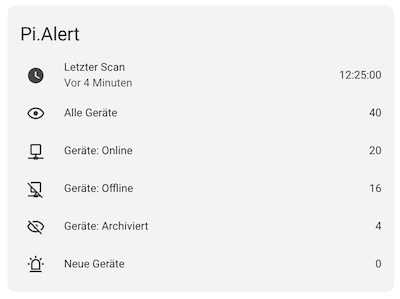
Restart Home Assistant after the change. Then open the developer tools in Home Assistant and switch to the States tab. Here you should now find the PiAlert sensors. Now you can create a new card on the dashboard and add the individual sensors as you wish. For illustration here is a picture of my Pi.Alert Card (It is configured in german for me, but it should be enough for understanding)
Use API-Call for Homepage
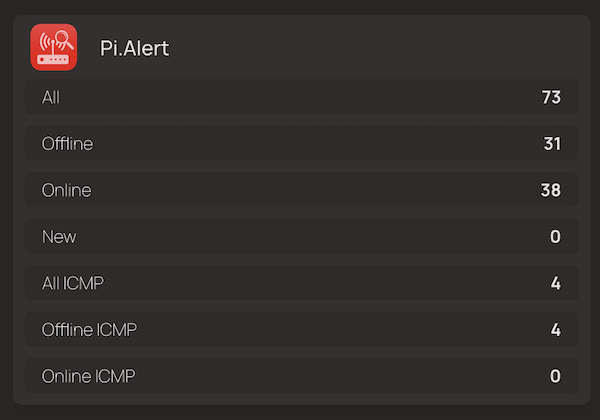
It is possible to display the widget in 2 different views (list and rows). For the icon, you can either use your own, or use the various FavIcons, which I have listed here.
Rows
    - Pi.Alert:
        href: https://<IP or Hostname>:<Port>/pialert/
        descriptionn: Network Scanner
        icon: https://<IP or Hostname>:<Port>/pialert/img/favicons/flat_red_white.png
        widget:
          type: customapi
          url: https://<IP or Hostname>:<Port>/pialert/api/?get=system-status&api-key=<Your API-Key>
          refreshInterval: 10000
          display: rows
          mappings:
            - field: All_Devices
              label: All
              type: number
            - field: Offline_Devices
              label: Offline
              type: number
            - field: Online_Devices
              label: Online
              type: number
            - field: New_Devices
              label: New
              type: number
            - field: All_Devices_ICMP
              label: All ICMP
              type: number
            - field: Offline_Devices_ICMP
              label: Offline ICMP
              type: number
            - field: Online_Devices_ICMP
              label: Online ICMP
              type: number
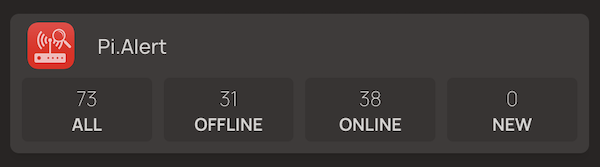
List
    - Pi.Alert:
        href: https://<IP or Hostname>:<Port>/pialert/
        descriptionn: Network Scanner
        icon: https://<IP or Hostname>:<Port>/pialert/img/favicons/flat_red_white.png
        widget:
          type: customapi
          url: https://<IP or Hostname>:<Port>/pialert/api/?get=system-status&api-key=<Your API-Key>
          refreshInterval: 10000
          display: list
          mappings:
            - field: All_Devices
              label: All
              type: number
            - field: Offline_Devices
              label: Offline
              type: number
            - field: Online_Devices
              label: Online
              type: number
            - field: New_Devices
              label: New
              type: number
            - field: All_Devices_ICMP
              label: All ICMP
              type: number
            - field: Offline_Devices_ICMP
              label: Offline ICMP
              type: number
            - field: Online_Devices_ICMP
              label: Online ICMP
              type: number