mirrord for Visual Studio Code
May 19, 2026 · View on GitHub





mirrord lets developers and AI coding agents run local processes inside a live Kubernetes cluster. Your code stays on your machine, but mirrord routes its traffic, files, and environment through a target pod in the cluster. Use it to read live cluster context while writing code (real env vars, real service responses, real queue contents), and to run the code against those same services and data once it's written. You get the feedback of a deploy in seconds, without the deploy, and without disrupting the cluster for anyone else.
This extension brings that workflow to VS Code. mirrord also ships as a JetBrains plugin and a CLI tool. Read more in the docs, or sign up to our newsletter to hear about new features.
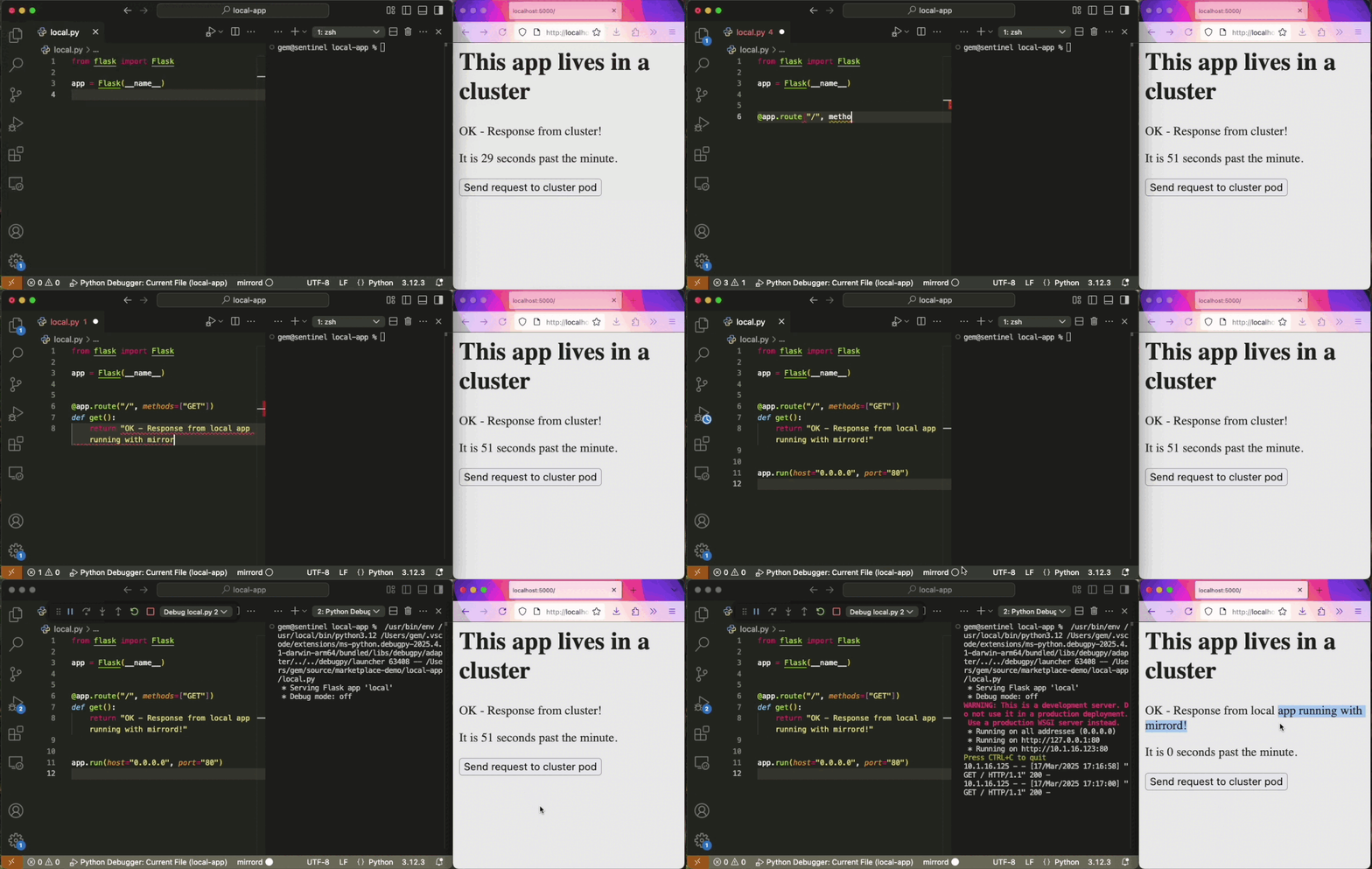
This repository is for the VSCode extension. mirrord's main repository can be found here.
How to use mirrord for VSCode
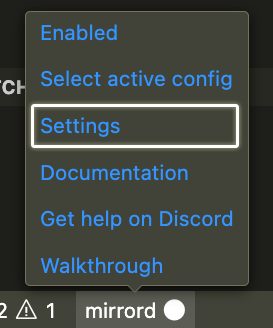
- Click the mirrord status bar item to switch mirrord from
DisabledtoEnabled

-
Start debugging your project (shortcut: F5)
-
Choose a target to impersonate
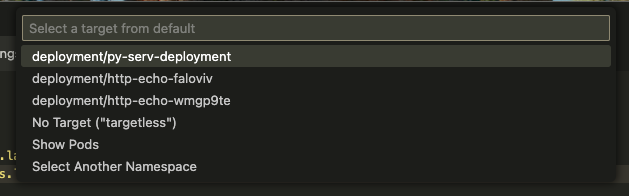
- The debugged process will start with mirrord, and receive the context of the impersonated pod. It will receive its environment variables and incoming traffic, will read and write files to it, and send outgoing traffic through it.
Unless explicitly set in the config, mirrord uses your machine's default kubeconfig for access to the Kubernetes API. Alternatively, use the port mapping configuration.
For incoming traffic, make sure your local process is listening on the same port as the remote pod.
Configuring mirrord for VSCode
mirrord allows for rich configuration of the environment it provides. The schema for it is documented here. The extension supports autocomplete for json files, but you can also use toml or yaml format.
Quick start: the easiest way to start configuring mirrord is to choose "Settings" from the status bar menu, which will open a new mirrord.json.
Viewing and Adjusting Extension Log Levels
To investigate issues or collect diagnostics from the mirrord extension, you can increase
VSCode’s log level and view the extension’s output. Open the Command Palette and run
“Developer: Set Log Level…”, then select a higher level such as Debug or Trace.
Next, open “Output” (View → Output) and choose mirrord from the dropdown list to see
all logs emitted by the extension.
Helpful Links
Contributions, feature requests, issues and support
- Feel free to join to our Slack if you need help using mirrord, or if you encounter an issue while using the extension.
- Check our open issues for the VSCode extension and mirrord's core code, and 👍 react to any that you would like to see addressed.
- Before submitting a pull request for new features, please take a look at mirrord's contributing guide.