README-V2.md
April 26, 2026 · View on GitHub






This project is part of the .NET Foundation and operates under their code of conduct.
English | 简体中文 | 繁體中文 | 日本語 | 한국어 | हिन्दी | ไทย | Français | Deutsch | Español | Italiano | Русский | Português | Nederlands | Polski | العربية | فارسی | Türkçe | Tiếng Việt | Bahasa Indonesia
MiniExcel is a simple and efficient Excel processing tool for .NET, specifically designed to minimize memory usage.
At present, most popular frameworks need to load all the data from an Excel document into memory to facilitate operations, but this may cause memory consumption problems. MiniExcel's approach is different: the data is processed row by row in a streaming manner, reducing the original consumption from potentially hundreds of megabytes to just a few megabytes, effectively preventing out-of-memory(OOM) issues.
flowchart LR
    A1(["Excel analysis<br>process"]) --> A2{{"Unzipping<br>XLSX file"}} --> A3{{"Parsing<br>OpenXML"}} --> A4{{"Model<br>conversion"}} --> A5(["Output"])

    B1(["Other Excel<br>Frameworks"]) --> B2{{"Memory"}} --> B3{{"Memory"}} --> B4{{"Workbooks &<br>Worksheets"}} --> B5(["All rows at<br>the same time"])

    C1(["MiniExcel"]) --> C2{{"Stream"}} --> C3{{"Stream"}} --> C4{{"POCO or dynamic"}} --> C5(["Deferred execution<br>row by row"])

    classDef analysis fill:#D0E8FF,stroke:#1E88E5,color:#0D47A1,font-weight:bold;
    classDef others fill:#FCE4EC,stroke:#EC407A,color:#880E4F,font-weight:bold;
    classDef miniexcel fill:#E8F5E9,stroke:#388E3C,color:#1B5E20,font-weight:bold;

    class A1,A2,A3,A4,A5 analysis;
    class B1,B2,B3,B4,B5 others;
    class C1,C2,C3,C4,C5 miniexcel;
Features
- Minimizes memory consumption, preventing out-of-memory (OOM) errors and avoiding full garbage collections
- Enables real-time, row-level data operations for better performance on large datasets
- Supports LINQ with deferred execution, allowing for fast, memory-efficient paging and complex queries
- Lightweight, without the need for Microsoft Office or COM+ components, and a DLL size under 600KB
- Simple and intuitive API to read, write, and fill Excel documents
Usage
Installation
You can download the full package from NuGet:
dotnet add package MiniExcel
This package will contain the assemblies with both Excel and Csv functionalities,
along with the MiniExcelConverter utility class and the original v1.x methods' signatures.
If you don't care for those you can also install the OpenXml and Csv packages separately:
dotnet add package MiniExcel.OpenXml
dotnet add package MiniExcel.Csv
Quickstart
Importing
Firstly, you have to get an importer. The available ones are the OpenXmlImporter and the CsvImporter:
var importer = MiniExcel.Importers.GetOpenXmlImporter();

// or

var importer = MiniExcel.Importers.GetCsvImporter();
You can then use it to query Excel or csv documents as dynamic objects, or map them directly to a suitable strong type:
var query = importer.Query(excelPath);

// or

var query = importer.Query<YourStrongType>(csvPath);
Finally, you can materialize the results or enumerate them and perform some custom logic:
var rows = query.ToList();

// or

foreach (var row in query)
{
    // your logic here
}
MiniExcel also fully supports IAsyncEnumerable, allowing you to perform all sorts of asynchronous operations:
var query = importer.QueryAsync(inputPath);
await foreach (var row in query)
{
    // your asynchronous logic here
}
Exporting
Similarly to what was described before, the first thing you need to do is getting an exporter:
var exporter = MiniExcel.Exporters.GetOpenXmlExporter();

// or

var exporter = MiniExcel.Exporters.GetCsvExporter();
You can then use it to create an Excel or csv document from a IEnumerable whose generic type can be some strong type, anonymous type or even a IDictionary<string, object>:
var values = new[] // can also be a strong type
{
    new { Column1 = "MiniExcel", Column2 = 1 },
    new { Column1 = "Github", Column2 = 2 }
}
exporter.Export(outputPath, values);

// or

List<Dictionary<string, object>> values =
[
    new() { { "Column1", "MiniExcel" }, { "Column2", 1 } },
    new() { { "Column1", "Github" }, { "Column2", 2 } }
];
exporter.Export(outputPath, values);
The exporters also fully support asynchronous operations:
await exporter.ExportAsync(outputPath, values);
Release Notes
If you're migrating from a 1.x version, please check the upgrade notes.
You can check the full release notes here.
TODO
Check what we are planning for future versions here.
Performance
The code for the benchmarks can be found in MiniExcel.Benchmarks.
The file used to test performance is Test1,000,000x10.xlsx, a 32MB document containing 1,000,000 rows * 10 columns whose cells are filled with the string "HelloWorld".
To run all the benchmarks use:
dotnet run -project .\benchmarks\MiniExcel.Benchmarks -c Release -f net9.0 -filter * --join
You can find the benchmarks' results for the latest release here.
Documentation
- Query/Import
- Create/Export
- Excel Template
- Attributes and configuration
- CSV specifics
- Other functionalities
- Fluent Cell Mapping
- FAQ
- Limitations
Query/Import
1. Execute a query and map the results to a strongly typed IEnumerable
public class UserAccount
{
    public Guid ID { get; set; }
    public string Name { get; set; }
    public DateTime BoD { get; set; }
    public int Age { get; set; }
    public bool VIP { get; set; }
    public decimal Points { get; set; }
}

var importer = MiniExcel.Importers.GetOpenXmlImporter();
var rows = importer.Query<UserAccount>(path);

// or

using var stream = File.OpenRead(path);
var rows = importer.Query<UserAccount>(stream);
Only public properties get mapped by default, but public fields can also be mapped if decorated with MiniExcelColumnAttribute or any of the other MiniExcel attributes:
public class UserAccount
{
    [MiniExcelColumn]
    public Guid ID;

    public string Name { get; set; }

    [MiniExcelFormat("dd/MM/yyyy")]
    public DateTime BoD;

    public int Age { get; set; }

    [MiniExcelColumnIndex(2)]
    public bool VIP;

    public decimal Points { get; set; }
}

var importer = MiniExcel.Importers.GetOpenXmlImporter();
var rows = importer.Query<UserAccount>(path);
2. Execute a query and map it to a list of dynamic objects
By default no header will be used and the dynamic keys will be .A, .B, .C, etc..:
| MiniExcel | 1 |
|---|---|
| Github | 2 |
var importer = MiniExcel.Importers.GetOpenXmlImporter();
var rows = importer.Query(path).ToList();

// rows[0].A = "MiniExcel"
// rows[0].B = 1
// rows[1].A = "Github"
// rows[1].B = 2
You can also specify that a header must be used, in which case the dynamic keys will be mapped to it:
| Name | Value |
|---|---|
| MiniExcel | 1 |
| Github | 2 |
var importer = MiniExcel.Importers.GetOpenXmlImporter();
var rows = importer.Query(path, useHeaderRow: true).ToList();

// rows[0].Name = "MiniExcel"
// rows[0].Value = 1
// rows[1].Name = "Github"
// rows[1].Value = 2
3. Query Support for LINQ extensions First/Take/Skip etc...
e.g: Query the tenth row by skipping the first 9 and taking the first
var importer = MiniExcel.Importers.GetOpenXmlImporter();
var tenthRow = importer.Query(path).Skip(9).First();
4. Specify the Excel sheet to query from
var excelImporter = MiniExcel.Importers.GetOpenXmlImporter();
excelImporter.Query(path, sheetName: "SheetName");
5. Get the sheets' names from an Excel workbook
var excelImporter = MiniExcel.Importers.GetOpenXmlImporter();
var sheetNames = excelImporter.GetSheetNames(path);
6. Get the columns' names from an Excel worksheet
var excelImporter = MiniExcel.Importers.GetOpenXmlImporter();
var columns = excelImporter.GetColumnNames(path);

// columns = [ColumnName1, ColumnName2, ...] when there is a header row
// columns = ["A","B",...] otherwise
7. Retrieve Comments from an Excel worksheet
You can extract threaded comments and their replies from a worksheet using the RetrieveComments method:
var excelImporter = MiniExcel.Importers.GetOpenXmlImporter();
var comments = excelImporter.RetrieveComments(path, sheetName: "Sheet1").Comments;

foreach (var comment in comments)
{
    Console.WriteLine($"Cell: {comment.CellAddress}");
    Console.WriteLine($"{comment.CreatedAt:yy-MM-dd HH:mm}, {comment.Author.DisplayName}: {comment.Text}");

    foreach (var reply in comment.Replies)
    {
        Console.WriteLine($"{reply.CreatedAt:yy-MM-dd HH:mm}, {reply.Author.DisplayName}: {reply.Text}");
    }
}
You can similarly retrieve notes as well:
var notes = excelImporter.RetrieveComments(path, sheetName: "Sheet1").Notes;
foreach (var note in notes)
{
    Console.WriteLine($"Cell: {note.CellAddress}");
    Console.WriteLine($"{note.Author.DisplayName}: {note.Text}");
}
8. Casting dynamic rows to IDictionary
Under the hood the dynamic objects returned in a query are implemented using ExpandoObject,
making it possible to cast them to IDictionary<string,object>:
var excelimporter = MiniExcel.Importers.GetOpenXmlImporter();

var rows = excelImporter.Query(path).Cast<IDictionary<string,object>>();

// or

foreach(IDictionary<string,object> row in excelImporter.Query(path))
{
    // your logic here
}
9. Query Excel worksheet as a DataTable
This is not recommended, as DataTable will forcibly load all data into memory, effectively losing the advantages MiniExcel offers.
var excelImporter = MiniExcel.Importers.GetOpenXmlImporter();
var table = excelImporter.QueryAsDataTable(path);
10. Specify what cell to start reading data from
var excelImporter = MiniExcel.Importers.GetOpenXmlImporter();
excelImporter.Query(path, startCell: "B3")

11. Fill Merged Cells
If the Excel sheet being queried contains merged cells it is possble to enable the option to fill every row with the merged value.
var config = new OpenXmlConfiguration
{
    FillMergedCells = true
};

var importer = MiniExcel.Importers.GetOpenXmlImporter();
var rows = importer.Query(path, configuration: config);

Filling of cells with variable width and height is also supported

Note: The performance will take a hit when enabling the feature. This happens because in the OpenXml standard the
mergeCellsare indicated at the bottom of the file, which leads to the need of reading the whole sheet twice.
12. Big files and disk-based cache
If the SharedStrings file size exceeds 5 MB, MiniExcel will default to use a local disk cache. E.g: on the file 10x100000.xlsx (one million rows of data), when disabling the disk cache the maximum memory usage is 195 MB, but with disk cache enabled only 65 MB of memory are used.
Note: this optimization is not without cost. In the above example it increased reading times from 7 seconds to 27 seconds roughly.
If you prefer you can disable the disk cache with the following code:
var config = new OpenXmlConfiguration
{
    EnableSharedStringCache = false
};

var importer = MiniExcel.Importers.GetOpenXmlImporter();
importer.Query(path, configuration: config)
You can use also change the disk caching triggering file size beyond the default 5 MB:
var config = new OpenXmlConfiguration
{
    // the size has to be specified in bytes
    SharedStringCacheSize = 10 * 1024 * 1024
};

var importer = MiniExcel.Importers.GetOpenXmlImporter();
importer.Query(path, configuration: config)
Create/Export Excel
There are various ways to export data to an Excel document using MiniExcel.
1. From anonymous or strongly typed collections
When using an anonymous type:
var exporter = MiniExcel.Exporters.GetOpenXmlExporter();
var values = new[]
{
    new { Column1 = "MiniExcel", Column2 = 1 },
    new { Column1 = "Github", Column2 = 2}
}
exporter.Export(path, values);
When using a strong type it must be non-abstract with a public parameterless constructor:
class ExportTest
{
    public string Column1 { get; set; }
    public int Column2 { get; set; }
}

var exporter = MiniExcel.Exporters.GetOpenXmlExporter();
ExportTest[] values =
[
    new() { Column1 = "MiniExcel", Column2 = 1 },
    new() { Column1 = "Github", Column2 = 2}
]
exporter.Export(path, values);
2. From a IEnumerable<IDictionary<string, object>>
var exporter = MiniExcel.Exporters.GetOpenXmlExporter();
List<Dictionary<string, object>>() values =
[
    new() { { "Column1", "MiniExcel" }, { "Column2", 1 } },
    new() { { "Column1", "Github" }, { "Column2", 2 } }
];
exporter.Export(path, values);
Result:
| Column1 | Column2 |
|---|---|
| MiniExcel | 1 |
| Github | 2 |
3. IDataReader
MiniExcel supports exporting data directly from a IDataReader without the need to load the data into memory first.
E.g. using the data reader returned by Dapper's ExecuteReader extension method:
using var connection = YourDbConnection();
connection.Open();
var reader = connection.ExecuteReader("SELECT 'MiniExcel' AS Column1, 1 as Column2 UNION ALL SELECT 'Github', 2");

var exporter = MiniExcel.Exporters.GetOpenXmlExporter();
exporter.Export("Demo.xlsx", reader);
4. Datatable
WARNING: Not recommended, this will load all data into memory
For DataTable use you have to add column names manually before adding the rows:
var table = new DataTable();

table.Columns.Add("Column1", typeof(string));
table.Columns.Add("Column2", typeof(decimal));

table.Rows.Add("MiniExcel", 1);
table.Rows.Add("Github", 2);

var exporter = MiniExcel.Exporters.GetOpenXmlExporter();
exporter.Export("test.xlsx", table);
5. Dapper Query
Thanks to @shaofing (PR #552), by instatiating a CommandDefinition with the flag CommandFlags.NoCache, you can pass a Dapper query directly in the Export function instead of the corresponding IDataReader:
using var connection = YourDbConnection();

var cmd = new CommandDefinition(
    "SELECT 'MiniExcel' AS Column1, 1 as Column2 UNION ALL SELECT 'Github', 2",
    flags: CommandFlags.NoCache)
);

// Note: QueryAsync will throw a closed connection exception
var rows = connection.Query(cmd);

var exporter = MiniExcel.Exporters.GetOpenXmlExporter();
exporter.Export("dapper_test.xlsx", rows);
WARNING: If you simply use
var rows = connection.Query(sql)all data will be loaded into memory instead!
6. Create Multiple Sheets
It is possible to create multiple sheets at the same time, using a Dictionary or DataSet:
// 1. Dictionary<string,object>
var users = new[]
{
    new { Name = "Jack", Age = 25 },
    new { Name = "Mike", Age = 44 }
};

var department = new[]
{
    new { ID = "01", Name = "HR" },
    new { ID = "02", Name = "IT" }
};

var sheets = new Dictionary<string, object>
{
    ["users"] = users,
    ["department"] = department
};

var exporter = MiniExcel.Exporters.GetOpenXmlExporter();
exporter.Export(path, sheets);
// 2. DataSet
var sheets = new DataSet();
sheets.Tables.Add(UsersDataTable);
sheets.Tables.Add(DepartmentDataTable);

var exporter = MiniExcel.Exporters.GetOpenXmlExporter();
exporter.Export(path, sheets);

7. Inserting sheets
MiniExcel supports the functionality of inserting a new sheet into an existing Excel workbook:
var config = new OpenXmlConfiguration { FastMode = true };
var value = new { ID = 3, Name = "Mike", InDate = new DateTime(2021, 04, 23) };

var exporter = MiniExcel.Exporters.GetOpenXmlExporter();
exporter.InsertSheet(path, value, sheetName: "Sheet2", configuration: config);
Note: In order to insert worksheets FastMode must be enabled!
8. Save to Stream
You can export data directly to a MemoryStream, FileStream, and generally any stream that supports seeking:
var exporter = MiniExcel.Exporters.GetOpenXmlExporter();

using var stream = new MemoryStream();
exporter.Export(stream, values);
9. TableStyles Options
Default style
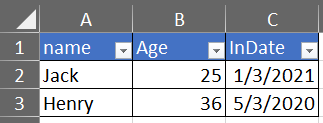
Without style configuration
var exporter = MiniExcel.Exporters.GetOpenXmlExporter();

var config = new OpenXmlConfiguration
{
     TableStyles = TableStyles.None
};

exporter.Export(path, value, configuration: config);

10. AutoFilter
By default, autofilter is enabled on the headers of exported Excel documents.
You can disable this by setting the AutoFilter property of the configuration to false:
var exporter = MiniExcel.Exporters.GetOpenXmlExporter();
var config = new OpenXmlConfiguration { AutoFilter = false };
exporter.Export(path, value, configuration: config);
11. Creating images
var exporter = MiniExcel.Exporters.GetOpenXmlExporter();
var value = new[]
{
    new { Name = "github", Image = File.ReadAllBytes("images/github_logo.png") },
    new { Name = "google", Image = File.ReadAllBytes("images/google_logo.png") },
    new { Name = "microsoft", Image = File.ReadAllBytes("images/microsoft_logo.png") },
    new { Name = "reddit", Image = File.ReadAllBytes("images/reddit_logo.png") },
    new { Name = "statck_overflow", Image = File.ReadAllBytes("images/statck_overflow_logo.png") }
};
exporter.Export(path, value);

Whenever you export a property of type byte[] it will be archived as an internal resource and the cell will contain a link to it.
When queried, the resource will be converted back to byte[]. If you don't need this functionality you can disable it by setting the configuration property EnableConvertByteArray to false and gain some performance.

12. Null values handling
By default, null values will be treated as empty strings when exporting:
Dictionary<string, object?>[] value =
[
    new()
    {
        ["Name1"] = "Somebody once",
        ["Name2"] = null,
        ["Name3"] = "told me."
    }
];

var exporter = MiniExcel.Exporters.GetOpenXmlExporter();
exporter.Export("test.xlsx", value, configuration: config);
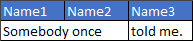
If you want you can change this behaviour in the configuration:
var config = new OpenXmlConfiguration
{
    EnableWriteNullValueCell = false // Default value is true
};

var exporter = MiniExcel.Exporters.GetOpenXmlExporter();
exporter.Export("test.xlsx", value, configuration: config);
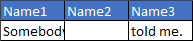
Similarly, there is an option to let empty strings be treated as null values:
var config = new OpenXmlConfiguration
{
    WriteEmptyStringAsNull = true // Default value is false
};

var exporter = MiniExcel.Exporters.GetOpenXmlExporter();
exporter.Export("test.xlsx", value, configuration: config);
Both properties work with null and DBNull values.
13. Freeze Panes
MiniExcel allows you to freeze both rows and columns in place:
var exporter = MiniExcel.Exporters.GetOpenXmlExporter();
var config = new OpenXmlConfiguration
{
    FreezeRowCount = 1,     // default is 1
    FreezeColumnCount = 2   // default is 0
};

exporter.Export("Book1.xlsx", dt, configuration: config);

Fill Data To Excel Template
The declarations are similar to Vue templates {{variable_name}} and collection renderings {{collection_name.field_name}}.
Collection renderings support IEnumerable, DataTable and DapperRow.
1. Basic Fill
Template:

Code:
// 1. By POCO
var value = new
{
    Name = "Jack",
    CreateDate = new DateTime(2021, 01, 01),
    VIP = true,
    Points = 123
};
MiniExcel.SaveAsByTemplate(path, templatePath, value);


// 2. By Dictionary
var value = new Dictionary<string, object>()
{
    ["Name"] = "Jack",
    ["CreateDate"] = new DateTime(2021, 01, 01),
    ["VIP"] = true,
    ["Points"] = 123
};
MiniExcel.SaveAsByTemplate(path, templatePath, value);
Result:

2. IEnumerable Data Fill
Note: The first IEnumerable of the same column is the basis for filling the template
Template:

Code:
//1. By POCO
var templater = MiniExcel.Templaters.GetOpenXmlTemplater();
var value = new
{
    employees = new[]
    {
        new { name = "Jack", department = "HR" },
        new { name = "Lisa", department = "HR" },
        new { name = "John", department = "HR" },
        new { name = "Mike", department = "IT" },
        new { name = "Neo", department = "IT" },
        new { name = "Loan", department = "IT" }
    }
};
templater.ApplyTemplate(path, templatePath, value);

//2. By Dictionary
var templater = MiniExcel.Templaters.GetOpenXmlTemplater();
var value = new Dictionary<string, object>()
{
    ["employees"] = new[]
    {
        new { name = "Jack", department = "HR" },
        new { name = "Lisa", department = "HR" },
        new { name = "John", department = "HR" },
        new { name = "Mike", department = "IT" },
        new { name = "Neo", department = "IT" },
        new { name = "Loan", department = "IT" }
    }
};
templater.ApplyTemplate(path, templatePath, value);
Result:

3. Complex Data Fill
Template:

Code:
// 1. By POCO
var templater = MiniExcel.Templaters.GetOpenXmlTemplater();
var value = new
{
    title = "FooCompany",
    managers = new[]
    {
        new { name = "Jack", department = "HR" },
        new { name = "Loan", department = "IT" }
    },
    employees = new[]
    {
        new { name = "Wade", department = "HR" },
        new { name = "Felix", department = "HR" },
        new { name = "Eric", department = "IT" },
        new { name = "Keaton", department = "IT" }
    }
};
templater.ApplyTemplate(path, templatePath, value);

// 2. By Dictionary
var templater = MiniExcel.Templaters.GetOpenXmlTemplater();
var value = new Dictionary<string, object>()
{
    ["title"] = "FooCompany",
    ["managers"] = new[]
    {
        new { name = "Jack", department = "HR" },
        new { name = "Loan", department = "IT" }
    },
    ["employees"] = new[]
    {
        new { name = "Wade", department = "HR" },
        new { name = "Felix", department = "HR" },
        new { name = "Eric", department = "IT" },
        new { name = "Keaton", department = "IT" }
    }
};
templater.ApplyTemplate(path, templatePath, value);
Result:

4. Cell value auto mapping type
Template:

Model:
public class Poco
{
    public string @string { get; set; }
    public int? @int { get; set; }
    public decimal? @decimal { get; set; }
    public double? @double { get; set; }
    public DateTime? datetime { get; set; }
    public bool? @bool { get; set; }
    public Guid? Guid { get; set; }
}
Code:
var poco = new Poco
{
    @string = "string",
    @int = 123,
    @decimal = 123.45M,
    @double = 123.33D,
    datetime = new DateTime(2021, 4, 1),
    @bool = true,
    Guid = Guid.NewGuid()
};

var value = new
{
    Ts = new[]
    {
        poco,
        new TestIEnumerableTypePoco{},
        null,
        poco
    }
};

var templater = MiniExcel.Templaters.GetOpenXmlTemplater();
templater.ApplyTemplate(path, templatePath, value);
Result:

5. Example: List Github Projects
Template

Code
var projects = new[]
{
    new { Name = "MiniExcel", Link = "https://github.com/mini-software/MiniExcel", Star=146, CreateTime = new DateTime(2021,03,01) },
    new { Name = "HtmlTableHelper", Link = "https://github.com/mini-software/HtmlTableHelper", Star=16, CreateTime = new DateTime(2020,02,01) },
    new { Name = "PocoClassGenerator", Link = "https://github.com/mini-software/PocoClassGenerator", Star=16, CreateTime = new DateTime(2019,03,17)}
};

var value = new
{
    User = "ITWeiHan",
    Projects = projects,
    TotalStar = projects.Sum(s => s.Star)
};

var templater = MiniExcel.Templaters.GetOpenXmlTemplater();
templater.ApplyTemplate(path, templatePath, value);
Result:

6. Grouped Data Fill
var value = new Dictionary<string, object>()
{
    ["employees"] = new[]
    {
        new { name = "Jack", department = "HR" },
        new { name = "Jack", department = "HR" },
        new { name = "John", department = "HR" },
        new { name = "John", department = "IT" },
        new { name = "Neo", department = "IT" },
        new { name = "Loan", department = "IT" }
    }
};

var templater = MiniExcel.Templaters.GetOpenXmlTemplater();
templater.ApplyTemplate(path, templatePath, value);
- Without
@grouptag
Before:

After:

- With
@grouptag and without@headertag
Before:

After:

- With both
@groupand@headertags
Before:

After:

7. If/ElseIf/Else Statements inside cell
Rules:
- Supports
DateTime,doubleandintwith==,!=,>,>=,<,<=operators. - Supports
stringwith==,!=operators. - Each statement should be on a new line.
- A single space should be added before and after operators.
- There shouldn't be any new lines inside of a statement.
- Cells should be in the exact format as below:
@if(name == Jack)
{{employees.name}}
@elseif(name == Neo)
Test {{employees.name}}
@else
{{employees.department}}
@endif
Before:

After:

8. Merge same cells vertically
This functionality merges cells vertically between the tags @merge and @endmerge.
You can use @mergelimit to limit boundaries of merging cells vertically.
var templater = MiniExcel.Templaters.GetOpenXmlTemplater();
templater.MergeSameCells(mergedFilePath, templatePath);
File content before and after merge without merge limit:
File content before and after merge with merge limit:
9. DataTable as parameter
var managers = new DataTable();
{
    managers.Columns.Add("name");
    managers.Columns.Add("department");
    managers.Rows.Add("Jack", "HR");
    managers.Rows.Add("Loan", "IT");
}

var value = new Dictionary<string, object>()
{
    ["title"] = "FooCompany",
    ["managers"] = managers,
};

var templater = MiniExcel.Templaters.GetOpenXmlTemplater();
templater.ApplyTemplate(path, templatePath, value);
10. Formulas
Prefix your formula with $ and use $enumrowstart and $enumrowend to mark references to the enumerable start and end rows:

When the template is rendered, the $ prefix will be removed and $enumrowstart and $enumrowend will be replaced with the start and end row numbers of the enumerable:

Other examples:
| Formula | Example |
|---|---|
| Sum | $=SUM(C{{$enumrowstart}}:C{{$enumrowend}}) |
| Count | COUNT(C{{$enumrowstart}}:C{{$enumrowend}}) |
| Range | $=MAX(C{{$enumrowstart}}:C{{$enumrowend}}) - MIN(C{{$enumrowstart}}:C{{$enumrowend}}) |
11. Checking template parameter key
When a parameter key is missing it will be replaced with an empty string by default.
You can change this behaviour to throw an exception by setting the IgnoreTemplateParameterMissing configuration property:
var config = new OpenXmlConfiguration
{
    IgnoreTemplateParameterMissing = false,
};

var templater = MiniExcel.Templaters.GetOpenXmlTemplater();
templater.ApplyTemplate(path, templatePath, value, config)

Attributes and configuration
1. Specify the column name, column index, or ignore the column entirely

public class ExcelAttributeDemo
{
    [MiniExcelColumnName("Column1")]
    public string Test1 { get; set; }

    [MiniExcelColumnName("Column2")]
    public string Test2 { get; set; }

    [MiniExcelIgnore]
    public string Test3 { get; set; }

    [MiniExcelColumnIndex("I")] // "I" will be converted to index 8
    public string Test4 { get; set; }

    public string Test5 { get; } // properties wihout a setter will be ignored
    public string Test6 { get; private set; } // properties with a non public setter will be ignored

    [MiniExcelColumnIndex(3)] // Indexes are 0-based
    public string Test7 { get; set; }
}

var importer = MiniExcel.Importers.GetOpenXmlImporter();
var rows = importer.Query<ExcelAttributeDemo>(path).ToList();

// rows[0].Test1 = "Column1"
// rows[0].Test2 = "Column2"
// rows[0].Test3 = null
// rows[0].Test4 = "Test7"
// rows[0].Test5 = null
// rows[0].Test6 = null
// rows[0].Test7 = "Test4"
2. Custom Formatting
public class Dto
{
    public string Name { get; set; }

    [MiniExcelFormat("MMMM dd, yyyy")]
    public DateTime InDate { get; set; }
}

var value = new Dto[]
{
    new Issue241Dto{ Name = "Jack", InDate = new DateTime(2021, 01, 04) },
    new Issue241Dto{ Name = "Henry", InDate = new DateTime(2020, 04, 05) }
};

var exporter = MiniExcel.Exporters.GetOpenXmlExporter();
exporter.Export(path, value);
Result:
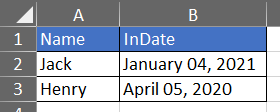
3. Set Column Width
public class Dto
{
    [MiniExcelColumnWidth(20)]
    public int ID { get; set; }

    [MiniExcelColumnWidth(15.50)]
    public string Name { get; set; }
}
4. Set Column Visibility
public class Dto
{
    public string Name { get; set; }

    [MiniExcelHidden]
    public int SecretPoints { get; set; }
}
5. Multiple column names mapping to the same property.
public class Dto
{
    public string Name { get; set; }

    [MiniExcelColumnName(columnName: "EmployeeNo", aliases: ["EmpNo", "No"])]
    public string Empno { get; set; }
}
6. System.ComponentModel.DisplayNameAttribute
The DisplayNameAttribute has the same effect as the MiniExcelColumnNameAttribute:
public class Dto
{
    public int ID { get; set; }

    public string Name { get; set; }

    [DisplayName("Specification")]
    public string Spc { get; set; }

    [DisplayName("Unit Price")]
    public decimal Up { get; set; }
}
7. MiniExcelColumnAttribute
Multiple attributes can be simplified using the MiniExcelColumnAttribute:
public class Dto
{
    [MiniExcelColumn(Name = "ID", Index = 0)]
    public string MyProperty { get; set; }

    [MiniExcelColumn(Name = "CreateDate", Index = 1, Format = "yyyy-MM", Width = 100)]
    public DateTime MyProperty2 { get; set; }

    [MiniExcelColumn(Name = "SecretColumn", Hidden = true)]
    public int MyProperty3 { get; set; }
}
8. DynamicColumnAttribute
Attributes can also be set on columns dynamically:
var config = new OpenXmlConfiguration
{
    DynamicColumns =
    [
        new DynamicExcelColumn("id") { Ignore = true },
        new DynamicExcelColumn("name") { Index = 1, Width = 10 },
        new DynamicExcelColumn("createdate") { Index = 0, Format = "yyyy-MM-dd", Width = 15 },
        new DynamicExcelColumn("point") { Index = 2, Name = "Account Point"}
    ]
};

var value = new[] { new { id = 1, name = "Jack", createdate = new DateTime(2022, 04, 12), point = 123.456 } };

var exporter = MiniExcel.Exporters.GetOpenXmlExporter();
exporter.Export(path, value, configuration: config);
9. MiniExcelSheetAttribute
It is possible to define the name and visibility of a sheet through the MiniExcelSheetAttribute:
[MiniExcelSheet(Name = "Departments", State = SheetState.Hidden)]
private class DepartmentDto
{
  [MiniExcelColumn(Name = "ID",Index = 0)]
  public string ID { get; set; }

  [MiniExcelColumn(Name = "Name",Index = 1)]
  public string Name { get; set; }
}
It is also possible to do it dynamically through the DynamicSheets property of the OpenXmlConfiguration:
var configuration = new OpenXmlConfiguration
{
    DynamicSheets =
    [
        new DynamicExcelSheet("usersSheet") { Name = "Users", State = SheetState.Visible },
        new DynamicExcelSheet("departmentSheet") { Name = "Departments", State = SheetState.Hidden }
    ]
};

var users = new[]
{
    new { Name = "Jack", Age = 25 },
    new { Name = "Mike", Age = 44 }
};
var department = new[]
{
    new { ID = "01", Name = "HR" },
    new { ID = "02", Name = "IT" }
};

var sheets = new Dictionary<string, object>
{
    ["usersSheet"] = users,
    ["departmentSheet"] = department
};

var exporter = MiniExcel.Exporters.GetOpenXmlExporter();
exporter.Export(path, sheets, configuration: configuration);
Fluent Cell Mapping
Since v2.0.0, MiniExcel supports a fluent API for precise cell-by-cell mapping, giving you complete control over Excel layout without relying on conventions or attributes.
⚠️ Important: Compile mappings only once during application startup!
Mapping compilation is a one-time operation that generates optimized runtime code. Create a single MappingRegistry instance and configure all your mappings at startup. Reuse this registry throughout your application for optimal performance.
1. Basic Property Mapping
Map properties to specific cells using the fluent configuration API:
// Configure once at application startup
var registry = new MappingRegistry();
registry.Configure<Person>(cfg =>
{
    cfg.Property(p => p.Name).ToCell("A1");
    cfg.Property(p => p.Age).ToCell("B1");
    cfg.Property(p => p.Email).ToCell("C1");
    cfg.Property(p => p.Salary).ToCell("D1").WithFormat("#,##0.00");
    cfg.Property(p => p.BirthDate).ToCell("E1").WithFormat("yyyy-MM-dd");
    cfg.ToWorksheet("Employees");
});

var exporter = MiniExcel.Exporters.GetMappingExporter(registry);
await exporter.ExportAsync(stream, people);
2. Reading with Fluent Mappings
// Configure once at startup
var registry = new MappingRegistry();
registry.Configure<Person>(cfg =>
{
    cfg.Property(p => p.Name).ToCell("A2");
    cfg.Property(p => p.Age).ToCell("B2");
    cfg.Property(p => p.Email).ToCell("C2");
});

// Read data using the mapping
var importer = MiniExcel.Importers.GetMappingImporter(registry);
var people = importer.Query<Person>(stream).ToList();
3. Collection Mapping
Map collections to specific cell ranges (collections are laid out vertically by default):
registry.Configure<Department>(cfg =>
{
    cfg.Property(d => d.Name).ToCell("A1");

    // Simple collections (strings, numbers, etc.) - starts at A3 and goes down
    cfg.Collection(d => d.PhoneNumbers).StartAt("A3");

    // Complex object collections - starts at C3 and goes down
    cfg.Collection(d => d.Employees).StartAt("C3");
});
You can optionally add spacing between collection items:
registry.Configure<Employee>(cfg =>
{
    cfg.Property(e => e.Name).ToCell("A1");
    cfg.Collection(e => e.Skills).StartAt("B1").WithSpacing(1); // 1 row spacing between items
});
4. Formulas and Formatting
registry.Configure<Product>(cfg =>
{
    cfg.Property(p => p.Price).ToCell("B1");
    cfg.Property(p => p.Stock).ToCell("C1");

    // Add a formula for calculated values
    cfg.Property(p => p.Price).ToCell("D1").WithFormula("=B1*C1");

    // Apply custom number formatting
    cfg.Property(p => p.Price).ToCell("E1").WithFormat("$#,##0.00");
});
5. Template Support
Apply mappings to existing Excel templates:
registry.Configure<TestEntity>(cfg =>
{
    cfg.Property(x => x.Name).ToCell("A3");
    cfg.Property(x => x.CreateDate).ToCell("B3");
    cfg.Property(x => x.VIP).ToCell("C3");
    cfg.Property(x => x.Points).ToCell("D3");
});

var data = new TestEntity
{
    Name = "Jack",
    CreateDate = new DateTime(2021, 01, 01),
    VIP = true,
    Points = 123
};

var termplater = MiniExcel.Templaters.GetMappingTemplater(registry);
await termplater.ApplyTemplateAsync(outputPath, templatePath, new[] { data });
6. Advanced: Nested Collections with Item Mapping
Configure how items within a collection should be mapped:
registry.Configure<Company>(cfg =>
{
    cfg.Property(c => c.Name).ToCell("A1");

    cfg.Collection(c => c.Departments)
        .StartAt("A3")
        .WithItemMapping<Department>(deptCfg =>
        {
            deptCfg.Property(d => d.Name).ToCell("A3");
            deptCfg.Collection(d => d.Employees).StartAt("B3");
        });
});
CSV Specifics
Unlike Excel queries, csv always maps values to
stringby default, unless you are querying to a strongly defined type.
Custom separator
The default separator is the comma (,), but you can customize it using the CsvConfiguration.Seperator property:
var config = new CsvConfiguration
{
    Seperator=';'
};

var exporter = MiniExcel.Exporters.GetCsvExporter();
exporter.Export(path, values, configuration: config);
You also have the option to define a more complex separator:
var config = new CsvConfiguration
{
    SplitFn = row => Regex
        .Split(row, $"[\t,](?=(?:[^\"]|\"[^\"]*\")*$)")
        .Select(str => Regex.Replace(str.Replace("\"\"", "\""), "^\"|\"$", ""))
        .ToArray()
};

var importer = MiniExcel.Exporters.GetCsvImporter();
var rows = importer.Query(path, configuration: config).ToList();
Custom line break
The default line break is \r\n, but you can customize it using the CsvConfiguration.NewLine:
var config = new CsvConfiguration
{
    NewLine='\n'
};

var exporter = MiniExcel.Exporters.GetCsvExporter();
exporter.Export(path, values,configuration: config);
Custom encoding
The default encoding is UTF8 with BOM. If you have custom encoding requirements you can modify the StreamReaderFunc and StreamWriterFunc properties:
// Read
var config = new CsvConfiguration
{
    StreamReaderFunc = stream => new StreamReader(stream,Encoding.GetEncoding("gb2312"))
};

var importer = MiniExcel.Importers.GetCsvImporter();
var rows = importer.Query(path, useHeaderRow: true, configuration: config);

// Write
var config = new CsvConfiguration
{
    StreamWriterFunc = stream => new StreamWriter(stream, Encoding.GetEncoding("gb2312"))
};

var exporter = MiniExcel.Exporters.GetCsvExporter();
exporter.Export(path, value, configuration: config);
Read empty string as null
By default, empty values are mapped to string.Empty.
You can modify this behavior and map them to null using the CsvConfiguration.ReadEmptyStringAsNull property:
var config = new CsvConfiguration
{
   ReadEmptyStringAsNull = true
};
DataReader
There is support for reading one cell at a time using a custom IDataReader:
var importer = MiniExcel.Importers.GetOpenXmlImporter();
using var reader = importer.GetDataReader(path, useHeaderRow: true);

// or

var importer = MiniExcel.Importers.GetCsvImporter();
using var reader = importer.GetDataReader(path, useHeaderRow: true);


while (reader.Read())
{
    for (int i = 0; i < reader.FieldCount; i++)
    {
        var value = reader.GetValue(i);
    }
}
Add records
It is possible to append an arbitrary number of rows to a csv document:
var exporter = MiniExcel.Exporters.GetCsvExporter();

// Insert 1 rows after last
var value = new { ID = 3, Name = "Mike", InDate = new DateTime(2021, 04, 23) };
exporter.Append(path, value);

// Insert N rows after last
var value = new[]
{
    new { ID = 4, Name = "Frank", InDate = new DateTime(2021, 06, 07) },
    new { ID = 5, Name = "Gloria", InDate = new DateTime(2022, 05, 03) },
};
exporter.AppendToCsv(path, value);
Other functionalities
1. Enums
The serialization of enums is supported. Enum fields are mapped case insensitively.
The use of the DescriptionAttribute is also supported to map enum properties:
public class Dto
{
    public string Name { get; set; }
    public UserTypeEnum UserType { get; set; }
}

public enum UserTypeEnum
{
    [Description("General User")] V1,
    [Description("General Administrator")] V2,
    [Description("Super Administrator")] V3
}

2. Convert Csv to Xlsx and vice-versa
You can use the MiniExcelConverter utility class to convert a file from Csv to Xlsx and vice-versa:
MiniExcelConverter.ConvertXlsxToCsv(xlsxPath, csvPath);
MiniExcelConverter.ConvertCsvToXlsx(csvPath, xlsxPath);

// or

using (var excelStream = new FileStream(path: filePath, FileMode.Open, FileAccess.Read))
using (var csvStream = new MemoryStream())
{
   MiniExcelConverter.ConvertXlsxToCsv(excelStream, csvStream);
}
3. Custom CultureInfo
You can customise CultureInfo used by MiniExcel through the Culture configuration parameter. The default is CultureInfo.InvariantCulture:
var config = new CsvConfiguration
{
    Culture = new CultureInfo("fr-FR"),
};
4. Custom Buffer Size
The default buffer size is 5MB, but you can easily customize it:
var conf = new OpenXmlConfiguration { BufferSize = 1024 * 1024 * 10 };
5. FastMode
You can set the configuration property FastMode to achieve faster saving speeds, but this will make the memory consumption much higher, so it's not recommended:
var config = new OpenXmlConfiguration { FastMode = true };

var exporter = MiniExcel.Exporters.GetOpenXmlExporter();
exporter.Export(path, reader, configuration: config);
6. Adding images in batch
Please add pictures before batch generating the rows' data or a large amount of memory will be used when calling AddPicture:
MiniExcelPicture[] images =
[
    new()
    {
        ImageBytes = File.ReadAllBytes(PathHelper.GetFile("images/github_logo.png")),
        SheetName = null, // when null it will default to the first sheet
        CellAddress = "C3", // required
    },
    new()
    {
        ImageBytes = File.ReadAllBytes(PathHelper.GetFile("images/google_logo.png")),
        PictureType = "image/png", // image/png is the default picture type
        SheetName = "Demo",
        CellAddress = "C9",
        WidthPx = 100,
        HeightPx = 100,
    },
];

var templater = MiniExcel.Exporters.GetOpenXmlExporter();
templater.AddPicture(path, images);
7. Get Sheets Dimensions
You can easily retrieve the dimensions of all worksheets of an Excel file:
var importer = MiniExcel.Importers.GetOpenXmlImporter();
var dim = importer.GetSheetDimensions(path);
FAQ
Q: Excel header title is not equal to my DTO class property name, how do I map it?
A. You can use the MiniExcelColumnName attribute on the property you want to map:
class Dto
{
    [MiniExcelColumnName("ExcelPropertyName")]
    public string MyPropertyName { get; set;}
}
Q. How do I fill data horizontally (left-to-right) with templates?
A. MiniExcel template collections currently expand vertically (top-to-bottom). Horizontal (left-to-right) fill isn't supported yet (see https://github.com/mini-software/MiniExcel/issues/619).
If you just need the final layout, transpose your data into a matrix and export it with printHeader: false:
var employees = new[]
{
    new { Name = "Name1", Department = "Department1", City = "City1", Country = "Country1" },
    new { Name = "Name2", Department = "Department2", City = "City2", Country = "Country2" },
    new { Name = "Name3", Department = "Department3", City = "City3", Country = "Country3" },
};

var table = new DataTable();
table.Columns.Add("A");
for (var i = 0; i < employees.Length; i++)
    table.Columns.Add($"B{i + 1}");

table.Rows.Add(new object[] { "Name" }.Concat(employees.Select(e => (object)e.Name)).ToArray());
table.Rows.Add(new object[] { "Department" }.Concat(employees.Select(e => (object)e.Department)).ToArray());
table.Rows.Add(new object[] { "City" }.Concat(employees.Select(e => (object)e.City)).ToArray());
table.Rows.Add(new object[] { "Country" }.Concat(employees.Select(e => (object)e.Country)).ToArray());

MiniExcel.SaveAs(path, table, printHeader: false);
If you need template styling, one workaround is to use scalar placeholders (e.g. {{Name_1}}, {{Name_2}} ...) and fill a dictionary (requires a fixed maximum number of columns).
Q. How do I query multiple sheets of an Excel file?
A. You can retrieve the sheet names with the GetSheetNames method and then Query them using the sheetName parameter:
var importer = MiniExcel.Importers.GetOpenXmlImporter();
var sheetNames = importer.GetSheetNames(path);

var rows = new Dictionary<string, List<dynamic>>();
foreach (var sheet in sheetNames)
{
    rows[sheet] = importer.Query(path, sheetName: sheet).ToList();
}
Q. Can I retrieve informations about what sheets are visible or active?
A. You can use the GetSheetInformations method:
var importer = MiniExcel.Importers.GetOpenXmlImporter();
var sheets = importer.GetSheetInformations(path);

foreach (var sheetInfo in sheets)
{
    Console.WriteLine($"sheet index : {sheetInfo.Index} "); // next sheet index - numbered from 0
    Console.WriteLine($"sheet name : {sheetInfo.Name} ");   // sheet name
    Console.WriteLine($"sheet state : {sheetInfo.State} "); // sheet visibility state - visible / hidden
    Console.WriteLine($"sheet active : {sheetInfo.Active} "); // whether the sheet is currently marked as active
}
Q. Is there a way to count all rows from a sheet without having to query it first?
A. Yes, you can use the method GetSheetDimensions:
var excelImporter = MiniExcel.Importers.GetOpenXmlImporter();
var dimensions = excelImporter.GetSheetDimensions(path);

Console.WriteLine($"Total rows: {dimensions[0].Rows.Count}");
Q. Is it possible to use integer indexes for the columns?
A. The default indexes of a MiniExcel Query are the strings "A", "B", "C"... If you want to switch to a numeric index you can copy the following method for converting them:
IEnumerable<Dictionary<int, object>> ConvertToIntIndexRows(IEnumerable<object> rows)
{
    var isFirst = true;
    ICollection<string> keys = [];
    foreach (IDictionary<string,object> row in rows)
    {
        if(isFirst)
        {
            keys = row.Keys;
            isFirst = false;
        }

        var dict = new Dictionary<int, object>();

        var index = 0;
        foreach (var key in keys)
        {
            dict[index++] = row[key];
        }

        yield return dict;
    }
}
Q. Why is no header generated when trying to export an empty enumerable?
A. MiniExcel uses reflection to dynamically get the type from the values. If there's no data to begin with, the header is also skipped. You can check issue 133 for details.
Q. How to stop iterating after a blank row is hit?
A. LINQ's TakeWhile extension method can be used for this purpose.
Q. Some of the rows in my document are empty, can they be removed automatically?
A. Yes, simply set the IgnoreEmptyRows property of the OpenXmlConfiguration.
Q. How do I overwrite an existing file when exporting a document without the operation throwing IOException?
A. You have to use the overwriteFile parameter for overwriting an existing file on disk:
var excelExporter = MiniExcel.Exporters.GetOpenXmlExporter();
excelExporter.Export(path, value, overwriteFile: true);
You can also implement your own stream for finer grained control:
var excelExporter = MiniExcel.Exporters.GetOpenXmlExporter();

using var stream = File.Create("Demo.xlsx");
excelExporter.Export(stream,value);
Limitations and caveats
- There is currently no support for the
.xlslegacy Excel format or for encrypted files - There is only basic query support for the
.xlsmExcel format
References
ExcelDataReader / ClosedXML / Dapper / ExcelNumberFormat
Thanks
Jetbrains

Thanks to Jetbrains for providing a free All product IDE for this project (License)
Zomp


Thanks to Zomp and @virzak for helping us implement a new asynchronous API and for their sync-method-generator, a great source generator for automating the creation of synchronous functions based on asynchronous ones.