IFM - improved file manager
May 27, 2026 · View on GitHub
Contents
- about
- features
- requirements
- installation
- building
- security information
- keybindings
- configuration
- screenshots
- issues
About
The IFM is a web-based filemanager, which comes as a single file solution using HTML5, CSS3, JavaScript and PHP. You can test a demo here.

The IFM uses the following resources:
Features
- create/edit files and directories
- copy/move files and directories
- download files and directories
- upload files directly, remotely via URL or per drag & drop
- extract archives (tar, tgz, tar.gz, tar.bz2, zip)
- change permissions
- image preview
- simple authentication (LDAP via
ldap_bindpossible)
Requirements
- Client
- HTML5 and CSS3 compatible browser
- activated javascript
- Server
- PHP >= 7.0
- extensions
- bz2
- curl (for remote upload)
- fileinfo
- json
- ldap (only if LDAP based authentication is used)
- mbstring
- openssl (for remote uploads from https sources)
- phar
- posix
- zip
- zlib
- Build (only if you build from source — see Building)
- Composer (for the local build)
make(for the local build)- Docker / Docker Compose (for the docker-based builds)
Installation
IFM can be deployed in three ways. Each maps to one of the three flavours described in Building — pick whichever fits your infrastructure.
Local (from dist files)
Download the latest release from GitHub Releases, or build the project yourself (Building → Local) — the compiled files land in ./dist.
You can choose between the CDN version (dependencies like bootstrap, jquery etc. are loaded via CDN) or the bundled version, which inlines all these dependencies. Drop the chosen *.php file into a directory served by your PHP-enabled web server.
The minified versions (*.min.php) are zipped via gzip. These versions are not recommended; if the filesize of the IFM is an issue for you, consider using the CDN versions.
Docker
The docker image is based on the official php docker images (alpine version) and exposes port 80. After building the image (Building → Docker), start the container:
docker run --rm -d --name ifm -p 8080:80 -v /path/to/data:/var/www ifm:latest
Specify user/group
By default IFM runs as user www-data (uid/gid 33). If you need to change that, you can set the UID and GID with the following environment variables:
docker run ... -e IFM_DOCKER_UID=1000 -e IFM_DOCKER_GID=100 ifm:latest
Other configuration
The script is located at /usr/local/share/webapps/ifm/index.php. By default the root_dir is set to /var/www, so you can mount any directory at this location. If you want to bind the corresponding host directory, you can do the following:
docker run --rm -i -p "8080:80" -v "/var/www:/var/www" ifm
The scripts configuration can be changed by adjusting the corresponding environment variables. For example:
docker run --rm -i -p "8080:80" -v /var/www:/var/www \
  -e IFM_AUTH=1 -e IFM_AUTH \
  -e IFM_AUTH_SOURCE="inline;admin:\$2y\$05$LPdE7u/5da/TCE8ZhqQ1o.acuV50HqB3OrHhNwxbXYeWmmZKdQxrC" \
  ifm
Tip
You can get a complete list of environment variables here.
Docker Compose
A docker-compose.yml is included for convenience. After building the image (Building → Docker Compose) bring the service up:
docker compose up -d
Stop and remove the container with:
docker compose down
Note
Adjust ports, volumes and environment in docker-compose.yml to suit your setup — the default mounts /tmp into /var/www.
Caution
The shipped docker-compose.yml uses inline authentication with the hard-coded credentials admin / admin for quick local testing. Before deploying to production, you must change the authentication method — either replace the inline credentials with a secure, secret-managed value or switch to a different IFM_AUTH_SOURCE (e.g. LDAP). See Configuration → Authentication for the available options.
Building
You can build IFM from source in three different ways — locally, via Docker, or via Docker Compose. All of them produce the same compiler output; they differ only in how the build environment is set up.
The compiler can produce two flavours of the final single-file PHP script:
- Bundled (default) — third-party assets (Bootstrap, jQuery, ACE editor, etc.) are inlined into the output. The resulting file is self-contained and works without internet access on the client.
- CDN — third-party assets are loaded from public CDNs at runtime. The output file is much smaller, but clients need network access to the CDN hosts.
Local
Build directly on your machine with Composer and make.
Install Composer
Build-time dependencies are managed via Composer. To stay independent of your distribution's package manager, install Composer directly with PHP into the project (or somewhere on your $PATH):
php -r "copy('https://getcomposer.org/installer', 'composer-setup.php');"
php composer-setup.php
php -r "unlink('composer-setup.php');"
This produces a local composer.phar you can invoke as php composer.phar <command>. For an up-to-date installer and signature verification see the official instructions.
Install dependencies
From the project root:
php composer.phar install
This installs the build-time dependencies declared in composer.json into ./vendor:
phpmd/phpmd— static analysis used bymake lintmatthiasmullie/minify— JS/CSS minifier used by the compiler
Makefile targets
The Makefile wraps the compiler and helper scripts. Run make help to see all targets:
| Target | Description |
|---|---|
make help | List available targets |
make lint | Run PHPMD on ./src |
make syntax-check | Run php -l against every tracked *.php file |
make build | Compile the regular (bundled) dist files into ./dist |
make build-cdn | Compile the CDN dist files into ./dist |
make build-all | Compile both bundled and CDN flavours |
make clean | Remove the ./dist directory |
You can override the PHP binary with the PHP variable, e.g. make build PHP=/usr/bin/php8.2.
Build everything in one go:
make build-all
The compiled files land in ./dist. Use make clean to wipe the directory before a fresh build.
Docker
The Dockerfile produces a runnable image with the compiler output already baked in. The CDN build argument selects the flavour:
CDN=false(default) — bundled build (assets inlined intoindex.php).CDN=true— CDN build (assets loaded from public CDNs at runtime).
# bundled (default)
docker build -t ifm .

# CDN
docker build --build-arg CDN=true -t ifm:cdn .
See Installation → Docker for how to run the resulting image.
Docker Compose
docker-compose.yml exposes the CDN build arg via a CDN environment variable so you can toggle the flavour without editing files:
# bundled build (default)
docker compose build

# CDN build
CDN=true docker compose build

# build + start in one go
CDN=true docker compose up -d --build
See Installation → Docker Compose for how to run the resulting service.
Security information
The IFM is usually locked to it's own directory, so you are not able to go above. You can change that by setting the root_dir in the scripts configuration.
By default, it is not allowed to show or edit the .htaccess file. This is because you can configure the IFM via environment variables. Thus if anyone has the ability to edit the .htaccess file, he could overwrite the active configuration.
Keybindings
- e - edit / extract current file
- hjkl - vim-style navigation (alternative to arrow keys)
- g - focus the path input field (i.e. "goto")
- r - refresh file table
- u - upload a file
- o - remote upload a file
- a - show ajax request dialog
- F - new file
- D - new directory
- cm - show copy/move dialog
- / - search
- a - ajax request
- n - rename file
- Space - select a highlighted item
- Del - delete selected files
- Enter - open a file or change to the directory
- Ctrl-Shift-f - toggle fullscreen ace editor
Configuration
See configuration.
Authentication
See authentication.
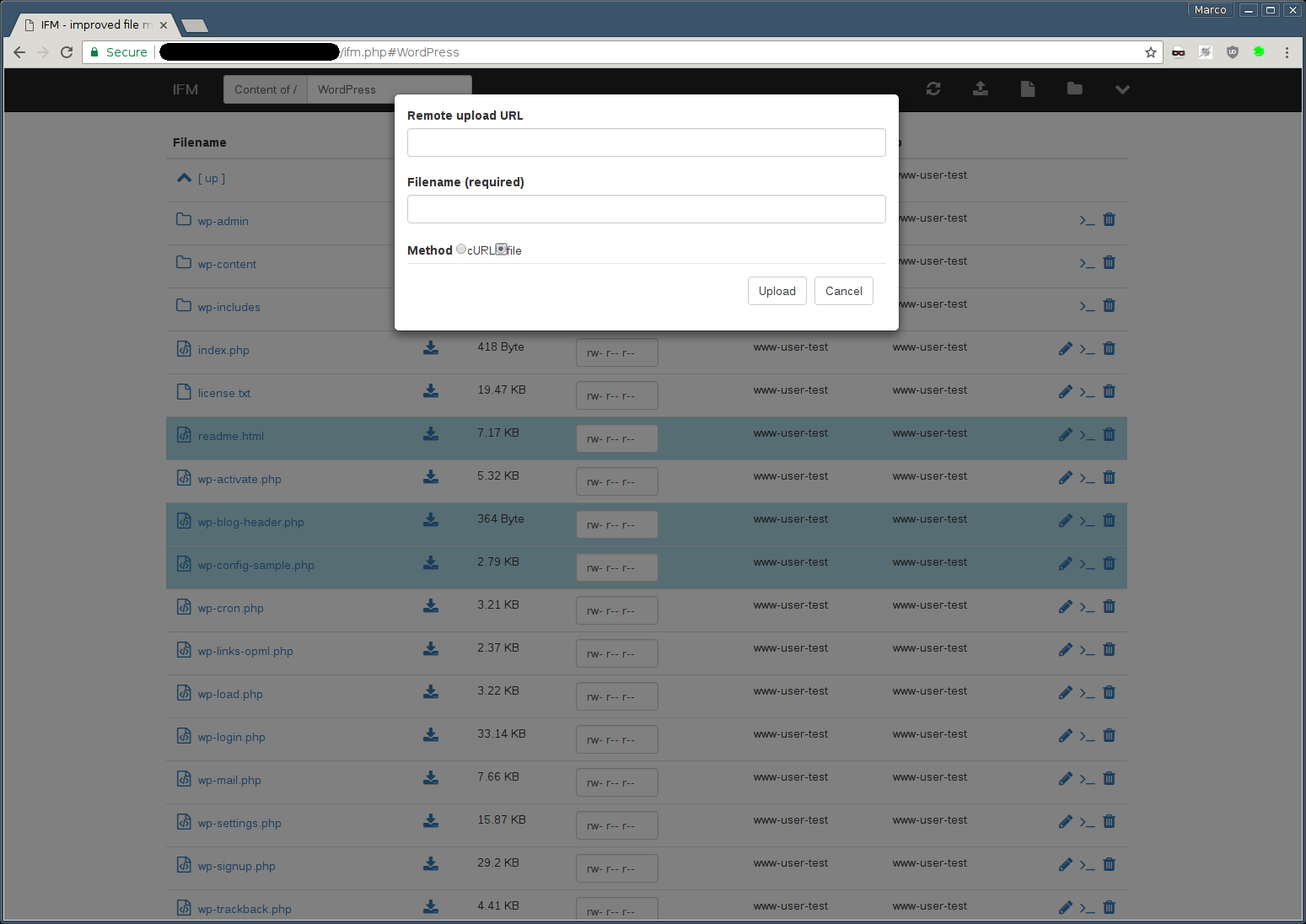
Screenshots



Issues
If you happen to find an error or miss a feature, you can create an issue on Github.