README.md
July 27, 2026 · View on GitHub

Tired of copying page text, switching tabs, and pasting the same context into your AI bot? AI Buddy lets you select text or capture a screenshot on any page, choose an action, and send a ready-made prompt to your preferred chat platform from Chrome's side panel.
Screenshot Prompts
Capture part of the current page, add a short instruction, and send the screenshot plus prompt text to supported chat platforms from the side panel. AI Buddy handles the platform-specific upload flow for Claude, DeepSeek, and WhatsApp Web.

Watch the demo on YouTube · Download MP4
Demo Videos
Official YouTube Demo
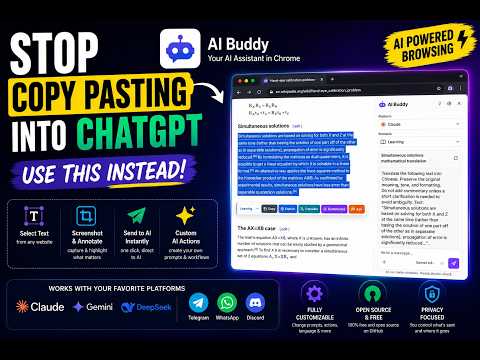
AI Buddy is a Chrome extension that adds a selection toolbar for sending selected page text to an AI chat platform. It opens the platform in Chrome's side panel and uses reusable scenario actions such as Explain, Translate, Summarize, Draft Reply, Polish, Brainstorm, and Visualize.
What's New in v1.2.3
- Added an Options shortcut beside Open side panel in the extension popup for faster settings access.
- Expanded starter Scenarios to 10: Learning, Workplace, Creative, Research, Writing, Coding, Marketing & Sales, Customer Support, Data Analysis, and Planning.
- Added global instructions, pinned favorite Actions, and a Transform menu for tweet, table, mind map, Mermaid, checklist, quiz, flashcards, and user story outputs.
- Added screenshot annotation before send: crop, highlight, blur sensitive areas, draw arrows, and add labels.
- Added Sensitive Data Warning for likely emails, phone numbers, API keys, street addresses, and financial numbers before sending selected text.
- Added keyboard shortcuts for Enable/Disable Toolbar, Open Side Panel, Screenshot, and Next Scenario. View and edit them from the Options Page.
- Added settings import/export, plus per-platform send behavior profiles such as auto-send, draft-only, paste-only, and open-side-panel-first.
- Added Send Behavior to the side panel so platform sending mode is visible where prompts are delivered.
- Simplified messaging auto-send: Send Behavior is now the single source of truth for ChatGPT, Claude, Gemini, DeepSeek, Copilot, WhatsApp, Telegram, and Discord.
- Hardened Telegram Web send-control detection for current button markup.
Important Notes
- AI Buddy is a personal project. It is not affiliated with, endorsed by, sponsored by, or maintained by any AI chat platform or messaging platform.
- You need to sign in to your own account on the target platform before using AI Buddy. The extension does not provide accounts, subscriptions, model access, or platform credentials.
- AI Buddy stores only your extension configuration, such as preferences, scenarios, actions, platform choices, and language settings.
- AI Buddy does not store your prompts or platform conversations. Selected text and generated prompts are sent to the chosen platform only when you trigger an action.
Install Locally
-
Install dependencies:
npm install -
Build the extension:
npm run build -
Open Chrome and go to
chrome://extensions. -
Enable Developer mode.
-
Click Load unpacked and choose the
dist/folder. -
Pin AI Buddy from the Chrome extensions menu for quick access.
Start Using
- Open the AI Buddy popup.
- Choose an active Scenario, Chat Platform, and Response Language.
- Keep the selection toolbar enabled.
- Open a normal webpage, select text, then click an action button such as Explain or Translate.
- AI Buddy opens the side panel, drafts the prompt, and sends or leaves it as a draft based on the active platform's Send Behavior.
Messaging platforms such as WhatsApp, Telegram, and Discord default to Draft only. Change Send Behavior to Auto-send in the side panel or Options page when you want AI Buddy to submit prompts automatically.
Customize
Open the side panel for daily controls such as Platform, Send Behavior, and Scenario. Open the extension options page to manage preferences, scenarios, reusable actions, pinned Actions, platform send behavior, global instructions, and import/export. Scenario action order controls the toolbar order. Editing a reusable action updates every scenario that uses it.
Keyboard Shortcuts
Default shortcuts:
- Enable or Disable Toolbar:
Ctrl+Shift+1 - Open Side Panel:
Ctrl+Shift+2 - Screenshot:
Ctrl+Shift+3 - Next Scenario:
Ctrl+Shift+4
Chrome manages extension shortcuts at chrome://extensions/shortcuts. The Options Page shows the current assignment and links to Chrome's shortcut editor.
Screenshot Annotation
Start a screenshot capture, drag to crop the page region, then choose a Prompt Action. Before sending, AI Buddy opens an annotation screen where you can highlight, blur, draw arrows, add labels, undo changes, or skip annotation.
Development
npm test
npm run build
npm test runs the Vitest suite. npm run build type-checks, builds the extension into dist/, and verifies that Chrome content scripts are classic scripts.