Localization Manager
December 20, 2025 · View on GitHub
Manage localization resources with real-time validation, translation, and code scanning. Supports .resx, JSON, i18next, Android strings.xml, and iOS .strings formats.
Features
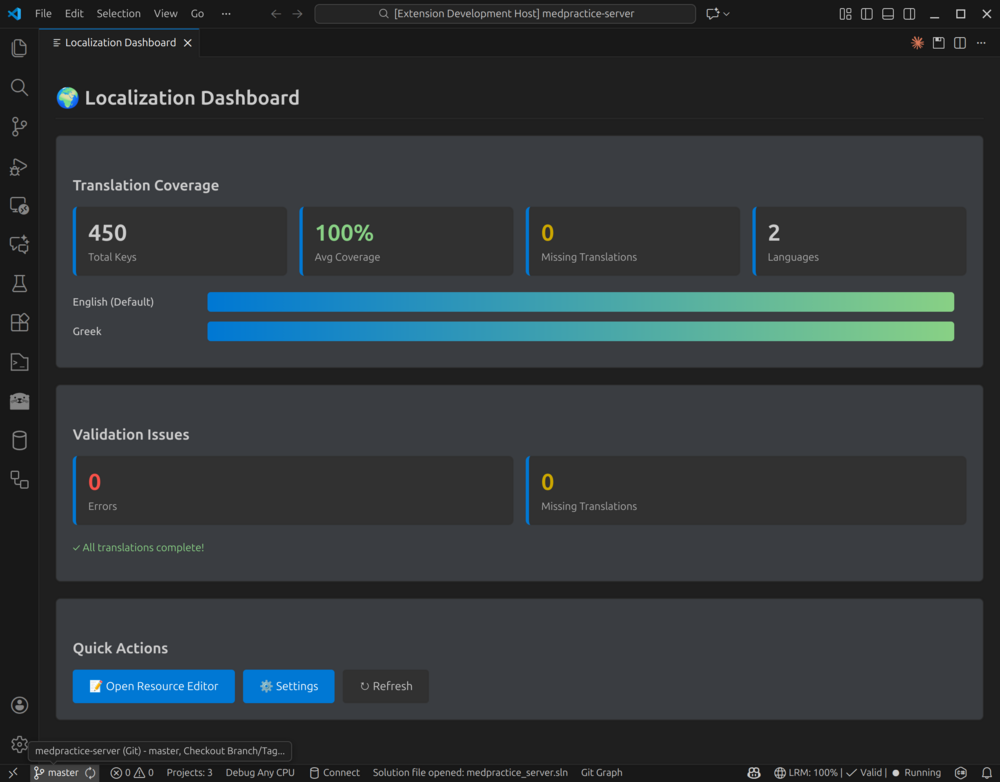
Dashboard
View translation coverage, validation issues, and quick actions at a glance.
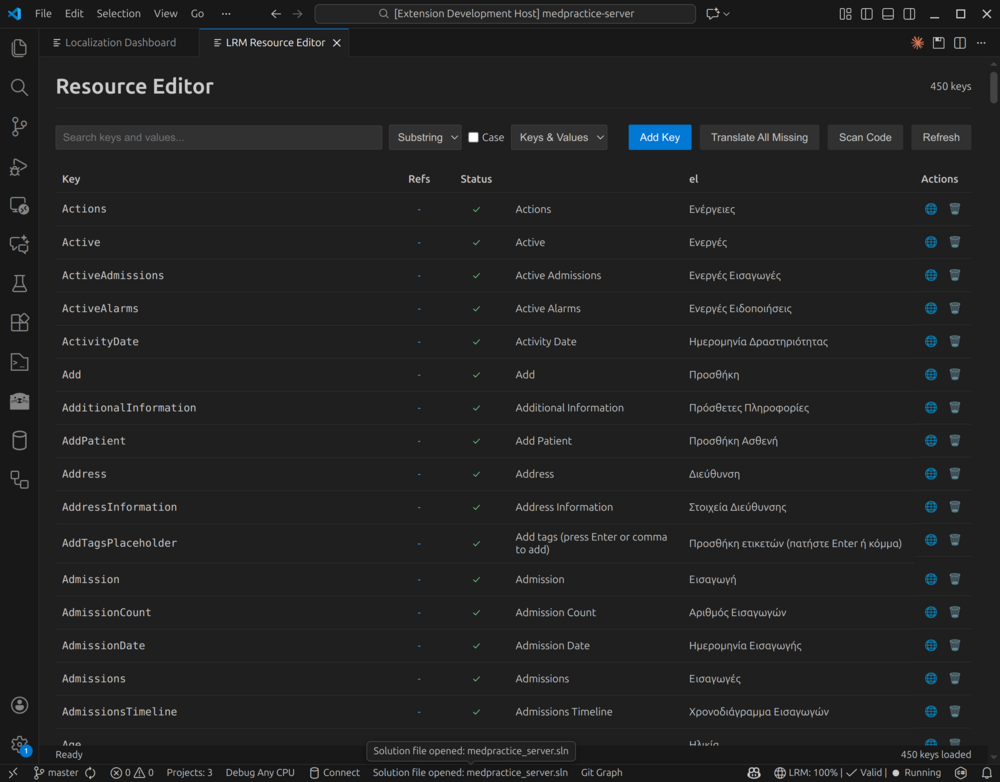
Resource Editor
Edit all languages side-by-side with search, filtering, and bulk actions.
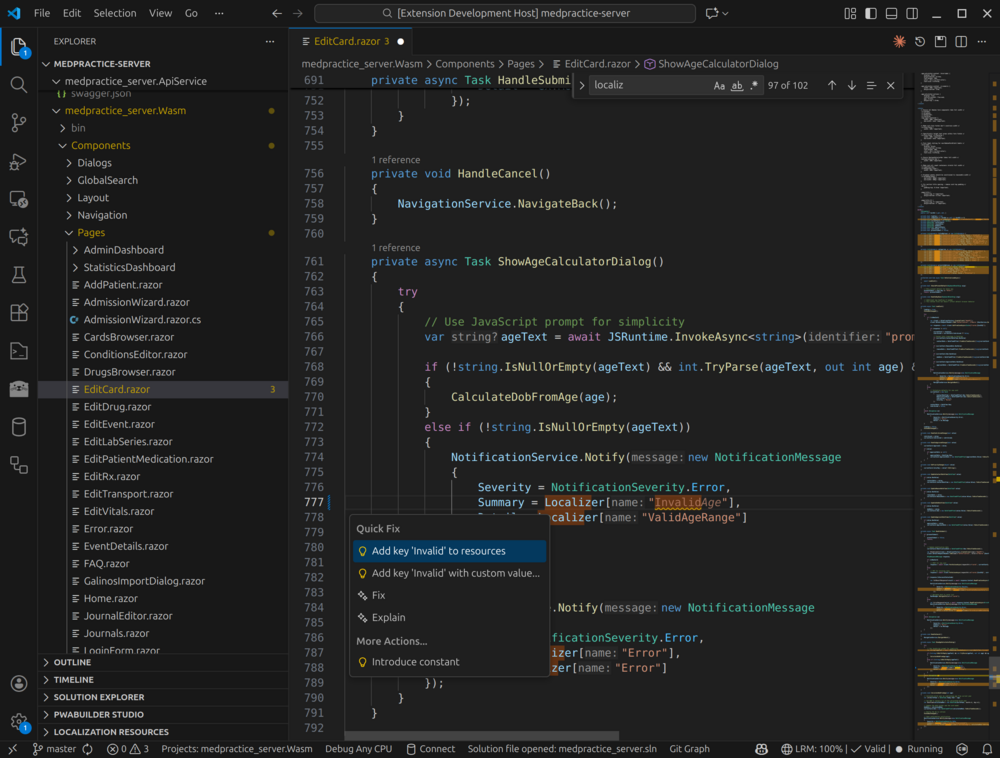
Real-time Code Diagnostics
Get inline warnings for missing localization keys as you type.
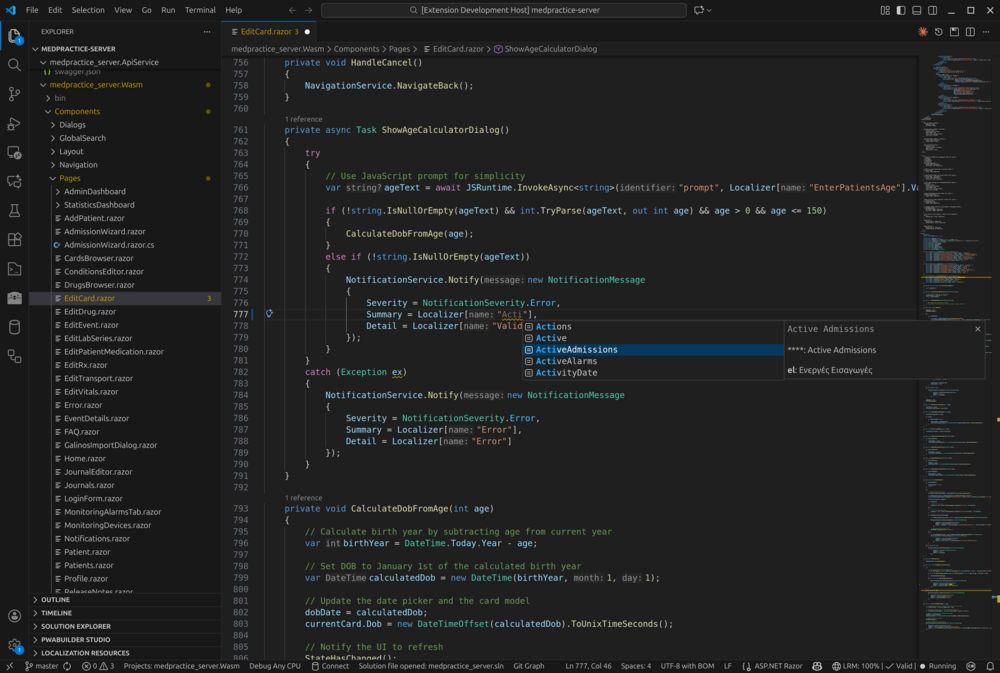
IntelliSense Autocomplete
Get autocomplete suggestions for localization keys as you type. Supports Resources., GetString(", _localizer[" and more patterns.
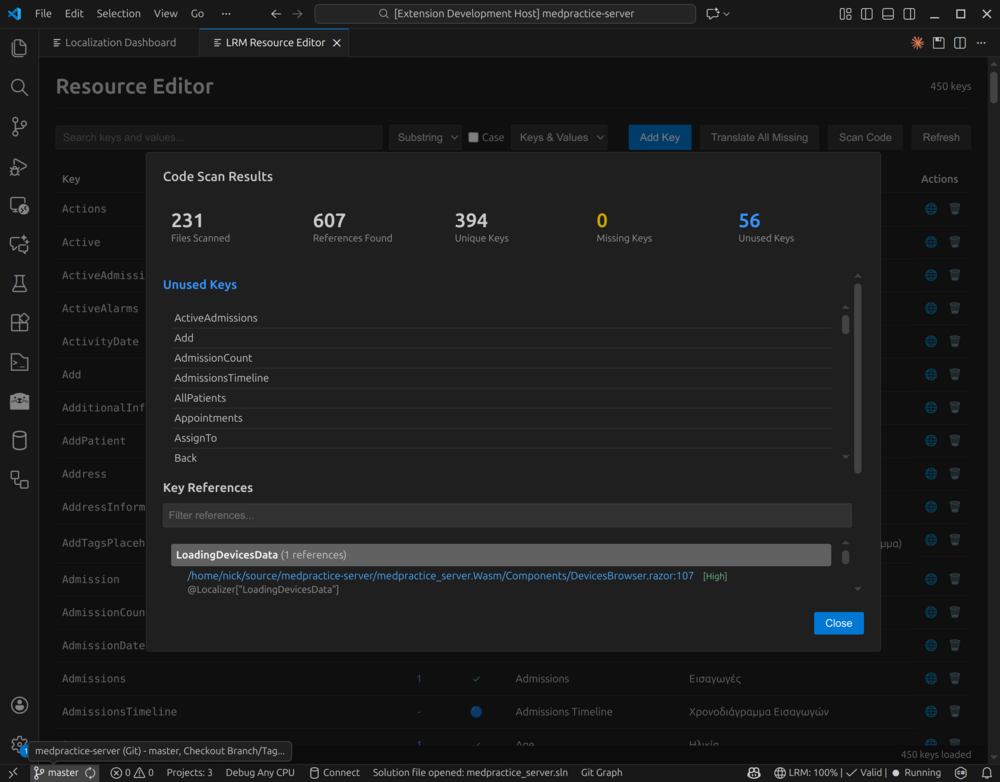
Code Scanning
Find missing and unused keys across your codebase.
CodeLens
Get inline information and actions directly in your code.
In resource files (.resx and .json, above each key):
- Reference count (e.g., "12 references") - click to see all usages
- Language coverage (e.g., "3/5 languages") - click to see missing translations
- Quick translate action
- Warnings for unused or duplicate keys
In code files (.cs, .razor, .xaml, .cshtml):
- Key value preview (e.g., "Welcome to our app")
- Missing language warnings - click to translate
- Click to open the key in Resource Editor
Multi-Format Support
Works with all major localization formats:
- .resx: .NET resource files (
Resources.resx,Resources.fr.resx) - JSON: Standard JSON (
strings.json,strings.fr.json) - i18next: React/Vue/Angular (
en.json,fr.json) with nested keys - Android:
res/values/strings.xml,res/values-es/strings.xml - iOS:
en.lproj/Localizable.strings,es.lproj/Localizable.strings
Auto-detects format based on file naming and folder structure.
Go to Definition (F12)
Press F12 on any localization key in code to jump directly to its definition in the resource file.
- Supports:
Resources.KeyName,Localizer["Key"],t("Key"), and more patterns
Find All References (Shift+F12)
Press Shift+F12 to find all usages of a key across your codebase and resource files.
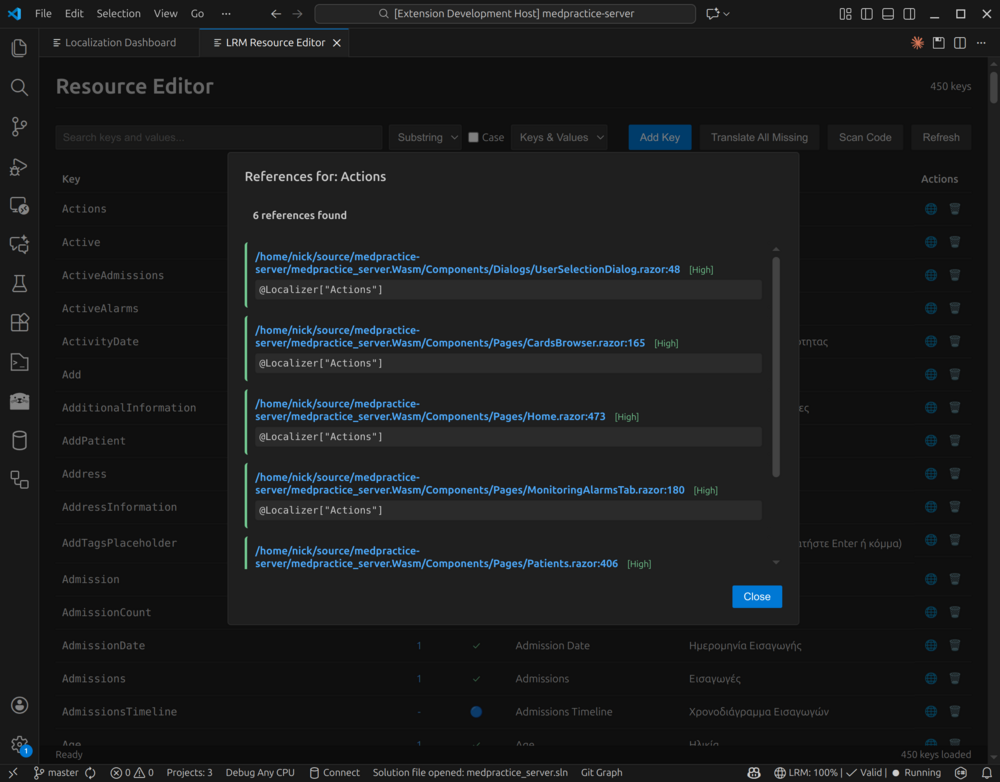
Key References
See exactly where each key is used in your code.
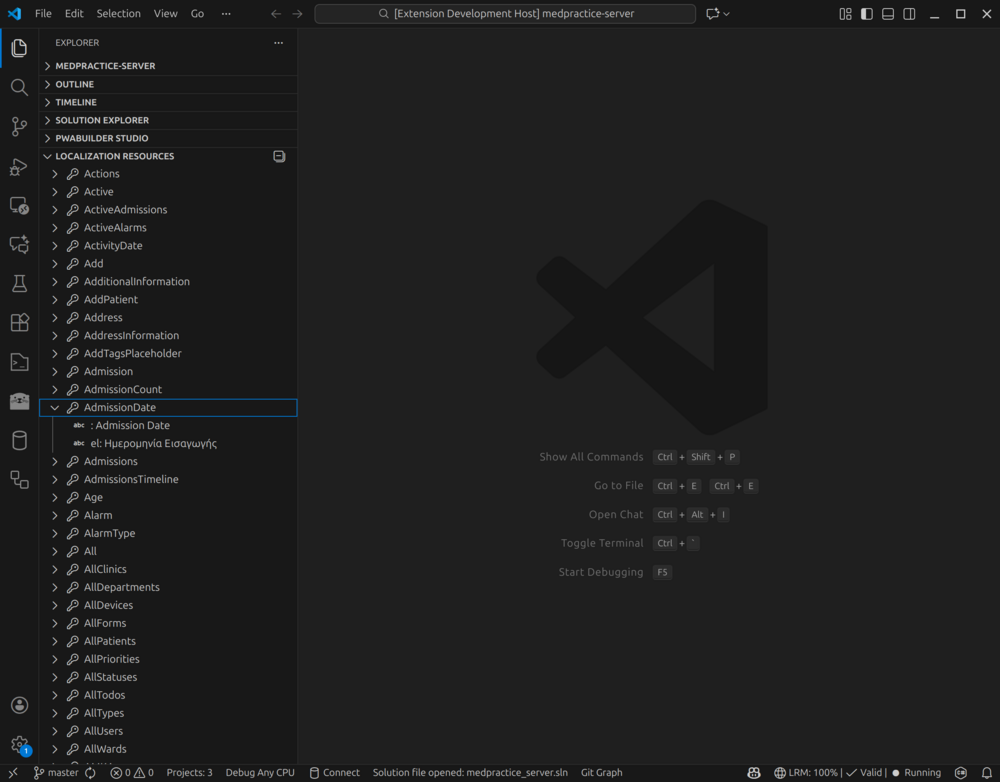
Resource Tree
Browse keys organized by resource file in the Explorer sidebar.
Translation
Translate missing values using free or paid providers.
- Free (no API key): Lingva, MyMemory
- Free (local AI): Ollama - run AI translation locally, completely free and private
- Paid: Google, Azure, AWS, DeepL, OpenAI, Anthropic
Requirements
- VS Code 1.80+
- Workspace with localization files (.resx, .json, Android strings.xml, or iOS .strings)
Quick Start
- Install the extension
- Open a workspace containing localization files (.resx, JSON, Android, or iOS)
- The extension auto-detects resources (if multiple formats found, you'll be asked to choose)
- Use Command Palette (Ctrl+Shift+P) → "LRM:" commands
Commands
| Command | Description |
|---|---|
| LRM: Open Dashboard | View coverage and validation status |
| LRM: Open Resource Editor | Edit resources in web UI |
| LRM: Validate Resources | Check for issues |
| LRM: Scan Code | Find missing/unused keys |
| LRM: Add Key | Add new localization key |
| LRM: Translate Missing Values | Auto-translate |
| LRM: Set Resource Path | Configure resource location |
Settings
| Setting | Description | Default |
|---|---|---|
lrm.resourcePath | Path to resource folder | Auto-detected |
lrm.translationProvider | Default provider | mymemory |
lrm.enableRealtimeScan | Live diagnostics | true |
lrm.scanOnSave | Scan on file save | true |
lrm.enableCodeLens | Show CodeLens annotations | true |
lrm.codeLens.showReferences | Show reference count | true |
lrm.codeLens.showCoverage | Show language coverage | true |
lrm.codeLens.showTranslate | Show translate action | true |
lrm.codeLens.showValue | Show key value in code | true |
Configuration & API Keys
LRM stores configuration in two places:
1. VS Code Settings
Extension-specific settings stored in VS Code workspace settings:
- Resource path, scanning options, file type filters
- These are VS Code-only and don't affect CLI usage
2. lrm.json (Project Configuration)
Shared configuration file for both VS Code extension and CLI:
- Translation provider settings, AI model configurations
- Scanning patterns, validation rules
- Located in your resource folder
API Key Storage
API keys can be configured in three ways (in priority order):
| Method | Security | Shared with CLI |
|---|---|---|
| Environment Variables | High | Yes |
| Secure Credential Store | High (AES-256 encrypted) | Yes |
| lrm.json | Low (plain text) | Yes |
Environment Variables (Recommended for CI/CD)
export LRM_GOOGLE_API_KEY="your-key"
export LRM_OPENAI_API_KEY="your-key"
export LRM_DEEPL_API_KEY="your-key"
Secure Credential Store (Recommended for Development)
API keys are encrypted with AES-256 and stored locally:
- Windows:
%LOCALAPPDATA%\LocalizationManager\credentials.json - Linux:
~/.local/share/LocalizationManager/credentials.json - macOS:
~/.local/share/LocalizationManager/credentials.json
Enable in Settings panel or via CLI:
lrm config set-api-key --provider google --key "your-key"
The encryption uses machine-specific keys, so credentials cannot be copied between machines.
Plain Text in lrm.json (Not Recommended)
{
  "Translation": {
    "ApiKeys": {
      "Google": "your-key-here"
    }
  }
}
Warning: Add
lrm.jsonto.gitignoreif storing API keys in plain text.
Settings Panel
Use LRM: Open Settings to configure:
- Translation providers and API keys
- AI model settings (OpenAI, Claude, Ollama, etc.)
- Code scanning patterns
- Validation rules
The Settings panel shows where each API key is configured (environment, secure store, or config file) and allows testing provider connections.
Troubleshooting
- Backend won't start: Check "LRM Backend" output channel
- Resources not detected: Use "LRM: Set Resource Path"
- Translation fails: Free providers need no setup; paid need API keys
Release Notes
0.6.17
See CHANGELOG
License
MIT - Nikolaos Protopapas