Video Alignment and Synchronization for VapourSynth
August 11, 2026 · View on GitHub
Useful when two sources are available and you want to combine them in ways that only become possible once they are perfectly aligned and synchronized. For example, transferring colors or textures, removing logos or hardsubs, patching crushed areas, creating paired datasets, combining high res Blu-ray chroma with better DVD luma, or similar.
Installation
pip install -U vs_align
- This package requires PyTorch with CUDA (mandatory).
- To enable Temporal Alignment Precision 2, install libvship and julek-plugin to your plugin directory (optional).
Spatial Alignment
Aligns and removes distortions by warping a clip towards a reference clip. See this collection of Comparisons and this one for Mask Usage.
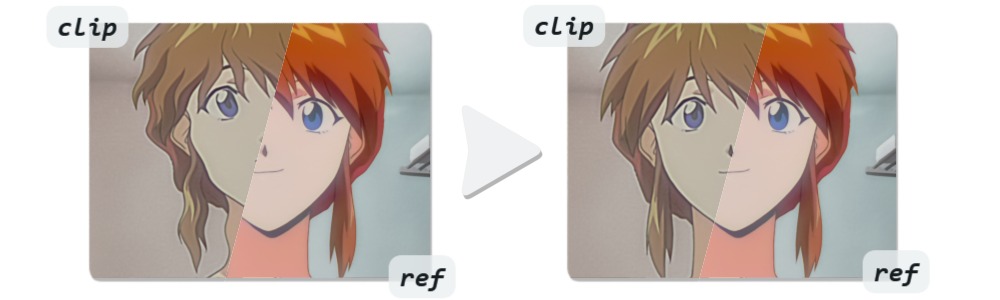
import vs_align
clip = vs_align.spatial(clip, ref, mask=None, precision=3, wide_search=False, lq_input=False, alpha=False, backend="cuda")
clip
Misaligned clip. Must be in RGB format.
ref
Reference clip that misaligned clip will be aligned to. Output will have these dimensions. Must be in RGB format.
mask (optional)
Black & white mask clip where white excludes areas from warping, like a watermark or text that is only on one clip. Masked areas will instead be warped like the surroundings. Can be a static single frame or a moving mask. Can be any format and dimensions. The mask is relative to the ref clip.
precision
Speed/Quality tradeoff in the 1-4 range, with higher meaning more exact and stable alignment up to a subpixel level. Higher is slower and requires more VRAM. 2 or 3 works great in most cases.
wide_search (optional)
Enables a larger search area at the cost of speed. When set to True completely different crops like 4:3 and 16:9, shearing, and rotations up to 45° can be aligned. Recommended if the misalignment is larger than about 20 pixel.
lq_input (optional)
Enables better handling for low-quality input clips. When set to True general shapes are prioritized over high-frequency details like noise, grain, or compression artifacts by averaging the warping across a small area. Also fixes an issue sometimes noticeable in 2D animation, where lines can get slightly thicker/thinner, if that is the case on the reference.
alpha (optional)
Attaches an alpha channel to the output clip where all pixels from the original frame are white and everything else is black. To convert the alpha to a separate clip, use std.PropToClip().
backend (optional)
The backend used to run the alignment model:
cpuCPU mode (very slow).cudaGPU mode. Requires an Nvidia GPU (fast).
Tip
While this is good at aligning very different looking clips, you will make it easier and get better results by prefiltering to make ref as close to clip as possible. For example:
- Always crop black borders, if they don't match exactly.
- If clip has vastly different brightness or colors, make ref roughly match.
Temporal Alignment
Synchronizes a clip with a reference clip by frame matching. It works by searching through a clip and finding the frame that most closely matches the reference clip frame. Sometimes also known as automatic frame remapping.
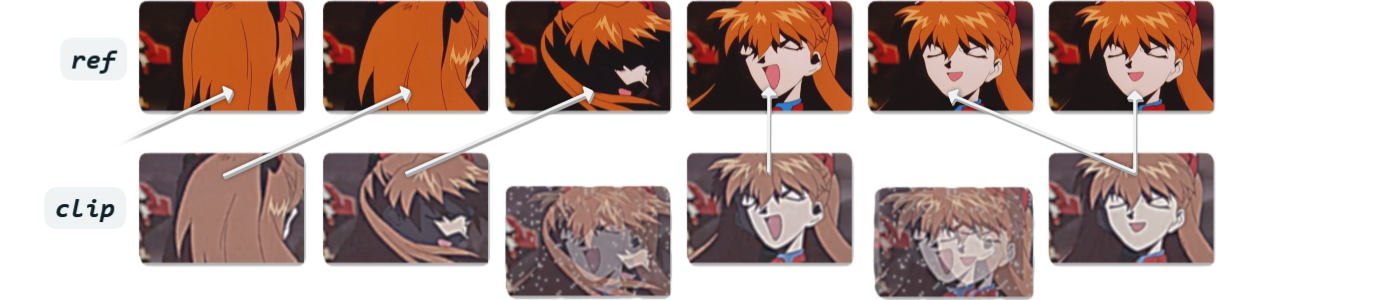
import vs_align
clip = vs_align.temporal(clip, ref, out=None, tr=20, precision=1, fallback=None, thresh=100.0, clip_num=None, clip_den=None, ref_num=None, ref_den=None, backend="cuda", batch_size=None, debug=False)
clip
Unsynched clip. Any format.
ref
Reference clip that unsynched clip will be synched to. Must be same format and dimensions as clip.
out (optional)
Output clip from which matched frames are copied. By default, frames are matched and copied from clip. However, if providing an out clip, the script will still use clip and ref for frame matching but will copy the actual frames in the final output from out. A common use case is downscaling clip and ref for faster matching while preserving the original high res frames in the output. Can be any format and dimensions.
precision
Speed/Quality tradeoff. Different levels have different usecases:
1Clips are visually identical, but frames are out of order. Uses PlaneStats (very fast).2Slight differences like compression, grain, halos, light blurriness. Uses Butteraugli (slow, low vram).3Handles larger differences such as colors, warping, and small spatial misalignment, but ignores small differences and won't match exactly down to the same grain pattern. Uses TOPIQ (slowest, high vram).
tr
Temporal radius determines how many frames to search forwards and backwards for a match. Higher is slower.
fallback (optional)
Fallback clip used when no close match is found. Must have the same format and dimensions as clip (or out if used).
thresh (optional)
Threshold for fallback clip. If frames differ more than this value, fallback clip is used. Use debug=True to get an idea for the values. The ranges differ for each precision level. Does nothing if no fallback clip is set.
clip_num, clip_den, ref_num, ref_den (optional)
Numerator and Denominator for clip and ref. Only needed if clip and ref have different framerates. This tells the function to search for matching frames in the correct location. Can also be used if clips drift out of sync over time.
Example with clip at 29.97fps and ref at 23.976fps: clip_num=30000, clip_den=1001, ref_num=24000, ref_den=1001
backend (optional)
The backend used for frame matching:
cpuCPU mode (slow).cudaGPU mode. Precision 3 requires an Nvidia GPU (fast).
batch_size (optional)
Controls VRAM usage for Precision 3. A value < tr reduces usage, but is slower. None means maximum batch size.
debug (optional)
Overlays matching scores for all frames within the temporal radius and the best match onto the frame.
Tip
Performance: High res frame matching is very slow. For Precision 2 and 3 it is recommended to downscale clip and ref to around 480p and use a high res out clip instead. Both are still very effective at this resolution and far better than Precision 1.
Matching Quality: Even Precision 3 needs the clips to look somewhat similar. You will make it easier and get better results by prefiltering to make ref as close to clip as possible. For example:
- If one clip is cropped, crop the other too so they match as close as possible. Always crop black borders.
- If one clip is brighter or has different colors than the other, make them roughly match.
- If one clip has crushed blacks, crush the other too.
Different Framerates: Keep in mind if clip's framerate is set to be lower than ref's, a perfectly matching frame may not always exist in clip. This is not an issue if clip's framerate is equal or higher than ref's.
Benchmarks
Benchmarks were done on a RTX 4090 GPU and a Ryzen 5900X CPU.
|
|
|||||||||||||||||||||||||||||||||||||||||||
Third-Party Integrations
chaiNNer (Windows and Linux)
ChaiNNer is an image filtering and upscaling program with an easy node based GUI. It comes with vs_align's Spatial Alignment which can be used via the "Align Image to Reference" node. Requires v0.25.0 or newer.
Acknowledgements
Spatial Alignment uses code based on RIFE by hzwer and XFeat by Guilherme Potje, Felipe Cadar, Andre Araujo, Renato Martins, and Erickson R. Nascimento.
Temporal Alignment uses code based on decimatch by po5 and IQA-PyTorch by chaofengc, proposed in the paper TOPIQ by Chaofeng Chen, Jiadi Mo, Jingwen Hou, Haoning Wu, Liang Liao, Wenxiu Sun, Qiong Yan, and Weisi Lin.