README.md
July 15, 2026 · View on GitHub

OrionBelt® Chat
AI-powered chat interface for OrionBelt Analytics & Semantic Layer










A production-ready chat application that connects to OrionBelt Analytics and OrionBelt Semantic Layer MCP servers, providing a conversational interface for database analysis, semantic modeling, and interactive data visualization. Built with Chainlit and Pydantic AI, supporting multiple LLM providers (cloud and local).
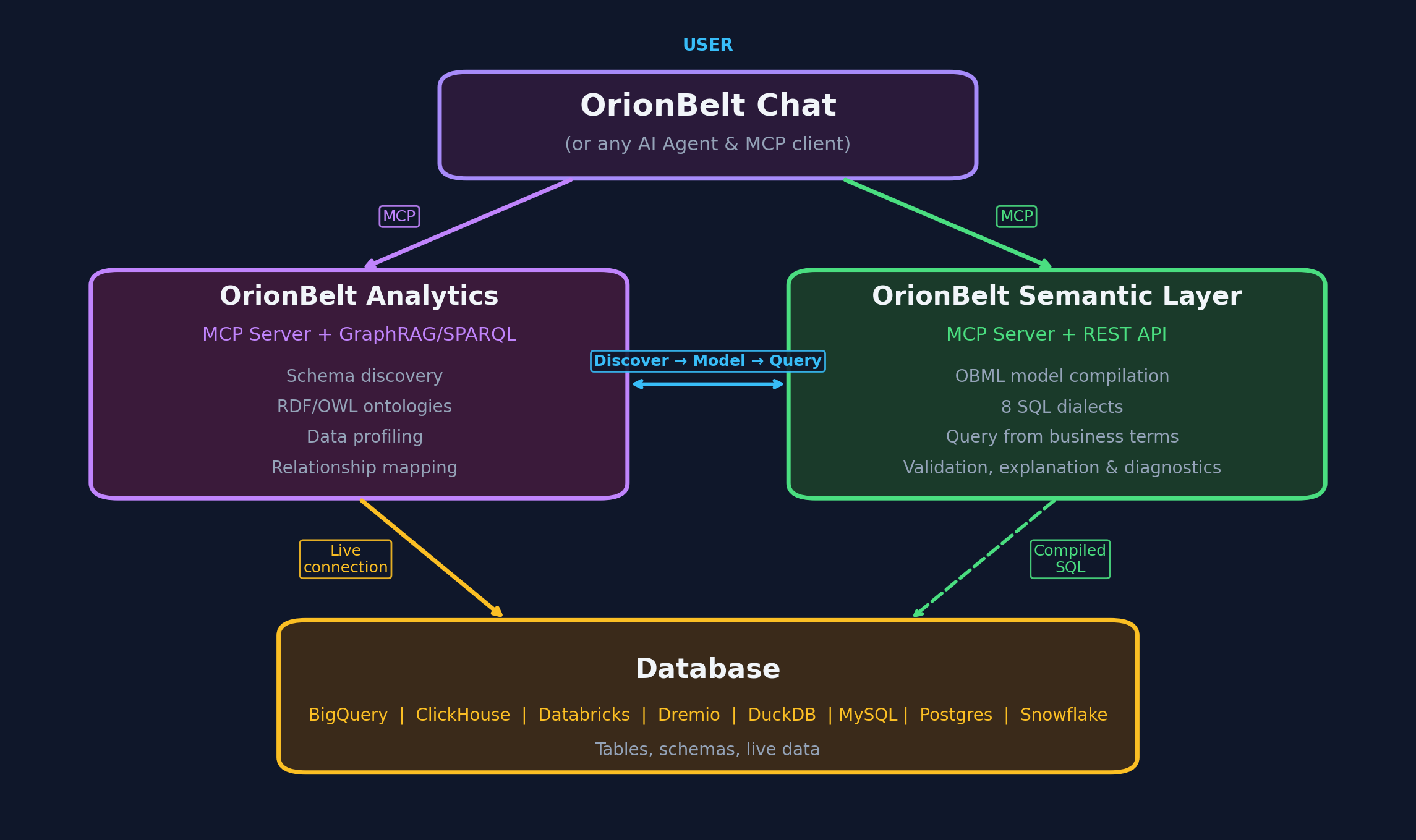
Better Together: Works seamlessly with OrionBelt Analytics and OrionBelt Semantic Layer. Connect to both MCP servers simultaneously for schema-aware ontology generation, semantic modeling, guaranteed-correct SQL compilation, and interactive chart rendering.
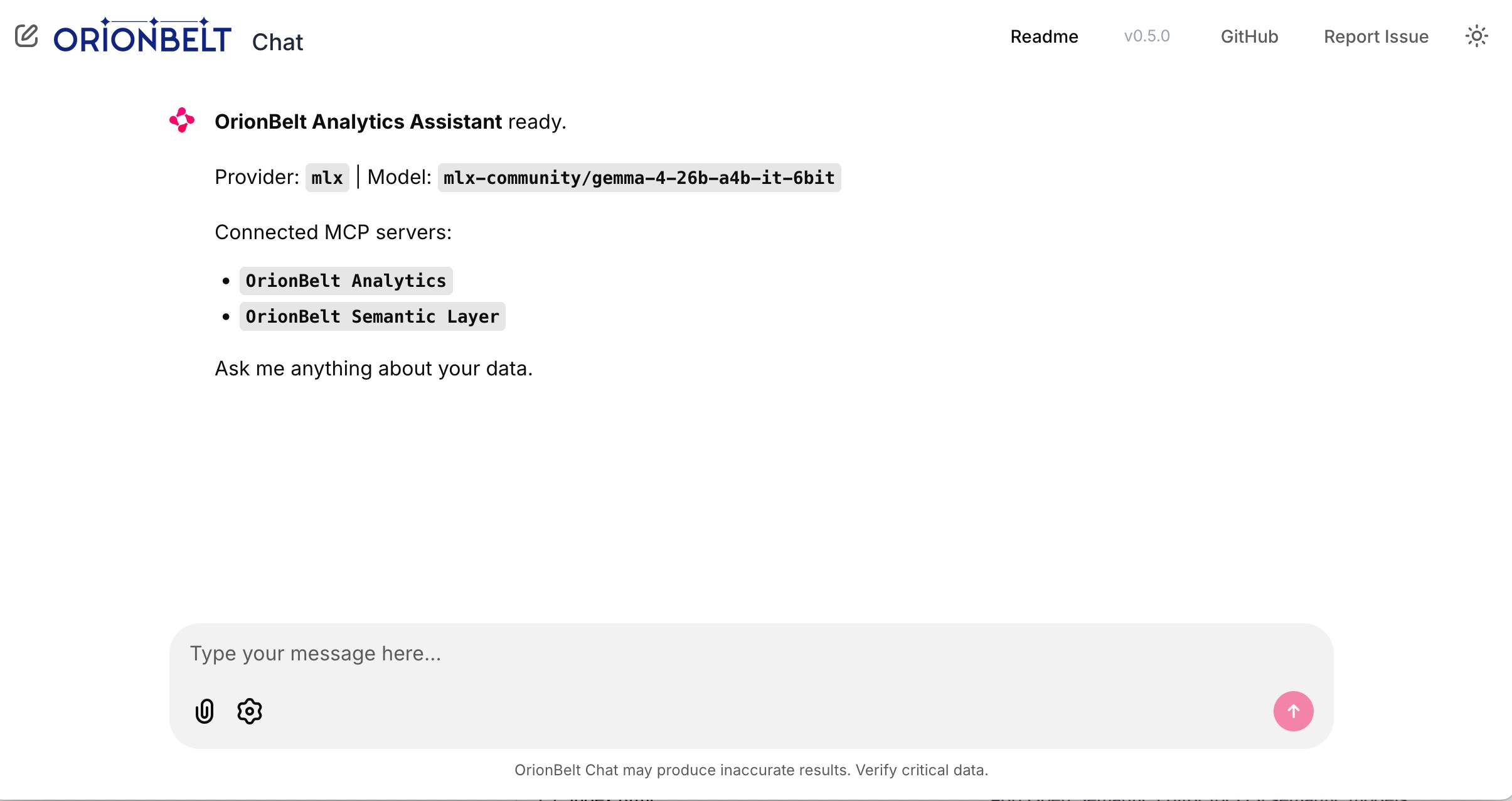
Startup — connected MCP servers, provider & model selection
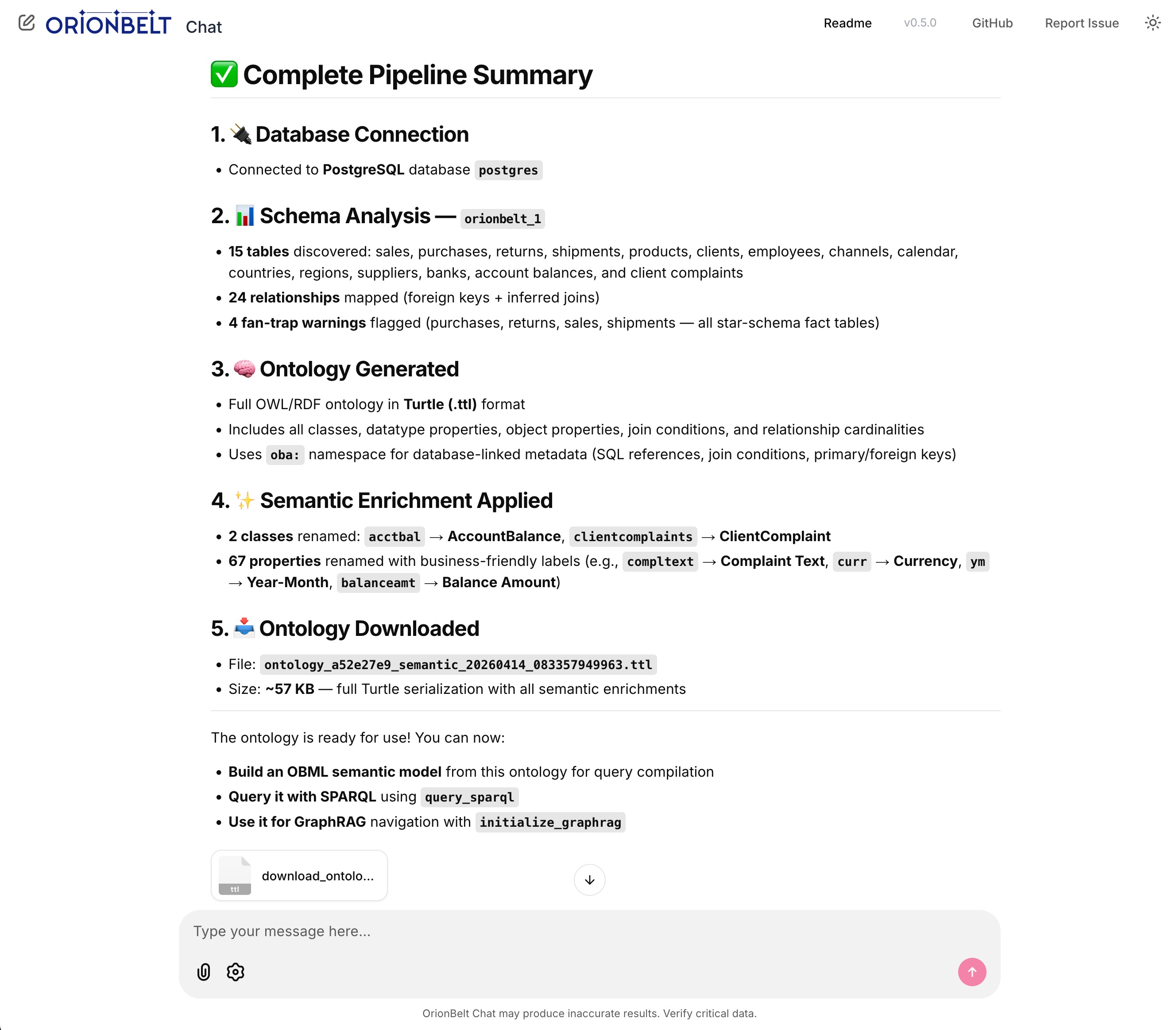
Full pipeline — schema analysis, ontology generation, semantic enrichment & file download
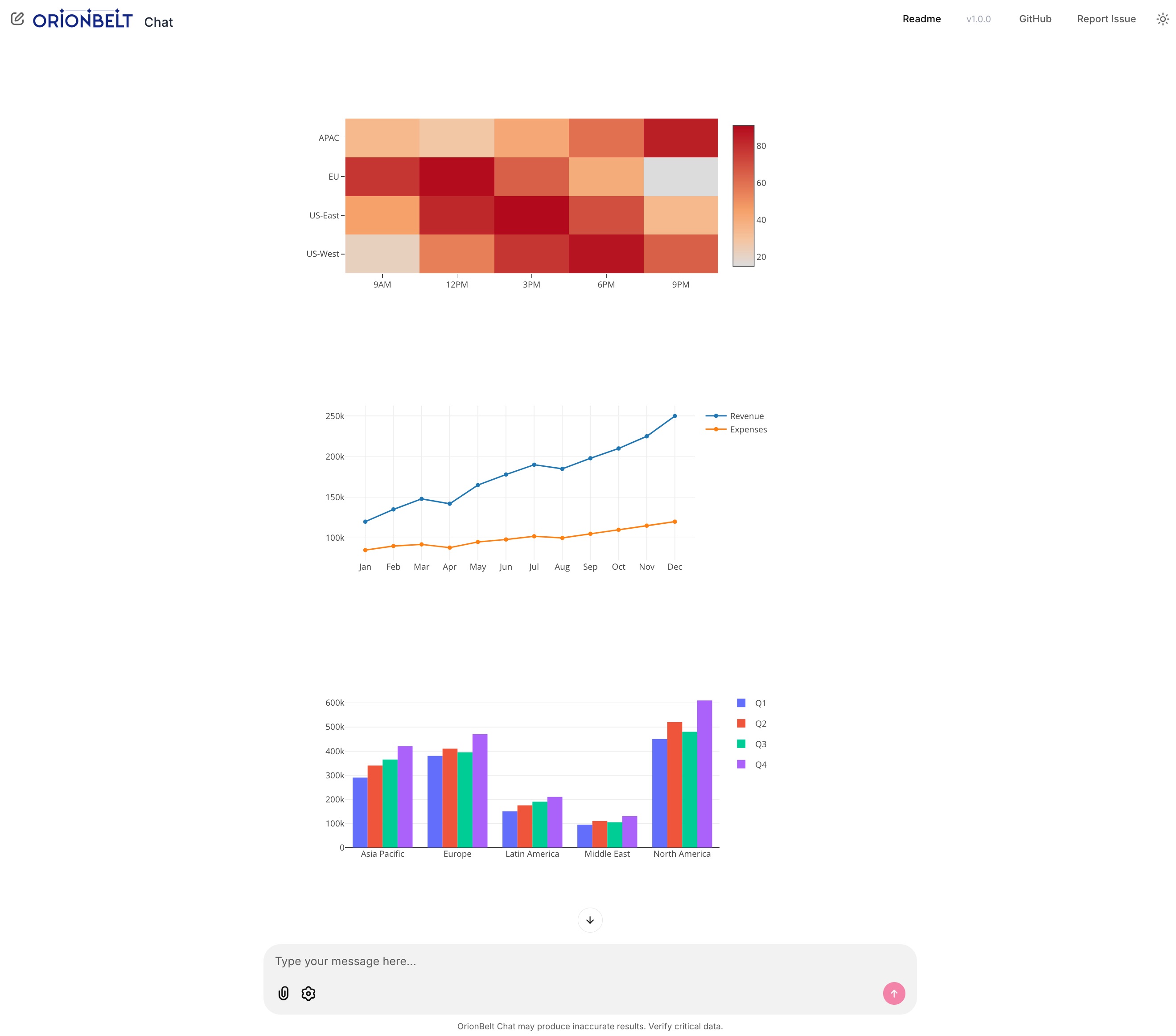
Interactive charts — heatmap, line & grouped bar rendered natively via Plotly.js
Key Features
Multi-Provider LLM Support
- OpenRouter - Access 300+ models via single API (recommended for production)
- MLX - Local inference on Apple Silicon with mlx-openai-server
- Ollama - Cross-platform local inference with easy setup
- Anthropic - Direct API access (bypass OpenRouter)
- OpenAI - Direct API access (bypass OpenRouter)
MCP Integration
- Dual MCP server support - Connect to Analytics and Semantic Layer simultaneously
- Graceful degradation - One unreachable server won't block the app; agent starts with available servers
- Auto-reconnection - Detects MCP session loss and reconnects automatically
- Tool call resilience - Retries failed tool calls up to 3 times; preserves conversation context on errors
- Flexible transport - Stdio (local subprocess) or Streamable HTTP (remote) per server
- MCP sampling (with tools) - Servers can delegate LLM calls back to the chat client via
sampling/createMessage. The client advertises thesampling.toolssub-capability so servers can include tool definitions; sampling requests are handled by the env-configured default model (DEFAULT_PROVIDER+ the matching*_DEFAULT_MODEL) - Tool visibility - Collapsible steps show tool calls with arguments and results
- Multi-turn context - Full conversation history management with Pydantic AI
Interactive Charts
- Native Plotly rendering - Charts render inline via Chainlit's bundled Plotly.js (no Python plotly package needed)
- FastMCP Apps integration - Fetches chart data from
ui://resource URIs returned by MCP tools - Multiple chart types - Bar, line, scatter, heatmap with auto-detection
- Multiple extraction strategies - Handles Plotly figure dicts,
Plotly.newPlot()in HTML, and bare trace arrays
Mermaid Diagrams
- Client-side rendering - Mermaid.js loaded from CDN renders
erDiagram,flowchart,sequenceDiagram, and other diagram types inline - Auto-detection - Mermaid syntax in MCP tool results is automatically surfaced as a rendered diagram
- Theme-aware - Diagrams re-render when switching between light and dark mode
File Downloads
- Auto-detection - Recognizes downloadable content in tool results and LLM response code blocks
- Supported formats - Turtle/RDF (.ttl), JSON, CSV, SQL, SPARQL, YAML, XML
- Smart extraction - Handles dict-shaped tool returns (e.g.
{'success': True, 'content': '@prefix ...'}) - Inline attachments - Download buttons appear directly in the response message
Real-Time Streaming
- Token-by-token streaming - Smooth response rendering as the model generates
- Thinking indicator - Visual spinner while the model processes before responding
- Tool call tracking - Visual feedback for each MCP tool invocation with correct result matching
- Stop generation - Click the stop button or press Escape to cancel
- Error handling - Graceful failures with clear error messages
Chainlit UI
- Settings panel - Switch providers and models on the fly; header updates live
- Custom model input - Override default models with specific versions
- Customizable system prompt - Edit
system_prompt.mdor setSYSTEM_PROMPT_FILEenv var - Message recall - Press Arrow Up/Down in the input to navigate message history
- Responsive design - Works on desktop and mobile browsers
Quick Start
Prerequisites
- Python 3.11+ (3.13 recommended)
- uv package manager (install)
- OrionBelt Analytics and Semantic Layer repos cloned alongside this one
Installation
# Clone the repository
cd orionbelt-chat

# Install dependencies
uv sync

# Copy environment template
cp .env.example .env

# Edit .env and add your API keys
Configuration
Edit .env and configure your LLM provider:
Option 1: OpenRouter (recommended for cloud)
OPENROUTER_API_KEY=sk-or-v1-...
OPENROUTER_DEFAULT_MODEL=anthropic/claude-sonnet-4-5
DEFAULT_PROVIDER=openrouter
Option 2: Anthropic direct
ANTHROPIC_API_KEY=sk-ant-...
ANTHROPIC_DEFAULT_MODEL=claude-sonnet-4-6   # or claude-opus-4-6
DEFAULT_PROVIDER=anthropic
Option 3: OpenAI direct
OPENAI_API_KEY=sk-...
OPENAI_DEFAULT_MODEL=gpt-4o
DEFAULT_PROVIDER=openai
Option 4: MLX local (Apple Silicon)
# Start mlx-openai-server first:
mlx-openai-server launch \
  --model-path mlx-community/Qwen2.5-14B-Instruct-4bit \
  --model-type lm \
  --enable-auto-tool-choice \
  --port 8000

MLX_DEFAULT_MODEL=mlx-community/Qwen2.5-14B-Instruct-4bit
DEFAULT_PROVIDER=mlx
Option 5: Ollama local (cross-platform)
# Start Ollama first: ollama serve
OLLAMA_DEFAULT_MODEL=qwen2.5:14b
DEFAULT_PROVIDER=ollama
MCP Server Paths:
# Each can be a local directory (stdio) or HTTP(S) URL (Streamable HTTP):
ANALYTICS_SERVER_DIR=../orionbelt-analytics
SEMANTIC_LAYER_SERVER_DIR=../orionbelt-semantic-layer-mcp
# Remote example: ANALYTICS_SERVER_DIR=https://analytics.example.com/mcp
System Prompt (optional):
# Override the default system prompt file (defaults to system_prompt.md)
# SYSTEM_PROMPT_FILE=~/my_custom_prompt.md
Run
uv run chainlit run app.py --watch
Open http://localhost:8080 in your browser.
Run with Docker
The app ships with a Dockerfile and docker-compose.yml so you can run it
without a local Python/uv toolchain.
Using Docker Compose (recommended):
# Configure your API keys first
cp .env.example .env   # then edit .env

docker compose up --build
Using plain Docker:
docker build -t orionbelt-chat .
docker run --rm -p 8080:8080 --env-file .env orionbelt-chat
Using the published image from Docker Hub:
docker run --rm -p 8080:8080 --env-file .env ralforion/orionbelt-chat:latest
Open http://localhost:8080 in your browser. Configuration is read from the
environment (see .env.example); pass it via --env-file .env or individual
-e KEY=value flags.
Usage Examples
Connect to database:
Connect to my PostgreSQL database at localhost
Schema analysis:
Analyze the schema and show me all tables with their relationships
Query with charts:
Show me revenue by product category as a bar chart
Download an ontology:
Generate an ontology for the schema and download it as Turtle
Explore semantic models:
What OBML models are available in the semantic layer?
Generate OBML model:
Create an OBML model for customer analytics with metrics for revenue, order count, and average order value
Architecture
┌──────────────────────────────────────────────────────────────┐
│          OrionBelt Chat (Chainlit + Pydantic AI)             │
│                                                              │
│  ┌──────────┐         ┌──────────────────────────────────┐   │
│  │  Chat UI │         │  Pydantic AI Agent + MCP Client  │   │
│  │          │────────>│  - Multi-turn context            │   │
│  │ Chainlit │         │  - Streaming events              │   │
│  │  2.10+   │         │  - Tool orchestration            │   │
│  └──────────┘         └──────────────────────────────────┘   │
└──────────────────────────────────────────────────────────────┘
         │                      │
         │                      ├──> orionbelt-analytics (MCP stdio or HTTP)
         │                      │    - Schema analysis
         │                      │    - Ontology generation & download
         │                      │    - SQL execution
         │                      │    - Interactive Plotly charts
         │                      │
         │                      └──> orionbelt-semantic-layer (MCP stdio or HTTP)
         │                           - OBML model management
         │                           - Semantic query compilation
         │                           - Guaranteed-correct SQL
         │
         └──> LLM Provider (OpenRouter/MLX/Ollama/Anthropic/OpenAI)
Key Components:
- Chainlit 2.10+ - Chat UI framework with streaming, steps, and settings
- Pydantic AI 2.10+ - Agent framework with node-by-node iteration (
agent.iter()) - MCP Transport - Stdio (local subprocess) or Streamable HTTP (remote) per server
- Chart Renderer - Native Plotly rendering from FastMCP Apps
ui://resources - Mermaid Renderer - Client-side diagram rendering via Mermaid.js CDN
- File Downloads - Auto-detect downloadable content (TTL, JSON, CSV, SQL) in tool results
Development
# Install dev dependencies
uv sync --group dev

# Run tests (when available)
uv run pytest

# Format code
uv run ruff format

# Lint
uv run ruff check --fix
Provider Details
OpenRouter
- Access: 300+ models via single API
- Reliability: Best tool-calling support across vendors
- Recommended models:
anthropic/claude-sonnet-4-5- Best balance of speed and reasoninganthropic/claude-opus-4-5- Maximum intelligencegoogle/gemini-2.5-pro- Fast and cost-effective
- Setup: Get API key at openrouter.ai
Anthropic (direct)
- Access: Direct API, no intermediary
- Available models:
claude-sonnet-4-6- Fast, excellent tool use (default)claude-opus-4-6- Maximum intelligenceclaude-haiku-4-5-20251001- Fastest, lowest cost
- Setup: Get API key at console.anthropic.com
OpenAI (direct)
- Access: Direct API, no intermediary
- Available models:
gpt-4o- Best balance (default)gpt-4o-mini- Fast and cost-effectiveo3-mini- Reasoning model
- Setup: Get API key at platform.openai.com
MLX (Apple Silicon)
- Platform: Mac with Apple Silicon (M1/M2/M3/M4)
- Requirements:
mlx-openai-server - Recommended models:
mlx-community/Qwen2.5-14B-Instruct-4bit- Excellent tool usemlx-community/Qwen2.5-32B-Instruct-4bit- Better reasoning (requires 32GB+ RAM)
- Setup: Install with
pip install mlx-openai-server - Notes: Must use
--enable-auto-tool-choiceflag for tool calling
Ollama
- Platform: Cross-platform (Mac/Linux/Windows)
- Ease of use: Simplest local setup
- Recommended models:
qwen2.5:14b- Good balance of speed and accuracyqwen2.5:32b- Better reasoning (requires 32GB+ RAM)
- Setup: Download from ollama.com
- Notes: Built-in tool calling support with instruct models
Troubleshooting
MCP servers not connecting
Symptom: Status message shows "Failed to connect" for one or more servers
The app starts even when some servers are unreachable — it will show which connected and which failed. If a session drops mid-conversation, the app automatically reconnects.
Solutions:
- Ensure
ANALYTICS_SERVER_DIRandSEMANTIC_LAYER_SERVER_DIRpoint to correct paths - For local (stdio): check that repos have dependencies installed (
uv sync) - For remote (HTTP): verify the URL is reachable and the server is running
- Verify MCP servers can start independently (
uv run server.py)
Charts not rendering
Symptom: Charts don't appear after generate_chart tool call
Solutions:
- Verify
orionbelt-analyticshas MCP Apps support (v1.2.0+) - Check server logs for
Chart URI detectedandPlotly JSON extractedmessages - Ensure the analytics server returns a
ui://resource URI in the tool result - Verify the resource content contains parseable Plotly figure data
MLX model not calling tools
Symptom: Model ignores tools and tries to answer directly
Solutions:
- Ensure
--enable-auto-tool-choiceflag is set when starting mlx-openai-server - Use an instruct-tuned model (with
-Instructsuffix) - Try a different model (Qwen2.5 series has best tool support)
- Check mlx-openai-server logs for errors
Streaming stops or hangs
Symptom: Response stops mid-generation or "Thinking" indicator stays visible
Solutions:
- Press Escape or click the stop button to cancel, then retry
- Check MCP server logs for errors
- Verify tool calls are completing successfully (expand steps in the UI)
- Increase timeout settings if using slow local models
- Check the server console for detailed logs (each node transition is logged)
License
Licensed under the Business Source License 1.1 (BSL 1.1).
- Production use allowed for internal/personal use
- Commercial embedding/SaaS restrictions - contact licensing@ralforion.com
- Change Date: 2030-04-05
- Change License: Apache 2.0
See LICENSE for full terms.
Links
OrionBelt Platform
- OrionBelt Analytics - MCP server for database analysis and ontology generation
- OrionBelt Semantic Layer - MCP server for OBML models and semantic SQL compilation
- OrionBelt Ontology Builder - Visual ontology editor (Streamlit app)
Frameworks
- Chainlit - Chat UI framework
- Pydantic AI - Agent framework with MCP support
- Model Context Protocol - Tool integration standard
LLM Providers
- OpenRouter - Unified API for 300+ models
- MLX - Apple Silicon inference
- Ollama - Local LLM runtime

Copyright © 2026 RALFORION d.o.o.
OrionBelt® is a registered trademark of RALFORION d.o.o.