F# Interactive Plugin for Notepad++
May 16, 2025 · View on GitHub


Usage
| Default shortcut | Command |
|---|---|
| Alt + Shift + F12 | open/close the FSI console window |
| Alt + Enter (with text selected) | evaluate the active selection in FSI |
| none | pass the current file to FSI's #load directive 1 |
Note
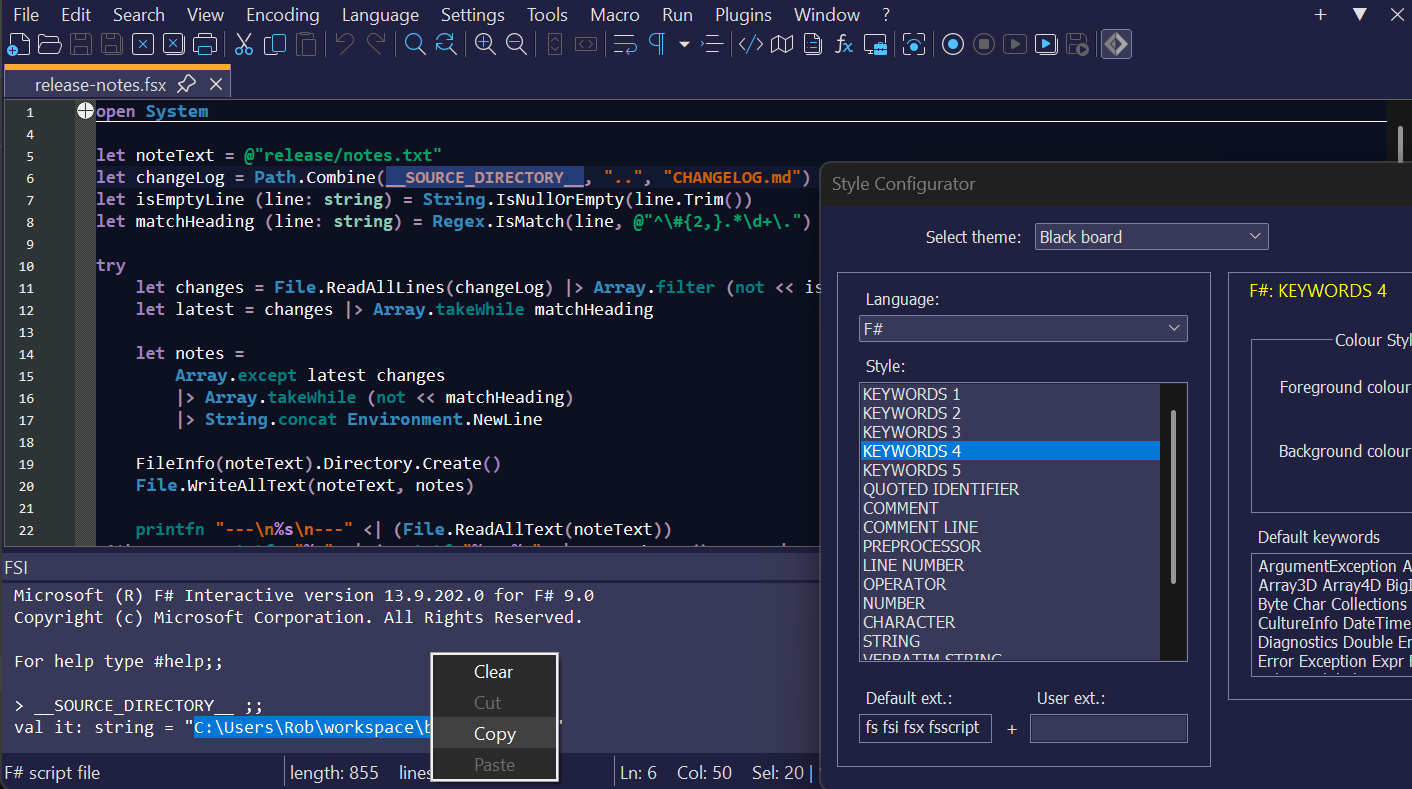
Console output can be selected and copied to the clipboard by right-clicking in the console window.
F# Syntax Highlighting
Notepad++ 8.4.3 and later
Opening any file with the extension *.fs, *.fsx, *.fsi or *.fsscript will activate Lexilla's F# lexer.
Older Notepad++ versions
For dark themes, copy the Obsidian theme F# UDL into %AppData%\Notepad++\userDefineLangs (system-wide Notepad++ installation),
or the userDefineLangs folder of a portable Notepad++ installation.
For the default or a light theme, use the default F# UDL.
Note
Both UDLs have "transparent" backgrounds (i.e., colorStyle="1").
How to configure tab settings for F# source files
Notepad++ 8.8.1 and later
With the plugin loaded, modify your indentation preferences for F# (or "fsharp", if using version 0.2.2.0 and older).
Older Notepad++ versions
F# Interactive v0.2.3.1 and later
-
Open the plugin options dialog:

-
To indent using spaces, check the box beside Convert tabs to spaces
-
To indent using hard tabs, uncheck the box beside Convert tabs to spaces
-
Set the number of spaces (or tab size) using the Tab length edit control

Older plugin versions
XML configuration file
To make 4 spaces the default tab setting for F# files when Notepad++ starts, do the following:
-
Open
NPPFSIPlugin.xmlin%AppData%\Notepad++\plugins\Configor$(PORTABLE_NPP_DIR)\plugins\Config -
Add the attribute
tabSettings="132"to the node/NotepadPlus/Languages/Language[@name="F#"](or/NotepadPlus/Languages/Language[@name="fsharp"], if using version 0.2.2.0 and older)For example:
- <Language name="F#" ext="fs fsi fsx fsscript" commentLine="//" commentStart="(*" commentEnd="*)">
+ <Language name="F#" ext="fs fsi fsx fsscript" tabSettings="132" commentLine="//" commentStart="(*" commentEnd="*)">
The "magic" number 132 is explained here.
Installation
Plugins Admin
A builtin plugin manager is available in Notepad++ versions 7.6 and newer.
Find Plugins on the main menu bar and select Plugins Admin. Check the box beside F# Interactive and click Install.
Manual installation
-
Download a release archive
-
Extract the
NPPFSIPlugin.dllmodule and subfolders (Doc,Config) -
Right-click on
NPPFSIPlugin.dlland select Properties:
-
If the Unblock option is shown, click the checkbox and click Apply, then OK:

-
System-wide Notepad++ installation
- Create a folder named
NPPFSIPluginunder%ProgramFiles%\Notepad++\plugins(64-bit), or%ProgramFiles(x86)%\Notepad++\plugins(32-bit)
- Create a folder named
-
Portable Notepad++
- Locate the
pluginsfolder wherenotepad++.exeis installed - Create a folder named
NPPFSIPlugin
- Locate the
-
Move the
NPPFSIPlugin.dllmodule andConfigsubfolder into theNPPFSIPluginfolder:
-
Restart Notepad++ if it’s already running
Acknowledgements
Original source code © 2010 Prapin Peethambaran, MIT License
The FpcPipes unit is adapted from source code believed to be in the Public Domain: https://github.com/marsupilami79/DelphiPipes#licensing
The F# Software Foundation logo for F# is an asset of the F# Software Foundation: https://foundation.fsharp.org/logo
License
Distributed under the terms of the GNU General Public License, Version 3 or later, in addition to the rights of past contributors mentioned in Copyright.txt.
Footnotes
-
Also starts a new FSI session if one is not currently active. ↩